
How to Copy And Paste on a Acer Laptop: Quick Guide
Have you ever found yourself staring at your Acer laptop screen, trying to figure out the simple task of copying and pasting? You’re not alone.
Whether you’re crafting a document, organizing notes, or sharing a piece of information, knowing how to efficiently copy and paste can save you a lot of time and effort. Imagine speeding through your work without the hassle of manually typing everything out again.
This guide is designed just for you, making copying and pasting as easy as pie. Discover the secrets of mastering these essential keyboard shortcuts and watch your productivity soar. Are you ready to take control of your Acer laptop and simplify your digital tasks? Let’s dive in and transform the way you work!
Basic Copy And Paste Methods
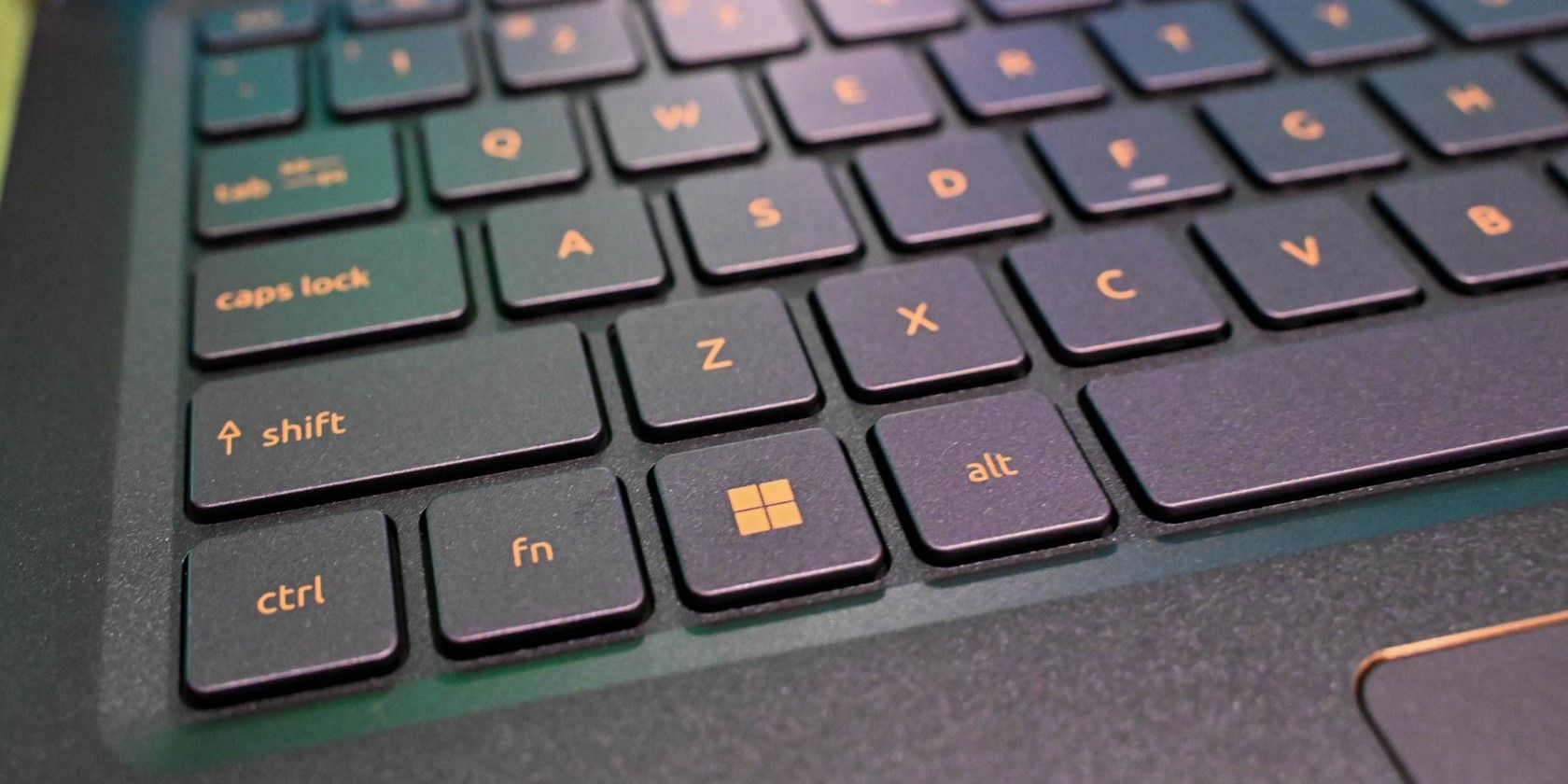
Keyboard shortcuts make copying and pasting easy on an Acer laptop. To copy, press the Ctrlkey and the Ckey together. To paste, use the Ctrlkey and the Vkey. These shortcuts work in most programs. They save time and effort.
Practice these shortcuts to become faster. They help you work quickly. Remember the keys to use. This will make tasks easier.
You can also use the mouse to copy and paste. First, select the text you want to copy. Right-click the selected text. Then choose Copy from the menu. To paste, right-click where you want the text. Choose Paste from the menu.
Using the mouse is simple. It is good for beginners. You can see options on the screen. This helps you know what to do next.
Credit: www.makeuseof.com
Copy And Paste In Windows
To copy a file on an Acer laptop, first, find your file. Click the file once to select it. Right-click the file and choose Copy. Navigate to the folder where you want the file. Right-click in the folder and select Paste. Your file will now appear there. This is simple and quick.
In a text app, highlight the words you need. Use your mouse or touchpad to select the text. Right-click on the selected text, then choose Copy. Go to where you want to place the text. Right-click and select Paste. Your text will show up there. This works in documents and emails.
Copy And Paste In Web Browsers
On an Acer laptop, copying and pasting is simple. Highlight the text, press Ctrl+C to copy, then Ctrl+V to paste. This quick method works in most web browsers, making tasks faster and easier.
Copying Web Text
Select the text you want to copy. Click and drag your mouse over the text. Right-click on the selected text. Choose the “Copy”option from the menu. You can also press Ctrl + Con your keyboard. This will copy the text to your clipboard.
Pasting Into Documents
Open the document where you want to paste. Place your cursor where the text should go. Right-click to open the menu. Choose “Paste”from the list. You can also use Ctrl + Von your keyboard. The text will appear in your document.
Troubleshooting Common Issues
Copying and pasting on an Acer laptop is straightforward. Highlight the text, press Ctrl+C to copy, then Ctrl+V to paste. Adjust settings if keyboard shortcuts don’t work.
Clipboard Malfunctions
Sometimes the clipboard can stop working. This makes copying hard. Restarting your Acer laptop often helps. It refreshes the system. If the problem persists, check for updates. Software updates can fix bugs. Also, make sure your laptop is not overloaded. Running many apps can slow down the clipboard. Close unnecessary programs. This frees up memory for tasks.
Compatibility Problems can arise with certain files. Some files do not copy well. Check if the file format is supported. If not, try converting the file. Use free online tools for this. Drivers can also cause issues. Outdated drivers might affect copying. Update drivers regularly for smooth operation. Always ensure drivers are up-to-date.
Advanced Copy And Paste Tips
Third-party tools can make copying and pasting easier. Some tools offer extra features. Clipboard management apps help store multiple items. This means no need to paste one by one. Users can save texts, links, and images. There are apps like ClipMate and Ditto. These apps provide better control. Organize your clipboard with ease. Some apps offer search features. Find saved items quickly. Some tools work with keyboard shortcuts. This makes pasting faster. Try different apps to see which fits best. Always read reviews before downloading. Make sure they are safe. Check compatibility with your Acer laptop.
Clipboard management apps are helpful for frequent users. These apps save time. They make tasks smooth. Explore options available online. Always keep your device secure.

Credit: www.youtube.com

Credit: www.makeuseof.com
Frequently Asked Questions
How Do I Copy Text On An Acer Laptop?
To copy text on an Acer laptop, first highlight the text using your mouse or trackpad. Then, press “Ctrl” and “C” simultaneously. This action copies the selected text to your clipboard. You can now paste it anywhere you like using the paste function.
How Can I Paste Copied Content On Acer?
To paste copied content on your Acer laptop, navigate to where you want to place it. Press “Ctrl” and “V” at the same time. This action pastes the content from your clipboard to the desired location. It’s a quick and efficient method.
What Is The Shortcut For Copy And Paste?
The shortcut for copying is “Ctrl” + “C”. For pasting, use “Ctrl” + “V”. These shortcuts work on most Acer laptops. They’re quick and efficient, saving you time and effort. Practice these shortcuts for better productivity.
Can I Use Right-click To Copy And Paste?
Yes, you can use right-click to copy and paste. Highlight your text, right-click, and choose “Copy. ” To paste, right-click again and select “Paste. ” This method is user-friendly and easy to remember, especially if you prefer using the mouse.
Conclusion
Copying and pasting on an Acer laptop is simple. Follow the steps shared above. Use keyboard shortcuts for faster actions. Right-clicking also works for copying text. Practice makes it easier each time. Remember to select the text first. Then, choose copy or cut.
Paste it where needed. This saves time and effort. You can manage text quickly this way. No more retyping long paragraphs. It’s a handy skill for everyone. Especially helpful in daily tasks. Boosts productivity without extra tools. Perfect for beginners and seasoned users alike.
Enjoy the convenience it brings!

Finnian Delaney is a seasoned writer and editor specializing in technology and electronics. At ElectroDoz, he covers a wide range of topics, with a focus on MacBooks, laptops, fitness trackers, keyboards, and computer hardware. With a knack for making complex tech accessible, Finnian helps readers stay informed and confident when choosing their next device or upgrade.