How to Hard Reset Thinkpad Laptop: Step-by-Step Guide
Imagine you’re in the middle of an important task on your Thinkpad laptop, and suddenly, everything freezes. You’ve tried all the usual tricks: restarting, closing apps, even giving it a few minutes to cool down, but nothing seems to work.
You’re frustrated, and rightly so. But don’t worry, there’s a solution that might just be the reset button you need—literally. A hard reset can be a lifesaver, bringing your laptop back to its smooth, efficient self. In this guide, you’ll discover how to perform a hard reset on your Thinkpad laptop, step by step.
You won’t need to be a tech genius or spend hours figuring it out; it’s simpler than you might think. This process can help you clear stubborn glitches, restore functionality, and give your laptop the fresh start it needs. Keep reading to learn how you can easily take control and solve the problem quickly. Your Thinkpad will thank you!
Reasons For A Hard Reset
Thinkpad laptops sometimes need a hard reset. One reason is a frozen screen. This means nothing moves on the screen. Another reason is slow performance. The laptop might take a long time to open files. It could also be a software glitch. This is when programs do not work well. A hard reset can help fix these issues.
Sometimes, the laptop might not turn on at all. This is a power issue. A hard reset can solve this too. It clears out minor problems. This helps the laptop work better. Always remember to save your work first. A hard reset will erase unsaved data.
Precautions Before Resetting
Always make sure to back up your data. Save important files in a safe place. Use a cloud service or an external hard drive. This prevents loss of valuable information. Files like documents, photos, and videos are important. Keep them secure.
Remove all external devices before resetting. This includes USB drives, printers, and other gadgets. This ensures the reset process goes smoothly. Some devices might interfere with the reset. Keep the laptop unplugged from everything. Double-check before you begin. Safety first!
Power Cycle Method
First, make sure to save all your work. Then, click on the Start menu. Choose the Power optionand select Shut Down. Wait until the laptop turns off completely.
Flip the laptop and locate the battery. Slide the battery release latch to unlock it. Gently pull out the battery from its compartment. Place the battery aside carefully.
Press and hold the power button for 10 seconds. This step drains any remaining power from the device. Release the button after counting to 10. Reinsert the battery into its place. Ensure it’s securely locked. Turn on the laptop to check if it resets.
Resetting Through Bios
Press the power button to start the laptop. Quickly press the F1key multiple times. This opens the BIOS setup. The screen will show a blue or black menu. Use arrow keys to navigate.
In the BIOS menu, find the Load Setup Defaultsoption. This is usually under the Exitor Startuptab. Select it using the arrow keys. Press Enterto confirm. This action will restore all default settings.
After restoring defaults, look for Save Changes and Exit. Use the arrow keys to select it. Press Enterto save. The laptop will restart. The reset is now complete.
Using Recovery Mode
Thinkpad laptops have a special recovery mode. First, turn off the laptop. Press the F11 keywhile turning it back on. This opens the recovery menu. Follow the steps on the screen. Choose the repair optionfor your system. This helps fix many issues. If F11 does not work, try Shift + Restart. These keys help reach recovery mode. Recovery mode is very useful. It helps solve many problems.
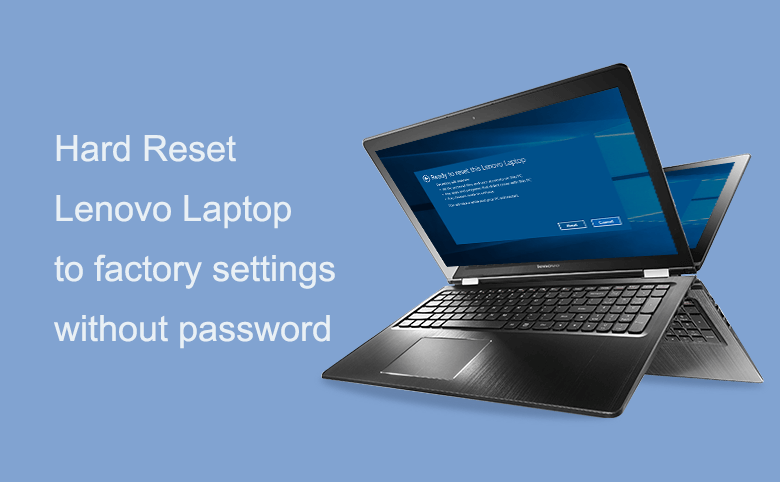
Inside recovery mode, find the reset option. This gives a fresh start. Click on Reset your PC. Follow the prompts. You can keep or remove files. Keeping files saves important data. Removing files erases everything. Choose what is best for you. System reset fixes many errors. Your laptop will work better. A reset helps make it run like new.

Credit: www.youtube.com
Troubleshooting Common Issues
A laptop might not boot due to several reasons. Check the power source. Ensure the battery is charged. Press the power button for 10 seconds. This might help. Remove any external devices. Sometimes they cause issues. Re-seat the RAM sticks. This can solve boot problems. If nothing works, consider a hard reset. It might fix the boot problem.
Error messages can appear during a reset. Note the error code. It helps find solutions. Restart the laptop. Sometimes it clears errors. Check the BIOS settings. Ensure they are correct. Update drivers if needed. Outdated ones can cause errors. If errors persist, seek professional help.
Post-reset Setup
After a reset, your laptop is like new. Software needs reinstalling. Start with the operating system. It is essential for basic functions. Use a USB or DVD for installation. Follow instructions on the screen. Next, add drivers for hardware. They make components work well. Visit the Lenovo website for drivers. Install them one by one. Now, add your favorite applications. Think about what you use daily. Office suite, browsers, and media players are common choices. Ensure all software is updated. Updates bring new features and security fixes.
Data is important and needs restoration. Backups keep it safe. Use external drives or cloud services for storage. Connect the drive or log into the cloud. Begin transferring files back. Documents, photos, and videos are common types of data. Check if all files are intact. Verify that nothing is missing. Data restoration takes time, so be patient. Now your laptop feels familiar again. It’s ready for work or fun.

Credit: www.kb.ischool.uw.edu
Credit: www.cocosenor.com
Frequently Asked Questions
How To Perform A Hard Reset On Thinkpad?
To hard reset a ThinkPad, turn off the laptop completely. Disconnect all external devices. Remove the battery if possible. Press and hold the power button for 20 seconds. Reattach the battery and plug in the charger. Turn on the laptop to complete the reset process.
What Should I Do Before Hard Resetting?
Before hard resetting, back up important data. Ensure all external devices are disconnected. Check if any software updates or fixes can solve the issue. A hard reset will erase unsaved data, so preparation is crucial.
Will Hard Resetting Delete My Data?
Yes, hard resetting may delete unsaved data. It restores the laptop to factory settings. Always back up important files before performing a hard reset to prevent data loss.
Can Hard Reset Fix Boot Issues?
Yes, a hard reset can fix boot issues. It clears temporary configurations that might be causing the problem. If the laptop doesn’t start, try a hard reset as a troubleshooting step.
Conclusion
Resetting your Thinkpad laptop can solve many issues. It’s a straightforward process. Just follow the steps carefully to avoid mistakes. Always back up your important data before starting. Hard resetting helps refresh your system. It can fix unresponsive screens and software glitches.
Remember, it’s different from a factory reset. A factory reset wipes all data. So, choose wisely based on your needs. If unsure, seek professional help. Regular maintenance also helps keep your laptop running smoothly. Stay informed, and your Thinkpad will serve you well for years.

Finnian Delaney is a seasoned writer and editor specializing in technology and electronics. At ElectroDoz, he covers a wide range of topics, with a focus on MacBooks, laptops, fitness trackers, keyboards, and computer hardware. With a knack for making complex tech accessible, Finnian helps readers stay informed and confident when choosing their next device or upgrade.