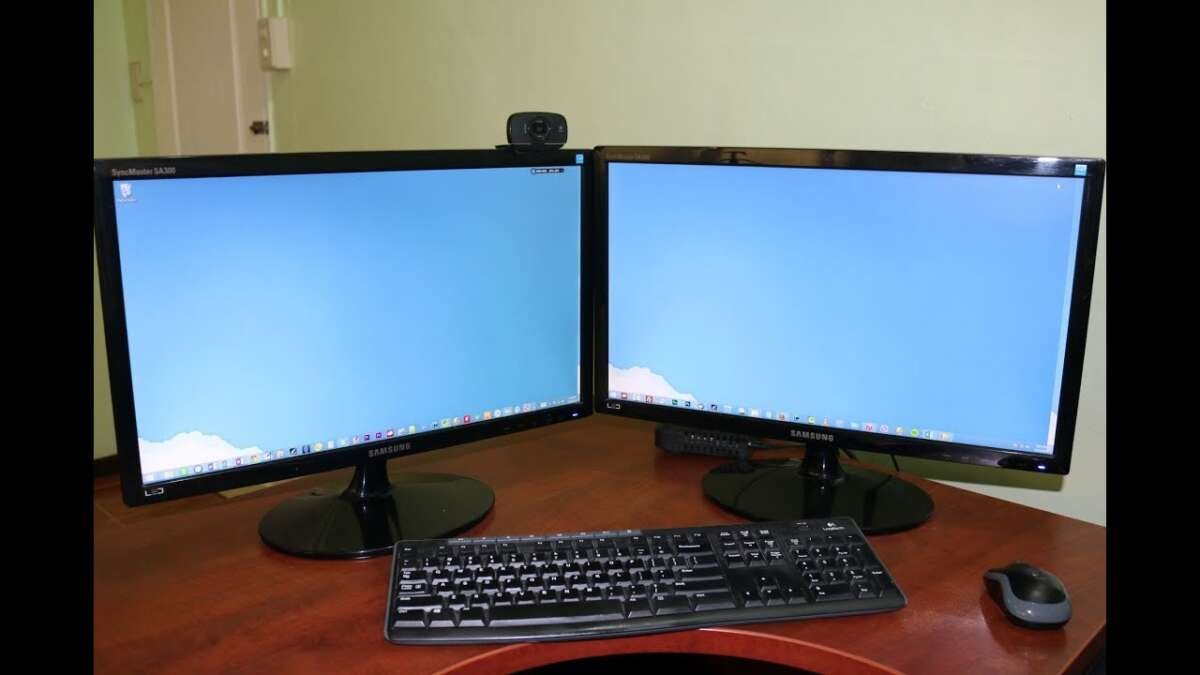
How Can I Use Two Monitors With One Computer: Easy Guide
You can use two monitors with one computer by connecting both displays to supported video ports, then choosing Extend these displays in Windows or Arrange the screens in macOS. In a U.S. home office, this setup can give you more room for email, documents, video calls, and research without switching between windows.
The key is to check three things first:
- Whether your computer can support two displays.
- Which video outputs your computer and monitors use.
- Whether you need a dock, hub, adapter, or special software.

What You Need Before Connecting Two Monitors
You need a computer with two usable display connections, or one connection that supports more than one display through a compatible dock or adapter.
Common video ports include:
- HDMI: Common on desktops, laptops, TVs, and many monitors.
- DisplayPort: Common on desktop computers and business monitors.
- USB-C: May carry video through DisplayPort Alt Mode or Thunderbolt. Not every USB-C port supports video.
- Thunderbolt: A high-speed USB-C-shaped port that can support displays, data, and charging.
- VGA or DVI: Older video connections. They may work, but they offer fewer features than HDMI or DisplayPort.
You also need the right cables. For example, a monitor with HDMI input needs an HDMI cable or a suitable adapter. A USB-C cable used for charging may not carry video.
Check your computer’s display limit
The number of ports does not always equal the number of supported monitors. A laptop may have two USB-C ports but support only one external display. A desktop may have several ports on its graphics card and support two, three, or more displays.
Check the following:
- Your computer model or graphics card model.
- The maximum number of supported displays.
- The maximum resolution and refresh rate.
- Whether the computer supports a dock or daisy chain.
- Whether your operating system needs a driver.
Your computer maker’s support page and graphics-card documentation are the best sources for this information. Microsoft’s Windows display guidance explains how to connect and arrange multiple displays, while Apple lists display limits in the technical specifications for each Mac model.
Check the monitor inputs
Look at the back or side of each monitor. You may see HDMI, DisplayPort, USB-C, DVI, or VGA.
The two monitors do not have to use the same connection. For example, you can connect one monitor with HDMI and the other with DisplayPort if your computer has both outputs.
Avoid buying an adapter until you know whether it must be:
- Passive: Usually simple and inexpensive.
- Active: Converts one video signal type to another and may be needed for certain connections.
- USB graphics-based: Uses software, such as DisplayLink, to add another display through USB.
The wrong adapter may produce no image, a low resolution, or an unstable connection.

How to Connect Two Monitors to a Desktop Computer
A desktop computer is usually the simplest setup because its graphics card often has more than one video output.
Step 1: Find the correct video ports
On a desktop, check the ports on the graphics card. The graphics card is usually installed lower on the back of the computer.
If your desktop has a separate graphics card, connect both monitors to that card. Do not connect one monitor to the graphics card and the other to the motherboard unless your computer specifically supports that arrangement.
Typical examples include:
- Monitor 1 to HDMI.
- Monitor 2 to DisplayPort.
- Monitor 1 to DisplayPort.
- Monitor 2 to DisplayPort through a supported adapter.
Step 2: Connect the cables
Turn off the computer if the manufacturer recommends doing so. Connect each monitor to a separate supported video output, then connect the monitors to power.
Turn on the monitors and select the correct input source. For example, choose HDMI 1 if the first monitor uses the HDMI 1 port.
Step 3: Set the display mode in Windows
On a Windows 10 or Windows 11 computer:
- Right-click an empty area of the desktop.
- Select Display settings.
- Select Identify to show a number on each screen.
- Select Detect if Windows does not show both monitors.
- Scroll to Multiple displays.
- Choose Extend these displays.
- Select Keep changes if Windows asks for confirmation.
The Extend option gives each monitor its own desktop area. This is the best choice for working across two screens.
Windows also offers these modes:
- Duplicate: Shows the same image on both monitors.
- Extend: Creates one larger desktop across both monitors.
- Show only on 1: Uses only the first monitor.
- Show only on 2: Uses only the second monitor.
You can also drag the monitor icons in Display settings so they match their physical position on your desk. This makes the mouse move naturally from left to right.
Step 4: Set the main monitor
Select the monitor you want to use as your primary screen. Then select Make this my main display.
Your main display usually shows:
- The taskbar.
- The sign-in screen.
- New application windows.
- System notifications.
You may want your larger or better-positioned monitor to be the main display.
Step 5: Set resolution and refresh rate
Select each monitor in Display settings. Under Display resolution, choose the recommended setting.
Then open Advanced display to review the refresh rate. A higher refresh rate can make movement look smoother, but the computer, cable, adapter, and monitor must all support it.
If a monitor flickers or loses its signal, try a lower refresh rate or a different cable before changing other settings.

How to Connect Two Monitors to a Laptop
A laptop may need a dock, hub, or adapter because many laptops have only one HDMI port or no full-size video port.
Option 1: Use two built-in video outputs
Some laptops have HDMI plus USB-C, or two USB-C ports that support video.
Connect one monitor to each supported port. Then use the Windows or macOS display settings to extend the desktop.
This is usually the most reliable method because each monitor has a direct connection to the computer.
Option 2: Use a USB-C dock
A USB-C or Thunderbolt dock can connect monitors, keyboards, a mouse, Ethernet, storage, and power through one laptop connection.
Before buying or using a dock, check:
- Whether the laptop’s USB-C port supports video.
- Whether the dock supports two extended displays.
- Whether the dock supports your desired resolution and refresh rate.
- Whether it requires DisplayLink software.
- Whether the dock supplies enough power for the laptop.
- Whether the operating system supports its display features.
A USB-C dock is not automatically a dual-monitor dock. Some USB-C hubs mirror one display, support only one external screen, or limit the second screen to a lower resolution.
Option 3: Use a USB-to-HDMI adapter
A USB-to-HDMI adapter can add another monitor when the computer lacks a second native video port. Many of these adapters use DisplayLink technology.
This method can work well for office tasks, web browsing, documents, and email. It may be less suitable for fast games, protected video content, color-critical work, or applications that need very low latency.
Install drivers only from the adapter maker’s official site. Keep the software updated, and check whether it supports your version of Windows or macOS.
Option 4: Use a compatible daisy chain
A daisy chain connects the computer to one monitor, then connects the first monitor to the second. This normally requires:
- DisplayPort Multi-Stream Transport, often called MST.
- Monitors with DisplayPort output or a documented daisy-chain feature.
- A computer and graphics system that support MST.
- Suitable DisplayPort cables.
- Enough bandwidth for both screens.
Daisy chaining is not the same as plugging HDMI output from one monitor into another. HDMI monitor ports generally do not pass a desktop signal to a second monitor.

How to Use Two Monitors on a Mac
A Mac can use two monitors, but the exact limit depends on the Mac model, Apple silicon chip, year, macOS version, and connection method.
Step 1: Check the Mac’s display support
Open Apple’s technical specifications for your exact Mac model. Look for the section that lists supported external displays.
Do not assume that two USB-C or Thunderbolt ports mean the Mac supports two external screens. The ports describe the physical connections; the Mac’s display hardware sets the actual limit.
Some Mac models support two or more external displays directly. Other models support only one external display without an additional technology such as DisplayLink.
Step 2: Connect the monitors
Connect each monitor directly to a supported Mac port, or connect both to a compatible Thunderbolt or USB-C dock.
If you use an adapter, confirm that it supports the resolution and refresh rate you need. A basic USB-C-to-HDMI adapter may not support the same features as a Thunderbolt dock.
Step 3: Arrange the displays in macOS
On recent versions of macOS:
- Open the Apple menu.
- Select System Settings.
- Select Displays.
- Select a display to adjust its resolution or refresh rate.
- Use the arrangement controls to place the screens correctly.
- Choose which display acts as the main screen when the setting is available.
Older macOS versions use System Preferences > Displays. The names may differ, but the basic process is similar.
If macOS mirrors the screens instead of extending them, look for the mirroring control in the Displays settings and turn it off.
Step 4: Consider DisplayLink carefully
DisplayLink can allow some Macs to run additional monitors through a compatible dock or adapter. It uses software to send display data over USB rather than relying only on the Mac’s native display outputs.
It can be useful when the Mac’s built-in display limit does not meet your needs. However, it may require a driver, screen-recording permission, and regular software updates. Performance and compatibility can vary by application, macOS release, dock, and monitor setup.
For basic office work, it may be a practical option. For gaming, video editing, or protected streaming content, check the dock maker’s limits before relying on it.

How to Arrange and Use Two Screens
After both monitors work, arrange them to match your desk. This small step makes the setup feel much easier to use.
Place the monitors side by side in the display settings. If one screen sits higher on your desk, move its on-screen icon higher as well. The mouse will then cross between screens at the correct height.
Useful ways to divide work include:
- Put email and chat on one screen.
- Keep a document or spreadsheet on the other.
- Use one screen for a video call and the other for notes.
- Keep a browser open beside a research document.
- Place a full-screen app on one monitor while using the second for controls.
On Windows, you can move a window between monitors with Windows key + Shift + Left Arrow or Windows key + Shift + Right Arrow.
On macOS, drag windows between displays or use Mission Control and Spaces. You can also choose whether each screen has its own separate space in the Desktop & Dock settings.
A two-monitor setup does not always improve every task. If both screens are small, far apart, or poorly aligned, the extra space may add eye and neck strain. Keep the top of each screen near eye level and place the monitors at a comfortable viewing distance.

What to Do If the Second Monitor Is Not Working
Start with simple connection checks before changing drivers or buying new equipment.
If the monitor says “No signal”
Try these steps in order:
- Confirm that the monitor has power.
- Select the correct input on the monitor.
- Unplug and reconnect the video cable.
- Try a different cable.
- Try another video port on the computer.
- Restart the computer with both monitors connected.
- Use Detect in Windows Display settings.
- Check the monitor with another computer if possible.
If one monitor works but the other does not, the problem may involve the second port, cable, adapter, dock, or computer display limit.
If Windows shows only one display
Open Settings > System > Display and select Detect. If Windows still does not find the monitor:
- Install graphics-driver updates from the computer or graphics-card maker.
- Check whether the dock needs a driver.
- Remove unnecessary adapters.
- Test each monitor by itself.
- Confirm that the computer supports two displays.
Avoid downloading drivers from random websites. Use the computer maker, graphics-card maker, dock maker, or Microsoft support site.
If the screen flickers
Flicker often points to a cable, adapter, refresh-rate, bandwidth, or power problem.
Try:
- A shorter or better-quality cable.
- A direct connection instead of a hub.
- A lower refresh rate.
- A lower resolution for testing.
- A different port.
- Disconnecting other high-bandwidth devices from the dock.
If flicker continues across different cables and computers, the monitor may need service.
If both monitors show the same image
The computer is probably set to Duplicate or Mirror mode. Change the display mode to Extend.
On Windows, press Windows key + P, then select Extend. On macOS, open System Settings > Displays and disable mirroring.
If the resolution is too low
The adapter, dock, cable, or port may not support the monitor’s native resolution. Check every part of the connection.
For example, a monitor may support 4K, but a low-cost adapter may support only 1080p. The final result is limited by the weakest supported component.
Common Two-Monitor Setup Mistakes
The most common mistake is buying a splitter and expecting two independent screens. A basic HDMI splitter normally copies one signal to both monitors. It does not create two separate desktop areas.
Other frequent mistakes include:
- Connecting a monitor to a USB-C port that does not support video.
- Using a charging-only USB-C cable.
- Connecting one monitor to the motherboard and one to the graphics card without checking support.
- Assuming every USB-C dock supports two extended displays.
- Ignoring the computer’s maximum display limit.
- Using an adapter that cannot handle the desired resolution.
- Forgetting to select the correct monitor input.
- Leaving Windows set to Duplicate.
- Using a Mac model that supports fewer external displays than expected.
- Installing unverified display drivers.
A dock can reduce cable clutter, but it also adds another possible failure point. For the best troubleshooting path, test each monitor with a direct connection first. Add the dock or adapter only after the basic setup works.
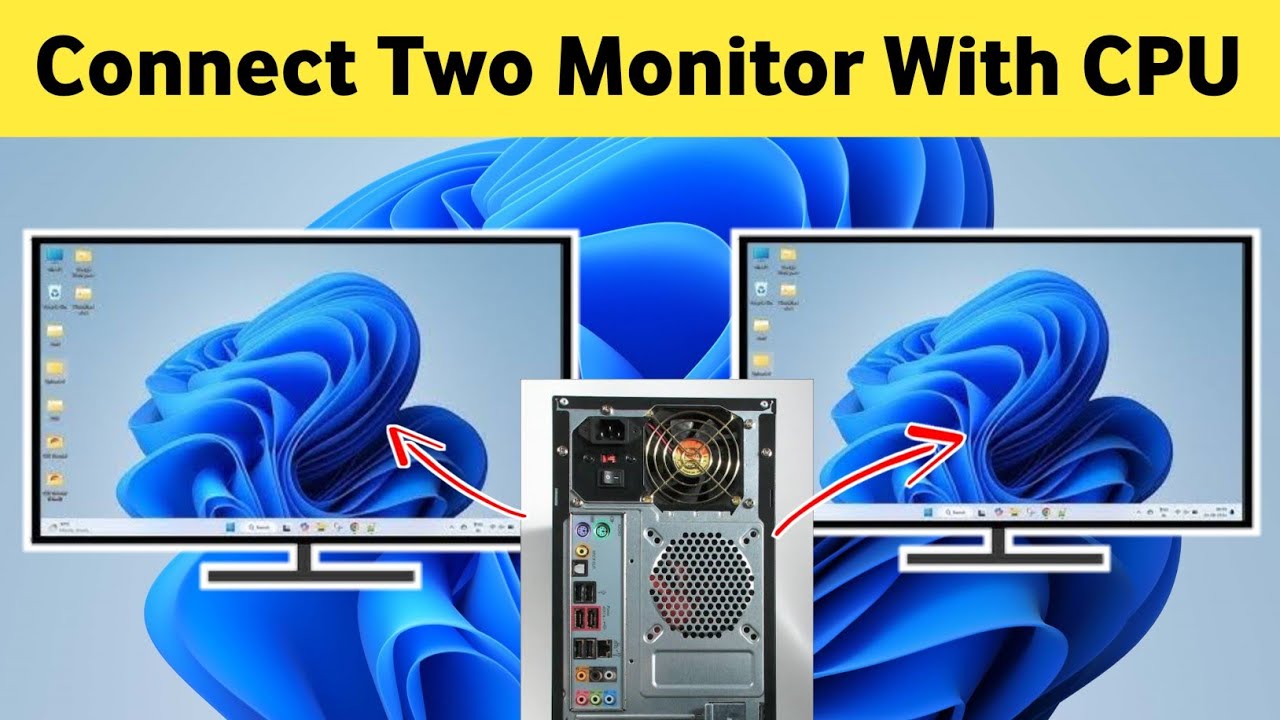
Which Connection Method Should You Use?
Use this table to choose a practical setup.
| Situation | Recommended method | Main limitation |
|---|---|---|
| Desktop with HDMI and DisplayPort | Connect one monitor to each port | The graphics card must support both displays |
| Laptop with HDMI and video-capable USB-C | Use one port for each monitor | USB-C must support video |
| Laptop with one USB-C or Thunderbolt port | Use a compatible dual-monitor dock | Dock limits vary |
| Computer with no second video output | Use a DisplayLink adapter or dock | Requires software and may not suit high-speed work |
| Two monitors with DisplayPort MST | Use a daisy chain | Both the computer and monitors must support MST |
| Mac with two supported external displays | Connect directly or through a compatible dock | Exact Mac model limits apply |
| Need identical images on both screens | Use Duplicate or a splitter | You will not get two independent desktops |
For most people, direct connections are the simplest choice. A dock makes more sense when you need fewer cables or want to connect several accessories to a laptop.

Frequently Asked Questions
Can I connect two monitors to one HDMI port?
Usually, an HDMI splitter can show the same image on both monitors, but it normally cannot create two independent extended displays. To extend your desktop, use two supported video outputs or a compatible dock or USB graphics adapter.
Can I use two monitors with a laptop that has only one HDMI port?
Often, yes. You may be able to use the HDMI port plus a video-capable USB-C port, a compatible USB-C dock, or a DisplayLink adapter. First confirm the laptop’s display limit and whether its USB-C port supports video.
Do two monitors need to be the same brand or size?
No. You can use different brands, sizes, resolutions, and connection types. Matching monitors can make alignment and color work easier, but they are not required.
Can I use two monitors for gaming?
Yes, if the computer and graphics card can handle the combined resolution and refresh rate. Two-monitor gaming can require more graphics power than one-monitor gaming. Many people use one screen for the game and the other for chat, streaming tools, or system controls.
Will two monitors slow down my computer?
They may increase graphics and power use, especially at high resolutions and refresh rates. Basic office work usually places a modest load on a modern computer, while gaming, 3D work, and high-resolution video can require much more graphics performance.
Final Setup Checklist
Before you finish, confirm that:
- Both monitors power on.
- Each monitor uses the correct input.
- The computer detects both screens.
- The display mode is set to Extend.
- The screens are arranged in the correct physical order.
- The main display is selected.
- Each monitor uses a suitable resolution.
- The refresh rate is stable.
- Cables and adapters support the features you need.
- The dock or adapter has the correct driver, if required.
The simplest path is to connect each monitor directly to a supported computer port. If your computer lacks two usable outputs, use a dock or adapter that specifically lists support for two extended displays, not just dual monitor mirroring.

Everett Calloway is a consumer electronics writer and technology enthusiast at ElectroDoz. He enjoys exploring the latest gadgets, electronic devices, and innovative technologies that make everyday life easier. Everett focuses on creating helpful product reviews, detailed buying guides, practical how-to articles, and troubleshooting tips. His goal is to simplify complex technical information and help readers understand product features, compare their options, and make informed purchasing decisions. When he isn’t researching new electronics, he enjoys exploring emerging technology trends and discovering useful gadgets.