
Can A Smart TV Be Used As A Computer Monitor: Easy Setup
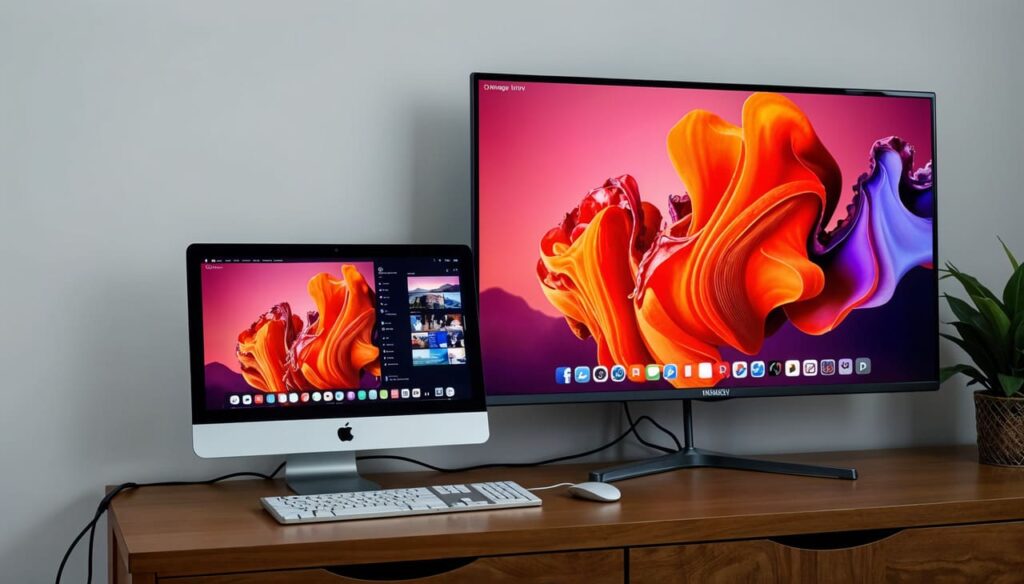
Yes. A smart TV can work as a computer monitor when it has a compatible input, usually HDMI. You can connect a Windows PC, Mac, Chromebook, or laptop and use the TV as a large display.
The setup is easy, but the result may not feel like a normal monitor. A TV may have more input delay, lower text clarity, limited desk ergonomics, or image processing that affects computer use. For movies, games, presentations, and casual work, a smart TV can be a good choice. For long hours of office work, coding, or competitive gaming, a monitor may work better.
This guide explains how to connect a smart TV to a computer, which settings to change, and when a TV is or is not the right display.

What You Need to Use a Smart TV as a Monitor
You need three basic things:
- A smart TV with an available HDMI input
- A computer with HDMI, USB-C, DisplayPort, or another video output
- The correct cable or adapter
Most modern TVs use HDMI for computer video. The TV’s smart features, such as streaming apps and voice control, are not required for this function. A regular TV can also work as a monitor if it has the needed video input.
Check the computer’s video output
Look at the side or back of the computer. Common ports include:
| Computer port | What you may need |
|---|---|
| HDMI | HDMI-to-HDMI cable |
| Mini HDMI | Mini HDMI adapter or cable |
| USB-C with video support | USB-C-to-HDMI adapter or cable |
| DisplayPort | DisplayPort-to-HDMI cable or active adapter |
| VGA | VGA-to-HDMI converter, often with separate audio |
A USB-C port does not always send video. The computer must support DisplayPort Alt Mode, Thunderbolt, or another video standard through that port. Check the computer manual or the manufacturer’s specifications before buying a USB-C cable.
Check the TV’s HDMI port
Plug the cable into any free HDMI input. Some TVs label ports with features such as:
- ARC or eARC: Mainly for sending audio to a soundbar or receiver
- 4K 120 Hz: Designed for higher refresh rates on supported models
- HDMI 2.1: A newer HDMI feature set that may support higher bandwidth
- PC: A suggested input label or mode for computer use
The label alone does not prove that every feature is supported. The TV manual lists the supported resolution, refresh rate, HDR mode, and color format for each input.
Make sure the computer can support the TV
A TV may have a 4K screen, but the computer must be able to produce a 4K signal. Older laptops may support only 1080p. Some computers can display 4K at 60 Hz but not 4K at 120 Hz.
A higher resolution gives you more room for windows. A higher refresh rate makes motion look smoother. Both depend on the computer, cable, adapter, and TV.
How to Connect a Computer to a Smart TV
Connecting a computer to a smart TV usually takes only a few steps.
Using an HDMI cable
- Turn on the TV and the computer.
- Connect one end of the HDMI cable to the computer.
- Connect the other end to the TV.
- Use the TV remote to select the matching HDMI input.
- Set the TV to the correct display mode on the computer.
On Windows, press Windows key + P. You can choose:
- PC screen only
- Duplicate
- Extend
- Second screen only
For normal desk use, Extend gives you a separate desktop on the TV. Duplicate shows the same image on both displays. Second screen only turns off the computer’s built-in screen.
On macOS, open System Settings > Displays. Select the TV to change its arrangement, resolution, refresh rate, and mirroring options.
Using USB-C
A USB-C connection can carry video, sound, and power in some setups. It does not do this in every case.
If the laptop supports video over USB-C, use one of these options:
- USB-C-to-HDMI cable
- USB-C hub with HDMI
- USB-C dock with HDMI
A basic USB-C charging cable may not carry a video signal. If the TV shows “No signal,” confirm that the cable and computer port support video.
Using wireless display features
Some smart TVs support wireless screen sharing. Windows may use Miracast, while Apple devices often use AirPlay when the TV supports it.
Wireless display can be useful for:
- Presentations
- Streaming video
- Showing photos
- Light browsing
- Temporary use
It is less suitable for fast games or tasks that need quick mouse response. Wireless video can add delay, compression, or connection drops. The TV and computer may also need to be on the same Wi-Fi network.
A wired HDMI connection is usually the more stable choice.
How to tell if the connection works
The setup is working when:
- The computer desktop appears on the TV
- The TV shows the correct input
- The image fills the screen without unwanted cropping
- The computer lists the TV under display settings
- Audio can be selected through the TV, if desired
If the TV shows an image but the text looks cut off, change the TV’s picture size or aspect ratio. Look for settings such as Screen Fit, Just Scan, Fit to Screen, or 1:1. Names vary by brand.
Best TV Settings for Computer Use
The best settings depend on the TV model, operating system, and type of work. Start with the TV’s PC mode or Game mode if available.
Use PC mode for sharper text
Many TVs process video as if it came from a movie player. That can soften text and create unwanted color changes. Setting the HDMI input label to PC may disable some of this processing.
On some TVs, PC mode also enables better chroma handling. Chroma describes how much color detail the video signal keeps. Computer text often looks clearer when the TV receives a full-color signal such as RGB or 4:4:4.
The exact result depends on the TV. Check the manual for supported computer formats.
Turn off overscan
Overscan enlarges the image and cuts off the outer edges. It was once common for broadcast TV. It is not helpful for a computer desktop.
Use a picture-size option that shows the full image. Common names include:
- Just Scan
- Screen Fit
- Fit to Screen
- Full Pixel
- 1:1
- Original
The correct option should show the entire taskbar, menu bar, and desktop corners.
Choose the native resolution
Set the computer to the TV’s native resolution when possible. Common examples include:
- 1920 × 1080 for Full HD TVs
- 3840 × 2160 for 4K TVs
A non-native resolution may look soft. Windows and macOS can scale menus and text if the native resolution makes items too small.
For a 4K TV, try 4K resolution with 100% or 125% scaling on Windows, depending on viewing distance. macOS may show scaled choices instead of naming the exact output resolution.
Select the highest useful refresh rate
Refresh rate is the number of times the screen updates each second. It is measured in hertz, or Hz.
A 60 Hz setting is common and works well for office tasks. A TV that supports 120 Hz can make scrolling and games look smoother. The computer and cable must also support that rate at the chosen resolution.
For example, a system may support:
- 4K at 60 Hz
- 1440p at 120 Hz
- 1080p at 120 Hz
Do not assume that a TV marked “120 Hz” accepts a 120 Hz computer signal. Some TVs use motion processing to create a smoother picture from a 60 Hz input. That is not the same as accepting a true 120 Hz signal.
Turn on Game mode for gaming
Game mode often reduces image processing and input delay. Input delay is the time between an action on the computer and the result on the screen.
Game mode can make a TV feel more responsive. It may also reduce or disable some picture effects. For work, PC mode may produce sharper text. For games, Game mode may provide the better response.
Adjust HDR with care
HDR can improve highlights and contrast in supported games and video. It can also make a desktop look too bright, too dark, or washed out if the TV and computer handle it differently.
If normal desktop colors look wrong:
- Turn HDR off in Windows or macOS.
- Confirm the TV input supports HDR.
- Update the graphics driver.
- Test HDR with a supported game or video.
- Adjust the TV’s HDR picture mode if needed.
HDR is not required for a TV to work as a computer monitor.
Smart TV vs. Computer Monitor
A smart TV and a computer monitor can show the same computer image, but they serve different needs.
| Feature | Smart TV | Computer monitor |
|---|---|---|
| Screen size | Often larger | Often smaller |
| Built-in streaming | Common | Less common |
| Desk adjustment | Often limited | Common on many models |
| Text clarity | Depends on mode and distance | Usually designed for close viewing |
| Input delay | Varies by model and mode | Often low |
| High refresh rate | Available on some TVs | Common in gaming models |
| HDMI inputs | Common | Common, with other ports too |
| Viewing distance | Usually farther away | Usually closer |
| Burn-in risk | Depends on panel type and use | Depends on panel type and use |
A TV can be a good monitor when you sit several feet away. At a close desk distance, a large screen may require frequent head movement. It can also make text look less comfortable if the pixel density is low.
When a smart TV makes sense
A TV may suit you if you want:
- A large screen for a living room
- A display for couch-based browsing
- A screen for console and PC gaming
- A device for movies and computer use
- A low-cost second screen
- A presentation display
A 4K TV can provide a large workspace. It may also replace the need for a separate streaming device.
When a monitor is better
A dedicated monitor is often better for:
- Long work sessions
- Programming
- Detailed photo or design work
- Competitive gaming
- Close-up text reading
- Multi-monitor desk setups
- Ergonomic adjustment
Monitors often offer height adjustment, tilt, swivel, DisplayPort, USB hubs, and better support for close viewing. These features may matter more than screen size.

What Can Affect Performance?
A smart TV can work well as a computer display, but several limits can change the experience.
Input lag
Input lag is most noticeable when moving a mouse, typing, or playing a fast game. TV picture processing can add delay.
Use PC mode or Game mode. Turn off features such as motion smoothing, noise reduction, dynamic contrast, and other processing when they are not needed.
The exact delay varies by model, resolution, refresh rate, and picture mode. Do not rely only on a TV’s advertised response time. Response time and input lag are different measurements.
Text clarity
Text clarity depends on more than resolution. It also depends on:
- Pixel density
- Viewing distance
- Chroma format
- Scaling
- TV processing
- Panel structure
- Font rendering
A 55-inch 4K TV has the same number of pixels as a 27-inch 4K monitor, but those pixels are spread over a much larger area. The TV may look less sharp at close range.
A larger screen can still feel clear when you sit farther away. The right distance depends on the screen size and your eyesight.
Refresh rate and bandwidth
The cable and ports must carry the selected signal. Higher resolution and refresh rate need more bandwidth.
If the image flickers or the refresh rate option is missing:
- Try a shorter cable.
- Use a cable rated for the needed HDMI standard.
- Connect directly to the TV.
- Avoid low-quality adapters.
- Test a lower refresh rate.
- Update the graphics driver.
A 4K 120 Hz signal may require compatible HDMI 2.1 hardware. A 4K 60 Hz signal may work through older hardware, but the exact limit depends on the devices.
Burn-in and image retention
Some display types can suffer from image retention. OLED panels can be more sensitive to permanent burn-in from static elements such as:
- Taskbars
- Browser toolbars
- Desktop icons
- Application menus
- Fixed game interfaces
This does not mean you cannot use an OLED TV with a computer. It means you should vary the content and use protective features. Enable the TV’s screen saver, pixel refresh, logo dimming, or panel care options as directed by the manufacturer.
LCD and LED TVs can also show temporary image retention in some cases, though the risk and behavior differ by panel.
Ergonomics
A TV often sits on a fixed stand or wall mount. It may not let you adjust height, tilt, or distance easily.
For desk use:
- Place the top of the screen near eye level.
- Keep the screen far enough away for comfortable reading.
- Use a strong, correctly rated wall mount if mounting it.
- Leave room for airflow around the TV.
- Avoid placing the screen where glare makes text hard to read.
Do not use a wall mount unless it matches the TV’s mounting pattern and weight. Follow the TV and mount instructions.
How to Fix Common Smart TV Monitor Problems
Most connection problems come from the wrong input, unsupported settings, or a faulty cable.
The TV says “No Signal”
Try these checks in order:
- Confirm that the TV is on the HDMI input used by the computer.
- Unplug and reconnect both ends of the cable.
- Restart the computer with the cable connected.
- Test another HDMI input.
- Test another cable.
- Try a lower resolution or refresh rate.
- Remove adapters, docks, or receivers temporarily.
- Test the computer with another display.
If you use USB-C, confirm that the port supports video output. A charging-only USB-C port will not send a picture.
The picture is blurry
Set the computer to the TV’s native resolution. Then check the TV’s PC mode, screen-size setting, and sharpness control.
If text still looks soft, check the color format. The TV may be receiving a limited or compressed signal. The computer’s graphics settings may offer RGB, YCbCr, or a chroma option. Use the format recommended by the TV manual.
Do not add excessive sharpness. It can create bright outlines around letters rather than improve real detail.
The desktop is cut off
Turn off overscan. Choose Just Scan, Screen Fit, Fit to Screen, or the equivalent option.
Also check the computer’s scaling and resolution. If only one edge is missing, the TV is often zooming the image.
The image looks too dark or washed out
Check HDR first. Turn it off on the computer and compare the result.
Then check whether the TV and computer use matching black-level settings. One device may use a limited range while the other expects a full range. The names vary by brand, but settings may include:
- Black level
- HDMI range
- RGB range
- Dynamic range
Use the TV manual and graphics driver settings together. Avoid changing several color settings at once, since that makes the cause harder to find.
The sound comes from the computer
Select the TV as the audio output device.
On Windows, open the sound output menu and choose the TV or HDMI device. On macOS, open System Settings > Sound and select the TV.
If the TV is not listed, restart the computer, reconnect the cable, and update the graphics driver. HDMI carries audio only when the computer, cable, adapter, and TV support it.
The mouse feels slow
Turn on Game mode or PC mode. Disable motion smoothing and extra picture processing.
If the problem continues, lower the refresh rate only as a test. Also check whether the computer is busy rendering at a low frame rate. A slow game or overloaded system can feel delayed even when the TV has low input lag.
Should You Use a Smart TV for Work or Gaming?
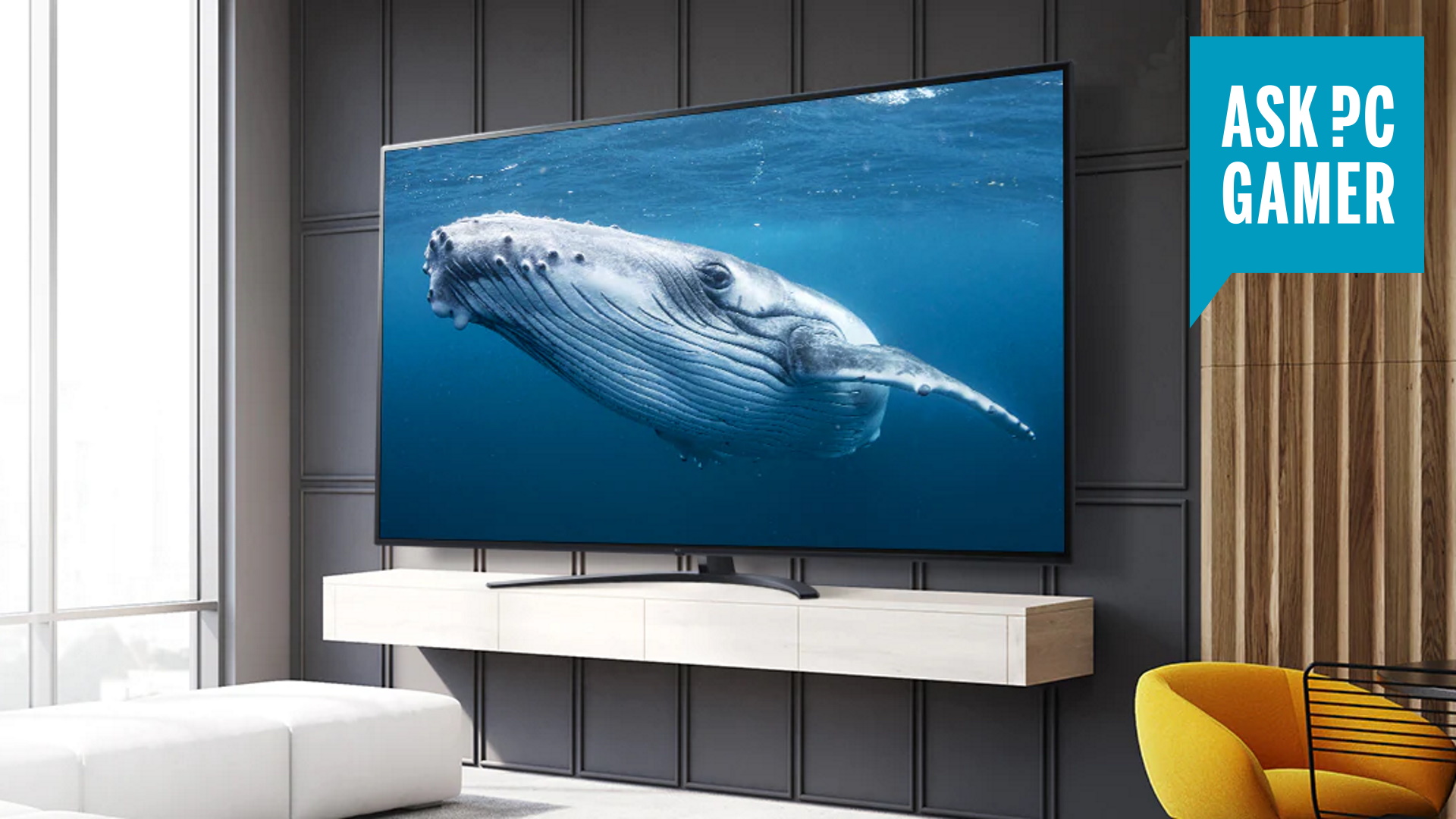
The right choice depends on the task, distance, and TV specifications.
| Main use | Smart TV suitability | Key condition |
|---|---|---|
| Streaming and movies | Very good | Use the TV’s built-in apps or computer |
| Casual browsing | Good | Sit at a comfortable distance |
| Presentations | Good | Use HDMI or wireless display |
| Office work | Fair to good | Use PC mode and proper scaling |
| Coding | Fair to good | Check text clarity and viewing distance |
| Console gaming | Good | Use Game mode |
| Casual PC gaming | Good | Check refresh rate and input lag |
| Competitive gaming | Model dependent | Low lag and high refresh rate matter |
| Professional color work | Model dependent | Check calibration and color controls |
| All-day close desk work | Often less ideal | Ergonomics and text clarity matter |
A large 4K TV can replace a monitor for many home users. A dedicated monitor may still be better for comfort and precision.
The best decision is not based on screen size alone. Check the TV’s native resolution, true input refresh rate, game mode performance, text clarity, stand height, and panel characteristics.
Common Mistakes to Avoid
Avoid these mistakes when using a smart TV as a monitor:
- Assuming every USB-C port supports video
- Using wireless display for fast gaming
- Leaving overscan enabled
- Running a 4K TV at a low, blurry resolution
- Confusing motion-smoothing claims with a true refresh rate
- Using a damaged or unsuitable cable
- Sitting too close to a very large screen
- Leaving a static desktop on an OLED panel for long periods
- Ignoring the TV’s PC or Game mode
- Mounting the TV with an incompatible bracket
- Expecting a TV remote to replace a keyboard and mouse
A TV also does not automatically provide the same color accuracy as a professional monitor. Factory picture modes can be vivid rather than accurate. If color matters, use a suitable picture mode and consider calibration.

Frequently Asked Questions
Can I use a smart TV as a monitor without Wi-Fi?
Yes. Use an HDMI cable. Wi-Fi is not needed for a wired computer connection or for the TV to show the computer’s video signal.
Can I connect a laptop to a smart TV?
Yes. HDMI is the simplest method. If the laptop has only USB-C, confirm that the port supports video and use a compatible adapter or cable.
Can I use a smart TV as a second monitor?
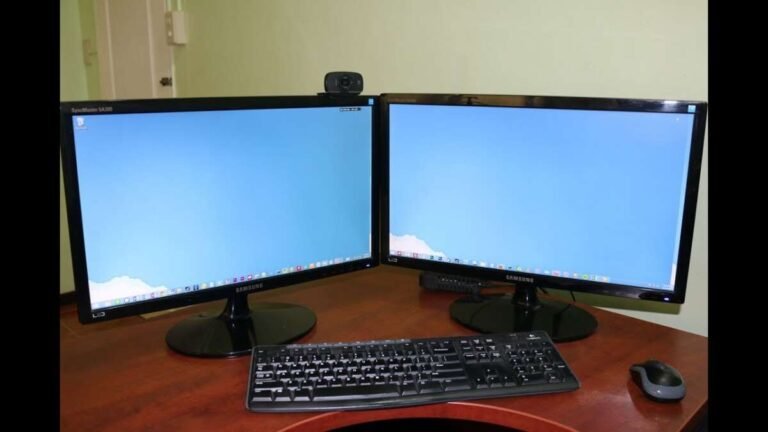
Yes. Choose Extend in Windows display settings or arrange the displays in macOS. This gives you a larger desktop instead of showing the same image on both screens.
Is a 4K TV good for computer use?
It can be. A 4K TV gives you a high-resolution desktop, but the computer must support 4K output. Text clarity also depends on screen size, viewing distance, scaling, and PC mode.
Is HDMI better than wireless display?
For most computer use, HDMI is more stable and has less delay. Wireless display is convenient for presentations and video but may introduce lag, compression, or connection problems.
Can I use a TV as a monitor for gaming?
Yes. Use Game mode and check the TV’s real input lag, supported resolution, and refresh rate. Competitive players may prefer a gaming monitor with more predictable response and adaptive sync support.
Why does my TV look worse than my monitor?
The TV may be using overscan, motion processing, the wrong resolution, or a limited color format. Try PC mode, the native resolution, a full-screen picture-size setting, and a suitable RGB or 4:4:4 signal.
Conclusion
A smart TV can be used as a computer monitor with an HDMI connection, and the setup is usually simple. It works especially well for movies, presentations, casual browsing, console gaming, and large-screen home use.
For the best results, use the TV’s PC or Game mode, disable overscan, select the native resolution, and confirm the real refresh-rate limits. If you spend many hours at a desk, compare text clarity, viewing distance, input lag, and ergonomics before replacing a monitor.
Start by checking the computer’s video output and the TV manual. Then connect the devices with HDMI and adjust the display settings for the way you plan to use the screen.

Everett Calloway is a consumer electronics writer and technology enthusiast at ElectroDoz. He enjoys exploring the latest gadgets, electronic devices, and innovative technologies that make everyday life easier. Everett focuses on creating helpful product reviews, detailed buying guides, practical how-to articles, and troubleshooting tips. His goal is to simplify complex technical information and help readers understand product features, compare their options, and make informed purchasing decisions. When he isn’t researching new electronics, he enjoys exploring emerging technology trends and discovering useful gadgets.








One Comment