
Can A TV Be Used As A Computer Monitor: Pros And Tips
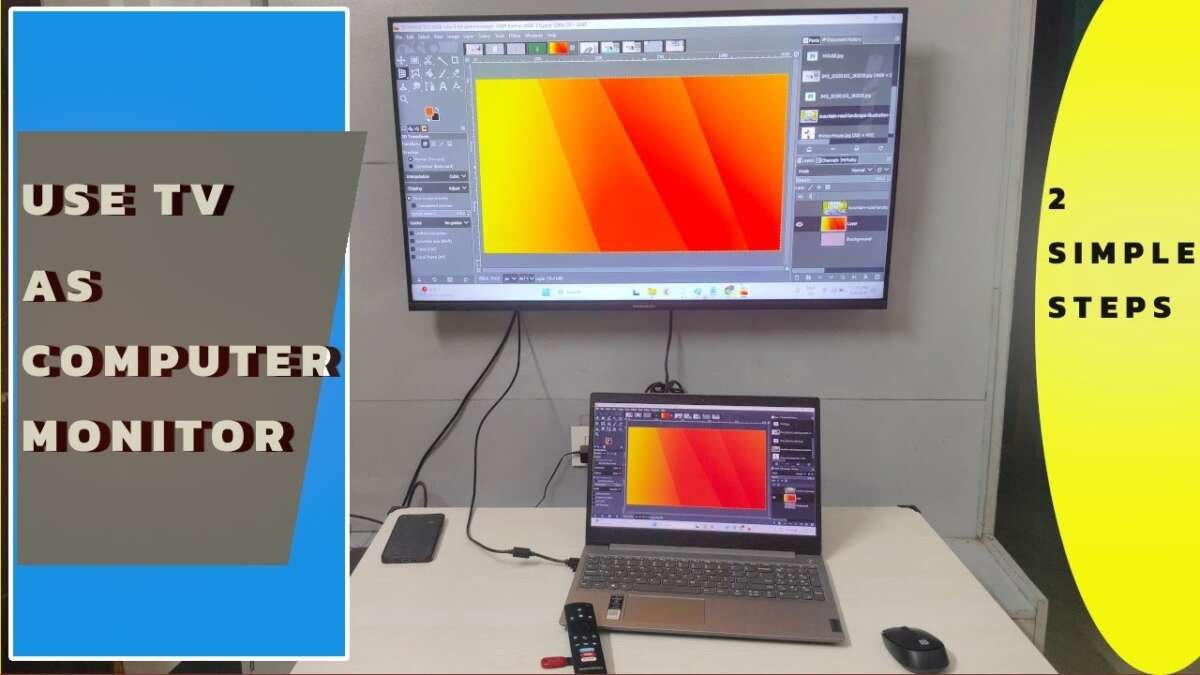
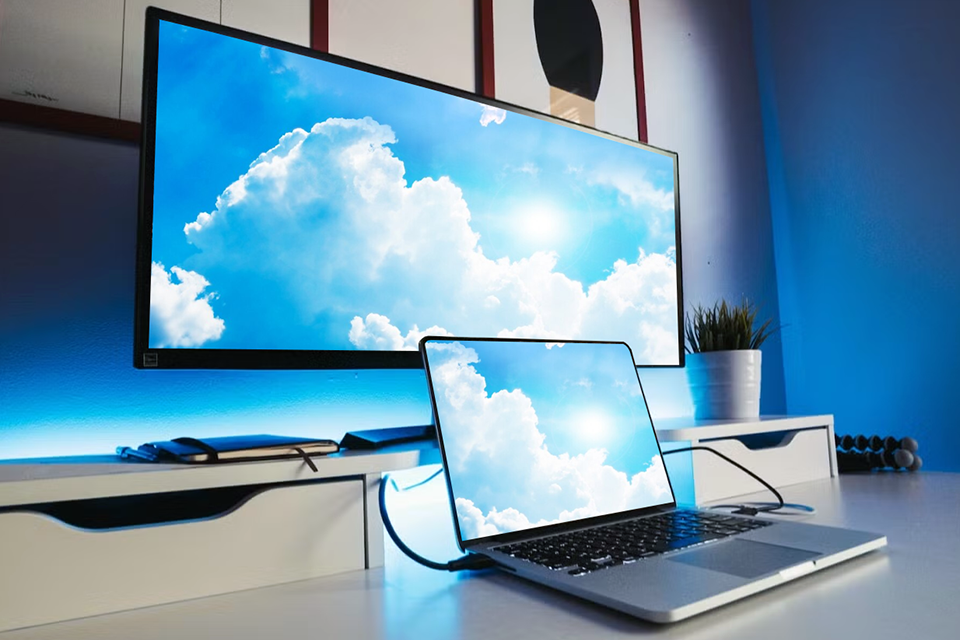
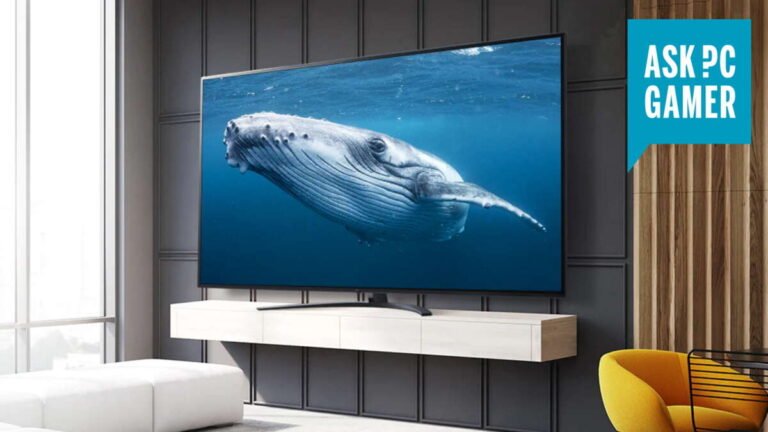
Yes. A TV can work as a computer monitor when your computer and TV have compatible video ports, usually HDMI. A TV can be a good choice for watching movies, playing games, viewing photos, or working from a few feet away.
However, a TV is not always the best replacement for a monitor. TVs often have lower pixel density, more input lag, stronger image processing, and less adjustable ergonomics. The right choice depends on your screen size, viewing distance, work needs, and gaming goals.
This guide explains how to connect a TV to a computer in the United States, how to choose the right settings, and when a dedicated monitor may be better.
What You Need to Use a TV as a Monitor
You need three basic things:
- A TV with a compatible video input
- A computer with a matching video output or adapter
- A cable that supports the resolution and refresh rate you want
Most modern TVs and computers use HDMI. Desktop computers may also use DisplayPort, while some laptops use USB-C with video output.
Common connection types
| Computer output | TV input | What you may need |
|---|---|---|
| HDMI | HDMI | HDMI cable |
| DisplayPort | HDMI | DisplayPort-to-HDMI adapter or cable |
| USB-C with DisplayPort video | HDMI | USB-C-to-HDMI adapter or cable |
| Mini DisplayPort | HDMI | Mini DisplayPort-to-HDMI adapter |
| VGA | HDMI | Active converter; image quality may be limited |
Check the labels near the ports. A USB-C port does not always support video. Look for a DisplayPort symbol, Thunderbolt symbol, or computer documentation that confirms video output.
The TV must also support the signal from the computer. For example, a computer may send 4K at 120 Hz, but the TV may accept only 4K at 60 Hz through that port.

How to Connect a Computer to a TV
The basic setup takes only a few steps.
1. Connect the cable
Plug one end of the cable into the computer and the other end into an HDMI input on the TV. If the computer has DisplayPort or USB-C and the TV has HDMI, use a compatible adapter or cable.
For a desktop computer with a separate graphics card, connect the cable to the graphics card ports. Do not connect it to the motherboard video port unless the processor and motherboard support integrated graphics.
2. Select the correct TV input
Turn on the TV and use the remote to select the HDMI input connected to the computer. The input may be labeled HDMI 1, HDMI 2, or a custom name such as “PC.”
Some TVs offer a specific PC mode. Select it if available. This mode can reduce image processing and improve text clarity.
3. Set the display mode on Windows
In Windows 11 or Windows 10:
- Right-click the desktop.
- Select Display settings.
- Choose whether to duplicate, extend, or show the image on one screen.
- Select the TV.
- Choose the recommended resolution.
- Open Advanced display to select the refresh rate.
Use Extend these displays if you want the TV to act as a second screen. Use Duplicate these displays if both screens should show the same image.
Microsoft provides current display setup instructions through its Windows display support page.
4. Set the display on a Mac
On a Mac:
- Connect the TV.
- Open Apple menu > System Settings.
- Select Displays.
- Choose the TV.
- Set the resolution, refresh rate, and arrangement.
A Mac may use a USB-C hub or adapter. If the image flickers or the refresh rate is low, the adapter, cable, or hub may not support the selected signal.
Apple documents external display requirements on its Mac support pages.
Choose the Right Resolution and Refresh Rate
The best setting is usually the TV’s native resolution. Native resolution means the number of pixels the panel is designed to display.
Common TV resolutions include:
- 1080p: 1,920 × 1,080 pixels
- 4K UHD: 3,840 × 2,160 pixels
- 8K: 7,680 × 4,320 pixels
A 4K TV can show a sharper desktop than a 1080p TV of the same size. A 4K signal also gives you more space for windows, text, and apps.
Use the highest supported refresh rate
Refresh rate is measured in hertz, or Hz. It tells you how many times the screen can update each second.
- 60 Hz: Suitable for office work, browsing, and most video
- 120 Hz: Smoother for games, scrolling, and motion
- 144 Hz or higher: More common on gaming monitors than TVs
A TV advertised as “120 Hz” may use different marketing terms. Check whether it accepts a true 120 Hz signal from a computer. Some TVs create smoother motion through image processing rather than accepting a 120 Hz computer input.
For 4K at 120 Hz, the computer, TV port, graphics hardware, and cable must all support the required bandwidth. HDMI 2.1 is commonly used for this connection, but the label alone does not guarantee every feature. Check the specifications for the exact TV model.
Avoid forced resolutions
If Windows or macOS lists a recommended resolution, start there. A forced resolution can produce a blurry picture, a blank screen, or an image that does not fit the panel.
If the TV does not show the full desktop, look for an aspect ratio, screen fit, or overscan setting. Set the TV to Screen Fit, Just Scan, 1:1, or a similar option when available.
Why Text May Look Blurry on a TV
Text can look softer on a TV because TVs often process video differently from computer monitors.
The most common causes are:
- Overscan
- Chroma subsampling
- Excessive sharpness processing
- Incorrect scaling
- A non-native resolution
- The TV using a video mode instead of a PC mode
Turn on PC mode
Rename the HDMI input to “PC” if the TV supports input labels. This may disable extra processing and enable clearer text.
The exact menu name varies by brand. Look for settings such as:
- PC mode
- Game mode
- Input signal plus
- Enhanced HDMI
- Full pixel
- Just Scan
- Screen Fit
Game mode can reduce delay, but PC mode may provide better text rendering. Some TVs combine both settings.
Use 4:4:4 chroma when possible
Chroma subsampling reduces color detail to save bandwidth. It is often hard to notice in movies, but it can make colored text look fuzzy.
For computer use, a TV that supports 4:4:4 chroma at the desired resolution and refresh rate is preferable. Your computer graphics settings and the TV picture mode both affect this result.
You can use a reputable chroma test image to check fine colored text. Look for clear red, blue, and green text against a contrasting background. The result depends on the exact TV, input, setting, and signal.
Adjust scaling
At 4K resolution, text may appear too small on a large TV when viewed from a desk. Windows and macOS let you increase interface scaling without lowering the output resolution.
For example, you can keep the TV at 3,840 × 2,160 and use 125% or 150% scaling. This usually keeps text sharper than switching to a lower resolution.
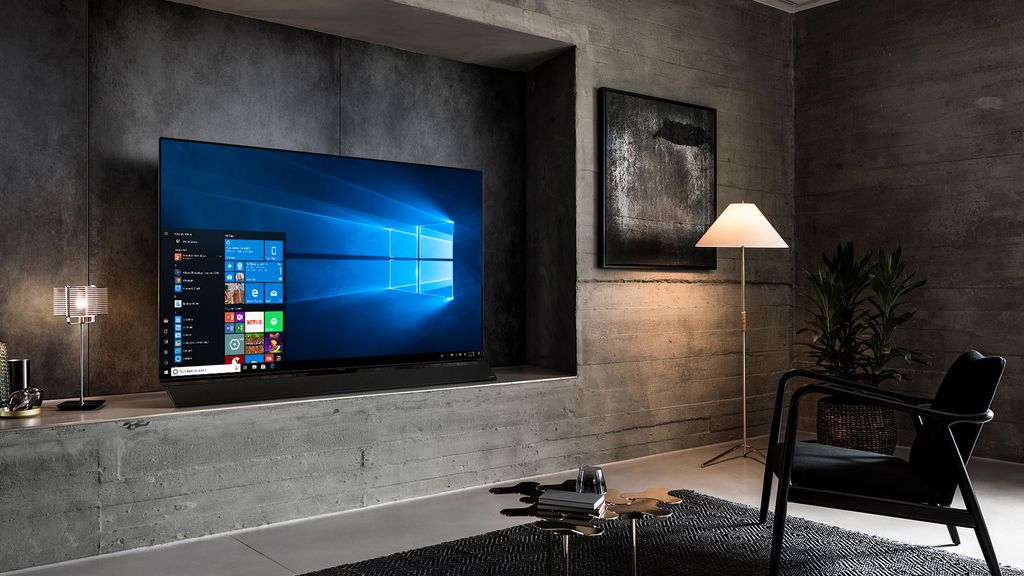
TV vs. Computer Monitor: Which Is Better?
A TV is usually better for size, distance, and entertainment. A monitor is usually better for close desk work, text clarity, adjustment, and competitive gaming.
| Need | TV | Computer monitor |
|---|---|---|
| Large image from several feet away | Often better | Less common at the same cost |
| Small desk viewing distance | May be uncomfortable | Usually better |
| Text-heavy work | Depends on model and settings | Often better |
| Movies and console gaming | Often better | Good, but usually smaller |
| High refresh rate | Available on some models | More widely available |
| Height and angle adjustment | Limited | More common |
| Low input lag | Good in game mode | Common |
| Static desktop use | OLED needs care | Varies by panel type |
| Multiple computer inputs | Depends on TV | Common on office monitors |
Pixel density matters
Pixel density describes how many pixels fit into each inch of the screen. A higher pixel density usually makes text and fine details look sharper.
Approximate pixel densities:
| Screen | Resolution | Approximate pixel density |
|---|---|---|
| 32-inch TV | 1080p | 69 pixels per inch |
| 55-inch TV | 4K | 80 pixels per inch |
| 32-inch TV | 4K | 138 pixels per inch |
| 27-inch monitor | 4K | 163 pixels per inch |
These figures are approximate. Viewing distance changes how sharp a screen appears. A 55-inch 4K TV may look clear from a couch but feel less comfortable at a short desk distance.
Consider viewing distance
A large TV can strain your eyes or force frequent head movement when placed close to your face. Sit far enough away to see the whole screen without turning your head.
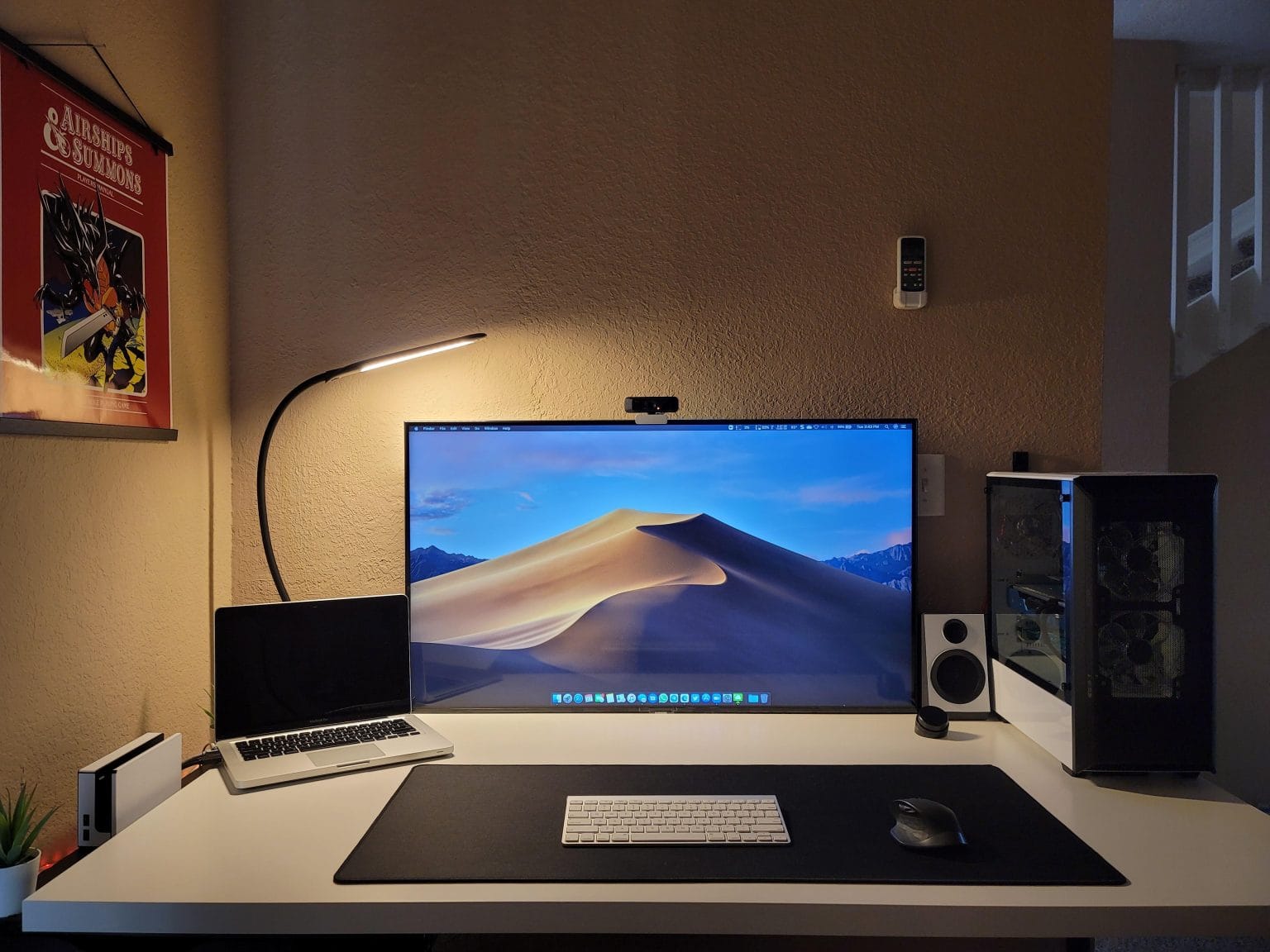
For desk use, a 24- to 32-inch monitor is often easier to manage. For couch gaming or living-room use, a 42- to 65-inch TV may make more sense.
Is a TV Good for Gaming?
A TV can be very good for gaming, especially when it has low input lag, a game mode, variable refresh rate, and a suitable refresh rate.
Look for these features
- Game mode
- Low input lag
- 4K resolution
- 120 Hz input support
- Variable refresh rate, such as HDMI VRR, FreeSync, or G-SYNC compatibility
- Auto Low Latency Mode, if supported
- HDMI ports that support the needed bandwidth
Console gaming devices such as the PlayStation 5 and Xbox Series X can benefit from a 4K 120 Hz TV, but the console, game, cable, and TV must all support the feature.
For PC gaming, confirm that the graphics card can produce the desired resolution and frame rate. A powerful TV cannot create extra frames that the computer does not render.
OLED and static game interfaces
OLED TVs can produce deep black levels and fast pixel response. However, long-term display of static elements can increase the risk of permanent image retention, often called burn-in.
A game with a fixed health bar, minimap, or menu may display static elements for many hours. Use the TV’s panel care features, vary the content, and avoid leaving a paused image on the screen for long periods.
This is a risk consideration, not a guarantee that burn-in will occur. The result depends on the panel, brightness, content, usage pattern, and manufacturer design.
Can You Use a TV for Office Work?
Yes, but the best setup depends on the TV and how close you sit.
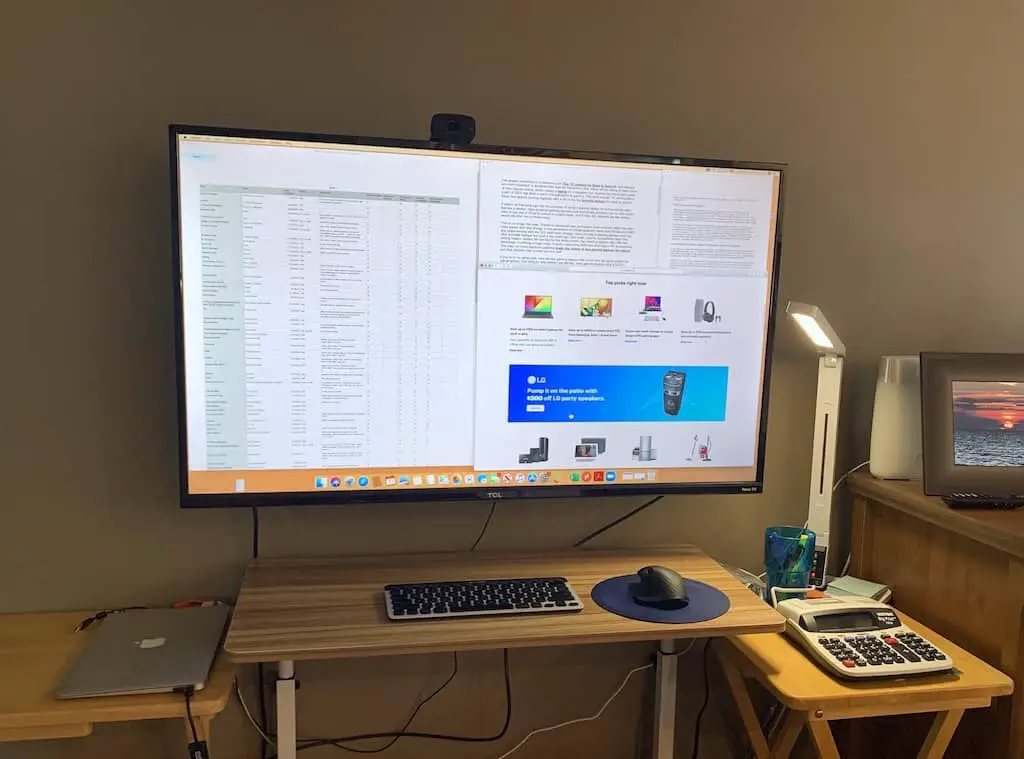
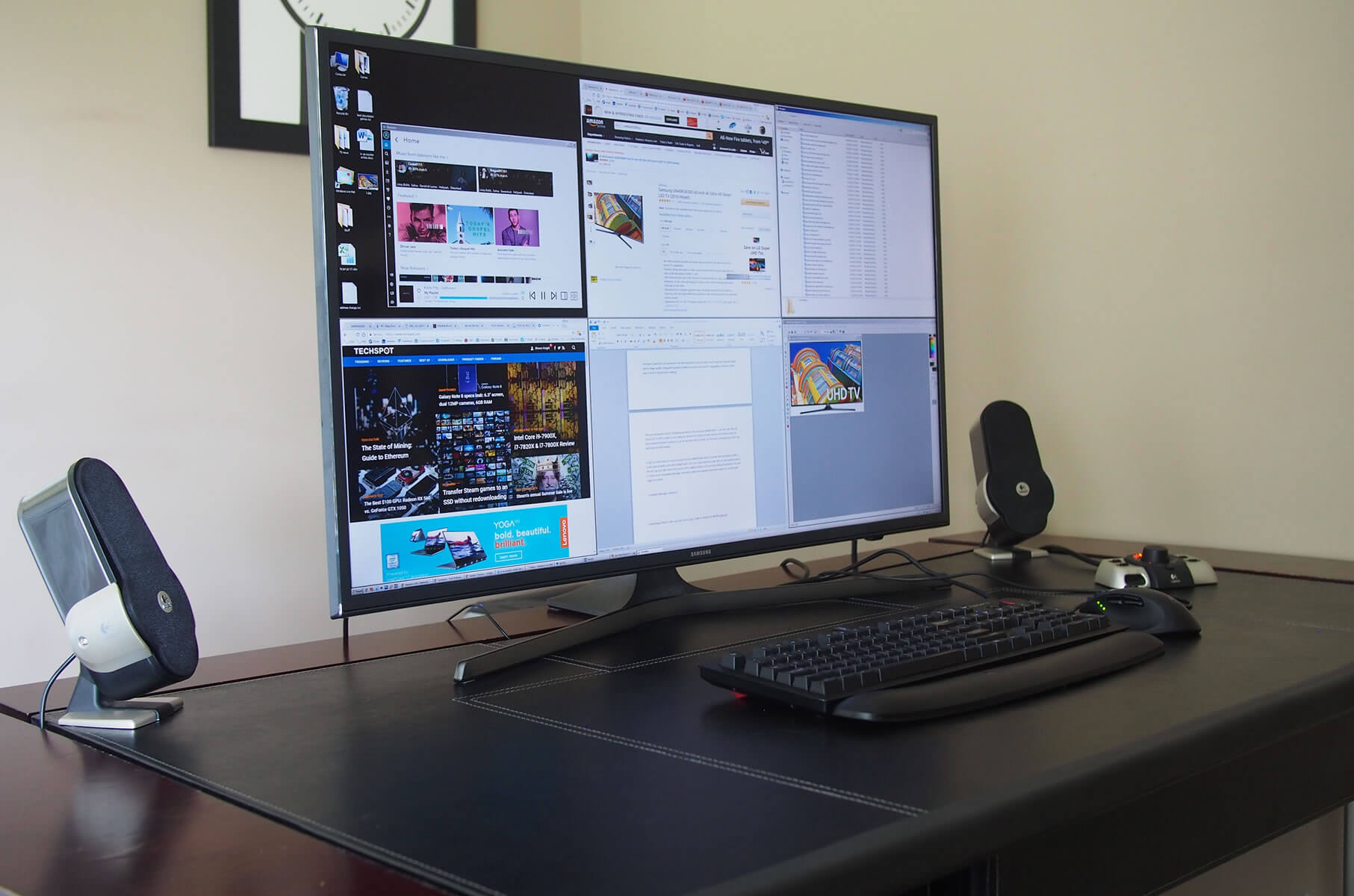
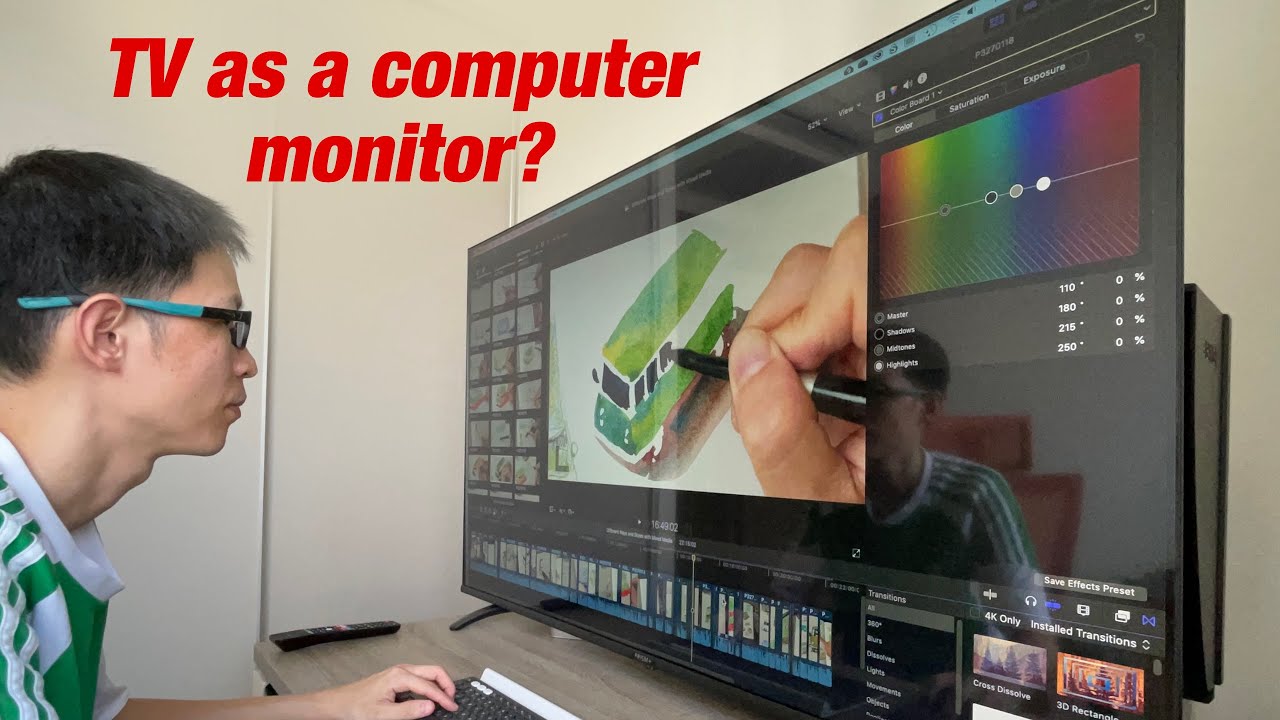
A 4K TV can work well for spreadsheets, video calls, writing, and web browsing when it supports clear text and you use sensible scaling. A large screen can also let you place several windows side by side.
A TV may be frustrating for office work when:
- Text looks blurry
- The screen has noticeable input delay
- The panel has strong glare
- The stand cannot adjust for your desk
- The screen is too large for the viewing distance
- The TV turns off or changes modes during inactivity
- The panel uses aggressive automatic brightness changes
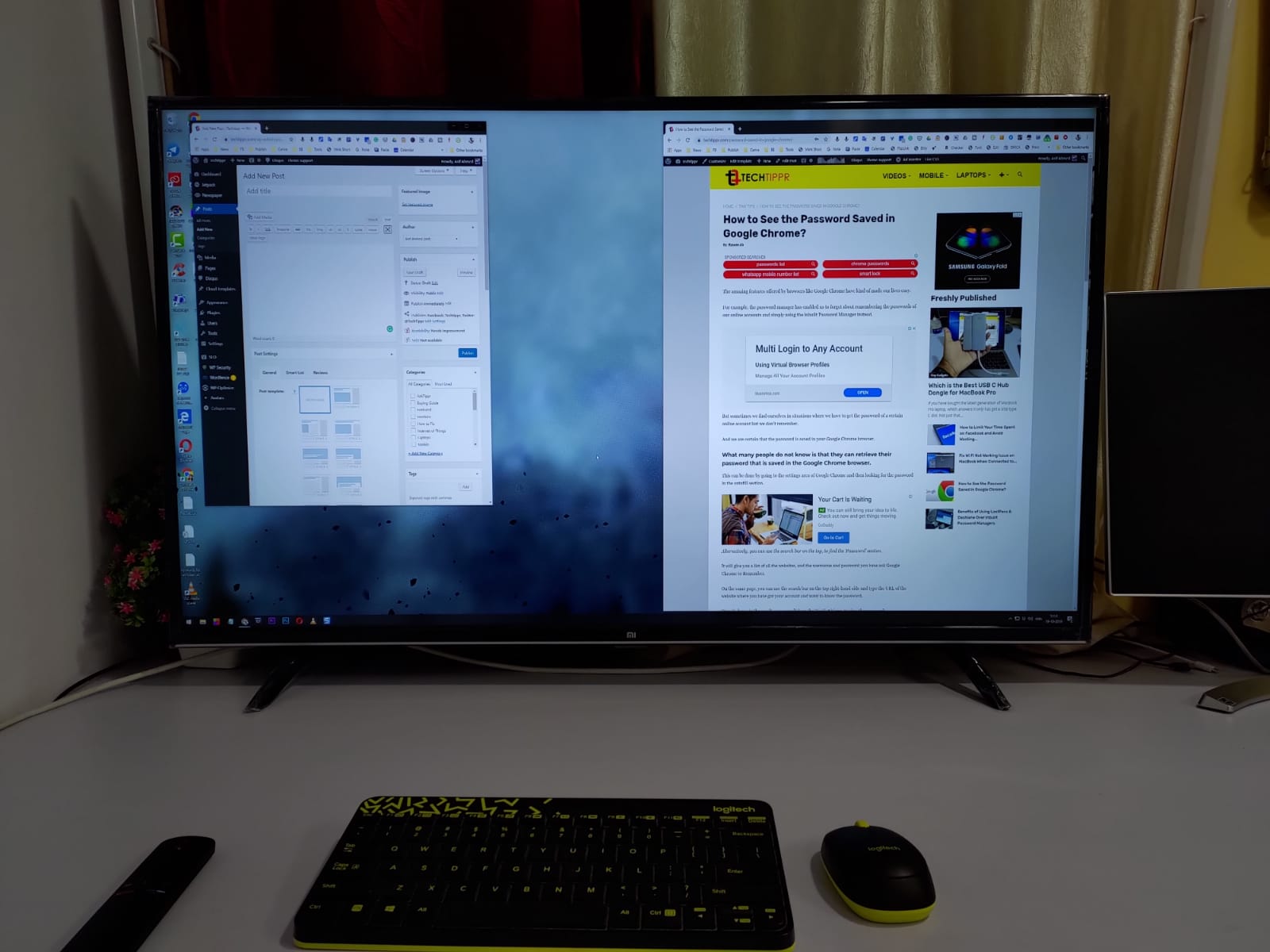
A wireless keyboard and mouse can help when the TV is across the room. For a desk, wired or low-latency wireless devices may feel more responsive.
If you work with text all day, compare the TV with a monitor before buying. Sharp text and comfortable viewing often matter more than screen size.
How to Fix Common TV-as-Monitor Problems
Start with the cable and input, then check the computer settings.
No picture
Try these steps:
- Confirm that the TV is on the correct HDMI input.
- Disconnect and reconnect the cable.
- Test another HDMI port.
- Restart the computer with the TV connected.
- Try another cable.
- Lower the resolution or refresh rate.
- Check whether the adapter supports video output.
If you use USB-C, confirm that the computer port supports DisplayPort video. Charging-only USB-C ports cannot send a display signal.
Picture is blurry
Check that:
- The computer uses the TV’s native resolution.
- The TV is in PC or game mode.
- Overscan is disabled.
- The sharpness setting is not excessive.
- The computer is not outputting an unusual scaling mode.
- The TV supports 4:4:4 chroma at that setting.
Screen flickers or goes black
A flicker often points to a cable, adapter, refresh-rate, or bandwidth problem.
Try reducing the refresh rate from 120 Hz to 60 Hz. If that fixes the problem, the cable or adapter may not support the original signal. You can also test a shorter cable and a different HDMI port.
Sound does not come from the TV
On Windows, open Settings > System > Sound and select the TV as the output device. On macOS, open System Settings > Sound > Output and select the TV.
HDMI can carry audio, but the computer must choose the TV as the active output. Some adapters do not carry sound.

Safety and Comfort Tips
A TV can be used safely as a computer display when it is placed securely and viewed comfortably.
- Use a stand or wall mount rated for the TV’s weight.
- Keep ventilation openings clear.
- Do not use a damaged power cord or loose adapter.
- Place the screen so you do not need to tilt your head up for long periods.
- Reduce glare from windows and lamps.
- Use regular breaks during long work sessions.
- Set brightness to a comfortable level instead of using maximum brightness.
The American Optometric Association recommends the 20-20-20 approach for digital eye strain: every 20 minutes, look at something about 20 feet away for 20 seconds. This can help reduce discomfort, though it does not replace an eye exam when symptoms continue.
Key Takeaways
- Yes, a TV can be used as a computer monitor.
- HDMI is the simplest connection for most computers and TVs.
- Use the TV’s native resolution and a supported refresh rate.
- PC mode, game mode, and overscan controls can improve the picture.
- A 4K TV is usually a better computer display than a 1080p TV of the same size.
- Large TVs work best from several feet away.
- Dedicated monitors are often better for close desk work and long text sessions.
- OLED TVs need care when showing fixed desktop or game elements for long periods.
Frequently Asked Questions
Can I use a 32-inch TV as a computer monitor?
Yes. A 32-inch 4K TV can work well at a desk if it has a clear PC mode and supports the resolution you need. A 32-inch 1080p TV may show larger but less sharp text.
Can I use a 4K TV as a monitor for a laptop?
Yes. Connect the laptop through HDMI, USB-C, or a compatible adapter. Check the laptop’s graphics output and the TV’s supported resolution and refresh rate.
Will using a TV as a monitor damage the computer?
No. A normal HDMI, DisplayPort, or supported USB-C connection should not damage the computer. Use the correct adapter and avoid forcing incompatible connectors.
Can I use a TV as a monitor without HDMI?
Possibly. DisplayPort-to-HDMI, USB-C-to-HDMI, and other adapters can work. Older VGA connections may require an active converter and often provide lower image quality.
Is a TV worse for your eyes than a monitor?
Not automatically. Eye comfort depends on brightness, glare, viewing distance, text clarity, and breaks. A large TV placed too close can be uncomfortable, while a properly set 4K TV may be comfortable from across a room.
Do I need a special HDMI cable?
You need a cable rated for the resolution and refresh rate you plan to use. Basic 1080p at 60 Hz usually has modest requirements. 4K at 120 Hz requires a higher-bandwidth connection, compatible ports, and a suitable cable.
Conclusion
A TV can replace a computer monitor for many home setups. It is especially useful for couch gaming, streaming, presentations, photo viewing, and general computer use from a distance.
For the best result, connect it through HDMI, select PC or game mode, use the native resolution, disable overscan, and confirm the refresh rate. If you plan to sit close to the screen for many hours of text-heavy work, a dedicated monitor may provide sharper text, better adjustment, and greater comfort.

Everett Calloway is a consumer electronics writer and technology enthusiast at ElectroDoz. He enjoys exploring the latest gadgets, electronic devices, and innovative technologies that make everyday life easier. Everett focuses on creating helpful product reviews, detailed buying guides, practical how-to articles, and troubleshooting tips. His goal is to simplify complex technical information and help readers understand product features, compare their options, and make informed purchasing decisions. When he isn’t researching new electronics, he enjoys exploring emerging technology trends and discovering useful gadgets.






One Comment