

Can You Use A Computer Monitor As A TV: Easy Setup Guide
Yes, you can use a computer monitor as a TV. A monitor can show TV channels, streaming apps, movies, and game consoles when you connect it to the right source, such as a streaming stick, cable box, laptop, or game console.
The main catch is that most computer monitors do not include a TV tuner, built-in speakers, a remote, or smart TV apps. You may need extra equipment for those features. In a U.S. home, the easiest setup is usually a monitor with an HDMI port connected to a streaming device, cable box, or over-the-air TV tuner.

What You Need to Use a Monitor as a TV
You need three basic things: a video source, a compatible connection, and a way to hear sound.
A monitor only displays the signal it receives. Unlike a television, it usually does not receive broadcast channels on its own or run streaming apps without help.
1. A video source
Choose the source based on how you watch TV:
- Streaming device: Roku, Amazon Fire TV, Apple TV, Google TV, or another HDMI streaming player
- Cable or satellite box: A provider box with HDMI output
- Streaming service device: A smart Blu-ray player or game console
- Laptop or desktop computer: Useful for web-based streaming
- Over-the-air tuner: Needed for antenna TV if the monitor has no built-in tuner
- Game console: PlayStation, Xbox, or Nintendo Switch for games and some streaming apps
2. A compatible cable
Most modern monitors and TV devices use HDMI. Connect the HDMI output from the source to the HDMI input on the monitor.
Older equipment may use DVI, VGA, component, or composite video. These connections can create limits:
- DVI may carry video but usually does not carry sound.
- VGA carries analog video only and cannot carry modern copy-protected HD video in many setups.
- Component video may support HD video but often needs separate audio cables.
- Composite video supports much lower image quality.
- USB-C can carry video from some laptops, but only when the port supports DisplayPort video output.
Check the ports on both devices before buying an adapter. A cable cannot add features that the source or monitor does not support.
3. A sound solution
Many computer monitors have no speakers. If yours does, the speakers may be quiet or basic.
You can use:
- External computer speakers
- A soundbar
- Headphones
- Bluetooth headphones, if the source supports Bluetooth audio
- An AV receiver
- An HDMI audio extractor in certain setups
The simplest method is to connect speakers directly to the streaming device or cable box when it has an audio output. Some monitors also have a 3.5-millimeter headphone jack that passes sound from HDMI to external speakers.
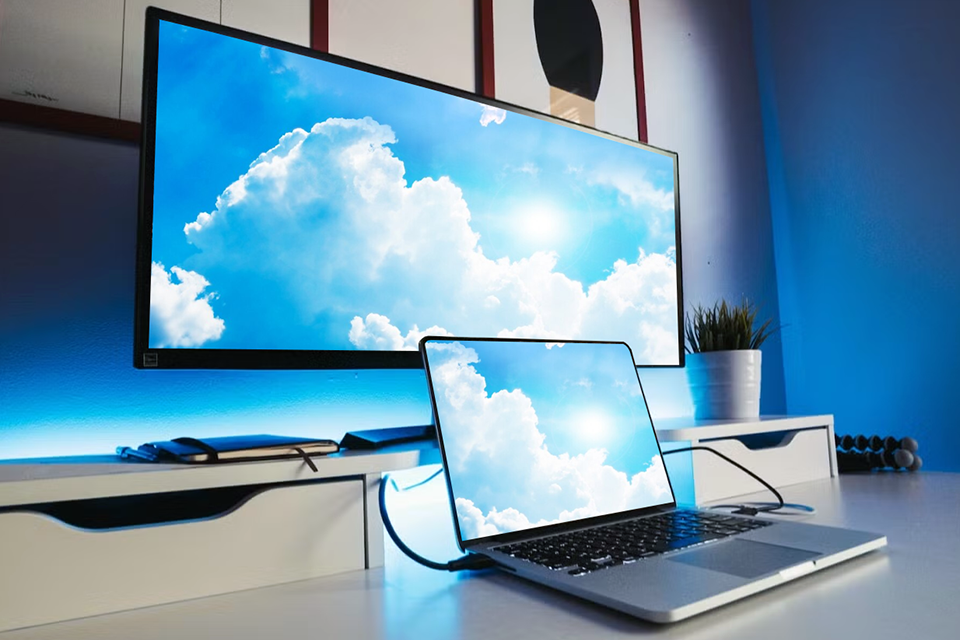
How to Set Up a Monitor as a TV
The setup takes only a few steps when the monitor and source use HDMI.
Step 1: Check the monitor ports
Look for one or more of these ports:
- HDMI
- DisplayPort
- USB-C with video support
- DVI
- VGA
- 3.5-millimeter audio output
HDMI is usually the best option for a TV-style setup because it can carry both high-definition video and digital audio.
Also check the monitor’s resolution. A 1080p monitor works well with most basic streaming devices. A 4K monitor can display 4K content if the source, cable, app, and monitor all support it.
Step 2: Connect the video source
Plug one end of an HDMI cable into the source device and the other end into the monitor.
For example:
Streaming device HDMI output → Monitor HDMI input
If you use a cable box, connect the HDMI output on the box to the HDMI input on the monitor.
Step 3: Connect audio
If the monitor has speakers, select the correct audio setting and test the volume.
If it does not, connect external speakers to the source device or use an audio extractor. Some streaming devices send audio through HDMI only, so you may need a device that splits HDMI video and audio.
Step 4: Select the correct input
Turn on the monitor and use its input or source button. Choose the HDMI port that holds the streaming device or cable box.
If the screen says “No Signal,” select each input until you find the connected source.
Step 5: Finish the source setup
A streaming device normally asks you to:
- Connect to Wi-Fi.
- Sign in to your account.
- Install or open streaming apps.
- Choose display and audio settings.
- Pair the remote.
A cable box may need activation through your provider.
Signs the setup is working
You should see the source device’s home screen. Sound should come from the monitor or connected speakers. The remote should control the source device, though it may not control the monitor’s power or volume unless the devices support HDMI-CEC.

Can You Watch Cable TV on a Computer Monitor?
Yes, but the answer depends on your cable service.
A cable box with an HDMI output can usually connect to a monitor just like it connects to a TV. The monitor does not need a built-in cable tuner because the cable box receives and decodes the channels.
You usually cannot connect a cable wall outlet directly to a standard computer monitor. Most monitors do not have a coaxial input or a cable TV tuner. In that case, you need the provider’s set-top box or a compatible tuner.
Some cable providers also offer streaming apps. Those apps may run on a streaming device, smart TV platform, game console, phone, tablet, or computer. Availability depends on the provider and your service plan.
What if the cable box says “No Signal”?
Check these items in order:
- Confirm the cable box is powered on.
- Select the monitor input connected to the box.
- Reseat both ends of the HDMI cable.
- Try a different HDMI cable.
- Try another HDMI port on the monitor.
- Restart the cable box and monitor.
- Check whether the box works with another display.
Copy protection can also cause problems. Many paid video services use HDCP, a system that checks whether connected devices are allowed to display protected content. Very old monitors, adapters, and splitters may not support the required HDCP version.

Can You Watch Antenna TV on a Monitor?
You can watch free over-the-air TV on a monitor, but you need an antenna and a TV tuner.
A standard monitor usually cannot tune local broadcast channels by itself. You need one of these options:
- A digital TV tuner box with HDMI output
- A USB TV tuner connected to a computer
- A network TV tuner that works with a compatible app
- A monitor with a built-in ATSC tuner
Connect the antenna to the tuner, then connect the tuner’s HDMI output to the monitor. Use the tuner’s remote to scan for local channels.
In the United States, check that the tuner supports the broadcast standard used by the channels you want to receive. A tuner designed for one standard may not support every newer broadcast feature. The FCC’s consumer television resources provide general information about over-the-air reception and antenna equipment.
Antenna reception can vary
Your results depend on:
- Distance from broadcast towers
- Buildings, hills, and trees
- Indoor or outdoor antenna placement
- Antenna quality
- Local channel availability
- The tuner’s supported broadcast standard
An antenna does not guarantee every local channel. Use the FCC’s DTV reception information to check station locations and signal coverage.
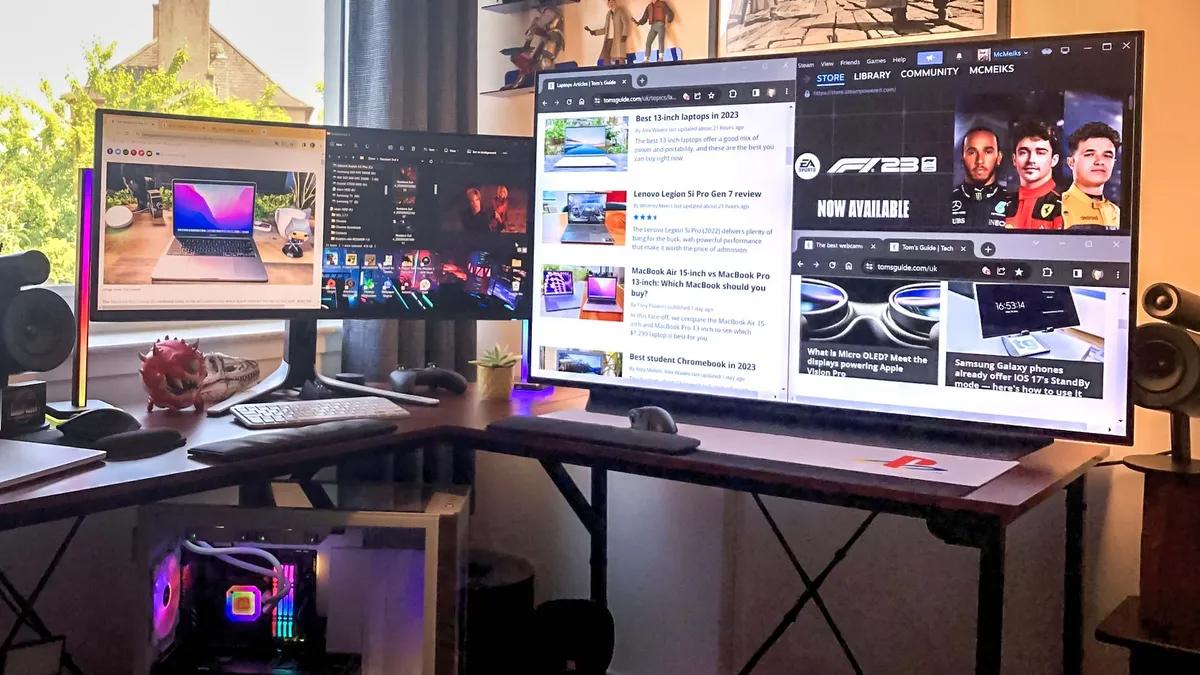
Monitor vs. TV: What Is the Difference?
A monitor and a television can share the same display technology, but they are built for different jobs.
| Feature | Computer monitor | Television |
|---|---|---|
| HDMI input | Common | Common |
| Built-in TV tuner | Usually absent | Common on many models |
| Smart TV apps | Usually absent | Common |
| Speakers | Optional or basic | Usually included |
| Remote control | Usually absent | Included |
| Computer text clarity | Often strong | Varies by model |
| Low input lag | Common on gaming models | Varies by picture mode |
| TV-style picture processing | Limited | Common |
| Size options | Often smaller | Often available in larger sizes |
A monitor may be the better choice when you already own one or want a compact screen for a desk, bedroom, dorm, or office. A TV may be more convenient for a living room because it normally includes speakers, a tuner, a remote, and smart features.
Picture quality is not the same as screen size
A monitor may look sharp because it sits close to you and often uses a high pixel density. A TV may offer stronger picture processing, better built-in audio, and easier access to TV apps.
For movies and shows, look at:
- Resolution
- Contrast
- Black levels
- Viewing angle
- Brightness
- HDR support
- Refresh rate
- Input lag
- Screen size
A high refresh rate, such as 144Hz, does not automatically improve movies or TV shows. Most TV and film content uses much lower frame rates. High refresh rates matter more for computer games and supported PC content.
Do You Need a Smart Monitor?
No. You do not need a smart monitor to watch TV.
A regular monitor can work with an external streaming device. In fact, an external device may be easier to replace or update than a built-in smart platform.
A smart monitor may include apps, speakers, Wi-Fi, and a remote. However, features vary by model. Before buying one, check:
- Which streaming apps it supports
- Whether the apps receive updates
- Whether it has a remote
- Whether it includes speakers
- Whether it supports HDMI-CEC
- Whether it has an antenna or coaxial input
- Whether the app platform works in the United States
Do not assume that a monitor with Wi-Fi can stream video. Wi-Fi only provides a network connection. The monitor also needs compatible software and apps.
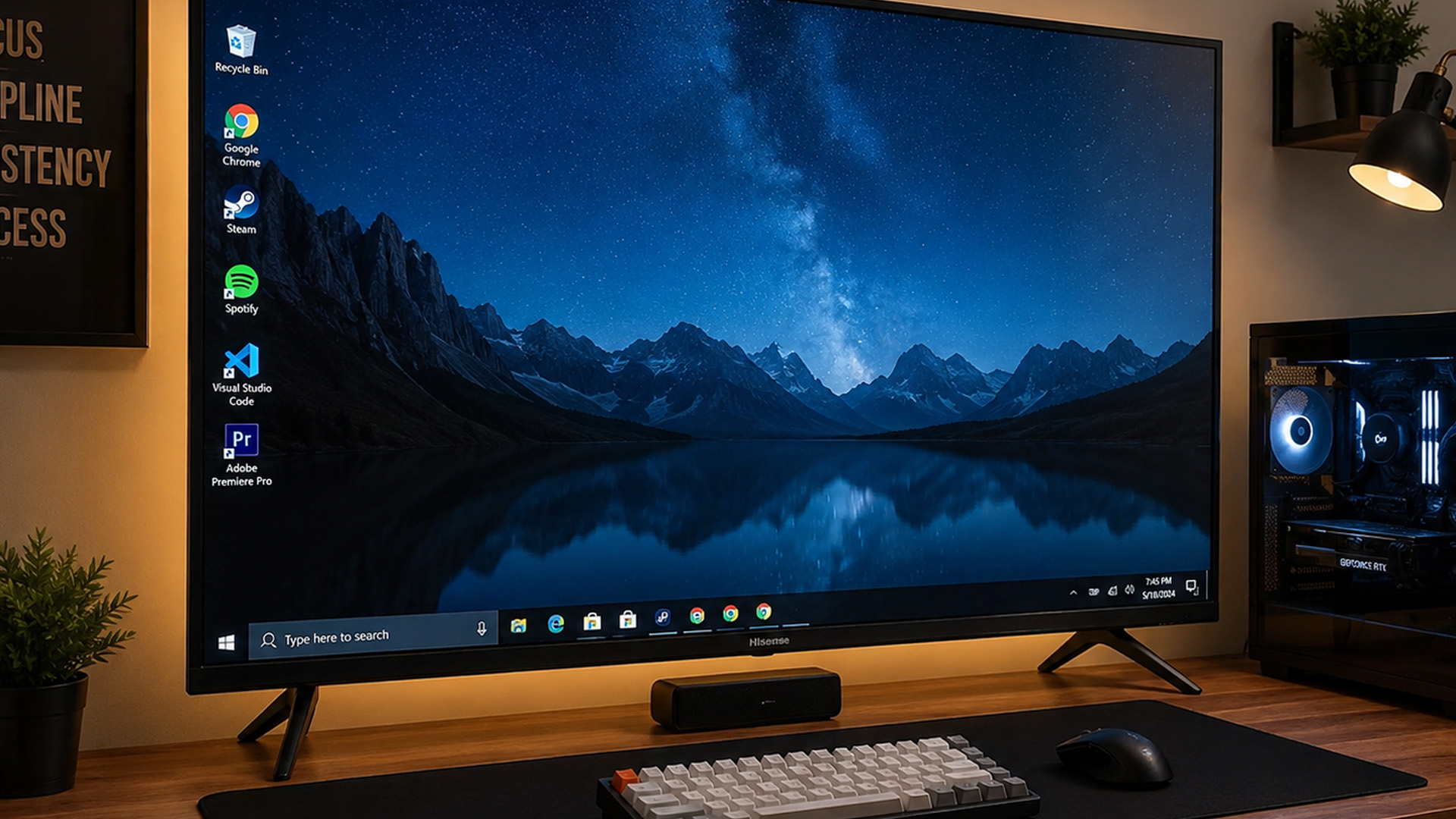
Common Problems When Using a Monitor as a TV
Most problems come from missing audio, incorrect input selection, unsupported formats, or incompatible adapters.
The monitor shows “No Signal”
Possible causes include:
- The wrong input is selected.
- The HDMI cable is loose or damaged.
- The source device is off.
- The monitor does not support the selected resolution or refresh rate.
- An adapter does not support the needed signal.
- The source device has an HDCP compatibility problem.
Start with the simple checks. Turn on the source, select the right input, reconnect the cable, and restart both devices.
You have a picture but no sound
The monitor may not have speakers. If it does, its volume may be muted or the source may be sending audio in an unsupported format.
Try these steps:
- Check the monitor’s volume and mute controls.
- Check the source device’s audio output setting.
- Set audio to stereo or PCM as a test.
- Connect headphones or speakers to the source.
- Try an HDMI audio extractor if the source has no separate audio output.
The picture looks stretched
The source may be using a different aspect ratio from the monitor. Open the display settings on the source and choose “Auto,” “16:9,” or the monitor’s native resolution.
A 16:9 monitor is usually the easiest match for modern TV content. Ultrawide monitors may show black bars or stretch the image.
Streaming apps will not play
The issue may involve HDCP, an outdated app, unsupported software, or an unreliable adapter. Remove unnecessary splitters and adapters, then connect the streaming device directly to the monitor.
If the monitor is old, check its manual for supported HDMI and HDCP versions. Some protected 4K content requires compatible hardware throughout the entire connection.
The remote does not control everything
A streaming remote may control the streaming device but not the monitor. HDMI-CEC can allow devices to share power and volume commands, but support varies.
You may need to use:
- The streaming remote
- The monitor’s buttons
- A universal remote
- A soundbar remote
- A phone app
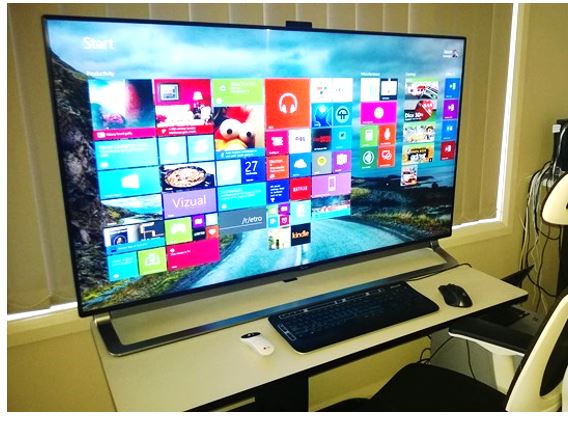
Can You Use a Computer Monitor for a TV Without a Computer?
Yes. A computer is not required.
You can connect a monitor directly to:
- A streaming stick
- A streaming box
- A cable box
- A satellite receiver
- A game console
- A digital TV tuner
- A Blu-ray player
The monitor is only the display. The connected device provides the TV channels, apps, menus, and playback functions.
This setup can reduce clutter if the monitor has built-in speakers and a simple remote. If it does not, you will need to manage more than one device.
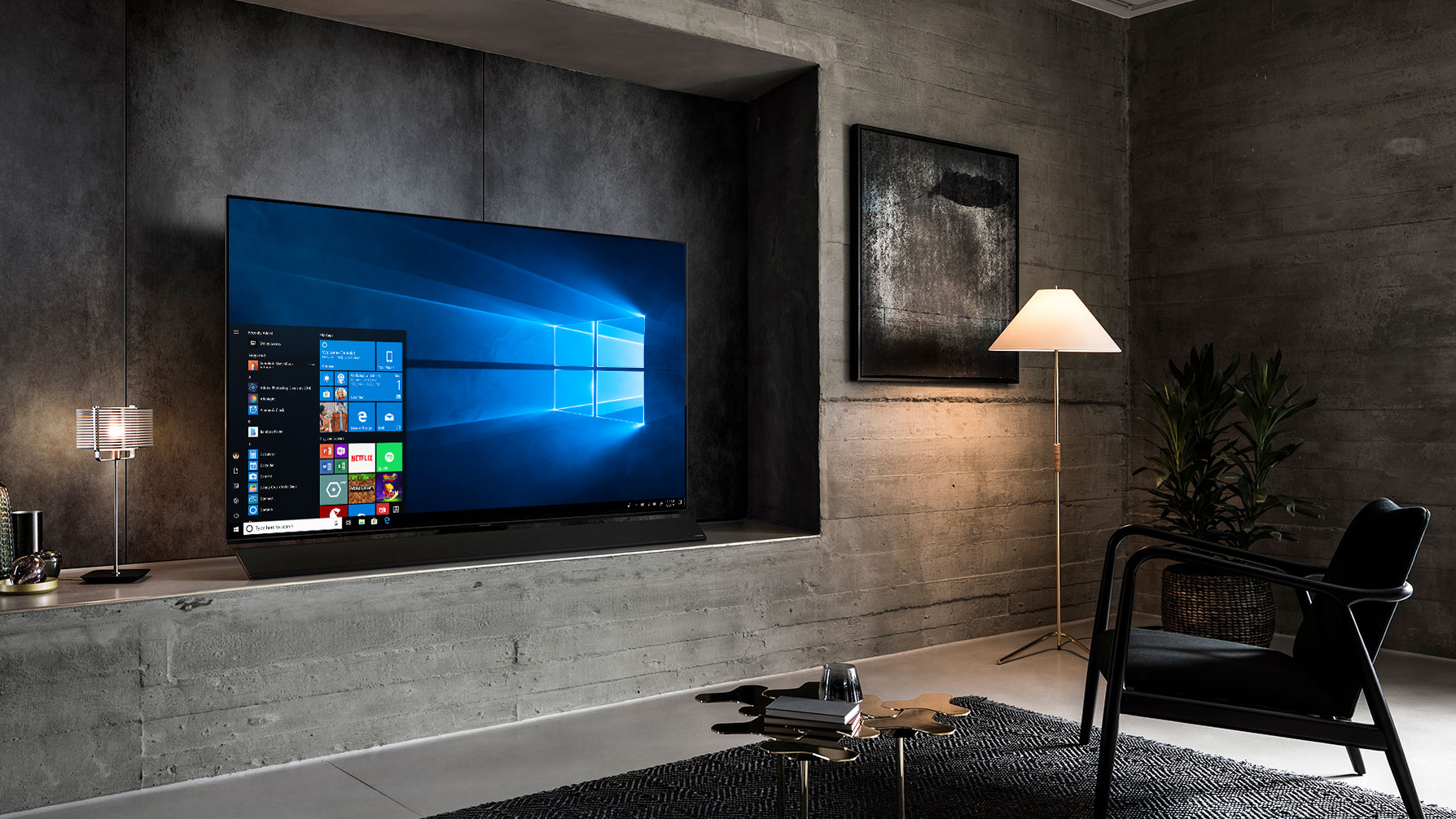
Is a Monitor Good for Watching TV Every Day?
A monitor can be a good everyday TV when its limits match your needs.
It may work well for:
- A bedroom screen
- A dorm room
- A home office
- A kitchen or small apartment
- A gaming setup
- A second screen for occasional viewing
A television is often more convenient for a shared living room. TVs usually offer larger screens, built-in sound, remotes, TV tuners, and smart apps in one package.
Before using a monitor as your main TV, consider the total setup cost. Add the price of a streaming device, speakers, tuner, HDMI cables, and any required adapters. A used monitor may seem inexpensive but become less attractive after you add missing features.
Quick decision guide
| Your situation | Better option |
|---|---|
| You already own a monitor and mainly stream | Use the monitor with a streaming device |
| You need local antenna channels | Use a TV tuner or buy a TV with a tuner |
| You want a simple living-room setup | A television may be easier |
| You already have a cable box | Connect the box by HDMI |
| You need strong PC and gaming performance | A monitor may be the better display |
| You need built-in sound and a remote | A TV is usually more convenient |
Safety and Compatibility Tips
Using a monitor as a TV is generally low risk, but use equipment correctly.
- Use the power adapter supplied with the monitor or a compatible replacement.
- Do not force a cable into a port.
- Keep vents clear so the monitor and streaming device can cool.
- Do not use damaged power cords.
- Place the monitor on a stable surface.
- Follow the monitor and tuner manuals.
- Check that an adapter supports the resolution, refresh rate, audio, and HDCP version you need.
- Avoid unknown power adapters with incorrect voltage or connector polarity.
For wall mounting, use a mount that matches the monitor’s VESA pattern and weight rating. Secure the mount to suitable wall material and follow the mount manufacturer’s instructions.
Frequently Asked Questions
Can I connect a Roku to a computer monitor?
Yes. Connect the Roku to an HDMI port on the monitor and provide audio through the monitor’s speakers, a headphone jack, or external speakers. The Roku needs Wi-Fi and a compatible power connection.
Can I use a monitor with a Fire TV Stick?
Usually, yes. The monitor needs an HDMI input, and the Fire TV Stick needs power. If the monitor has no speakers, connect separate speakers through a suitable audio setup.
Can I watch Netflix on a monitor?
Yes. You can watch Netflix through a streaming device, computer, game console, or compatible smart monitor. Direct playback depends on the device, app support, internet connection, and content-protection compatibility.
Can I connect an antenna directly to a computer monitor?
Usually not. Most computer monitors do not have a TV tuner. Use a digital TV tuner between the antenna and monitor, or use a display with a built-in compatible tuner.
Will a monitor work with a cable box?
Yes, if the cable box has a compatible video output, usually HDMI. The cable box receives the channels, so the monitor does not need a built-in cable tuner.
Does a monitor use less electricity than a TV?
Not always. Energy use depends on screen size, brightness, display type, power settings, and connected equipment. Compare the power information for the exact monitor and TV models rather than assuming one category always uses less.
Conclusion
You can use a computer monitor as a TV when you connect it to a device that supplies TV or streaming content. An HDMI streaming device is usually the simplest option, while a cable box or digital tuner can provide cable or antenna channels.
The biggest limits are the lack of built-in speakers, a remote, a TV tuner, and smart apps. Check the monitor’s ports, plan your audio setup, and confirm support for resolution and HDCP before buying extra equipment. For a desk, bedroom, dorm, or spare room, a monitor can work very well. For a simple shared living-room setup, a television may be more convenient.

Everett Calloway is a consumer electronics writer and technology enthusiast at ElectroDoz. He enjoys exploring the latest gadgets, electronic devices, and innovative technologies that make everyday life easier. Everett focuses on creating helpful product reviews, detailed buying guides, practical how-to articles, and troubleshooting tips. His goal is to simplify complex technical information and help readers understand product features, compare their options, and make informed purchasing decisions. When he isn’t researching new electronics, he enjoys exploring emerging technology trends and discovering useful gadgets.







One Comment