
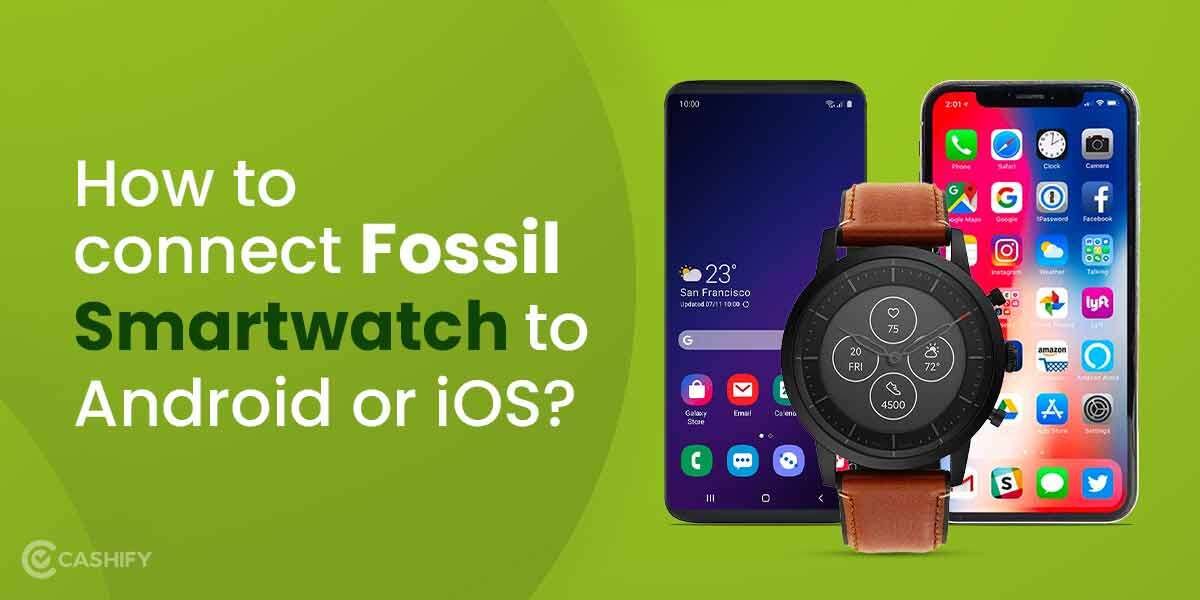
Can A Fossil Smartwatch Be Used With An iPhone: Yes
Yes, many Fossil smartwatches can be used with an iPhone, but the answer depends on the watch model and its operating system.
Older Fossil watches that use Wear OS 2 usually pair with an iPhone through the Wear OS app. Fossil Hybrid smartwatches also work with iPhones through the Fossil Smartwatches app. However, Fossil watches that run Wear OS 3 or later generally do not support iPhone pairing.
For buyers in the United States, the key question is not just “Is it a Fossil watch?” Check the exact model, Wear OS version, iOS requirement, and available features before you buy or reset the watch.

Which Fossil smartwatches work with an iPhone?
Fossil smartwatches fall into three main groups: older Wear OS watches, newer Wear OS watches, and Hybrid smartwatches.
| Fossil watch type | iPhone support | Main app | Important limit |
|---|---|---|---|
| Fossil Gen 3 and Gen 4 | Usually yes | Wear OS by Google | Features are more limited than with Android |
| Fossil Gen 5 | Usually yes on Wear OS 2 | Wear OS by Google | Do not upgrade to an iPhone-incompatible Wear OS version |
| Fossil Gen 6 before a Wear OS 3 upgrade | Often yes | Wear OS by Google | Support depends on the software version |
| Fossil Gen 6 with Wear OS 3 | Generally no | Wear OS by Google | Wear OS 3 and newer are not designed for iPhone pairing |
| Fossil Hybrid HR | Yes | Fossil Smartwatches | It is not a full Wear OS smartwatch |
| Fossil Hybrid models | Usually yes | Fossil Smartwatches | Fewer apps and smart features |
This table gives a general guide. Fossil released several generations and special editions, so the model name alone may not tell the whole story. A Fossil Gen 6 with its original software may have a different compatibility result from the same watch after a major system update.
Google’s Wear OS support information states that Wear OS 3 and newer watches do not support iPhones. Fossil’s own support pages also separate older Wear OS watches from newer software versions.
Fossil Gen 5 and older models
Fossil Gen 5 watches commonly work with an iPhone through the Wear OS by Google app. They can show notifications, track some activity, control music, and provide watch faces.
Some features remain limited. For example, replying to messages from the watch may not work as it does on Android. Google Assistant support, app installation, health features, and call functions can also vary.
Fossil Gen 6 models
Fossil Gen 6 compatibility requires extra care. A Gen 6 watch running software based on Wear OS 2 may work with an iPhone. A Gen 6 watch updated to Wear OS 3 generally cannot pair with an iPhone.
Before buying a used Gen 6, ask the seller:
- Does the watch pair with an iPhone now?
- Which Wear OS version is installed?
- Has the watch been reset?
- Can the seller show the watch in the Wear OS app?
- Is the model a standard Gen 6 or a Gen 6 Wellness edition?
A seller’s statement that the watch is “compatible with iPhone” may describe the original software, not the current software.
Fossil Hybrid smartwatches
Fossil Hybrid watches are different from Wear OS watches. They combine physical watch hands with a small display or indicator system. They use the Fossil Smartwatches app rather than the Wear OS by Google app.
Hybrid models usually work well with iPhones for:
- Notifications
- Step tracking
- Sleep tracking
- Activity data
- Alarm and timer controls
- Music controls on supported models
- Custom button actions
They do not offer the full app experience of an Apple Watch or a Wear OS smartwatch.

How to connect a Fossil smartwatch to an iPhone
Use the correct companion app before you begin. The wrong app is one of the most common reasons pairing fails.
What you need
Prepare these items:
- A compatible Fossil smartwatch
- An iPhone with a supported iOS version
- Bluetooth turned on
- Wi-Fi or mobile data
- A Google account for a Wear OS watch
- The correct Fossil or Google app
- A charged watch and iPhone
For a Wear OS model, install Wear OS by Google from the Apple App Store. For a Fossil Hybrid model, install Fossil Smartwatches.
Steps for an older Wear OS Fossil watch
- Charge the watch to at least 50 percent.
- Turn on Bluetooth on the iPhone.
- Install the Wear OS by Google app.
- Open the app and sign in if requested.
- Turn on the Fossil watch.
- Select the watch in the Wear OS app.
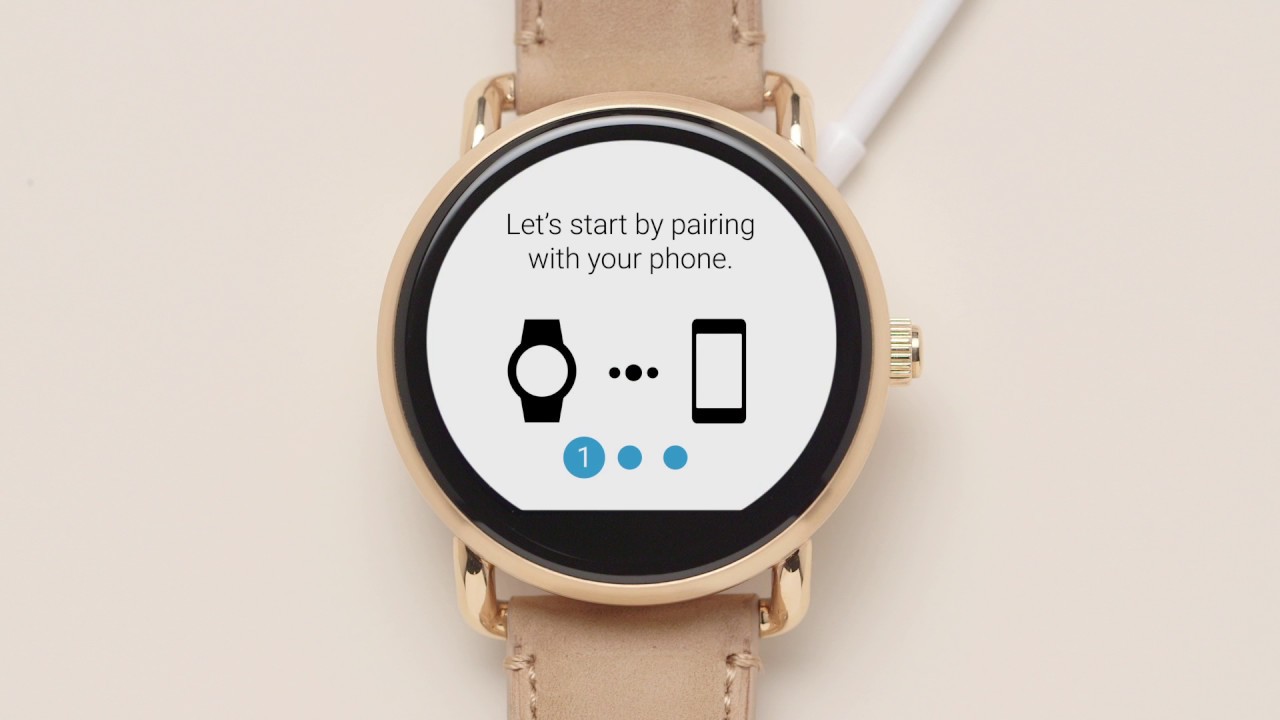
- Confirm that the pairing code matches on both screens.
- Follow the setup prompts.
- Allow notification and Bluetooth permissions.
- Install updates only after checking that they will not remove iPhone support.
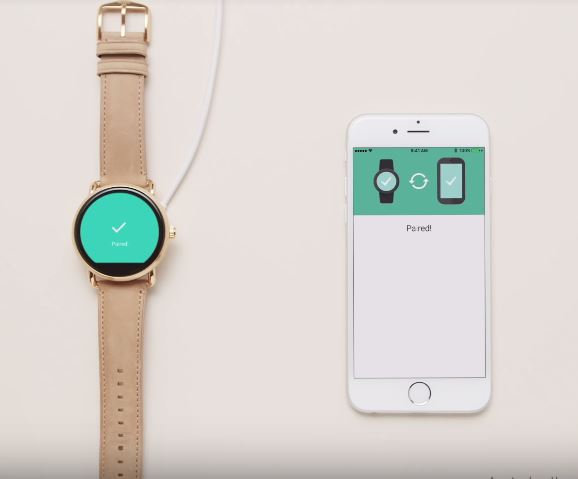
Do not pair the watch from the iPhone’s Bluetooth menu first. Start inside the Wear OS app. Direct Bluetooth pairing may create a partial connection that prevents the app from completing setup.
Steps for a Fossil Hybrid watch
- Install the Fossil Smartwatches app.
- Create or sign in to a Fossil account if the app requests one.
- Put the watch close to the iPhone.
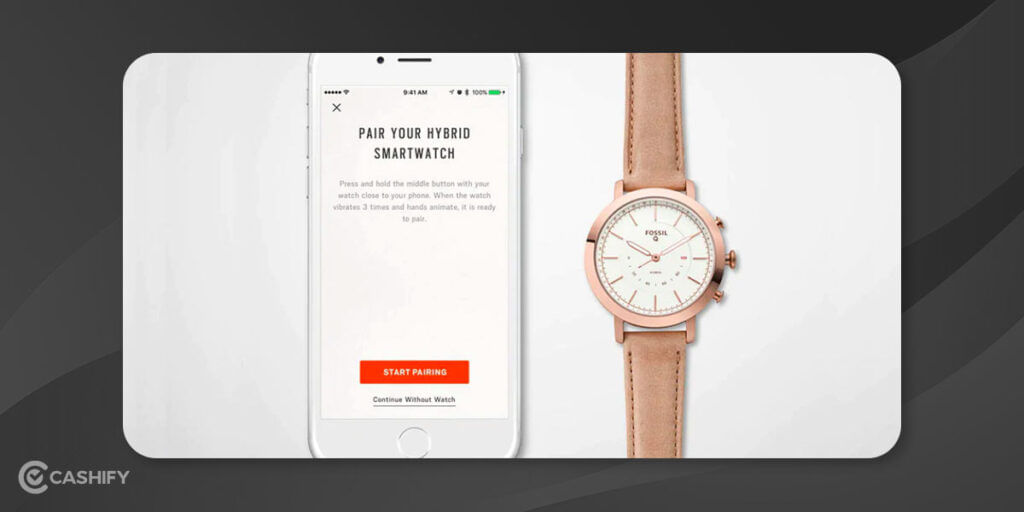
- Start the pairing process in the Fossil app.
- Press the watch button when the app tells you to do so.
- Accept Bluetooth and notification permissions.
- Let the app complete its first sync.
- Keep the app allowed to refresh in the background.
The watch may need a firmware update. Keep it near the iPhone and connected to a charger if the app requires one.
Signs that setup worked
A successful connection usually has these signs:
- The watch shows as connected in its companion app.
- The correct time appears on the watch.
- A test notification reaches the watch.
- Activity data syncs to the app.
- The app displays the watch battery level.
- The watch remains connected after the iPhone screen locks.

What features work with an iPhone?
A Fossil smartwatch can provide useful functions with an iPhone, but it does not become an Apple Watch.
Features that commonly work
Depending on the model, an iPhone-connected Fossil watch may support:
- Incoming call alerts
- Text and app notifications
- Step and activity tracking
- Heart-rate readings
- Sleep tracking
- Alarms and timers
- Weather updates
- Watch face changes
- Music controls
- Find-my-phone functions
- Contactless payments on supported models and regions
The exact feature list depends on the watch, app, software version, and iPhone permissions.
Features that may be limited
Some features are reduced or unavailable when a Fossil Wear OS watch is connected to an iPhone.
Common limitations include:
- Limited replies to text messages
- No full iMessage integration
- Reduced access to iPhone data
- Fewer third-party apps
- Limited voice assistant functions
- Less control over calls
- No Apple Health integration in some setups
- Delayed notifications if background activity is restricted
This happens because iOS limits how third-party smartwatch apps can interact with the phone. Apple gives the deepest system access to the Apple Watch.
Can you answer calls from a Fossil watch?
Some Fossil models have a speaker and microphone for calls. With an iPhone, call support can vary by model and software.
You may be able to:
- See who is calling
- Reject or silence a call
- Answer a call on models with supported Bluetooth calling
- Speak through the watch on some models
Do not assume that every Fossil watch with a speaker supports full iPhone calling. Check the model’s manual and current app support before relying on this function.
Can you reply to texts?
Usually, iPhone users should expect notification viewing rather than full message control.
A Fossil watch may show an incoming text, but quick replies, voice replies, keyboards, or message history can be limited. Apple’s Messages system does not provide the same level of watch integration to third-party devices that it provides to Apple Watch.
Can a Fossil watch use Apple Health?
Some Fossil apps may share selected activity data with Apple Health, but the connection is not universal. The available data can depend on the Fossil app, the watch model, and the permissions granted in Apple Health.
To check:
- Open the iPhone’s Health app.
- Tap your profile picture.
- Select Apps or Apps and Services.
- Look for the Fossil or connected fitness app.
- Review the data permissions.
If the app does not appear, that model may not support direct Apple Health sharing.
Troubleshooting Fossil smartwatch and iPhone pairing
Most connection problems come from an incompatible software version, an incorrect app, or an old Bluetooth record.
The watch does not appear in the app
Try these checks in order:
- Confirm that the watch is compatible with iPhone.
- Install the correct app.
- Turn Bluetooth off and on.
- Restart the iPhone and watch.
- Keep the devices within a few feet of each other.
- Remove an old pairing from the app.
- Reset the watch only if other steps fail.
If the watch runs Wear OS 3 or later, the problem may not be a fault. The software may simply not support iPhone pairing.
The watch paired but does not show notifications
Check notification access on the iPhone:
- Open Settings.
- Tap Notifications.
- Select the app you want to receive.
- Turn on Allow Notifications.
- Enable Lock Screen and Notification Center alerts if needed.
Then open the Fossil or Wear OS app and confirm that notification permissions are active. Some apps require the iPhone to remain connected by Bluetooth.
Notifications arrive late
Delayed alerts can result from:
- Low Power Mode
- Disabled background app refresh
- Weak Bluetooth connection
- A closed or restricted companion app
- Focus or Do Not Disturb settings
- An outdated watch app
- Low watch battery
Keep the companion app updated. Also check Settings > General > Background App Refresh on the iPhone.
The watch will not reconnect after a reset
Remove the old connection before trying again:
- Open the watch app.
- Remove or forget the watch.
- Open Settings > Bluetooth on the iPhone.
- Tap the information icon beside the watch.
- Choose Forget This Device.
- Restart both devices.
- Start pairing again from the companion app.
A factory reset erases watch data and settings. Sync the watch first if the app still recognizes it.
The watch worked before a software update
A major Wear OS update may change compatibility. This is especially relevant to Fossil Gen 6 watches.
If the watch changed from Wear OS 2 to Wear OS 3, an iPhone may no longer connect. In that case, the issue is a platform limitation, not a normal Bluetooth error. Check Fossil and Google support pages for the exact model before attempting another reset.
Should an iPhone user buy a Fossil smartwatch?
An iPhone user may want a Fossil watch if they value its design, basic notifications, activity tracking, or traditional watch styling. A Fossil Hybrid can be a practical choice when long battery life and simple alerts matter more than apps.
An older Wear OS Fossil watch can work for basic tasks, but its support may be less dependable than that of an Apple Watch. New software updates and app changes can also affect an older model.
Choose a Fossil watch when:
- You want a traditional watch design.
- You mainly need notifications and basic tracking.
- You are considering a Fossil Hybrid model.
- You understand that iPhone features may be limited.
- You have confirmed the exact software version.
Consider an Apple Watch when:
- You want deep iPhone integration.
- You need reliable message replies.
- You want strong Apple Health support.
- You need dependable calls and emergency features.
- You want long-term watchOS updates.
The deciding trade-off is simple: Fossil may offer the look you want, while Apple Watch offers the strongest iPhone connection.
Key takeaways
- Many older Fossil smartwatches work with an iPhone.
- Fossil Hybrid watches usually connect through the Fossil Smartwatches app.
- Older Wear OS models use the Wear OS by Google app.
- Fossil watches running Wear OS 3 or newer generally do not support iPhone pairing.
- Gen 6 compatibility depends heavily on the installed software.
- Notifications and basic tracking may work, but iPhone features can be limited.
- Check the exact model and software version before buying a used Fossil watch.
Frequently asked questions
Can a Fossil smartwatch connect to an iPhone without the Wear OS app?
Yes, but only if it is a Fossil Hybrid model that uses the Fossil Smartwatches app. Most Fossil Wear OS watches need the Wear OS by Google app for setup and syncing.
Does a Fossil smartwatch work with an iPhone 15 or iPhone 16?
The iPhone model is usually not the main issue. Compatibility depends more on the Fossil watch’s operating system and the companion app’s supported iOS version. A Fossil watch running Wear OS 3 or newer generally will not pair with an iPhone, even if the iPhone is new.
Can a Fossil smartwatch receive iPhone notifications?
Many compatible Fossil watches can display notifications from calls, texts, email, and other apps. You must grant notification access on the iPhone, and some apps may behave differently because of iOS restrictions.
Can I use a Fossil smartwatch with an iPhone and Android phone?
You can move the watch between phones, but switching often requires disconnecting, resetting, or pairing it again. A Wear OS watch may also need a factory reset when changing phones. Sync important data before switching.
Is a Fossil Gen 6 compatible with an iPhone?
It depends on the software installed. A Gen 6 model using older Wear OS software may support iPhone pairing. A Gen 6 model upgraded to Wear OS 3 generally does not. Ask for the software version before buying one used.
Conclusion
A Fossil smartwatch can work with an iPhone, but compatibility is model-specific. Older Wear OS watches and most Fossil Hybrid models can handle basic iPhone functions, while Wear OS 3 and newer Fossil watches generally cannot pair with iPhones.
Before you buy, confirm three details: the exact Fossil model, the installed operating system, and the companion app required. If you want full messages, Apple Health access, calls, and long-term iPhone support, an Apple Watch is usually the safer choice.

Everett Calloway is a consumer electronics writer and technology enthusiast at ElectroDoz. He enjoys exploring the latest gadgets, electronic devices, and innovative technologies that make everyday life easier. Everett focuses on creating helpful product reviews, detailed buying guides, practical how-to articles, and troubleshooting tips. His goal is to simplify complex technical information and help readers understand product features, compare their options, and make informed purchasing decisions. When he isn’t researching new electronics, he enjoys exploring emerging technology trends and discovering useful gadgets.






One Comment