
Can A Projector Be Used As A TV: Complete Guide
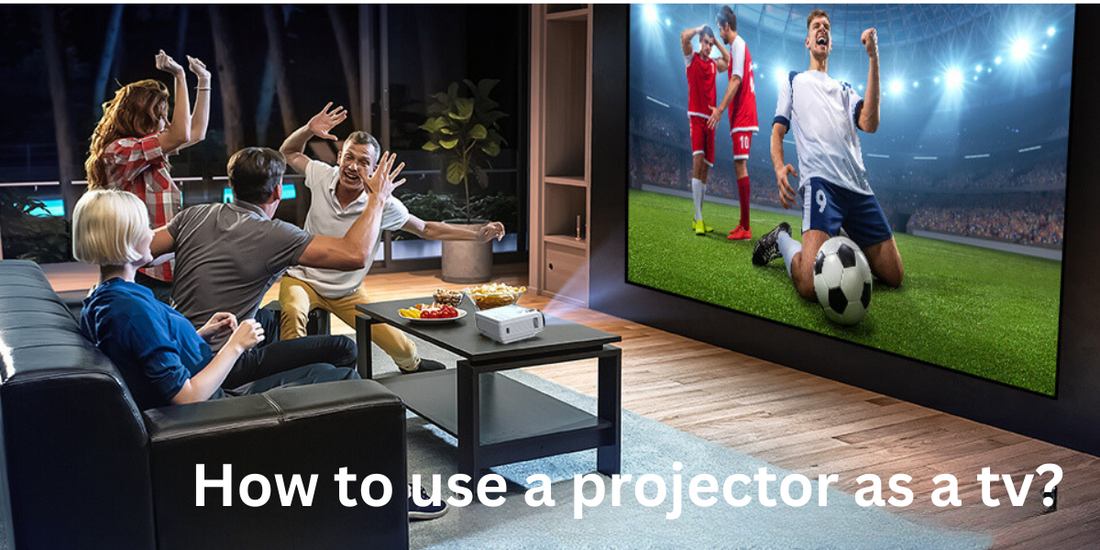
Yes. A projector can be used as a TV for live channels, streaming, sports, movies, and gaming. You need a projector, a screen or suitable wall, a video source, and speakers.
A projector can give you a much larger picture than a TV. It can also be easier to move or store. But it needs a darker room, more setup, and better control of light. For many U.S. homes, a TV is still easier for daily use.
Introduction
A projector is not limited to movie nights. With an HDMI device, it can show the same content as a television. You can connect a streaming stick, cable box, game console, Blu-ray player, or laptop.
The main question is not whether a projector can work as a TV. It can. The better question is whether your room, viewing habits, and budget make it a good TV replacement.
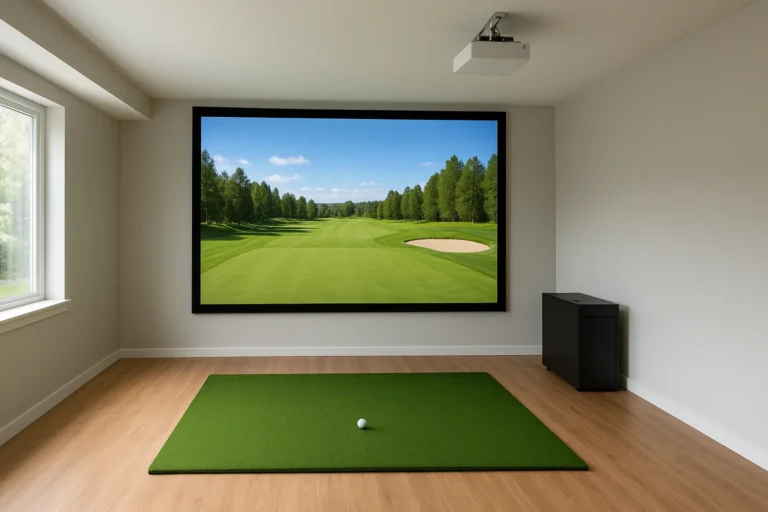
In a dark media room, a projector can feel like a home theater. In a bright living room, a modern TV may give a clearer picture with less work.
What You Need to Use a Projector as a TV
You need four main parts:
- A projector
- A display surface
- A video source
- A sound system
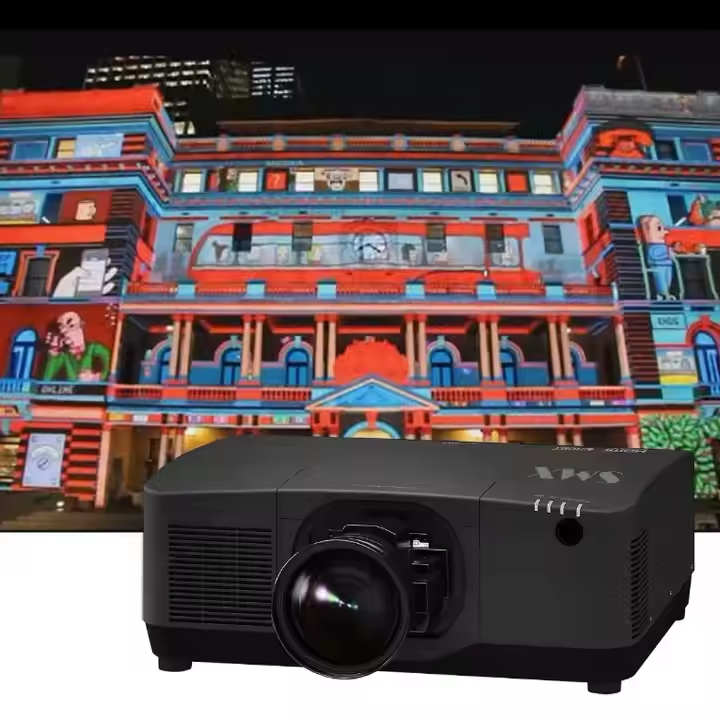
The projector creates the picture. It does not always provide TV channels, streaming apps, or strong sound by itself.
1. A projector
Choose a model with the right:
- Brightness
- Resolution
- Throw distance
- Input ports
- Smart features
- Gaming response
- Lamp or LED light source
For TV use, an LED or laser projector is often easier to live with than an older lamp model. LED and laser models usually avoid regular lamp changes. Their exact light-source life depends on the model and its operating mode.
Do not compare brightness by brand name alone. Look for a stated measurement such as ANSI lumens when available. Some companies use different brightness tests, so numbers from different systems may not be directly equal.
2. A screen or wall
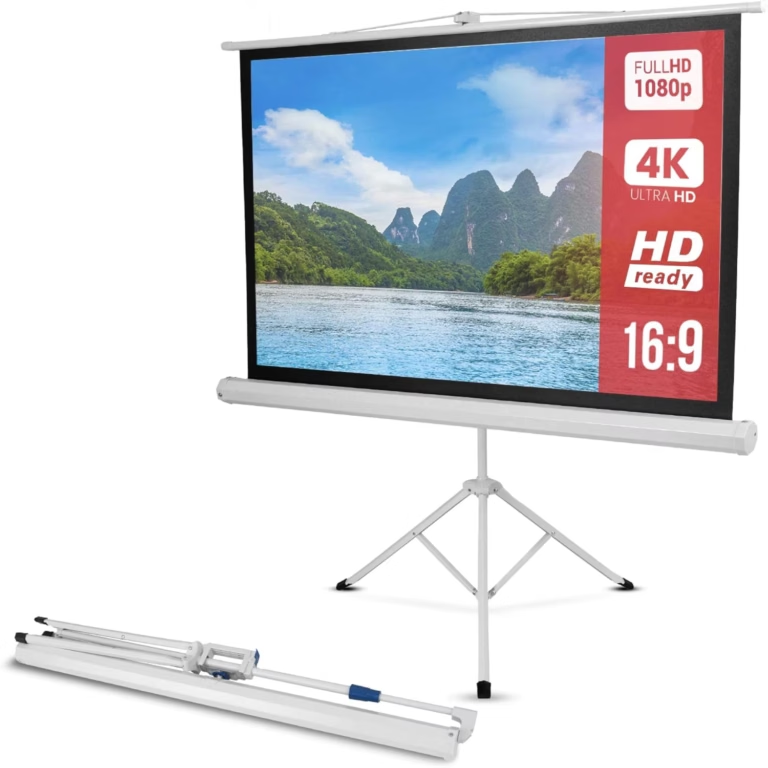
A smooth, light-colored wall can work for casual use. A screen usually gives a better result because it has a more even surface.
A screen may improve:
- Picture uniformity
- Contrast
- Sharpness
- Viewing angle
- Installation quality
Screen gain also matters. Gain describes how much light a screen reflects toward viewers compared with a standard reference. A high-gain screen may look brighter from the center, but it can have a narrower viewing angle and more visible hot spots.
3. A video source
A projector can show most sources that connect through a compatible input. Common choices include:
- Roku, Apple TV, or another streaming player
- Cable or satellite box
- Over-the-air TV tuner
- Game console
- Blu-ray player
- Laptop or desktop computer
Many smart projectors include built-in streaming apps. However, app support can change. Some projectors also lack certain apps, have slow processors, or stop receiving updates sooner than dedicated streaming devices.
A separate streaming device can make replacement and troubleshooting easier.
4. Sound
Projector speakers are often small. They may work for news or casual viewing, but they may not fill a large room.
Better options include:
- A soundbar
- Powered speakers
- An AV receiver and speakers
- Bluetooth headphones
- A wired audio system
check the projector’s audio outputs before buying. HDMI ARC or eARC can simplify soundbar connections, but not every projector supports them.
How to Watch TV Channels With a Projector
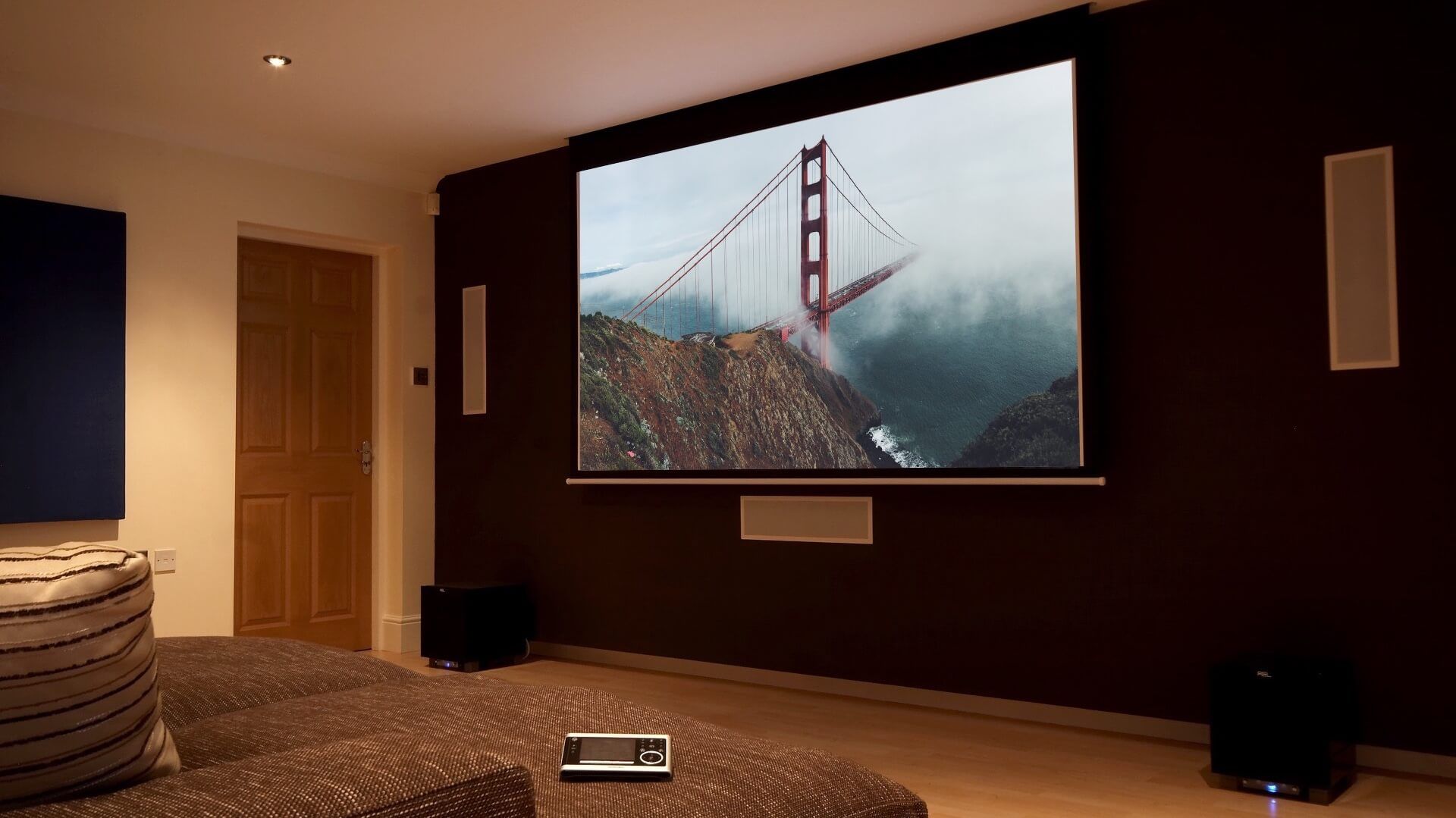
A projector usually does not include a built-in TV tuner. This means it cannot receive an antenna signal by itself in the same way as a television.
You can still watch TV channels in several ways.
Use a cable or satellite box
Connect the box to the projector with HDMI. Change the projector to the correct HDMI input, then use the cable or satellite remote to change channels.
This is the simplest option if you already pay for a U.S. cable or satellite service.
Use an over-the-air antenna
For free local broadcast channels, connect the antenna to an external TV tuner or digital converter box. Then connect that device to the projector.
The signal path looks like this:
Antenna → TV tuner → HDMI cable → Projector
The antenna must receive a usable signal from local stations. Reception depends on distance, buildings, terrain, antenna type, and placement.
Use live-TV streaming
Services that offer live channels can run through a compatible streaming device. Availability and channel packages vary by service and location in the United States.
A projector with built-in apps may support some services. A streaming stick or box often gives you more choice.
Use a computer
A computer can display a web-based live-TV service through HDMI. This works, but it may be less convenient than a remote-controlled streaming device.
Do not assume that every website or app can be mirrored without limits. Some services use digital rights management that restricts screen mirroring or certain output methods.

How to Set Up a Projector as a TV
Follow this order to reduce common setup problems.
Step 1: Choose the viewing location
Place the projector so the lens points straight at the screen. Avoid placing it at a sharp side angle unless the model supports that setup well.
A centered position usually gives the best image. It also reduces the need for digital correction.
Step 2: Measure the throw distance
Throw distance is the space between the projector lens and the screen.
Projectors have a throw ratio:
Throw ratio = distance from lens to screen ÷ image width
For example, a projector with a 1.5:1 throw ratio needs about 1.5 feet of distance for each foot of image width. Use the manufacturer’s throw calculator for the exact model.
Short-throw and ultra-short-throw projectors need less space. They can sit close to the wall, but the setup may be more sensitive to wall flatness and placement.
Step 3: Select the image size
A larger picture is not always a better picture. As the image grows, the same light output spreads over more area. The picture can look dimmer.
Choose a size that fits:
- Your room
- Your seating distance
- The projector’s brightness
- Your amount of room light
- The screen’s size and gain
A 100-inch diagonal image has a 16:9 image area of about 29 square feet. A 120-inch 16:9 image has about 42 square feet. The larger image needs more light for a similar brightness.
Step 4: Connect the video source
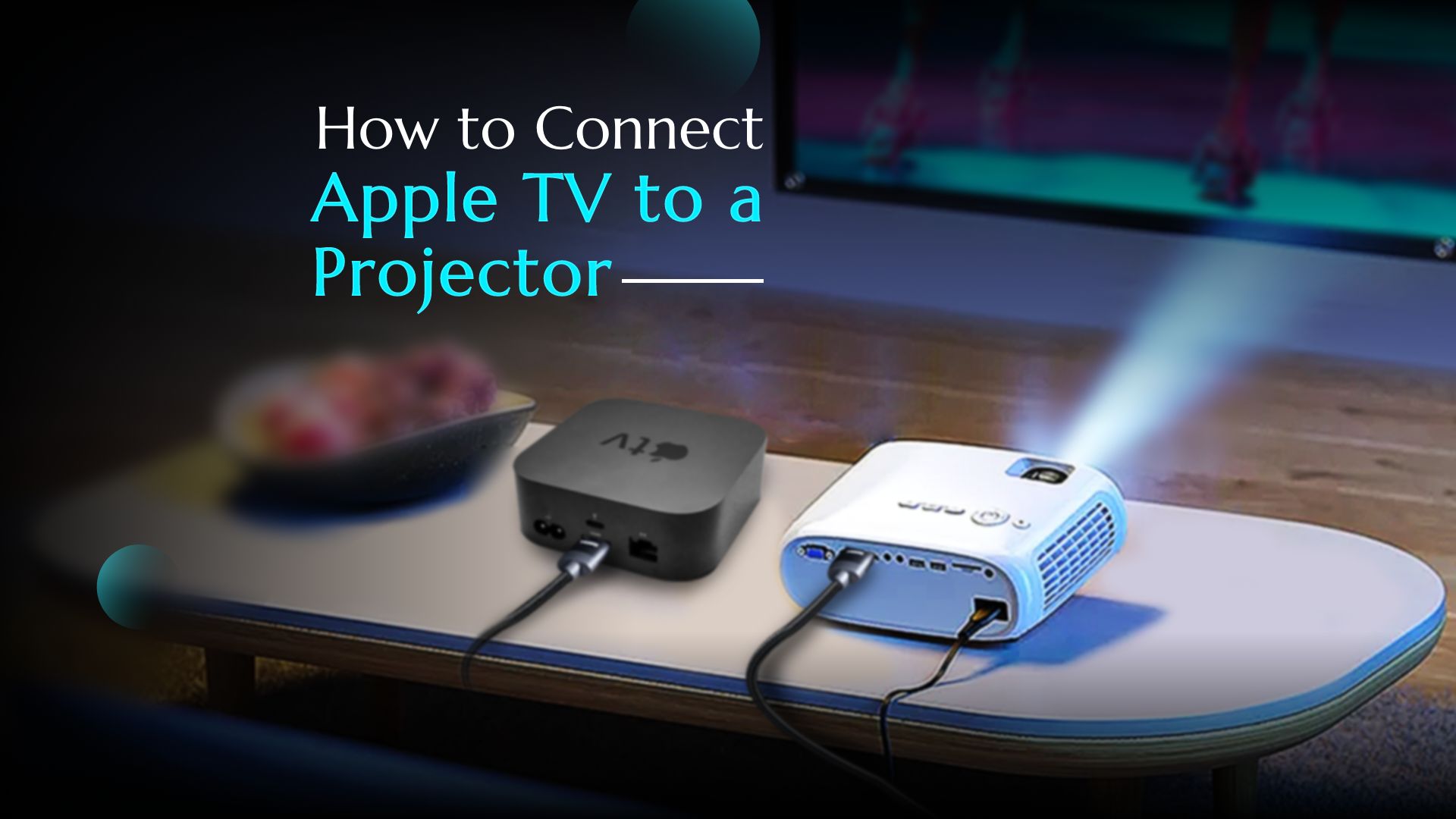
Connect the source to the projector’s HDMI input. Then select that input with the projector remote.
If the screen stays blank, check:
- The projector input
- The source output
- The HDMI cable
- HDCP compatibility
- The source’s resolution setting
- Whether an HDMI switch or receiver is causing the problem
HDCP is a copy-protection system used by many HDMI devices. An older projector may fail to display content from a newer source if their HDCP versions do not work together.
Step 5: Connect the audio
If you use a soundbar or receiver, connect it based on the devices’ supported ports.
Common paths include:
- Source → soundbar → projector
- Source → projector → soundbar
- Source → AV receiver → projector
The first path can be useful when the projector has limited audio support. The best path depends on HDMI ARC, eARC, optical output, and the number of HDMI inputs.
Step 6: Adjust the picture
Start with these settings:
- Focus
- Image size
- Aspect ratio
- Picture mode
- Brightness
- Contrast
- Color temperature
- Motion processing
- Keystone correction
Focus the image after the projector reaches its normal operating temperature. A small focus change can matter a lot on a large screen.
Use optical placement when possible. Keystone correction changes the image digitally and can reduce the effective resolution or add processing delay.
Step 7: Test each source
Test a streaming app, a live channel, and a game console if you plan to use all three. Check both picture and sound.
You have a successful setup when:
- The image fills the intended screen area
- Text looks sharp
- Dark scenes remain visible
- Audio stays in sync
- The projector does not shut down from heat
- The remote controls the main functions you use

How Bright Should a Projector Be for TV Use?
Brightness depends on the room, image size, and screen. A projector that looks bright in a dark bedroom may look weak in a sunlit family room.
As a general guide:
| Room condition | Typical starting point |
|---|---|
| Dark room with controlled lights | About 1,000–2,000 ANSI lumens |
| Room with some lamps or indirect light | About 2,000–3,000 ANSI lumens |
| Bright room or daytime sports viewing | Often 3,000 ANSI lumens or more |
These are planning ranges, not guarantees. Resolution, contrast, color mode, screen gain, and the manufacturer’s measurement method all affect the result.
A useful estimate is:
Screen brightness ≈ projector lumens × screen gain ÷ screen area
This is only a rough planning formula. Real images lose light through the lens, picture settings, dust, screen material, and other factors.
Why daylight causes trouble
A projector sends light to the screen. Room light also reaches the screen. When both mix, black areas become gray rather than truly dark.
A TV controls each pixel or backlight more directly. That gives it an advantage in rooms with windows or strong overhead lights.
To improve a projector image:
- Close blinds or curtains
- Turn off lights near the screen
- Use a screen made for ambient-light control
- Reduce the image size
- Use a brighter picture mode when needed
- Move the screen away from direct sunlight
No projector can fully remove sunlight from the room. An ambient-light-rejecting screen may help, but it does not break the basic limits of reflected light.

Projector vs. TV: Which Is Better?
A projector is better when you want a very large image and can control the room. A TV is better when you want simple, bright, daily viewing.
| Factor | Projector | TV |
|---|---|---|
| Very large picture | Strong advantage | Larger sizes cost more and need more space |
| Daytime brightness | Often weaker | Usually stronger |
| Setup | More steps | Usually simple |
| Sound | Often needs extra equipment | Usually built in |
| Portability | Many models are easy to move | Usually stays in place |
| Sports and movies | Excellent in a dark room | Good in almost any room |
| Gaming | Depends on input lag and model | Often easier to optimize |
| TV channels | Usually needs an external tuner | Often built in |
| Maintenance | May need filter or light-source care | Usually low maintenance |
| Space use | Can be stored or ceiling-mounted | Needs a wall or stand |
A projector may be the better choice for a dedicated media room, apartment movie setup, backyard viewing, or large sports events.
A TV may be the better choice for morning news, daytime viewing, children’s programming, or a room where people do not want to lower the lights.
Can You Use a Projector for Gaming and Sports?
Yes, but check performance details before buying.
Gaming
Look for:
- Low input lag
- A suitable game mode
- The refresh rate you need
- HDMI support for your console
- Automatic signal switching
- A picture that remains visible in your room
A large projected image can make games feel more immersive. It can also make low resolution or motion blur easier to notice.
Console features such as 4K output, high refresh rates, variable refresh rate, and HDR may not all work on every projector. Check the projector manual and the console’s output requirements.
Sports
Projectors work well for sports when the room is dark enough and the image is bright. Fast motion can reveal blur or processing issues.
For sports, check:
- Brightness in your actual room
- Motion handling
- Input delay
- Viewing angle
- Fan noise
- Audio volume and clarity
A large image helps a group see the action. A TV may still look better during a bright afternoon game.
Common Problems and Fixes
The picture looks washed out
Likely causes:
- Too much room light
- Image size is too large
- Low brightness mode
- Poor screen surface
- Incorrect picture settings
Try this:
- Darken the room.
- Reduce the image size.
- Select the projector’s standard or bright mode.
- Check the screen or wall for uneven color.
- Reset extreme brightness and contrast settings.
The image is blurry
Likely causes:
- Focus is not set
- Projector is not level
- Projector is too far off center
- Lens or screen is dirty
- The source has low resolution
Focus the lens first. Then check placement. Avoid digital zoom and heavy keystone correction when possible.
The sound is missing
Likely causes:
- The wrong audio output is selected
- The source is sending an unsupported audio format
- The cable is connected to the wrong port
- The projector volume is muted
- A soundbar or receiver is on the wrong input
Test the projector’s built-in speaker first. If it works, add the external audio system and change one connection at a time.
The streaming app will not work
A built-in app may be unavailable, outdated, or unsupported. Connect a separate streaming device to HDMI.
If the device still fails, check HDCP compatibility, Wi-Fi strength, account status, and the app’s current device requirements.
The projector shuts down
This may indicate overheating, blocked ventilation, a dirty filter, or a light-source fault.
Keep air vents clear. Do not cover the projector with fabric or place it in a closed cabinet unless the manufacturer approves that setup. Follow the manual for cleaning and filter care.
Safety and Placement Tips
Projectors produce heat and bright light. Use the mounting and ventilation instructions supplied with the model.
Keep these rules in mind:
- Do not stare into the lens while the projector is on.
- Keep vents clear.
- Keep liquids away from the projector.
- Use a rated ceiling mount for ceiling installation.
- Secure power cables so people do not trip.
- Allow the unit to cool before moving it if the manual requires this.
- Keep children and pets away from exposed cables and hot surfaces.
- Do not place a portable projector where it can be knocked into a person or blocked by bedding.
For a permanent ceiling mount, use hardware rated for the projector’s weight and the ceiling type. If you are unsure about the mount or electrical work, hire a qualified installer.

Buying Checklist for a Projector TV Setup
Before buying, answer these questions:
What is the room like?
Measure light during the time you plan to watch. A projector selected for a dark evening room may disappoint during the day.
How large is the image?
Measure the wall or screen area. Then check the projector’s throw range and brightness recommendation.
What will you watch?
For cable, live TV, streaming, movies, and games, list every source. Confirm that the projector has enough HDMI inputs or plan to use an HDMI switch or receiver.
How will you get sound?
Do not assume the built-in speaker will be enough. Confirm support for your soundbar, receiver, headphones, or powered speakers.
Do you need built-in apps?
Built-in apps can be convenient. They are not essential. A separate streaming device may offer a wider app selection and easier replacement.
Will you watch during the day?
If yes, consider a TV first. If you still prefer a projector, plan for curtains, a smaller image, higher brightness, or a screen designed for ambient light.
Will you play games?
Check input lag, refresh rate, HDMI features, and the console’s supported output. Do not choose based on resolution alone.

Frequently Asked Questions
Can a projector replace a TV completely?
Yes, for many people. A projector can replace a TV for streaming, cable, live channels, movies, and games. You may still need an external tuner, streaming device, or sound system.
Can I watch Netflix on a projector?
Usually, yes, through a compatible smart projector, streaming stick, streaming box, laptop, or game console. App support varies by device. Some low-cost projectors may not support official versions of popular apps.
Can I connect an antenna directly to a projector?
Usually, no. Most projectors do not have a built-in TV tuner. Use an external digital tuner or another device that converts the antenna signal to HDMI.
Can I use a projector in a bright living room?
Yes, but the picture may look less clear and less contrasty. Dark curtains, controlled lights, a smaller image, and a brighter projector can help. A TV is often the easier choice for bright rooms.
Is a projector better for your eyes than a TV?
Neither is automatically better for every viewer. A projector produces a reflected image, while a TV produces light directly from its panel. Comfort depends on brightness, viewing distance, room lighting, screen size, and personal sensitivity. Avoid staring into a projector lens and take normal viewing breaks.
Can I use a projector outside?
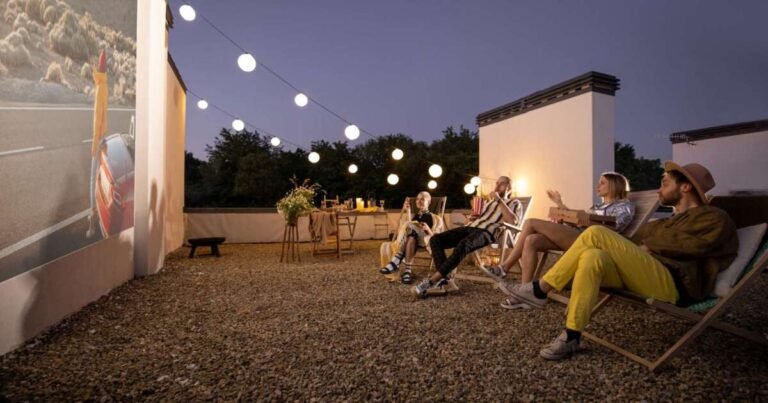
Yes, for temporary outdoor viewing in dry conditions. Protect the projector from moisture, dust, wind, insects, and unstable surfaces. Outdoor use also needs safe power, secure cables, and a suitable screen. Do not leave the projector outside overnight.
Does a projector use more electricity than a TV?
It depends on the exact models, brightness mode, size, and hours of use. Compare the electrical ratings in each product’s manual or specification sheet. A high-brightness projector can use more power than a smaller TV, while a large TV may use more than a compact projector.
Final Recommendation
A projector can work very well as a TV when you want a large image and can control the room’s light. It is especially useful for movies, sports, gaming, and flexible spaces.
Choose a TV instead if you want instant startup, strong daytime viewing, simple sound, built-in channel reception, and little maintenance.
Before you buy, measure the room, check the throw distance, plan your audio, and list every source you will connect. Those four checks prevent most projector-as-TV problems.
Sources and Further Reading
- U.S. Department of Energy: Energy Saver
- Federal Communications Commission: Digital Television
- BenQ Projector Throw Distance Calculator and Guides
- Epson Projector Support and Manuals
- Sony Support: Projector and Home Theater Information

Everett Calloway is a consumer electronics writer and technology enthusiast at ElectroDoz. He enjoys exploring the latest gadgets, electronic devices, and innovative technologies that make everyday life easier. Everett focuses on creating helpful product reviews, detailed buying guides, practical how-to articles, and troubleshooting tips. His goal is to simplify complex technical information and help readers understand product features, compare their options, and make informed purchasing decisions. When he isn’t researching new electronics, he enjoys exploring emerging technology trends and discovering useful gadgets.