Downloaded Switch Games On Multiple Consoles: Guide
Yes. You can use downloaded Nintendo Switch games on more than one console, but the rules depend on which Nintendo Account bought the game, whether the console is your primary console, and whether you want to play on both systems at the same time.
A digital Switch game is linked to your Nintendo Account. It is not freely copied from one console to another like a video file. You can redownload the game on another compatible console by signing in with the purchasing account, but Nintendo uses account and console checks to control access.
For most U.S. players, the simplest setup is:
- Use your main console as the primary console.
- Sign in with the purchasing Nintendo Account on the second console.
- Redownload the game on the second system.
- Keep an internet connection available when playing on the non-primary console.
- Do not expect the same digital purchase to support two people playing at once under one account.
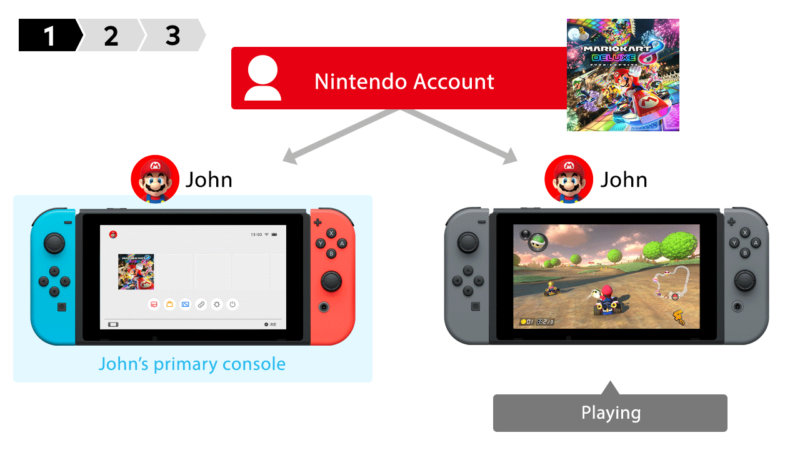
How Nintendo Switch digital game licenses work
Your digital games belong to the Nintendo Account that purchased them. The console stores the downloaded game, but the account owns the license.
This means you can delete a downloaded game and redownload it later without buying it again. Your purchase history remains linked to the account, not to the original console.
Nintendo generally uses two console roles:
- Primary console: Other user profiles on that console can usually play games purchased by the account, even when the purchasing account is not actively checking the license online.
- Non-primary console: Only the purchasing account can play its digital games, and the console normally needs an internet connection to verify the license.
You can use the same Nintendo Account on multiple Switch consoles. However, that does not create a separate copy of the license for each user or remove Nintendo’s play restrictions.
Nintendo’s current support information is available through its Nintendo Account and digital software support pages.
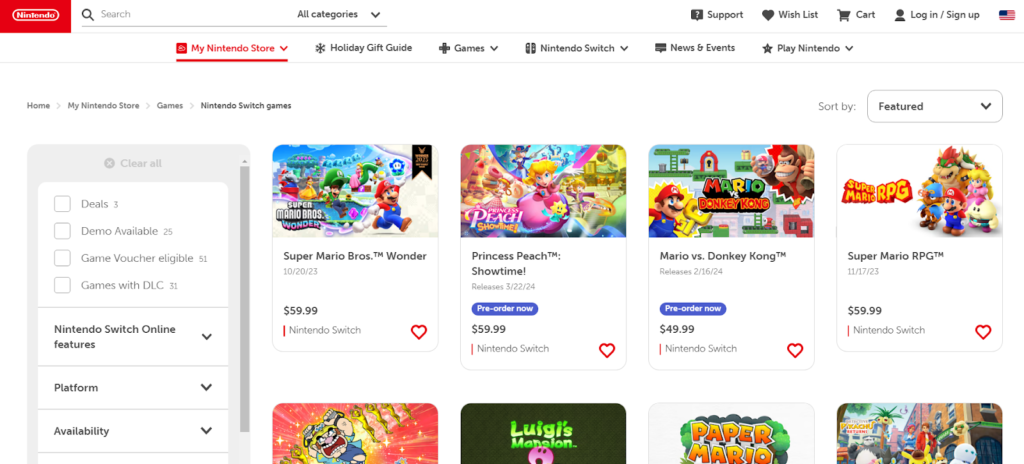
Can you download the same Switch game on two consoles?
Yes. Sign in to the Nintendo Account that bought the game on both consoles, then download the game from the Nintendo eShop on each system.
Steps to download the game on another Switch
- Connect the second Switch to the internet.
- Create or select the user profile you want to use.
- Link that user to the Nintendo Account that purchased the game.
- Open the Nintendo eShop.
- Select the purchasing account when asked.
- Open your account menu.
- Choose Redownload or find the game in your purchase history.
- Download the game to the console or to a compatible microSD card.
- Start the game after the download finishes.
The game should appear in the second console’s HOME menu. If it does not, check that you used the exact Nintendo Account that made the purchase.
You do not need to buy the game again. You may need to download updates and separately redownload any downloadable content.
What happens when you move to a new console?
You have two main choices:
- transfer your user and save data from the old console.
- Sign in on the new console and redownload your purchases.
A system transfer is useful when you are replacing a console. It can move account information, user data, and compatible save data. Redownloading the game alone does not automatically move every save file.
Some games use Nintendo Switch Online cloud saves. Others do not support cloud backup. Check the individual game’s save-data rules before deleting the old copy or resetting the old console.

Can two people play the same downloaded game at the same time?
Usually, no—not with one digital purchase and one Nintendo Account.
If both consoles are using the same purchasing account, Nintendo may allow the account to play on only one console at a time. Starting the game on one system can suspend or interrupt play on the other system.
There are several different situations:
| Setup | Can both consoles play at once? | Main condition |
|---|---|---|
| One Nintendo Account on two consoles | Usually no | The same account cannot normally use the license for two active game sessions |
| One primary console and a second non-primary console | Usually no with one account | The second console needs the purchasing account and an internet check |
| Two separate Nintendo Accounts with one purchase | Usually no | A digital purchase is not automatically shared between unrelated accounts |
| Two consoles with separate copies of the game | Yes, generally | Each player uses their own copy and account |
| Local multiplayer using one copy | Sometimes | The specific game must support this feature |
| Online multiplayer with family or friends | Usually requires separate game access | Check the game and Nintendo Switch Online requirements |
For example, suppose you buy Mario Kart 8 Deluxe on Account A. You download it on your home Switch and a second Switch.
- Account A can play on the home console.
- Account A can also play on the second console, subject to the license check.
- Account B on the home console may be able to play because it is the primary console.
- Account B usually cannot play the game on the non-primary console unless that account owns the game or another supported sharing method applies.
- Account A and Account B should not assume that one purchase allows both people to play online at the same time.
The safest rule is simple: one digital purchase is meant for the purchasing account, not for unlimited simultaneous use by several players.

How to share downloaded Switch games with family
The best sharing method depends on whether the consoles belong to one person, people in the same home, or different members of a Nintendo family group.
Sharing on one primary console
A primary console is often the easiest option for a household.
The account that bought the game can set the household’s main Switch as its primary console. Other user profiles on that console can then access many digital games purchased by that account.
This arrangement works well when:
- One console stays at home.
- Several household members use that system.
- The purchasing account does not need to play the same game on another console at the same time.
To change the primary console, use the Nintendo eShop settings for the purchasing account. Nintendo limits how this setting can be changed and may require access to the current primary console or account settings.
Using a second, non-primary console
A second console can still download and play the purchased game. The purchasing account must be selected, and the system normally checks the license online.
This setup is useful when one person owns two consoles, such as a home Switch and a Switch Lite. It is less convenient when a child or another family member needs to play the game from a separate profile on the second system.
Nintendo Switch family groups
A Nintendo Account family group does not automatically turn every digital purchase into a shared family library under the traditional license system.
A family group can manage services such as Nintendo Switch Online memberships, depending on the plan. That is different from transferring ownership of eShop purchases between accounts.
Nintendo has also introduced virtual game card features for supported systems and software. These features can change how digital games are loaded across linked consoles and may support lending to eligible family-group members for a limited period. Availability and exact rules depend on the console software, account setup, and Nintendo’s current terms.
Check Nintendo’s official virtual game card information before relying on this feature. Do not assume that every digital title, account, or console has identical support.
Do downloaded games work on Switch, Switch Lite, and Switch OLED?
Digital games can work across the original Nintendo Switch family when the title is compatible with the console.
The Nintendo Switch, Nintendo Switch Lite, and Nintendo Switch OLED model run the same core Switch game library. The main hardware difference is how you play:
- The standard Switch supports handheld, tabletop, and TV play.
- The Switch Lite is designed for handheld play and does not support TV output.
- The Switch OLED model supports the same basic Switch software library but has a different screen and dock.
A game may still have special requirements. A title that needs detachable Joy-Con controllers, motion controls, or a larger screen may be less convenient on a Switch Lite. You may need separate controllers or accessories.
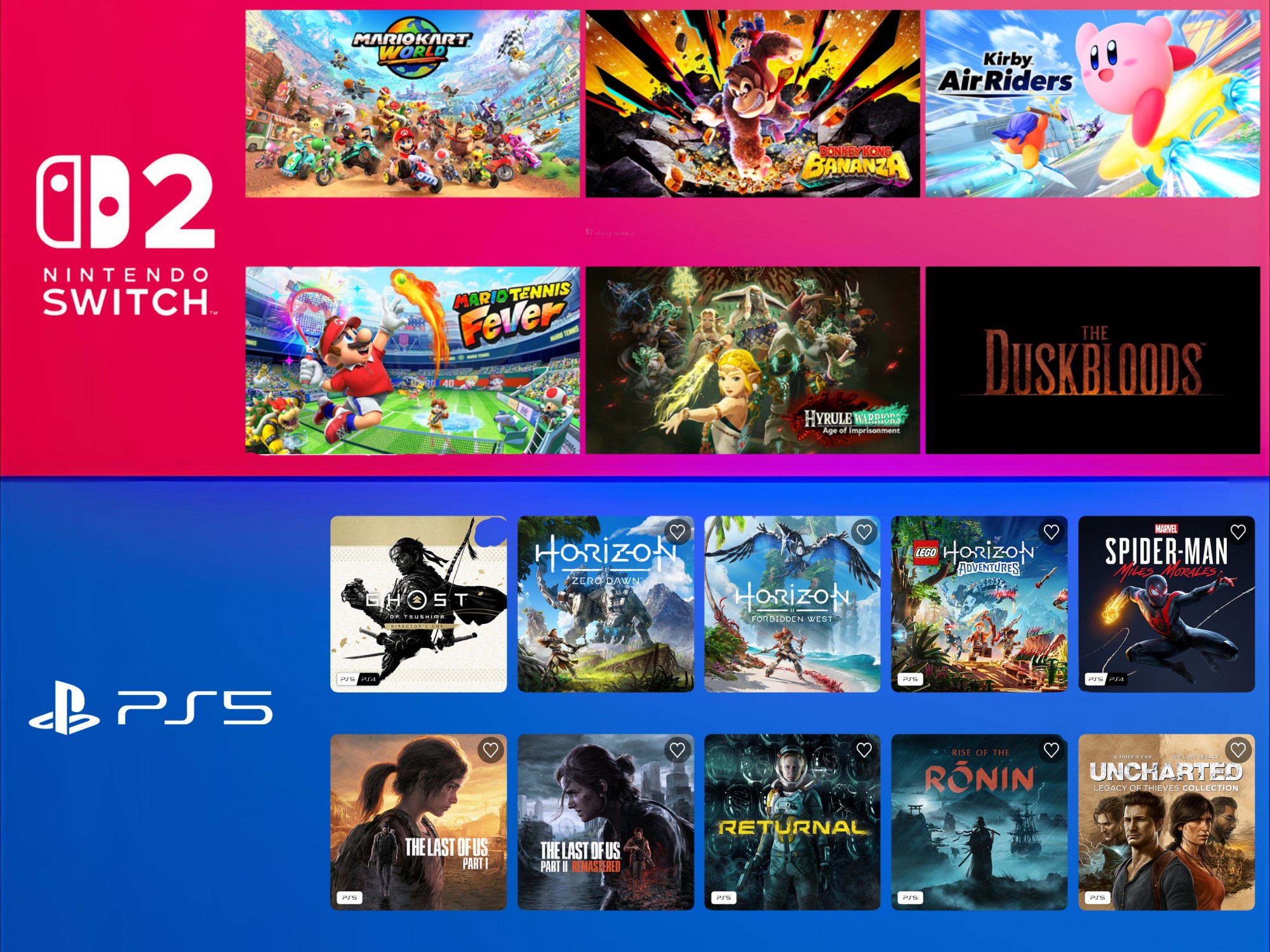
What about Nintendo Switch 2?
Nintendo Switch 2 uses its own compatibility rules. Many original Switch games work on Switch 2, but compatibility can vary by title. Some games have free updates, paid upgrades, or Switch 2 Edition versions.
A digital game bought for the original Switch may be usable on Switch 2 when Nintendo lists it as compatible. That does not mean every game will have identical features or performance.
Before moving a purchase to Switch 2, check:
- The game’s listing in Nintendo eShop.
- Nintendo’s official compatibility information.
- Whether the game needs original Joy-Con hardware or another accessory.
- Whether the game requires an update or upgrade pack.
- Whether your save data transfers or uses cloud backup.
Does downloaded game data include DLC and save files?
No. The main game, DLC, and save data are separate parts of your Nintendo Switch setup.
Downloadable content
DLC is usually tied to the Nintendo Account that purchased it. Redownloading the base game on another console does not always install every DLC item automatically.
To restore DLC:
- Sign in with the account that bought the DLC.
- Open Nintendo eShop.
- Find the game or your redownload list.
- Download the DLC again if it is listed separately.
- Install any required game update.
Some DLC may be usable by other profiles on a primary console. On a non-primary console, the purchasing account may need to be signed in and connected to the internet.
Save data
Save data is stored in the console’s system memory, not on the game card and usually not inside the downloaded game itself.
You can move saves by using:
- A system transfer.
- Save-data transfer between consoles.
- Nintendo Switch Online cloud saves, when supported.
- A game-specific transfer tool.
Not every game supports cloud saves. Some titles use special backup rules, and some games do not allow normal cloud backup at all.
Screenshots and video clips
Screenshots and video clips are separate from game licenses. Use the Switch data-management and album tools to transfer them. They do not move simply because you redownload the game.
Common problems when using digital Switch games on multiple consoles
Most problems come from using the wrong Nintendo Account, missing internet access, or confusing save data with game data.
The game does not appear in the redownload list
Possible causes include:
- You signed in with a different Nintendo Account.
- The purchase was made by another user on the old console.
- The game was bought from a different regional eShop.
- The title is hidden from the account’s redownload list.
- The console needs a system update.
First, open Nintendo eShop and check the account’s purchase history. Compare the account email or sign-in details with the account that made the original purchase.
The game asks for an internet connection
This usually means the console is not the primary console for the purchasing account, or the system is checking the digital license.
Connect the console to the internet and launch the game with the purchasing account. If the console is offline, a non-primary system may not be able to verify the purchase.
Another user cannot open the game
Check which console is set as primary. Other profiles generally have the broadest access on the primary console. On a non-primary console, the purchasing account may be the only profile allowed to start the title.
The game starts but the save is missing
Redownloading a game does not restore its local save data. Use a supported transfer method or cloud backup.
If you reset the old console before moving the save, recovery may not be possible. Nintendo cannot restore every deleted local save.
The game was bought by a child account
A child account can use purchases made through the linked Nintendo Account structure, but account supervision does not change the basic ownership rules. Check the parent or guardian account that completed the purchase and review Nintendo’s family-group settings.

A practical setup for two Switch consoles
For a single owner with two consoles, this setup is usually the least confusing:
- Choose the console used most often at home.
- Set it as the primary console for the purchasing Nintendo Account.
- Add the purchasing account to the second console.
- Redownload the digital games on both systems.
- Keep the second console online when using digital games.
- Transfer or download save data separately.
- Use separate game purchases if two people need to play at the same time.
For two people in one household, decide whether the priority is easy access for several profiles or simultaneous play.
- For easy household access, use the primary console arrangement.
- For simultaneous play, plan on separate purchases or a Nintendo-supported sharing feature that specifically covers the game and accounts involved.
This avoids a common mistake: downloading the same game twice and assuming that two downloads equal two licenses. They do not.
Important limits and mistakes to avoid
Keep these limits in mind before changing your console settings:
- Do not share your Nintendo Account password. Each person should use their own user profile and account where possible.
- Do not buy a second copy on the wrong account if the first account owns the original purchase.
- Do not reset or sell the old console before moving important save data.
- Do not assume Nintendo Switch Online membership shares digital game ownership.
- Do not assume every DLC item works for every profile on every console.
- Do not treat a microSD card as proof of ownership. The license still belongs to the Nintendo Account.
- Do not expect an offline non-primary console to launch every digital game.
- Do not assume Switch 2 compatibility without checking the individual title.
- Do not lend your account to people outside your household. Account sharing can create security and access problems.
A physical game card is different. The cartridge contains the game license for that copy, so you can move it between compatible consoles. However, save data still belongs to the console or account setup, and two consoles cannot use one physical cartridge at the same time.

Frequently asked questions
Can I play a downloaded Switch game without Wi-Fi?
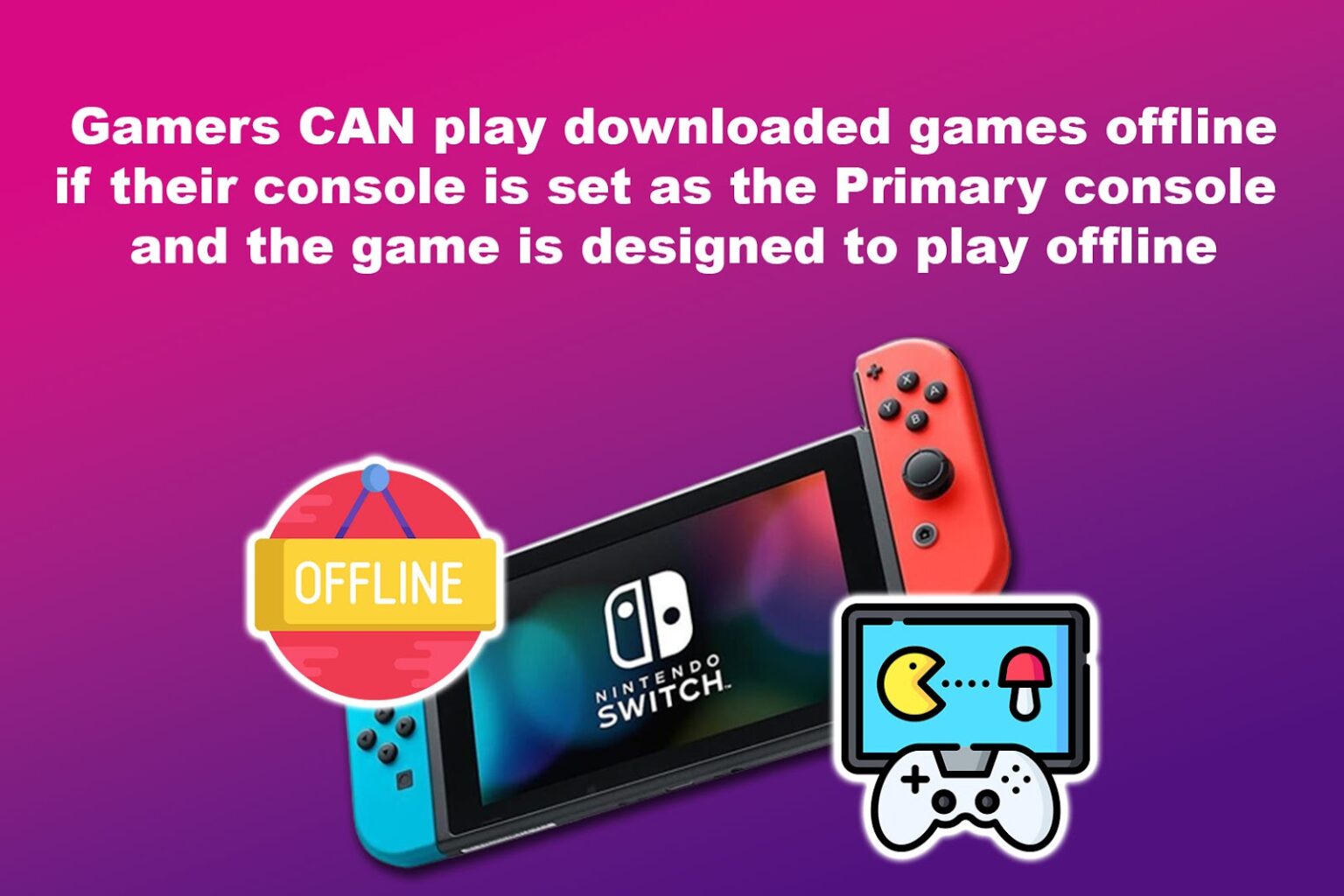
Yes, if the console is the primary console for the purchasing account. A non-primary console usually needs an internet connection to verify the digital license.
Can I transfer a downloaded game from one Switch to another?
You can redownload the game on the second console through the purchasing Nintendo Account. You can also transfer compatible user and save data, but the game license remains tied to the account.
Can my child play my digital games on their Switch?
It depends on the console arrangement. Your child may play your purchases on the primary console using their own profile. On a non-primary console, the purchasing account may need to launch the game and remain subject to online license checks.
Can two Switch consoles use one digital game library?
Yes, one account can access its digital library on multiple consoles. The main limits are account ownership, primary-console status, internet checks, and simultaneous use.
Do I need to buy a game again for Switch 2?
Not always. Many original Switch games are compatible with Switch 2, but some titles may require an upgrade, support only certain features, or have different compatibility rules. Check Nintendo’s listing for the specific game.
Can I share digital games with someone who is not in my family group?
Traditional digital purchases are not freely transferable between unrelated Nintendo Accounts. Some newer virtual game card features may allow limited lending to eligible family-group members, but this is not the same as permanently transferring ownership.
Conclusion
You can use downloaded Switch games on multiple consoles, but the purchase follows the Nintendo Account that bought it. You can redownload the game on another compatible system, while the primary-console setup gives the widest access to other profiles.
For one person with two consoles, use one primary console and keep the other online. For two people who want to play at the same time, plan for separate game access unless Nintendo’s supported sharing features clearly cover your setup. Always move save data separately, check DLC access, and confirm compatibility before using a newer console.

Everett Calloway is a consumer electronics writer and technology enthusiast at ElectroDoz. He enjoys exploring the latest gadgets, electronic devices, and innovative technologies that make everyday life easier. Everett focuses on creating helpful product reviews, detailed buying guides, practical how-to articles, and troubleshooting tips. His goal is to simplify complex technical information and help readers understand product features, compare their options, and make informed purchasing decisions. When he isn’t researching new electronics, he enjoys exploring emerging technology trends and discovering useful gadgets.