
How to Use Dslr As Webcam: Unlock Superior Video Quality
Are you tired of the mediocre video quality from your laptop’s built-in webcam? Imagine transforming your video calls, streams, or online meetings with professional-grade visuals that capture every detail.
With your DSLR camera collecting dust on the shelf, why not put it to good use and elevate your digital presence? In this guide, you’ll discover how to turn your DSLR into a high-quality webcam, giving your video a crisp and vibrant upgrade.
Picture the reactions of your friends, colleagues, or audience when they see the stunning clarity and depth of field that only a DSLR can deliver. Don’t miss out on this simple yet effective way to make your video content stand out. Let’s dive in and unlock the potential of your DSLR!
Credit: restream.io
Why Use A Dslr As A Webcam?
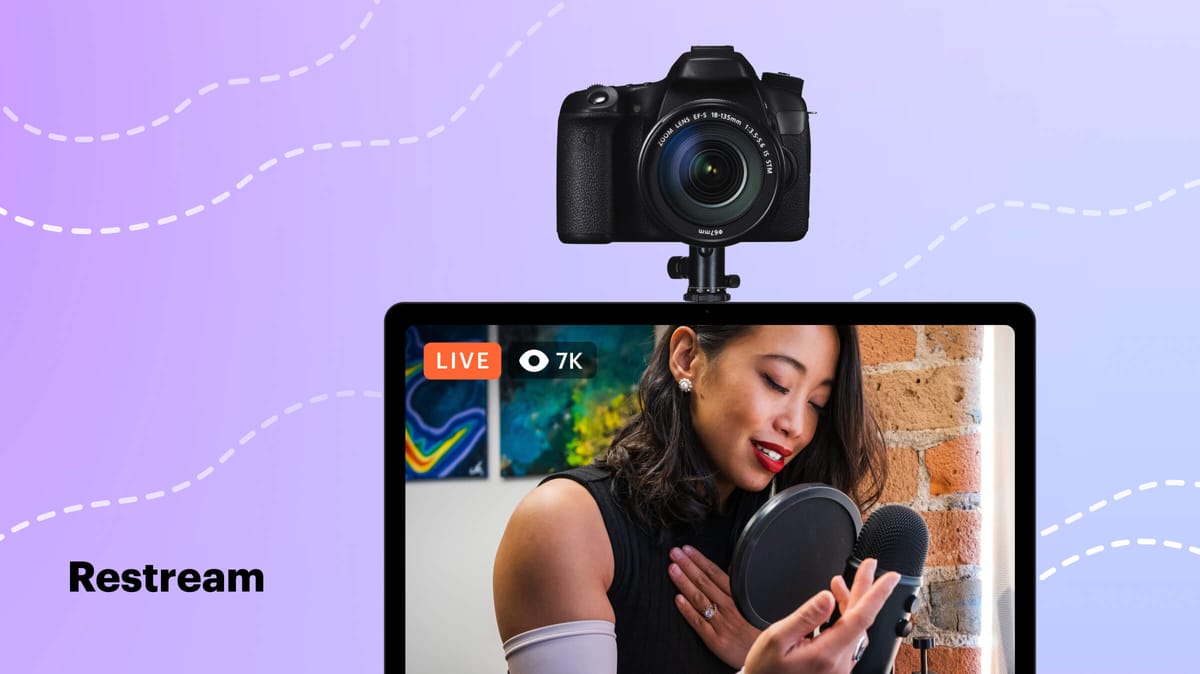
Using a DSLR as a webcammakes video calls look better. The image is clearand the colors are vivid. A DSLR gives a professional touchto your video.
Regular webcams can look blurryor dim. DSLRs have bigger sensorswhich capture more light. This makes your face brighteven in low light.
With a DSLR, you can adjust settingslike focus and brightness. This makes your video customizedto how you want it. You also get better soundif you use a good microphone.
Credit: scottmathson.com
Essential Equipment
A DSLR camera is needed to get clear video. Choose a lens that suits your needs. A wide-angle lens helps capture more of the scene. This is good for group calls. A 50mm lens is great for single-person video. Make sure your lens is clean and free of dust.
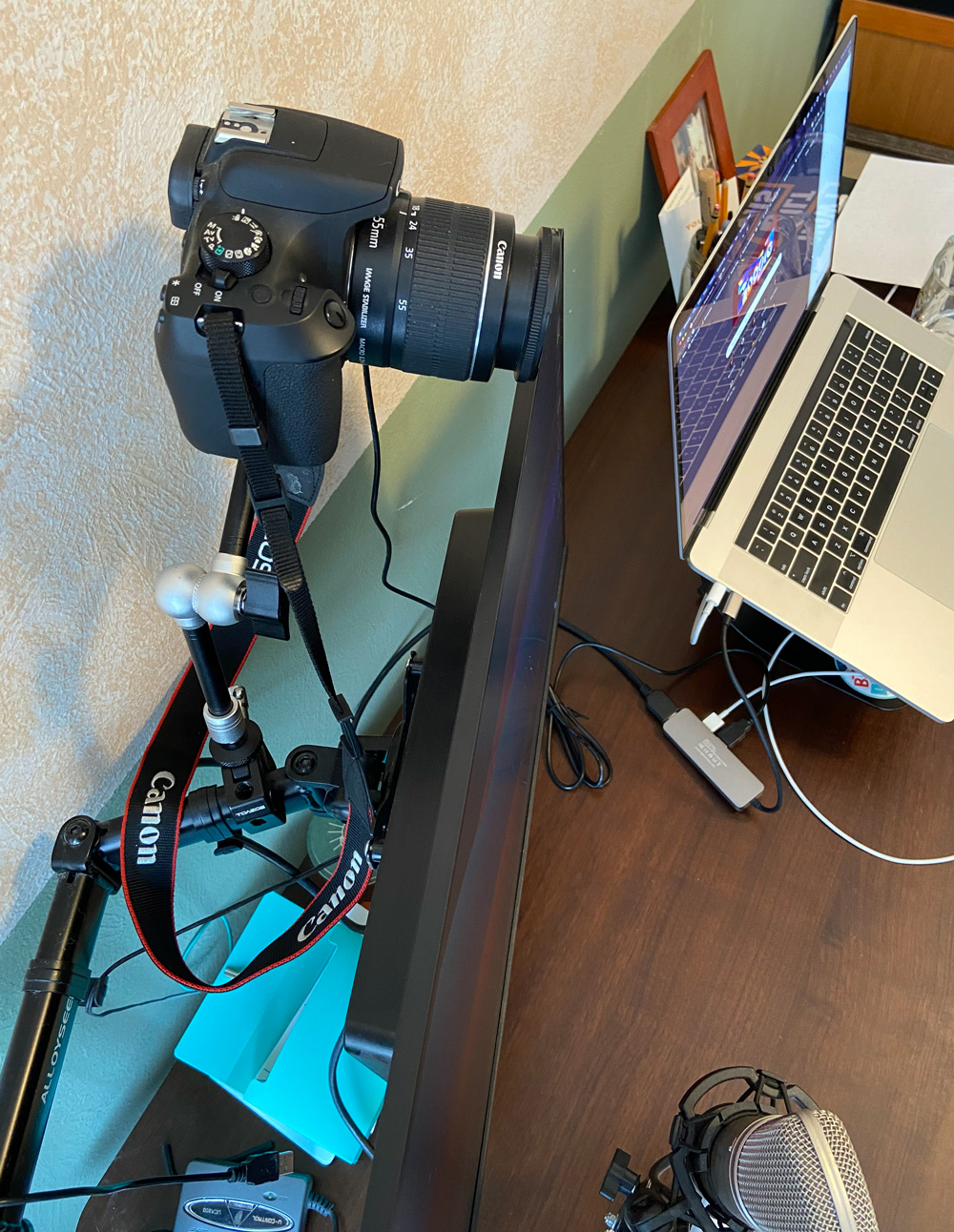
A USB cable connects your camera to the computer. Ensure it is compatible with your DSLR model. This cable helps in transferring video without delay. A power supply keeps the camera running. Use an AC adapter if available. This prevents the battery from dying during calls.
A tripod holds your camera steady. This avoids shaky video. A mount can also be used. Choose one that fits your desk. Ensure it holds the camera securely. Adjust the height for the best angle. Always check that the setup is stable.
Software Requirements
Many camera brands have their own software. Canon offers the EOS Utility. Nikon provides Camera Control Pro. These programs help connect your DSLR to a computer. They make your camera work like a webcam. Always check your camera’s website for updates.
Some apps can help use DSLRs as webcams. SparkoCam is one option. Ecamm Live is another. They work with many cameras. These apps often have free trials. Try them to see which one fits best.
Tools like Zoom and Skype can detect DSLRs. They need the right drivers. Install the driver for your camera. Then, open the video settings. Select your DSLR from the list. It should now work as a webcam.
Setting Up The Dslr
First, you need a USB cablethat fits your camera. Plug it into your DSLR and connect the other end to your computer. Some cameras need extra software. You can find this on the camera’s website. Download and install it. Your computer may take a moment to recognize the camera. Once connected, your DSLR acts like a webcam.
Turn on your DSLR and switch it to video mode. Set the focus to manualto avoid blurry images. Adjust the ISO and aperture for better light. Too much light makes the image too bright. Too little makes it too dark. Keep adjusting until the image looks good. Make sure the battery is charged, or use a power adapter.
Optimizing Video Quality
Good lightingmakes video look clear. Use natural light from windows. Move lamps if needed. Avoid bright lights behind you. They make you look dark. Soft light is best. It makes skin look nice. You can use white sheets to make light soft.
Keep your face centeredin the video. Check the focuson your face. Adjust camera if blurry. Make sure background is neat. It helps viewers focus on you. Use the camerato check if you are clear. You can practice before live video.
Credit: restream.io
Audio Considerations
External microphonescan make a big difference. They are better for sound quality. Built-in mics might not be enough. Choose a mic that suits your needs. Some mics are good for voice. Others are better for music. Try a few options to find the best one. Connect the mic to your camera or computer. Make sure it works before you start.
Reducing background noiseis important. Noise can ruin your video. Use a quiet room if possible. Close windows and doors. Turn off fans and other noisy items. You can use software to help reduce noise. Some microphones have noise-canceling features. These features help keep your audio clear. Always test your setup before you record.
Troubleshooting Common Issues
Turn your DSLR into a webcam by connecting it with a USB cable. Ensure camera settings are correct for video mode. Install necessary software on your computer to recognize the DSLR as a webcam.
Lag Or Delay
Lagcan ruin your video calls. Check your USB connection. Try using a shorter cable. A direct connection might help. Close other applications. Free up memory for smoother performance. Reduce resolution for less data use. This can speed up the feed.
Software Compatibility
Softwareissues can block your DSLR use. Update your camera firmware. Ensure your computer has the latest drivers. Check compatibility with your video software. Some software needs special plugins. Install them for a better experience.
Power And Battery Life
Batterylife is crucial for long calls. Use an AC adapter for continuous power. Some DSLRs overheat. Allow your camera to cool down. Turn off unnecessary features. This saves battery and reduces heat. Keep an extra battery handy for emergencies.
Creative Uses Beyond Video Calls
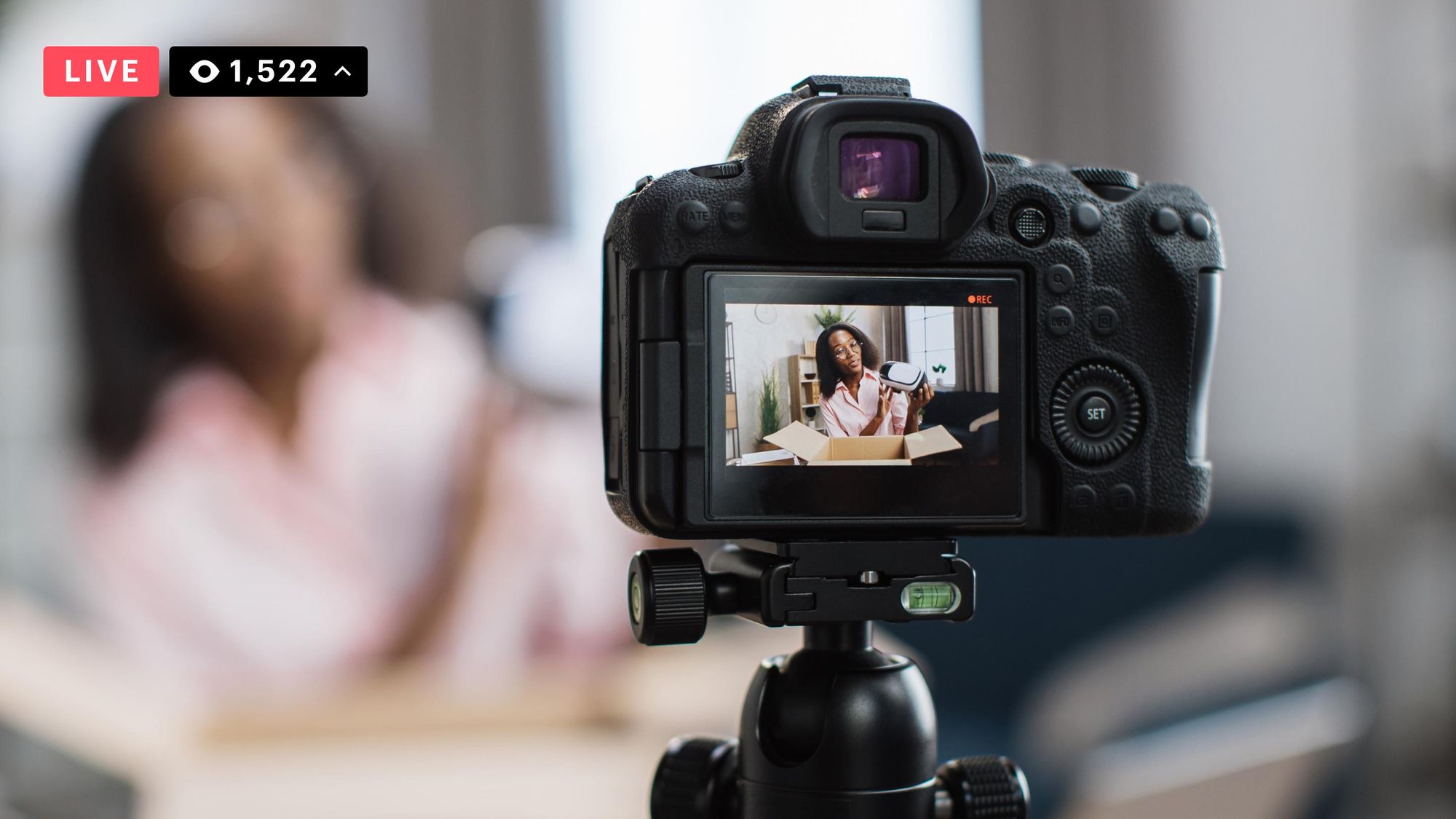
Using a DSLR for live streaming can make videos look great. The camera offers high-quality images and crisp details. It helps your stream stand out from the rest. Connect the DSLR to your computer using a capture card. This lets you stream to platforms like YouTube or Twitch. Clear images attract more viewers. They make the stream more fun to watch. People enjoy good visuals. This keeps them watching longer.
Creating online tutorials with a DSLR is a smart choice. Clear visuals help learners understand better. The camera’s sharp focus helps show details clearly. You can teach art, cooking, or science. Connect the DSLR to your computer. Use software to record and edit videos. Your tutorials will look professional. They can help people learn new skills. Quality videos can make teaching easy and fun.
A DSLR can make virtual events look amazing. It captures bright colors and sharp images. Connect the camera to your computer. Use it for virtual meetings or parties. Clear visuals make events more engaging. Guests enjoy seeing everything clearly. This makes the event feel special. A good camera can make your event memorable. People appreciate the effort for good quality.
Frequently Asked Questions
How Can I Connect Dslr To My Computer?
To connect your DSLR to your computer, use a USB cable. Install any necessary drivers or software from the camera manufacturer. Alternatively, you can use a video capture card or HDMI cable for better quality. Check your camera’s compatibility with webcam software for seamless integration.
Do I Need Software For Dslr Webcam Use?
Yes, you need software to use your DSLR as a webcam. Download software like OBS Studio or SparkoCam. These programs help capture and stream video from your DSLR. Check for camera-specific software, which might offer better compatibility and features.
What Are The Benefits Of Using Dslr As Webcam?
Using a DSLR as a webcam offers superior image quality. You’ll enjoy better depth of field, low-light performance, and lens versatility. DSLRs provide professional-grade video, enhancing virtual meetings, streaming, and content creation. This setup can improve your online presence significantly.
Can I Use Dslr For Video Calls?
Yes, you can use a DSLR for video calls. It requires proper setup with software and connections. Ensure your DSLR model is compatible with webcam software. This setup enhances video quality, making calls more engaging and professional.
Conclusion
Using a DSLR as a webcam is quite practical. It enhances video quality significantly. You get clearer and sharper images for calls. Just follow setup steps carefully. Compatibility with software is crucial. Ensure your DSLR model supports webcam use. Check settings for optimal performance.
It’s worth investing time to understand the process. Practice makes perfect. With patience, you’ll get great results. Enjoy better video calls with your DSLR. It’s a simple upgrade that brings real benefits. Try it, and see the difference yourself. Your online meetings will look more professional and polished.

Callen Ridgeway is a senior writer at ElectroDoz, where he shares his expertise on the latest in drones, webcams, cameras, and a wide range of cutting-edge electronic devices. With a passion for exploring emerging tech and breaking it down into practical insights, Callen helps readers make smarter choices when it comes to gadgets and gear. When he’s not testing the newest electronics, he’s busy keeping up with the innovations shaping the future of consumer technology.