

How to Factory Reset OnePlus: A Step-by-Step Guide
Picture this: your OnePlus phone is acting up, slowing down, or perhaps you’re ready to hand it over to someone else. You’re likely searching for a way to bring it back to its original state.
A factory reset can be the magic fix you’re looking for, offering a fresh start and clearing away any glitches or personal data. But, if you’ve never done it before, the process might seem a bit daunting. Fear not! You’ve come to the right place.
In this guide, we’ll walk you through the simple steps to factory reset your OnePlus device, ensuring you feel confident and in control. Let’s dive in and transform your phone into a clean slate, ready for whatever comes next.
Credit: www.coolblue.nl
Reasons To Factory Reset
Resetting your OnePlus can solve software issues and improve performance. It clears unwanted data and restores original settings. Always back up data before starting the process to avoid losing important information.
Resetting your OnePlus device to factory settings might seem like a drastic step, but it can be incredibly beneficial for various reasons. Whether you’re facing performance issues, worried about security, or planning to sell your device, a factory reset can help. Let’s dive into some of the main reasons why you might consider this option.
Performance Issues
Over time, your OnePlus device may start to lag or freeze. Apps might take longer to open, and overall responsiveness could drop. Resetting your device can often restore it to its original speed, giving you a fresh start. I’ve experienced this myself. My OnePlus was sluggish after months of installing apps and updates. A factory reset made it feel like new again, without the need for costly repairs or upgrades.
Security Concerns
As you install and uninstall apps, security vulnerabilities can creep in. These gaps might expose your personal information to risks. A factory reset removes all data and apps, ensuring any lurking threats are wiped clean. Consider the last time you downloaded an app from an unfamiliar source. Did you ever wonder if it left behind hidden malware? A reset can give you peace of mind that your device is secure.
Device Resale
Planning to sell or give away your OnePlus? A factory reset is crucial. It ensures your personal data doesn’t fall into the wrong hands, protecting your privacy. Imagine handing over your phone with your emails, photos, and messages still accessible. A simple reset ensures the new owner receives a clean device, just like when it was first unboxed. Have you ever reset your phone for a different reason? Share your experiences in the comments below. Your insights might help someone else decide if a factory reset is the right choice for them.
Preparing Your Device
Preparing your OnePlus device for a factory reset is essential. This ensures a smooth process and protects your data. Follow these steps to get ready.
Backup Important Data
Before resetting, secure your files and contacts. Use cloud storage or a computer. This prevents loss of cherished photos and messages. Double-check that everything is saved.
Charge Your Phone
A fully charged phone is necessary for a reset. Charge your device to at least 80%. This prevents interruptions during the reset process. Keep your charger handy.
Ensure Software Updates
Update your software before resetting. Check for available updates in settings. This ensures your device operates smoothly. New updates can fix bugs and enhance performance.
Factory Reset From Settings
Performing a factory reset on your OnePlus device can help fix persistent issues. It’s a straightforward process you can do through the settings menu. This method is user-friendly and doesn’t require technical skills. Let’s explore the steps involved in the factory reset process.
Accessing Settings Menu
Begin by unlocking your OnePlus device. Locate the “Settings” app on your home screen. Tap the app to open the settings menu. This menu holds various options to customize and control your device.
Navigating To Reset Options
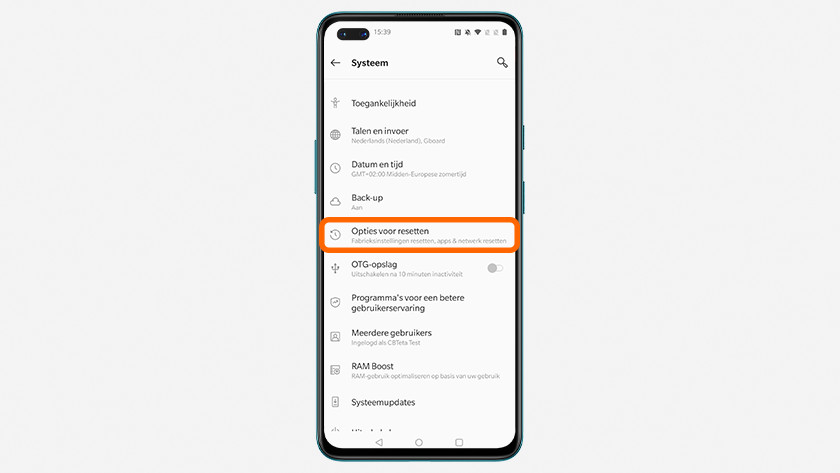
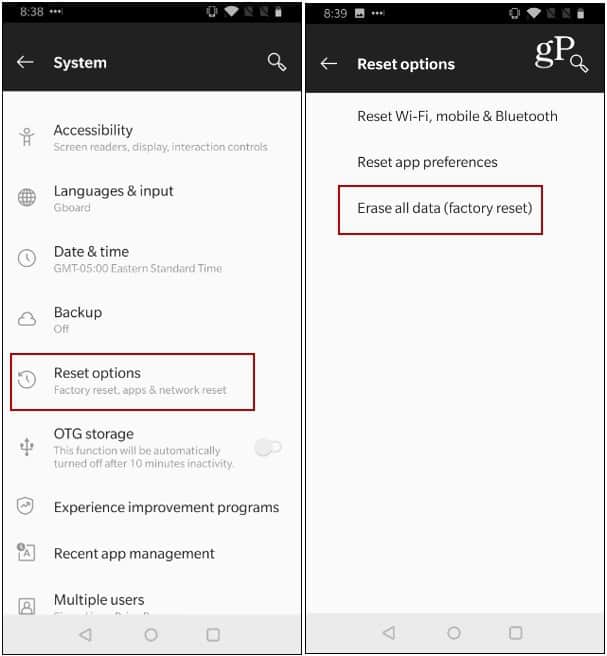
Once in the settings menu, scroll down to find “System.” Tap it to reveal more options. Next, select “Reset options” from the list. This section allows you to manage reset preferences.
Confirming The Reset
In the reset options, choose “Erase all data” or “Factory reset.” A prompt will appear asking for confirmation. Carefully read the warning message. Tap “Reset phone” to proceed. Your device will restart, erasing all data, and return to factory settings.
Credit: www.youtube.com
Factory Reset Using Recovery Mode
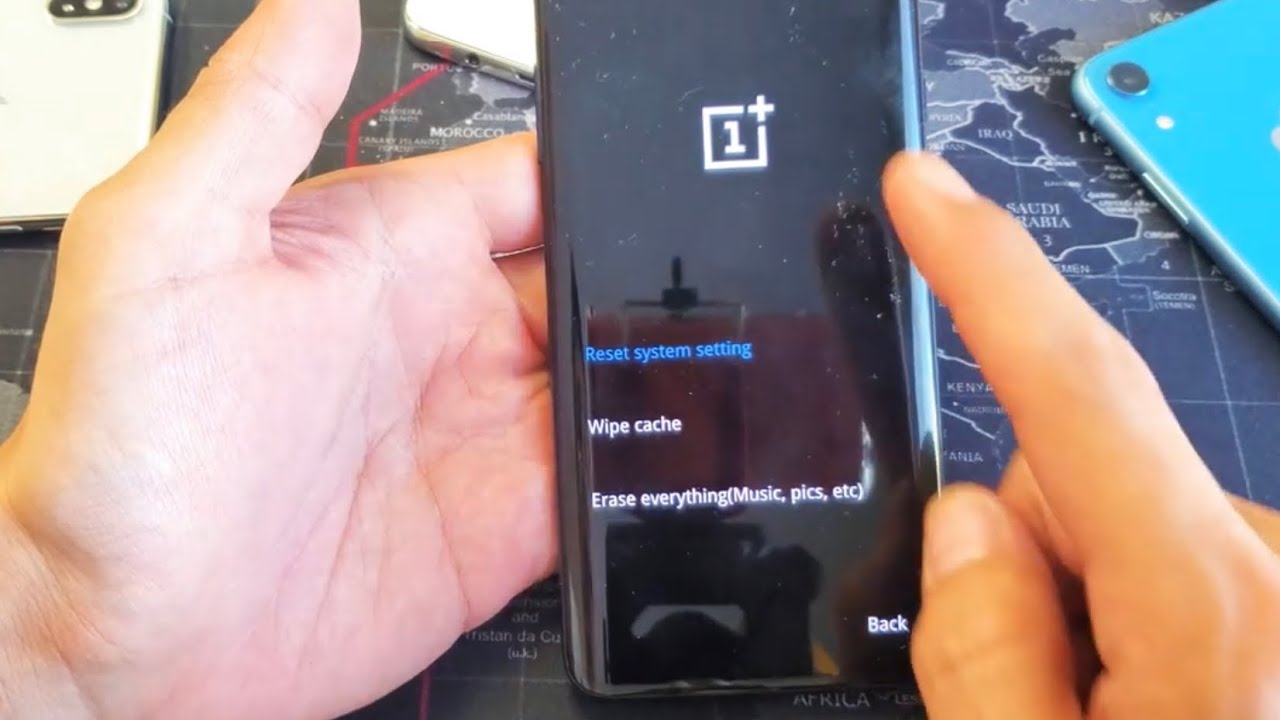
Resetting a OnePlus device through recovery mode helps clear data and restore factory settings. Start by powering off the phone, then press and hold the volume down and power buttons simultaneously. Navigate the recovery menu using volume buttons and select “Wipe data/factory reset” with the power button.
Factory resetting your OnePlus device can resolve many issues. It clears all data and settings, returning the phone to its original state. Recovery Mode offers a direct way to perform this reset. This method is useful when the device isn’t working normally. Follow these steps carefully to ensure a successful reset.
Entering Recovery Mode
First, power off your OnePlus device. Wait a few seconds to ensure it’s completely off. Then, press and hold the Volume Down and Power buttons together. Release them when the OnePlus logo appears. You will enter Recovery Mode. Use the Volume buttons to navigate through options.
Selecting Factory Reset
In Recovery Mode, find the “Wipe data/factory reset” option. Navigate using the Volume buttons. Confirm your choice with the Power button. This step will erase all data from your device. Make sure to back up important data beforehand.
Completing The Process
After selecting the reset option, the process will start. Wait for it to complete. It may take a few minutes. Once done, choose “Reboot system now.” Your OnePlus device will restart as new. Now, set it up like a new phone. Enjoy your refreshed device.
Post-reset Setup
Discover the steps to factory reset your OnePlus device easily. Begin by accessing ‘Settings’ on your phone. Then, follow the prompts under ‘System’ to complete the reset process.
After you’ve factory reset your OnePlus device, the real work begins—setting it up just the way you like it. This step is crucial because it allows you to get back to your digital life swiftly and smoothly. A post-reset setup can feel like a blank canvas, offering you a fresh start and a chance to streamline your phone’s functionality.
Restoring Backup Data
Have you backed up your data before the reset? If so, restoring it can be a breeze. Use OnePlus Switch or Google Backup to recover your photos, contacts, and messages. Select the most recent backup to ensure you don’t miss out on your latest files. This method saves time and avoids the stress of manually transferring each file. Wouldn’t you want to have all your favorite memories and important documents back in just a few clicks?
Reconfiguring Settings
Your phone settings are the backbone of your user experience. Reconfigure your Wi-Fi, Bluetooth, and notification preferences to suit your lifestyle. Remember to set up your security features like fingerprint or facial recognition for added peace of mind. You might want to adjust your display settings for better battery life or eye comfort, especially if you spend a lot of time on your device. Why not use this opportunity to discover new settings that can enhance your daily usage?
Installing Essential Apps
Once your settings are in place, it’s time to reinstall essential apps. Start with apps you use every day, like messaging or social media platforms. Next, add productivity tools that help you manage tasks efficiently. Don’t forget about entertainment and relaxation apps, like streaming services or games. Consider prioritizing apps that improve your well-being, like meditation or fitness trackers. Isn’t it exciting to choose only the apps that truly add value to your life? The post-reset setup is not just about getting your phone back to its old self. It’s an opportunity to optimize and customize it to better serve your current needs and preferences. What changes will you make to enhance your OnePlus experience?
Troubleshooting Common Issues
Factory resetting your OnePlus can solve many problems. But sometimes, issues arise during the process. Understanding these can help you fix them quickly. This section covers common problems and their solutions.
Reset Fails To Complete
A reset may sometimes not finish. This could be due to low battery. Ensure your device is charged above 50% before starting. Check for system updates too. An outdated system can cause reset issues. Updating your phone might resolve it.
Device Stuck In Boot Loop
Your device might get stuck in a boot loop. This means it restarts repeatedly without loading. To fix this, try entering recovery mode. Hold the power and volume down buttons. Release them once the OnePlus logo appears. Select ‘Wipe cache’ and reboot. This often solves the problem.
Data Loss Concerns
Worried about losing data? Back up your data before a reset. Use OnePlus’ built-in backup feature or cloud services. This ensures important files are safe. After the reset, you can restore your data easily. This step prevents any data loss worries.
Tips For Maintaining Performance
Factory resetting your OnePlus phone can boost performance by clearing out unnecessary data. Start by backing up important files to avoid losing them. Go to Settings, select System, then Reset Options, and choose Factory Reset. This restores your device to its original state, helping it run smoothly.
Maintaining your OnePlus phone’s performance is crucial for a seamless experience. Simple steps can enhance its efficiency. This guide will help you keep your device running smoothly.
Regular Software Updates
Software updates improve your phone’s performance. They fix bugs and enhance security. Always install updates promptly. Go to settings and check for updates regularly. This practice ensures your phone stays optimized.
Optimal App Management
Manage your apps wisely to maintain speed. Uninstall unused apps to free up space. Regularly clear app cache to prevent slowdowns. Limit background apps for better performance. Your phone will run faster with fewer active apps.
Security Best Practices
Security is key to maintaining performance. Use a strong password or fingerprint lock. Avoid downloading apps from unknown sources. Regularly scan your device for malware. These steps protect your phone from security threats. Stay safe and keep your OnePlus efficient.
Credit: groovyandroid.com
Frequently Asked Questions
How To Factory Reset Oneplus Safely?
To safely factory reset your OnePlus, go to Settings > System > Reset options. Choose “Erase all data (factory reset)” and confirm your action. This will wipe all data, so ensure you back up important files beforehand. A factory reset helps resolve software issues and improves performance.
Will Factory Reset Remove All Data On Oneplus?
Yes, a factory reset will erase all data on your OnePlus device. This includes apps, settings, and personal files. Ensure you back up important information before proceeding. After the reset, your phone will return to its original state, as it was when new.
Can Factory Reset Fix Oneplus Performance Issues?
A factory reset can help fix performance issues on your OnePlus device. It removes junk files and resets system settings. This often leads to improved speed and responsiveness. Remember to back up data before resetting, as it erases all personal information and installed apps.
How Long Does A Oneplus Factory Reset Take?
A factory reset on a OnePlus device typically takes 5 to 15 minutes. The duration depends on the device model and the amount of data stored. After completion, the device will reboot to its original state, ready for new setup and configuration.
Conclusion
Resetting your OnePlus device is simple. Follow the steps carefully. Ensure you back up important data first. This protects your files from loss. A factory reset can solve many issues. It helps improve device performance too. Remember, resetting erases all data.
Always verify you have a backup. After resetting, set up your device again. Enjoy a fresh start with your OnePlus. This process can make your phone feel new. Troubleshooting becomes easier with this knowledge. Keep these steps in mind for future needs.
Your OnePlus should now run smoothly.

Marlowe Quinn is a technology writer at ElectroDoz, with expertise in smartphones, chargers, power banks, phone cases, selfie sticks, and other mobile accessories. Known for breaking down specs and features into easy-to-understand insights, Marlowe helps readers find the right gadgets to stay connected and powered up in their daily lives.


