What are the Pixel Dimensions of a Google Slide?
Are you curious about creating the perfect presentation but unsure about the pixel dimensions of a Google Slide? You’re not alone.
Many people dive into Google Slides, eager to craft stunning visuals, only to find themselves puzzled by the sizing options. Understanding the pixel dimensions of a Google Slide is crucial for designing visually appealing and professional presentations. Imagine having your slides look flawless on any screen, capturing your audience’s attention effortlessly.
The good news? Unlocking this secret can elevate your presentations to a whole new level. Ready to discover the simple yet game-changing details that can make your slides stand out? Let’s dive in and transform the way you create presentations.
Credit: freegoogleslidestemplates.com
Google Slides Dimensions
Google Slides typically have dimensions of 960 x 540 pixels. This size ensures clear display on most screens. Users can adjust these dimensions for specific needs, maintaining presentation quality.
Understanding the dimensions of Google Slides is crucial for delivering impactful presentations. Whether you’re designing a pitch deck, a lesson plan, or an engaging slideshow, knowing the appropriate dimensions can make your slides visually appealing and effective. Let’s dive into the specifics of Google Slides dimensions and how you can tailor them to suit your needs.
Standard Slide Size
The default size for a Google Slide is 10 inches by 5.63 inches. This dimension translates roughly to a pixel size of 960 by 540 pixels. It’s perfect for most general presentations, ensuring compatibility with standard screens and projectors. Have you ever noticed how some presentations fit perfectly on a screen, while others leave awkward blank spaces? Choosing the right dimensions can help avoid that.
Custom Slide Dimensions
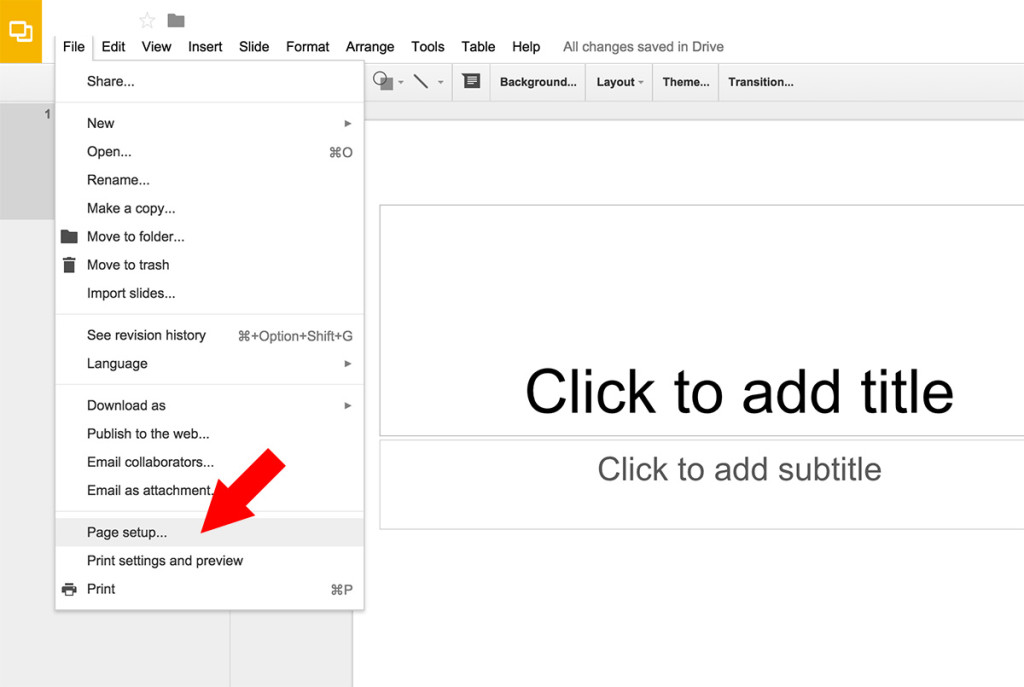
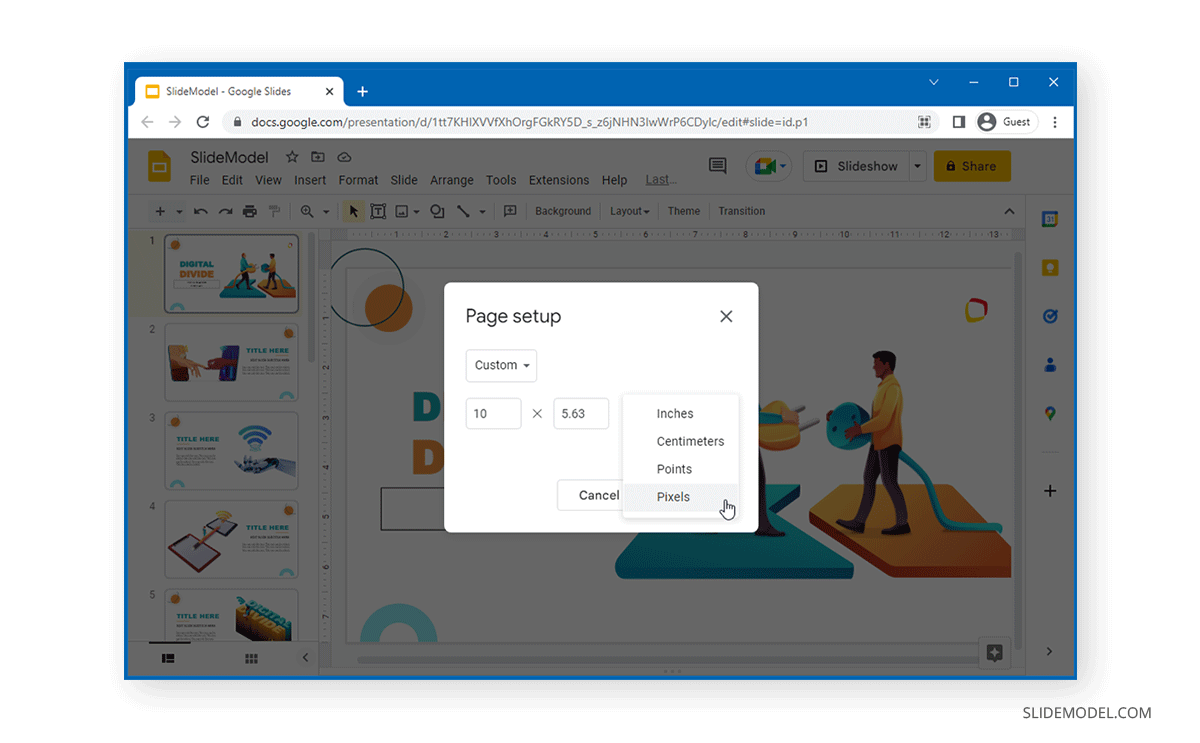
Google Slides offers flexibility with its custom dimensions feature. You can adjust the size to better fit your presentation needs. Simply go to “File” > “Page setup” and select “Custom.” Do you need a square slide for social media posts or a vertical one for a mobile-friendly presentation? Custom dimensions let you adapt your slide size, ensuring it fits your purpose.
Aspect Ratio Considerations
Aspect ratio is the relationship between the width and height of a slide. The standard aspect ratio for Google Slides is 16:9, which is ideal for wide screens. There’s also a 4:3 option if you’re presenting on older monitors or projectors. Think about where your presentation will be displayed. Will it be on a wide screen or a traditional monitor? Choosing the right aspect ratio enhances visual appeal and prevents content distortion. Adjusting your slide dimensions isn’t just a technical task; it’s a creative choice. It can transform how your audience perceives your message. What dimensions will you choose for your next presentation?
Credit: www.slideegg.com
Adjusting Slide Size
Adjusting the size of your Google Slides can make a huge difference in how your presentation is perceived. Imagine the impact of your ideas when presented in the perfect dimensions! Whether you’re preparing for a school project or a business meeting, customizing the slide size allows you to tailor your content to fit specific display requirements. This flexibility can be the key to delivering a visually appealing presentation that stands out.
Accessing Page Setup
First, let’s get into the nitty-gritty of accessing the page setup. Open your Google Slides presentation and head to the menu bar at the top. Click on “File,” then look for “Page setup.” This is your gateway to customizing your slide dimensions. This feature is often overlooked, yet it’s right there waiting for you to explore its potential.
Selecting Custom Dimensions
Now, here’s where the magic happens! Once you have accessed the page setup, you’ll see options for slide sizes. Choose “Custom” from the dropdown menu. You can enter your preferred dimensions in inches, centimeters, points, or pixels. Maybe you’re designing a poster or a flyer—custom dimensions can transform your slide into the perfect canvas for any project.
Maintaining Proportions
As you adjust the size, keeping proportions in mind is crucial. Have you ever struggled with stretched images or distorted text? Maintaining proportions ensures everything remains visually balanced. You can check the “Lock aspect ratio” option to keep your content looking sharp and professional. This simple step can save you from the frustration of misaligned graphics or text.
Are you ready to customize your slides and make your presentation unforgettable? Adjusting slide size not only enhances visual appeal but also reflects your attention to detail. What will you create next with this newfound knowledge?
Impact On Presentation Design
The pixel dimensions of a Google Slide greatly influence presentation design. Understanding these dimensions helps create visually appealing slides. It ensures that images and text appear crisp and clear. An effective design enhances audience engagement and communication of your message.
Resolution And Quality
Google Slides typically have a 16:9 aspect ratio. The standard size is 960 x 540 pixels. This resolution balances quality and file size. High-quality images and graphics enhance presentation clarity. Adjusting the resolution can improve visual appeal. Choose a resolution that suits your display needs.
Visual Consistency
Visual consistency is key in presentation design. Consistent dimensions ensure elements align properly. They maintain a professional appearance throughout slides. This consistency helps in understanding and retention. Keep text, images, and graphics uniform for a cohesive look.
Content Layout Adjustments
Adjusting content layout is crucial for impactful presentations. Proper alignment and spacing enhance readability. Use the pixel dimensions to guide layout choices. Ensure text is readable on all devices. Align images and graphics with text for better engagement.
Best Practices For Slide Dimensions
Creating visually appealing Google Slides requires attention to slide dimensions. The right dimensions ensure your presentation looks great on any screen. Understanding the best practices for slide dimensions can enhance your presentation’s impact.
Choosing The Right Dimensions
Select dimensions based on your presentation needs. Common choices are 16:9 and 4:3 aspect ratios. The 16:9 ratio works well for widescreen displays. It’s ideal for modern projectors and laptops. The 4:3 ratio suits older screens and devices. Always consider where your audience will view your slides.
Optimizing For Display Devices
Ensure your slides look good on all devices. Test on different screens to check clarity. Adjust text and images to fit varying resolutions. Use high-quality images to avoid blurring. Consistent formatting enhances readability. Maintain a balance between text and visuals.
Adapting For Different Formats
Prepare your slides for various formats like PDF or print. PDF format retains layout and design. Print versions need higher resolution for clarity. Adjust dimensions before converting to these formats. Consider audience needs when choosing a format. Tailor your slides for the best viewing experience.
Common Issues And Solutions
Google Slides is a fantastic tool for creating presentations, but as you dive into designing, you may encounter some common issues related to pixel dimensions. Whether you’re working with images, text, or maintaining aspect ratios, these hiccups can disrupt your creative flow. Let’s explore some practical solutions to ensure your slides look polished and professional.
Handling Distorted Images
Have you ever added an image to your slide only to find it looking stretched or squished? Distorted images are a common issue in Google Slides. The solution is simpler than you might think. Always check the original dimensions of your image before uploading. Resizing directly in Slides can lead to distortion. Instead, use external tools to adjust the size and maintain the aspect ratio.
Consider using free image editing tools like Canva or Pixlr. These platforms allow you to set specific dimensions that match your slide layout. This approach preserves image quality, ensuring your visuals remain sharp and clear.
Fixing Text Overflow
Text overflow is another challenge that can make your slides look unprofessional. You type out your brilliant idea, only to see it spilling over the edge of your slide! To tackle this, start by examining your text box size. Often, it’s as simple as resizing the box or adjusting font size.
But what if you don’t want to shrink your text? Try breaking your content into smaller, digestible chunks. This not only solves overflow issues but also enhances readability. Your audience will thank you for making your message clear and concise.
Troubleshooting Aspect Ratio Problems
Aspect ratio problems can throw off your entire slide design. It’s crucial to maintain a consistent aspect ratio for images and graphics. But what happens when you can’t figure out the right ratio for your presentation? Think of aspect ratio as the balance between width and height.
Google Slides defaults to a 16:9 aspect ratio, ideal for most screens. However, if you’re aiming for a unique presentation size, manually adjust settings in the ‘Page Setup’ menu. This ensures your slides look great on any display, avoiding awkward cuts or empty spaces.
Have you encountered any of these issues with your Google Slides presentations? What creative solutions have worked for you? Your insights could be the missing puzzle piece for another reader struggling with similar challenges.
Credit: slidemodel.com
Frequently Asked Questions
What Is The Default Size Of A Google Slide?
The default size of a Google Slide is 10 x 5. 63 inches. In pixel dimensions, this translates to 960 x 540 pixels. This aspect ratio of 16:9 is commonly used for presentations. You can customize these dimensions for specific needs.
How Can I Change Google Slide Dimensions?
To change dimensions, go to File, then Page Setup. Select Custom from the dropdown menu. Enter your desired width and height. You can choose from inches, centimeters, points, or pixels. This allows you to tailor slides for different displays or print formats.
Are Google Slide Dimensions Suitable For Printing?
Google Slide dimensions can be adjusted for printing. The default aspect ratio is suitable for on-screen presentations. For printing, consider changing the dimensions to standard paper sizes like A4 or Letter. Adjusting ensures your content fits correctly on physical pages.
Do Google Slide Dimensions Affect Presentation Quality?
Yes, dimensions affect presentation quality. Correct dimensions ensure that slides display properly on different devices. Using high-resolution images and right aspect ratios improves clarity. Adjusting dimensions can enhance visibility and engagement during presentations.
Conclusion
Understanding Google Slides’ pixel dimensions is crucial for clear presentations. By knowing the right size, your slides look sharp and professional. Pay attention to dimensions to avoid blurry images and text. This ensures your audience enjoys a smooth viewing experience.
Adjusting dimensions is simple. It makes a big difference in presentation quality. So, focus on the right pixel size for your next project. Your slides will stand out. They will communicate your message effectively. Always remember, the right dimensions lead to better presentations.
Happy presenting!

Marlowe Quinn is a technology writer at ElectroDoz, with expertise in smartphones, chargers, power banks, phone cases, selfie sticks, and other mobile accessories. Known for breaking down specs and features into easy-to-understand insights, Marlowe helps readers find the right gadgets to stay connected and powered up in their daily lives.