How to Link Fitbit to Android: A Step-by-Step Guide
Are you ready to supercharge your fitness journey by linking your Fitbit to your Android device? Imagine tracking your steps, heart rate, and sleep patterns seamlessly, all from the convenience of your smartphone.
By connecting your Fitbit to your Android, you unlock a treasure trove of insights and personalized data that can transform the way you approach your health goals. In this guide, we’ll walk you through every step of the process, ensuring you feel confident and empowered.
Whether you’re a tech novice or a seasoned pro, this straightforward tutorial will have you syncing your devices in no time. Stay with us, and discover how this simple connection can be a game-changer for your fitness routine. Don’t miss out on making the most of your Fitbit—let’s dive into the details!
Preparing Your Android Device
Make sure your Android device works with Fitbit. Fitbit may not work with older phones. Check the Fitbit website for a list of supported phones. Your phone needs the latest software update. This helps Fitbit work correctly.
Bluetooth connects your phone to the Fitbit. Go to Settings on your Android device. Find Bluetooth and turn it on. Make sure your phone is discoverable. This means other devices can see it. Keep your phone close to your Fitbit. This helps them connect easily.

Credit: ktpetrolleri.com
Setting Up The Fitbit App
Linking your Fitbit to an Android device is simple. Download the Fitbit app from the Google Play Store. Open it and follow the on-screen instructions to pair your Fitbit device. Ensure Bluetooth is enabled on your phone for a seamless connection.
Enjoy tracking your fitness journey effortlessly.
Download From Google Play Store
Open the Google Play Storeon your Android device. Type “Fitbit” in the search bar. Tap on the Fitbit app icon. Hit the “Install” button. Wait for the app to download. Once finished, tap “Open” to launch the app.
Create Or Log Into Fitbit Account
Open the Fitbit app on your phone. Tap on “Join Fitbit” if you need an account. Fill in your details like name and email. Choose a strong password. Tap “Create Account” to finish. If you already have an account, tap “Log In.” Enter your email and password. Tap “Log In” to access your account.
Pairing Fitbit With Android
First, find the Fitbit appon your phone. Tap to open it. Make sure your Bluetoothis turned on. Your phone needs Bluetooth to find your Fitbit device.
Inside the app, look for a plus sign (+). This sign lets you add a new device. Tap the plus sign. Follow the steps on the screen. The app will show you how to connect.
Keep your Fitbit closeto your phone. This helps the app find it. Follow each step carefully. Your phone will tell you when the Fitbit is connected.
Troubleshooting Connection Issues
Restarting can solve many connection problems. Turn off your Fitbit and Android phone. Wait a few seconds. Turn them back on. This simple action can refresh the system. It helps the devices to connect better. Ensure they are fully powered on before retrying.
Updates keep devices running smoothly. Look for updates on your Fitbit app. Check for updates on your Android phone too. Updates fix bugs and improve performance. Keep both devices updated. This ensures better connectivity and fewer issues.
Managing Settings And Preferences
Open the Fitbit app on your phone. Tap on your profile icon. Next, select your device from the list. Find the Notificationsoption and tap it. You can choose which alerts you want. Pick from calls, messages, and more. Use the toggle switch to turn them on or off. Ensure you save your changes.
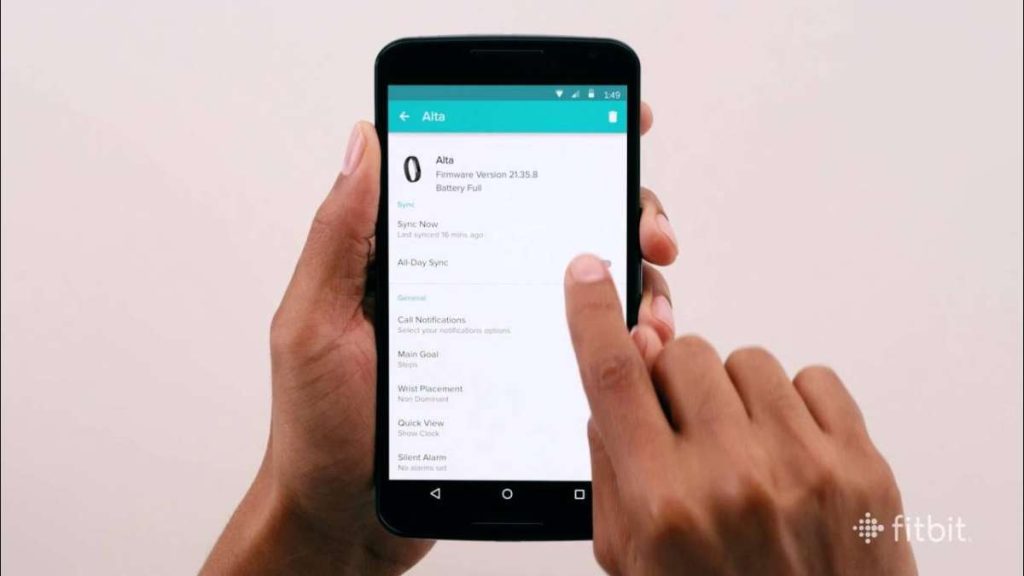
Go to the Fitbit app again. Tap on your profile. Select your device. Look for the Syncoption. Enable the All-Day Syncfeature. This helps your data sync without manual action. Make sure Bluetooth is on. This will keep your Fitbit and phone connected.
Credit: www.youtube.com
Exploring Fitbit Features On Android
Fitbit helps you keep track of your health. It shows how many steps you take. It also tracks your heart rate and sleep patterns. These metrics are easy to see on your Android device. You can check them every day. This helps you know if you are healthy. It is important to stay active and sleep well. Fitbit makes it simple to monitor your progress.
Setting fitness goalsis fun with Fitbit. You can decide how many steps you want to walk. You can choose how many hours to sleep. Fitbit will remind you about your goals. It will show your progress on your phone. Achieving goals can make you feel proud. Staying healthy is important for everyone. Fitbit helps you stay on track.
:max_bytes(150000):strip_icc()/GettyImages-461255705-331d9a96c48548a8886e2f19d326c984.jpg)
Credit: www.lifewire.com
Frequently Asked Questions
How Do I Pair My Fitbit With Android?
To pair your Fitbit with Android, first download the Fitbit app from the Google Play Store. Open the app, tap “Join Fitbit,” and follow the on-screen instructions. Ensure Bluetooth is enabled on your device. Once paired, your Fitbit will sync data with your Android smartphone seamlessly.
Why Won’t My Fitbit Sync With Android?
If your Fitbit isn’t syncing with Android, ensure Bluetooth is enabled and your Fitbit is charged. Restart both devices and try again. Check for app updates and install if available. Additionally, clear the cache of the Fitbit app. If the issue persists, reinstall the app.
What Android Version Is Needed For Fitbit?
Fitbit requires Android version 8. 0 or higher for optimal functionality. Ensure your device meets this requirement by checking your phone’s system settings. Keeping your Android updated helps maintain compatibility and ensures a smooth experience with the Fitbit app, enhancing syncing and tracking capabilities.
Can I Use Fitbit Without The App?
Using Fitbit without the app limits its functionality. The app is essential for syncing data, tracking progress, and receiving insights. However, basic features like step counting can be accessed on the Fitbit device itself. For a comprehensive experience, using the app is highly recommended.
Conclusion
Syncing your Fitbit with Android is simple. Follow the easy steps shared. Start by downloading the Fitbit app. Sign in and enable Bluetooth. Pair your devices. Check for any updates. Make sure your phone and Fitbit are charged. Track your fitness goals effortlessly.
Enjoy a healthier lifestyle with your synced devices. Troubleshoot any issues promptly. Stay updated for new features and improvements. Your fitness journey is important. With these tips, you’re ready to connect and conquer your goals. Stay active, stay connected. Your Fitbit and Android are now in sync.

Finnian Delaney is a seasoned writer and editor specializing in technology and electronics. At ElectroDoz, he covers a wide range of topics, with a focus on MacBooks, laptops, fitness trackers, keyboards, and computer hardware. With a knack for making complex tech accessible, Finnian helps readers stay informed and confident when choosing their next device or upgrade.