

How to Use Vankyo Projector With Phone: Easy Guide
Imagine turning your living room into a personal cinema or sharing photos with friends on a big screen during a casual get-together. If you’re wondering how to make this happen, you’re in the right place.
You might have a Vankyo projector, a powerful tool that can transform how you enjoy movies, games, and presentations. But the real magic happens when you connect it to your phone. It’s simpler than you think and offers a whole new level of convenience and entertainment.
In this guide, you’ll learn easy steps to connect your phone to a Vankyo projector, unlocking endless possibilities for fun and productivity. Dive in to discover how to bring your screen’s content to life in a larger-than-life format.
What Is A Vankyo Projector
A Vankyo projector is a device for showing movies and games. It makes images big on a wall or screen. It is great for home theaters and classrooms.
Vankyo projectors are portable and easy to use. Many have built-in speakers for sound. You can connect them to phones, tablets, and laptops. They are good for fun and learning.
Most Vankyo projectors have HD quality. You can watch videos in clear detail. The colors are bright and vivid. It makes watching more enjoyable.
Credit: ivankyo.com
Compatibility With Phones
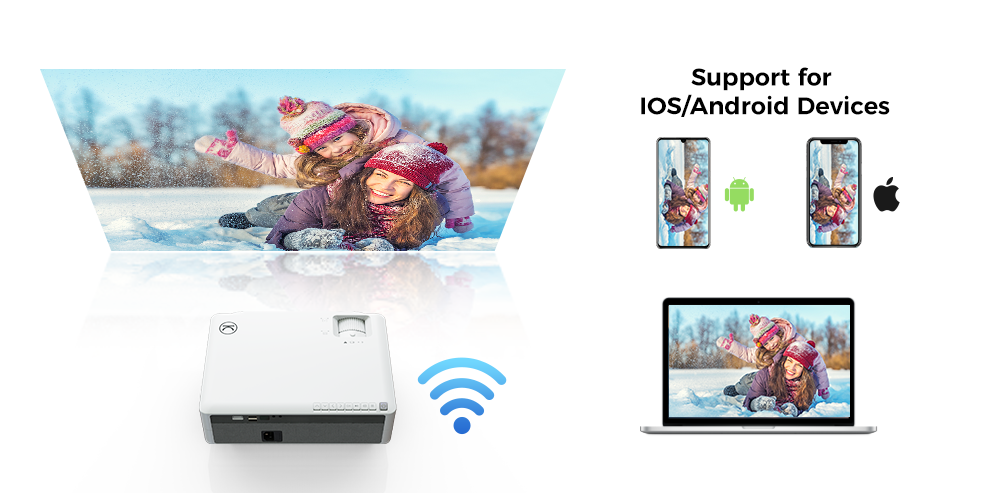
The Vankyo projector works with many phones. Most Androidand iOSdevices are compatible. Always check your phone’s port type. Some use USB-C, others use micro-USB. Ensure your phone has the right port for the projector.
Phones need up-to-date software. Android phones should have version 5.0 or higher. For iPhones, iOS version 11 or lateris necessary. Older systems might not work well. Always update your phone’s software for best results.
Connecting Via Hdmi
To connect your Vankyo projector to a phone, you need specific items. First, get an HDMI cable. This cable sends video to the projector. You also need a compatible adapterfor your phone. Most phones need either a USB-C or Lightning adapter. Make sure your adapter has an HDMI port.
Start by plugging the HDMI cableinto the projector. Connect the other end to the phone adapter. Now, attach the adapter to your phone. Turn on the projector. Check if it shows the phone screen. If not, select the correct input source on the projector. Adjust settings on the phone if needed. Your phone screen should now appear large on the wall.

Credit: ivankyo.com
Using Wireless Options
The Vankyo projector can connect to phones using Wi-Fi. First, make sure your phone and projector are on the same network. Open the settings on your phone. Find the Wi-Fi option and turn it on. Look for the projector’s name in the list of devices. Tap on it to connect. Once connected, you can stream videos or show presentations. Many apps help in connecting smoothly. Ensure the projector and phone software are updated. This keeps the connection stable and fast.
Some Vankyo projectors have Bluetooth features. Check your model for this option. Turn on Bluetooth on your phone. Switch on the projector. Go to the projector’s menu and find Bluetooth settings. Enable Bluetooth on the projector. Look for your projector’s name on your phone’s Bluetooth list. Tap to pair both devices. You can now play sound through the projector. Keep devices close for a better connection.
Screen Mirroring Techniques
AirPlay makes sharing your screen easy. First, connect your Vankyo projector to Wi-Fi. Next, swipe down on your iPhone screen. Look for the Screen Mirroringoption. Tap it and select your projector from the list. Your iPhone screen should appear on the projector. Make sure both devices are on the same network. This helps them connect smoothly.
Android devices use Google Cast for screen sharing. Start by connecting your Vankyo projector to Wi-Fi. Open the Settingson your Android phone. Find the Castoption. Tap it and choose your projector. The phone screen will show on the projector. Both devices need the same Wi-Fi network. This ensures a stable connection. Google Cast works with most Android phones.
Adjusting Projector Settings
Adjust the picture settings for better viewing. Use the menu on your projector. Find the brightness, contrast, and color options. Increase or decrease these settings. Check the picture on the wall. Make sure it’s clear and sharp. Next, adjust the sound settings. Find the volume and balance controls. Make sure the sound is loud enough. But not too loud. Balance the sound for better listening. Enjoy watching your favorite shows.
Correct the image shape with keystone settings. Look for the keystone button. Press it to fix the shape. Make the image straight and even. Focus the image using the focus ring. Turn it slowly. Stop when the image is clear. Check all corners of the picture. Make sure everything looks perfect. Now, your setup is ready!
Troubleshooting Common Issues
Having trouble connecting your phone to the Vankyo projector? First, check the cables. Make sure they are securely plugged in. Try a different cable if needed. Also, ensure your phone’s Wi-Fi or Bluetooth is on. Check the projector’s input source. It should match your phone’s connection type. If problems persist, restart both devices. This can often reset connections and resolve the issue.
Image not clear? Adjust the focus ring on the projector. This will sharpen the picture. Ensure the projector lens is clean. Use a soft cloth to wipe it gently. For sound, check the volume settings on both devices. If sound is low, ensure no headphones are connected. Also, move the projector closer to a flat wall. This can improve both image and sound quality.

Credit: www.youtube.com
Enhancing Viewing Experience
A dark room makes the picture better. Close curtains or blinds. Flat walls work best for projecting. Use a white screen if you have one. Sound matters too. Good speakers help a lot. Place them near the projector. Avoid using the phone’s speakers. They aren’t loud enough.
Optimal Room Setup
Find a room with less light. Make sure walls are smooth. Arrange chairs or sofas for comfort. Leave space for the projector. Keep wires safe and out of the way. Check the projector’s distance from the wall. It should be correct for a clear picture.
Additional Accessories
Consider a tripod for stability. It keeps the projector steady. Use HDMI cables for better quality. Wireless adapters are handy. They connect without cables. Portable speakers improve sound. They make the experience better. Remote controls make operation easy. Think about getting one.
Frequently Asked Questions
How Do I Connect My Phone To A Vankyo Projector?
To connect your phone to a Vankyo projector, use a compatible HDMI adapter. Plug one end into your phone and the other into the projector. Ensure your projector is set to the correct input source. For wireless connections, use a screen mirroring feature or a compatible app.
Can I Use Bluetooth With Vankyo Projector?
Yes, you can use Bluetooth with a Vankyo projector. Some models support Bluetooth connectivity for audio. Pair the projector with Bluetooth speakers or headphones. Check your projector’s manual for specific Bluetooth setup instructions. Ensure both devices are in pairing mode for a successful connection.
What Apps Work With Vankyo Projectors?
Many apps work with Vankyo projectors, like Netflix, YouTube, and Hulu. Use the projector’s built-in app store or download apps on your phone. Screen mirroring also allows you to display app content from your phone. Always check compatibility with your specific projector model.
How Do I Mirror My Phone Screen?
To mirror your phone screen, use the screen mirroring feature. On Android, use the “Cast” option in settings. For iPhones, use AirPlay if your projector supports it. Ensure both devices are on the same Wi-Fi network. Follow on-screen instructions to complete the mirroring process.
Conclusion
Connecting your phone with a Vankyo projector is simple. Follow the steps outlined to enjoy your media on a big screen. This setup enhances your viewing experience without much hassle. Ensure cables and connections are secure for optimal performance. Explore more features to make the most of your projector.
Troubleshoot any issues with the user manual at hand. Happy projecting! Enjoy watching your favorite content with ease. Your phone and Vankyo projector make a great team. Share this knowledge with friends to help them connect too.

Everett Ashford is an electrical engineer and expert in electronics reviews, tips, and troubleshooting. Specializing in audio and sound devices, including earbuds, AirPods, and headphones, he brings in-depth knowledge and practical advice to help consumers make informed decisions.


