
Can I Use My Phone As A Projector: Easy Ways To Try
If you are in the United States, you can use your phone to show videos, photos, and presentations on a larger screen—but most phones cannot project an image onto a wall by themselves. Your phone can act as the video source for a projector, TV, or monitor. A separate projector is usually required for a true wall-sized image.
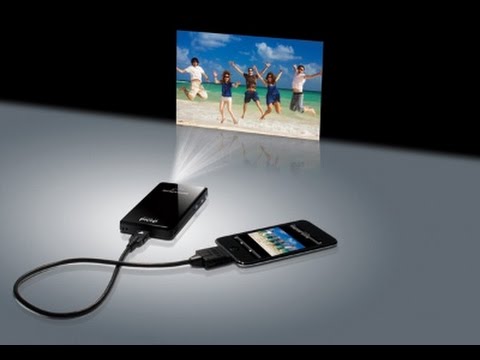
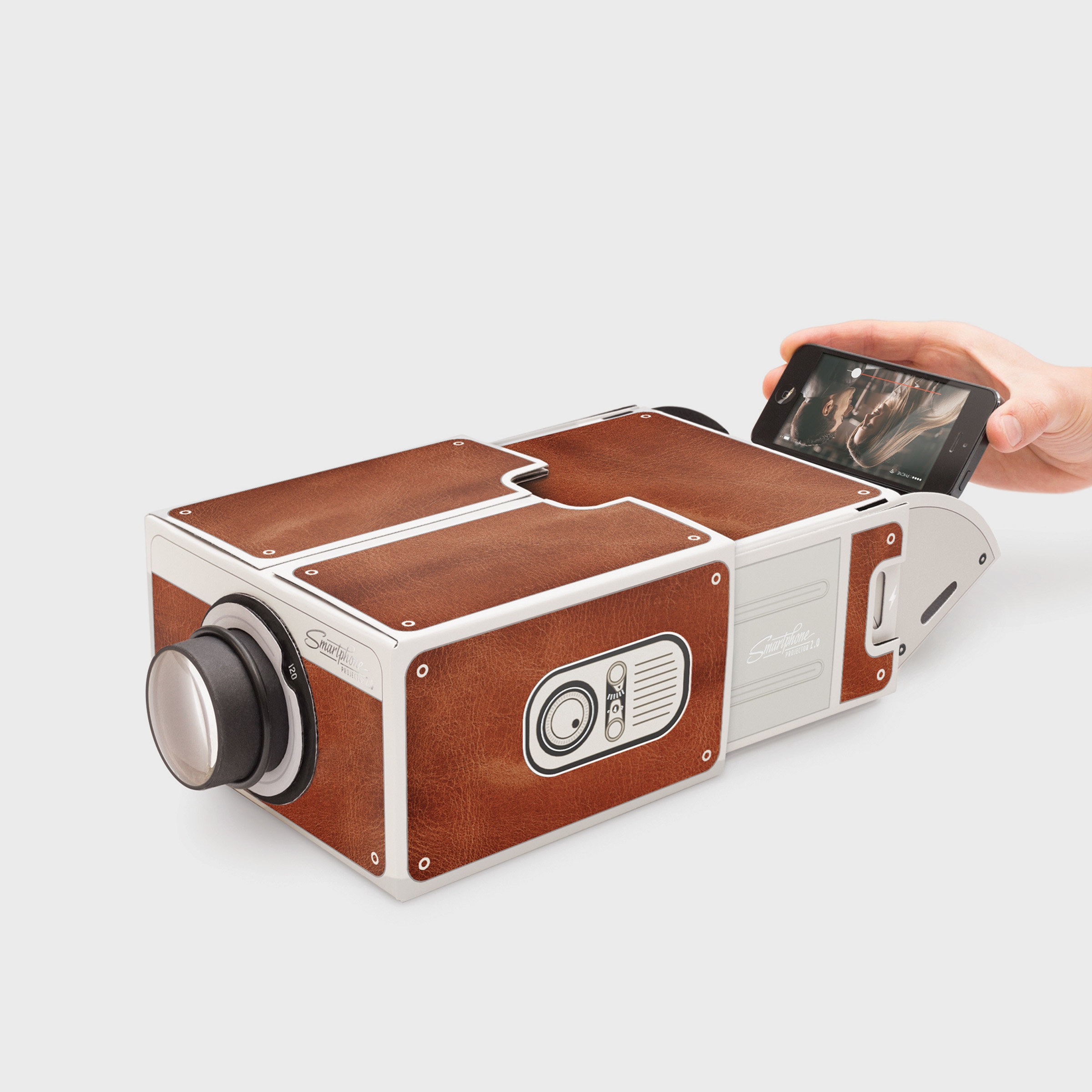
A few older or specialty phones had built-in pico projectors. Most current iPhones and Android phones do not. You may also find DIY methods that use a phone, a box, and a magnifying lens, but the image is usually dim, blurry, and difficult to focus.

Can a phone project an image without a projector?
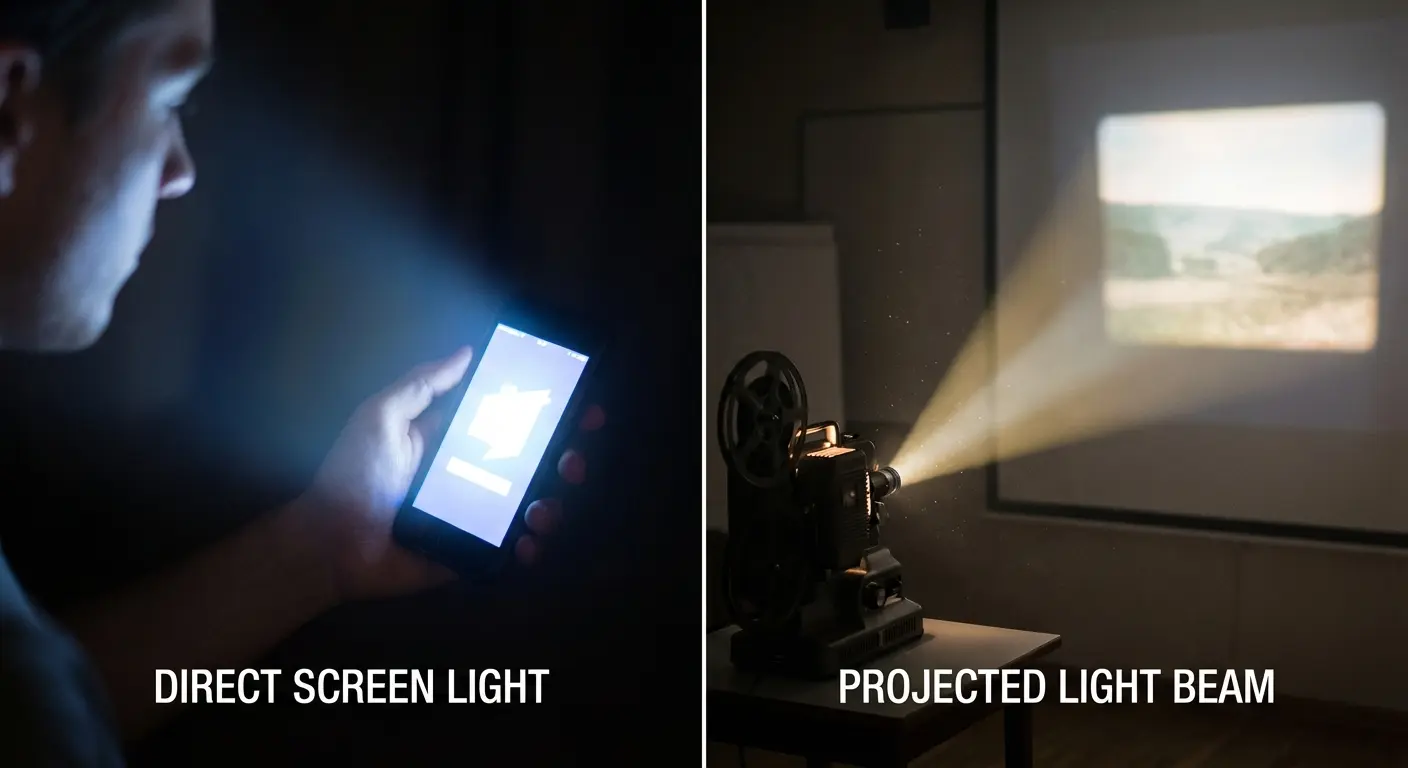
No, not in the normal sense. A phone screen produces light, but it does not have the lens, lamp, or optical system needed to enlarge that light onto a wall.
A real projector uses several parts:
- A light source
- A display panel or imaging chip
- Lenses
- Cooling parts
- Focus and image controls
A smartphone has a bright display and some built-in display optics, but its screen is not designed to throw a large image across a room. Holding a phone near a wall will not create a clear, large picture.
What about a phone with a built-in projector?
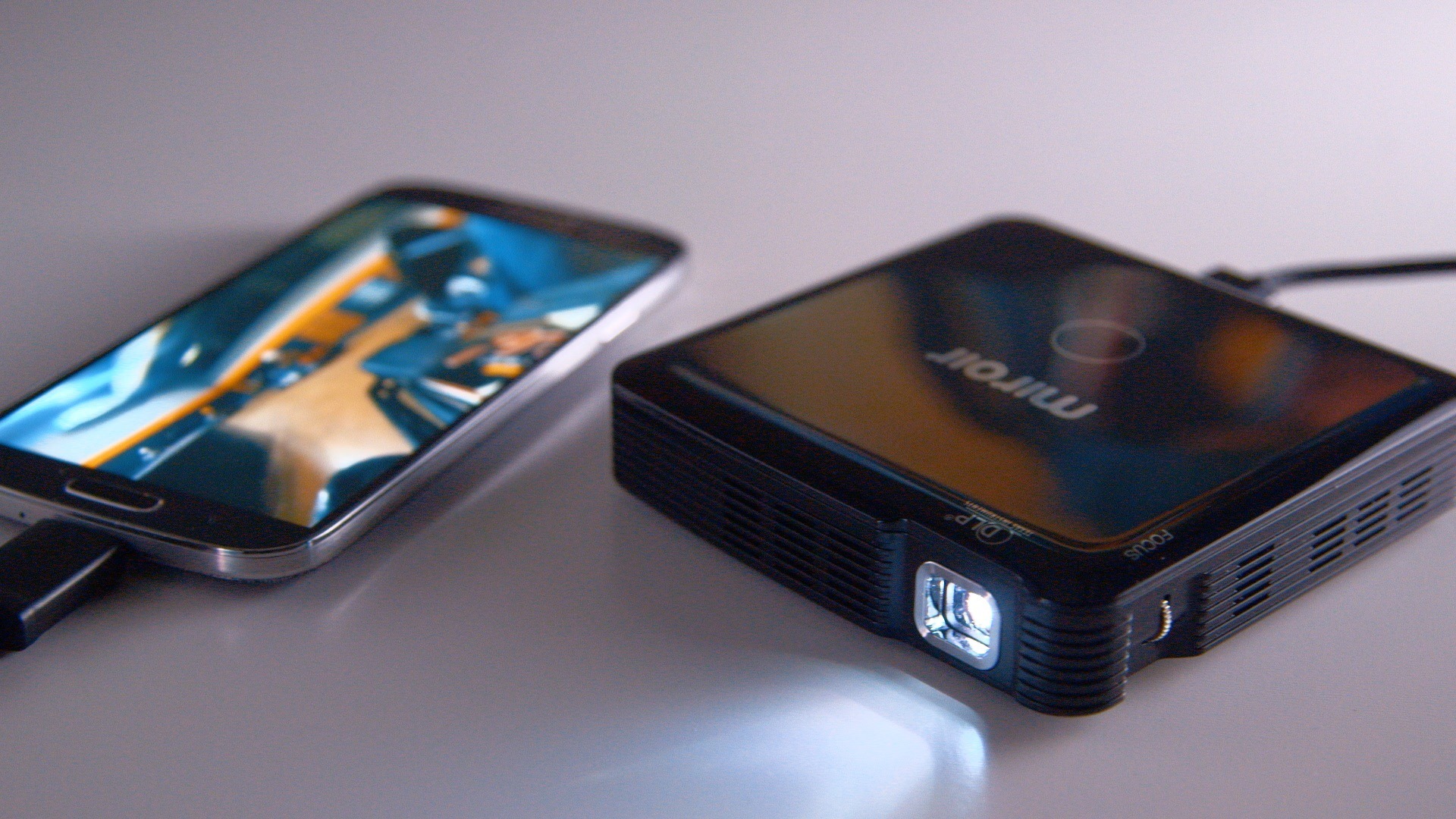
Some older phones and specialty devices included tiny projectors. These devices could display an image on a wall without extra hardware. However, built-in phone projectors are uncommon in current U.S. phone models.
If your phone includes this feature, check the phone’s manual for terms such as:
- Projector
- Pico projector
- Projection mode
- Screen projection
- Built-in projector
Do not assume that a USB-C port means your phone has a projector. USB-C may support charging, data, or video output, but it does not create a projected image by itself.
Is a phone screen magnifier the same as a projector?
No. A phone screen magnifier is a plastic lens or folding screen that makes the display look larger from a short distance. It does not project a bright image across a room.
These products may help one person watch a video from a nearby seat. They are not a replacement for a projector when you need a large image for a group.
The best way to use your phone as a projector source
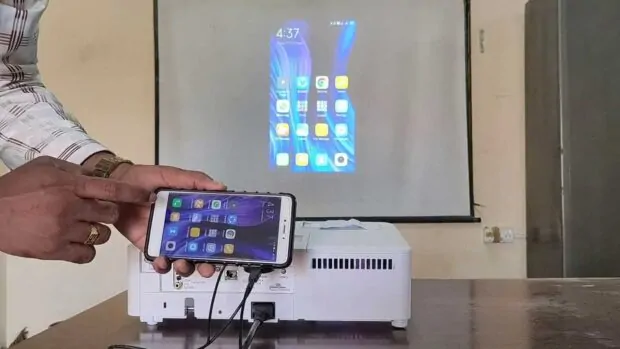
The most reliable method is to connect your phone to a separate projector. You can use a wireless connection, a cable, or a streaming device.
The right choice depends on your phone, the projector, the app, and the type of content you want to show.
| Method | What you need | Main benefit | Main limitation |
|---|---|---|---|
| AirPlay | Compatible iPhone and AirPlay projector or receiver | Simple wireless sharing | Needs compatible hardware and the same Wi-Fi network in many setups |
| Android casting | Compatible Android phone and projector or receiver | Works well with supported apps | Support varies by phone and projector |
| HDMI cable | Phone adapter, HDMI cable, and projector | Stable connection with low delay | Requires the correct adapter |
| Streaming device | Chromecast, Google TV, Apple TV, or similar device | Useful for supported streaming apps | Adds another device and setup step |
| USB file playback | Projector with supported USB media features | No wireless network needed | Not all projectors can read phone files or apps |
Wireless projection
Wireless projection sends your phone’s screen or video over Wi-Fi. Common options include Apple AirPlay and Android casting features.
For an iPhone, the projector or connected streaming device must support AirPlay, or it must connect to an Apple TV or another compatible receiver.
For Android, support may appear under names such as:
- Cast
- Screen Cast
- Smart View
- Wireless Display
- Screen Share
The exact name depends on the phone maker and Android version.
Wireless projection is convenient for photos, slides, and some videos. It may be less reliable for games or live camera work because wireless connections can add delay.
Wired projection
A wired connection usually gives you the most stable result. You need:
- A phone with video output support
- The correct phone-to-HDMI adapter
- An HDMI cable
- A projector with an HDMI input
For an iPhone, the adapter depends on the phone’s connector. Older models use Lightning, while newer models use USB-C. A USB-C port does not guarantee video output, so check the phone’s technical specifications before buying an adapter.
For Android, USB-C video output depends on the phone model. Some phones support DisplayPort video over USB-C. Others support charging and data only.
A cable is often the better choice when you need:
- A stable business presentation
- A long movie without wireless dropouts
- Low input delay
- A connection in a place with weak Wi-Fi
How to connect an iPhone to a projector
You can connect an iPhone wirelessly or with a cable, depending on the projector.
Option 1: Use AirPlay
Use these steps if the projector or its connected device supports AirPlay:
- Turn on the projector and select the correct input.
- Connect the iPhone and AirPlay receiver to the same Wi-Fi network.
- Open Control Center on the iPhone.
- Tap Screen Mirroring.
- Select the projector or receiver.
- Enter the code shown on the screen if asked.
To stop mirroring, open Control Center, tap Screen Mirroring, and select Stop Mirroring.
Some video apps use a separate AirPlay button. In that case, open the video, tap the AirPlay icon, and select the receiving device.
Option 2: Use an iPhone video adapter
For a wired connection:
- Choose an Apple-compatible or properly certified video adapter for your iPhone connector.
- Connect the adapter to the iPhone.
- Connect an HDMI cable from the adapter to the projector.
- Turn on the projector.
- Select the matching HDMI input.
- Unlock the iPhone and start the presentation or video.
If the image does not appear, disconnect and reconnect the adapter. Then confirm that the adapter supports video, not only charging.
iPhone limits to expect
Some streaming apps limit screen mirroring because of licensing and copy-protection rules. You may see a black screen, an error, or only hear audio. This does not always mean the phone or projector is broken.
When possible, use the app directly on a compatible streaming device or projector. A direct app connection may work better than mirroring the entire phone screen.
How to connect an Android phone to a projector
Android connection steps vary by phone brand and software version. Most Android phones use either wireless casting or a USB-C video adapter.
Option 1: Use built-in screen casting
Try these steps:
- Turn on the projector and connect it to the same Wi-Fi network as the phone.
- Swipe down from the top of the Android screen.
- Look for Cast, Screen Cast, Smart View, or Wireless Display.
- Tap the feature.
- Choose the projector or receiving device.
- Approve the connection if the projector asks for permission.
If you cannot find the button, open the quick-settings editor. The feature may be hidden from the first row of controls.
Option 2: Use a USB-C-to-HDMI connection
If the Android phone supports video output:
- Connect a compatible USB-C video adapter to the phone.
- Connect an HDMI cable between the adapter and projector.
- Select the correct HDMI input on the projector.
- Unlock the phone.
- Start the video, presentation, or photo slideshow.
Check the phone maker’s specifications before buying an adapter. Two phones may use the same USB-C connector but have different video capabilities.
Android limits to expect
Android phones do not all support the same wireless or wired standards. A projector may also support Chromecast, Miracast, or a manufacturer-specific system. These standards are not always interchangeable.
If wireless casting fails, a wired adapter may help—but only if the phone supports video output. If the phone does not support it, no ordinary USB-C-to-HDMI adapter can add that feature.

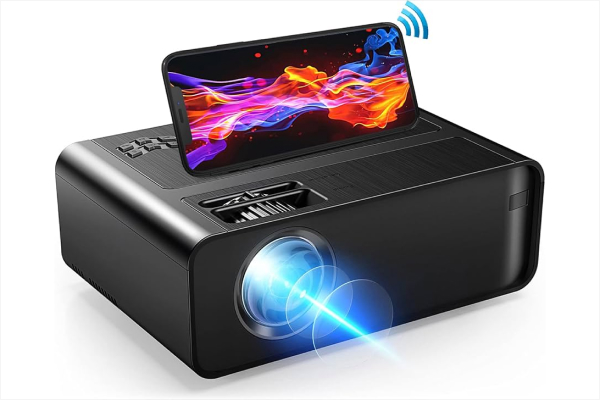
How to use a phone with a mini projector
A mini projector can make your phone useful for movies, photos, slides, and outdoor events. It does not need to be expensive, but it must support your phone’s connection method.
Before buying or borrowing one, check for:
- HDMI input
- AirPlay support for iPhone use
- Chromecast or Android casting support
- USB-C video support
- Built-in streaming apps
- Battery capacity
- Brightness information
- Speaker output
- Keystone correction
- Focus control
Brightness matters
A projector’s brightness affects how well the image works in a room. A dark room makes almost any small projector look better. Daylight, overhead lights, and outdoor lighting can make a low-brightness image hard to see.
Be cautious when comparing brightness claims. Projector makers may use different measurement methods. A high number is useful only when the rating uses a clear, comparable standard.
Distance and image size
As the projector moves farther from the wall, the image usually gets larger. It may also become dimmer and harder to focus.
Place the projector:
- On a stable, level surface
- Facing the wall or screen
- Near a power source when needed
- Away from blocked air vents
- Where people will not knock it over
Use a white or light-colored matte wall when possible. A textured, dark, or glossy wall can reduce image quality.

Can I make a homemade phone projector?
You can make a basic DIY phone projector with a cardboard box and a magnifying lens. The setup uses the lens to enlarge the phone’s screen onto a wall.
However, this method has major limits:
- The image is usually dim.
- The image may be upside down.
- Focus can be difficult.
- The phone may get warm.
- Small text is hard to read.
- The room must be very dark.
- The lens and box must stay aligned.
A DIY phone projector is best treated as a science or craft project, not as a practical home theater device.
Basic DIY concept
A simple setup typically uses:
- A sturdy box
- A magnifying lens
- Tape or a lens holder
- A phone
- A dark room
- A light-colored wall
The lens sits at one end of the box. The phone sits inside the box at a distance that allows the lens to focus the image. You adjust the phone’s position until the projected image becomes as clear as possible.
Do not leave the phone in a sealed box for a long period. Heat can build up, especially when the screen stays bright and the phone is charging. Never cover the phone’s vents or use a damaged battery.
What to do when phone projection does not work
Check the connection in this order. Start with simple causes before changing adapters or buying new equipment.
The projector shows “No Signal”
Try these checks:
- Confirm that the projector is powered on.
- Select the correct input, such as HDMI 1 or HDMI 2.
- Disconnect and reconnect the cable.
- Restart the phone and projector.
- Test a different HDMI cable.
- Confirm that the phone adapter supports video.
- Check whether the phone supports wired video output.
Wireless casting cannot find the projector
Try the following:
- Put both devices on the same Wi-Fi network.
- Turn off a VPN temporarily.
- Restart the phone, projector, and router.
- Move the devices closer to the Wi-Fi router.
- Check whether the projector requires an app.
- Confirm that the projector supports your phone’s casting method.
A guest Wi-Fi network may prevent devices from seeing each other. Hotel and public Wi-Fi networks can also block local device connections.
The video has sound but no picture
The app may restrict mirroring because of digital rights controls. Test a personal video or photo. If photos appear but a particular streaming service does not, the restriction may come from the app rather than the hardware.
Use the streaming service’s supported app on the projector or streaming device when available.
The picture is small, blurry, or washed out
Adjust these items:
- Focus
- Projector distance
- Keystone correction
- Wall color
- Room lighting
- Projector angle
- Video resolution
Keystone correction can make a crooked image fit the wall, but heavy correction may reduce sharpness. A physically level projector often gives a clearer image.
Phone projector safety and privacy tips
Use care with both the phone and the projector.
Do not stare into a projector lens while it is operating. Keep children and pets away from the beam and place the projector where it cannot fall. Leave space around ventilation openings to reduce heat buildup.
For wireless projection, use a trusted Wi-Fi network. Avoid accepting unknown pairing requests. If you mirror private messages, photos, or work documents, check the projected screen before sharing.
For presentations, turn on Do Not Disturb or a similar focus mode. This can help prevent private notifications from appearing on the wall.
Do not use a cracked cable, swollen phone battery, damaged adapter, or hot power brick. Replace damaged parts rather than forcing the connection.

Phone projection methods compared
The best method depends on what you need to display.
| Your goal | Best practical method |
|---|---|
| Show vacation photos | Wireless casting or AirPlay |
| Give a work presentation | HDMI connection |
| Watch a supported streaming service | Projector app or streaming device |
| Play a fast game | Wired HDMI connection |
| Use a phone outdoors | Battery-powered mini projector |
| Try a low-cost experiment | DIY lens-and-box setup |
| Share content without a wall-sized image | Phone screen magnifier |
A separate projector is the clear choice when you want a large, bright, reliable image. Wireless casting is the easiest setup when all devices support the same standard. HDMI is usually the safer choice for stability.
Frequently asked questions
Can I use my iPhone flashlight as a projector?
No. The flashlight produces a beam of light, but it does not contain an image or projection lens. It cannot display photos or videos on a wall.
Can I use my phone camera as a projector?
No. A camera records or previews an image. It does not project that image onto a wall. You need a separate projection system.
Can I connect my phone to a projector with Bluetooth?
Usually not for video. Bluetooth can send audio to some speakers and projectors, but video projection normally uses Wi-Fi, HDMI, USB-C video, AirPlay, Chromecast, or another display standard.
Can I use a USB cable to project my phone screen?
A basic charging USB cable usually cannot project the screen. The phone, cable, adapter, and projector must support a compatible video connection. USB-C video support varies by phone model.
Can I project Netflix or other streaming apps from my phone?
Sometimes. The result depends on the app, phone, projector, and connection method. Some services restrict screen mirroring. If mirroring shows a black screen, use the service’s app on a compatible projector or streaming device.
Can I project onto a ceiling?
Yes, if the projector has enough adjustment range and a stable mount or surface. Keep ventilation clear, avoid unsafe overhead placement, and remember that ceiling projection can strain your neck during long viewing sessions.
Conclusion: what is the simplest answer?
You usually cannot turn a modern phone into a projector by itself. You can use it as a source by connecting it to a compatible projector through AirPlay, Android casting, HDMI, USB-C video, or a streaming device.
For the most dependable setup, use a projector with HDMI and connect the phone with the correct adapter. For the easiest setup, choose a projector or receiver that supports your phone’s wireless display standard. A DIY phone projector can be fun, but it will not match the brightness, focus, or reliability of a real projector.
Your next step is to check your phone’s exact model, identify its wired or wireless video options, and then match those options to the projector before buying any adapter.

Everett Calloway is a consumer electronics writer and technology enthusiast at ElectroDoz. He enjoys exploring the latest gadgets, electronic devices, and innovative technologies that make everyday life easier. Everett focuses on creating helpful product reviews, detailed buying guides, practical how-to articles, and troubleshooting tips. His goal is to simplify complex technical information and help readers understand product features, compare their options, and make informed purchasing decisions. When he isn’t researching new electronics, he enjoys exploring emerging technology trends and discovering useful gadgets.