
Can You Use Console Commands On Steam Games: Easy Guide
Yes, you can use console commands in some Steam games, but Steam itself does not provide one universal console for every title. Console access depends on the game, its engine, the developer’s settings, and whether you are playing single-player or online.
In the United States, many PC games on Steam support a developer console, launch options, or both. Games such as Counter-Strike 2, Team Fortress 2, Left 4 Dead 2, Portal 2, and Skyrim Special Edition use different systems, so the steps and commands are not interchangeable.
The basic process is:
- Check whether the game supports console commands.
- Enable its developer console if needed.
- Open the console with the correct key.
- Enter a command that the game recognizes.
- Use commands only where the game’s rules allow them.

What Are Console Commands in Steam Games?
Console commands are text instructions that change settings or trigger actions inside a game. They are usually entered into a developer console, which is a small text window built into the game.
Depending on the title, a command may:
- Change graphics or audio settings
- Display performance data
- Adjust field of view
- Spawn items or characters
- Enable a game mode
- Change difficulty
- Run a script
- Help with testing and troubleshooting
The word “console” can be confusing. A Steam game may have a developer console, but that does not mean every Steam game has one. Steam is the store and launcher. The individual game decides whether console commands exist.
Steam launch options are different
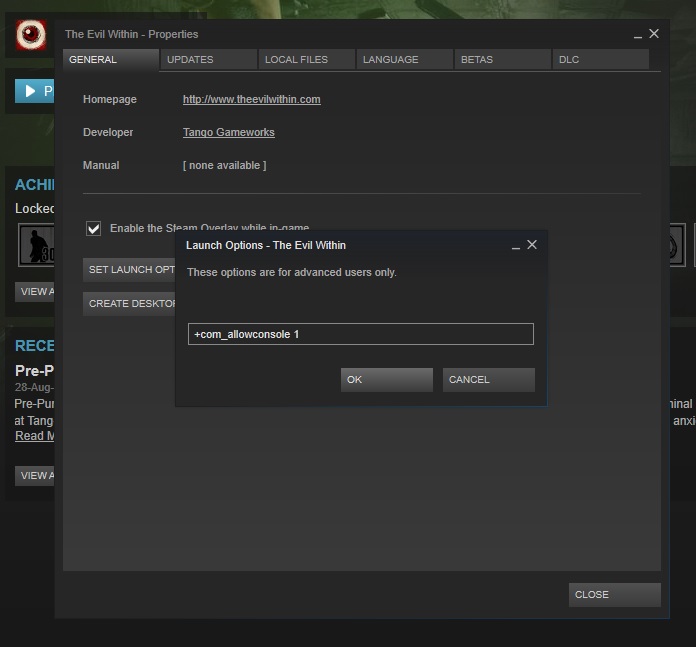
Steam launch options are commands placed in the game’s Properties window. They run when the game starts. They are not the same as commands typed into an in-game console.
To add a launch option:
- Open Steam.
- Select Library.
- Right-click the game.
- Choose Properties.
- Stay on the General tab.
- Find Launch Options.
- Enter the option supplied by the game’s documentation.
- Close the window and start the game.
For example, some games use launch options to select a display mode, skip an intro, or enable a developer feature. The exact option must match the game. A launch option from one game may do nothing in another.
Do not place normal console commands in the Launch Options box unless the game’s documentation specifically says to do so.

How to Enable and Open a Developer Console
The steps vary by game, but this is the most common method for PC games on Steam.
1. Check the game’s settings
Open the game and look under Options, Settings, Keyboard, or Advanced. Look for a setting named:
- Enable Developer Console
- Developer Console
- Console
- Allow Cheats
- Enable Cheats
Some games enable the console by default. Others require you to turn it on before the console key works.
2. Find the console key
The default key is often the tilde key, shown as ~, near the upper-left corner of a US keyboard. It shares a key with the backtick character: `.
The key may differ by:
- Keyboard layout
- Game
- Operating system
- Custom key bindings
- Laptop keyboard design
If the tilde key does not work, check the game’s key-bind menu. On some keyboards, the console key may be located beside the left side of the number row or require the Fn key.
3. Open the console during play
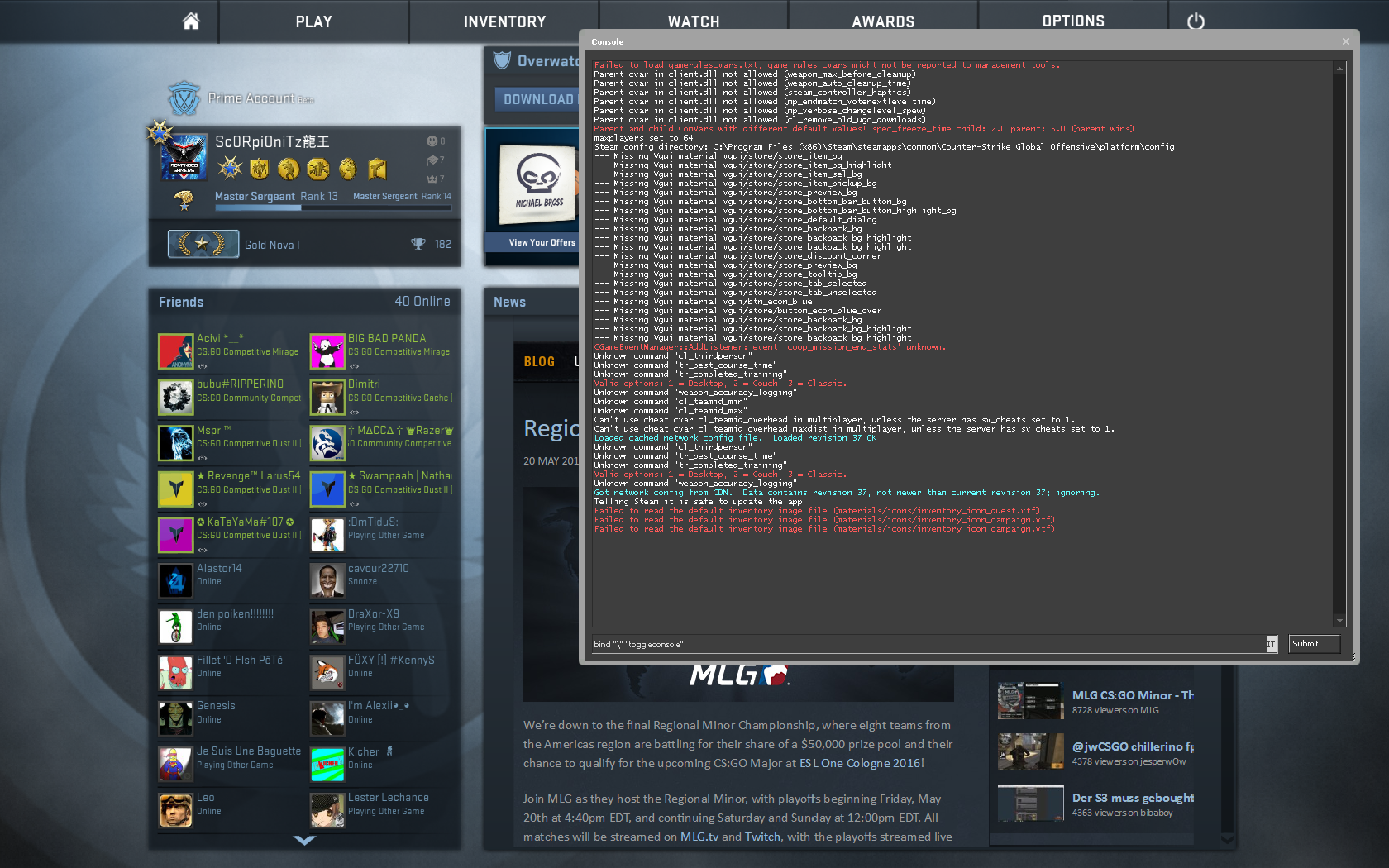
start a supported game, load the relevant mode, and press the assigned key. A text box should appear. Type a valid command and press Enter.
A successful command may produce text, change a setting, or affect the game world. Some commands show no message even when they work.
4. Use the game’s own command list
Commands are not universal. Search the game’s official documentation, in-game help, or a reliable community reference for the exact title and version.
When available, use commands such as:
help
or:
cvarlist
However, these examples do not work in every game. If a command is unsupported, the game may show an error or simply ignore it.
5. Save before testing
Some commands can change a save file, remove progress, alter quests, or create an unstable game state. Make a manual save before experimenting.
For games with cloud saves, a local change may later sync through Steam Cloud. A backup gives you a safer way to restore your progress.

Which Steam Games Support Console Commands?
There is no complete Steam-wide list because console support belongs to each game. The table below shows common examples, but commands and access can change between versions.
| Game or series | Console support | Typical use |
|---|---|---|
| Counter-Strike 2 | Yes, with developer console settings | Training, binds, practice settings, performance data |
| Team Fortress 2 | Yes | Custom settings, binds, practice, server commands |
| Left 4 Dead 2 | Yes | Local testing, server settings, practice |
| Portal 2 | Yes | Testing, movement, level experiments |
| The Elder Scrolls V: Skyrim Special Edition | Yes | Single-player testing, item and quest commands |
| Fallout 4 | Yes | Single-player testing and world changes |
| Many Unity games | Sometimes | Depends on the developer and build |
| Many multiplayer games | Varies | Often restricted or disabled online |
Valve’s Source-engine games commonly use a developer console. Bethesda’s PC role-playing games also commonly include console commands. Other games may use a debug menu, mod console, config file, or no command system at all.
The best check is the game’s official support page or documentation. A Steam Community guide can help, but it may describe an older version or a command that works only on a private server.

Can You Use Console Commands in Multiplayer Games?
Sometimes, but multiplayer rules matter more than technical access.
A game may let you open the console while connected to a server, yet block commands that affect gameplay. In other cases, only the server owner or administrator can use commands. Some commands work in local practice modes but not on official servers.
Safe uses
Commands are usually lower risk when they only:
- Show frame rate or network data
- Change your key bindings
- Adjust personal graphics settings
- Change your view settings where allowed
- Run a private practice session
- Control a server you own
Risky uses
Avoid commands that:
- Give an unfair advantage
- Reveal hidden player information
- Change movement or weapon behavior in a public match
- Bypass anti-cheat systems
- Inject code into the game
- Modify game files to evade restrictions
- Affect a server without the owner’s permission
A console command is not automatically safe because it is built into the game. A command can still violate the rules of a server, tournament, or game platform.
Valve Anti-Cheat, commonly called VAC, and other anti-cheat systems are separate from the developer console. The presence of a console does not guarantee that every command is permitted online. Valve’s Steam Subscriber Agreement and the rules of the specific game or server control what is allowed.
When in doubt, use commands only in single-player, offline, or private practice modes. For competitive play, follow the game’s official rules.
How to Use Console Commands in Popular Steam Games
Counter-Strike 2
To enable the console in Counter-Strike 2:
- Open the game.
- Select Settings.
- Open Game settings.
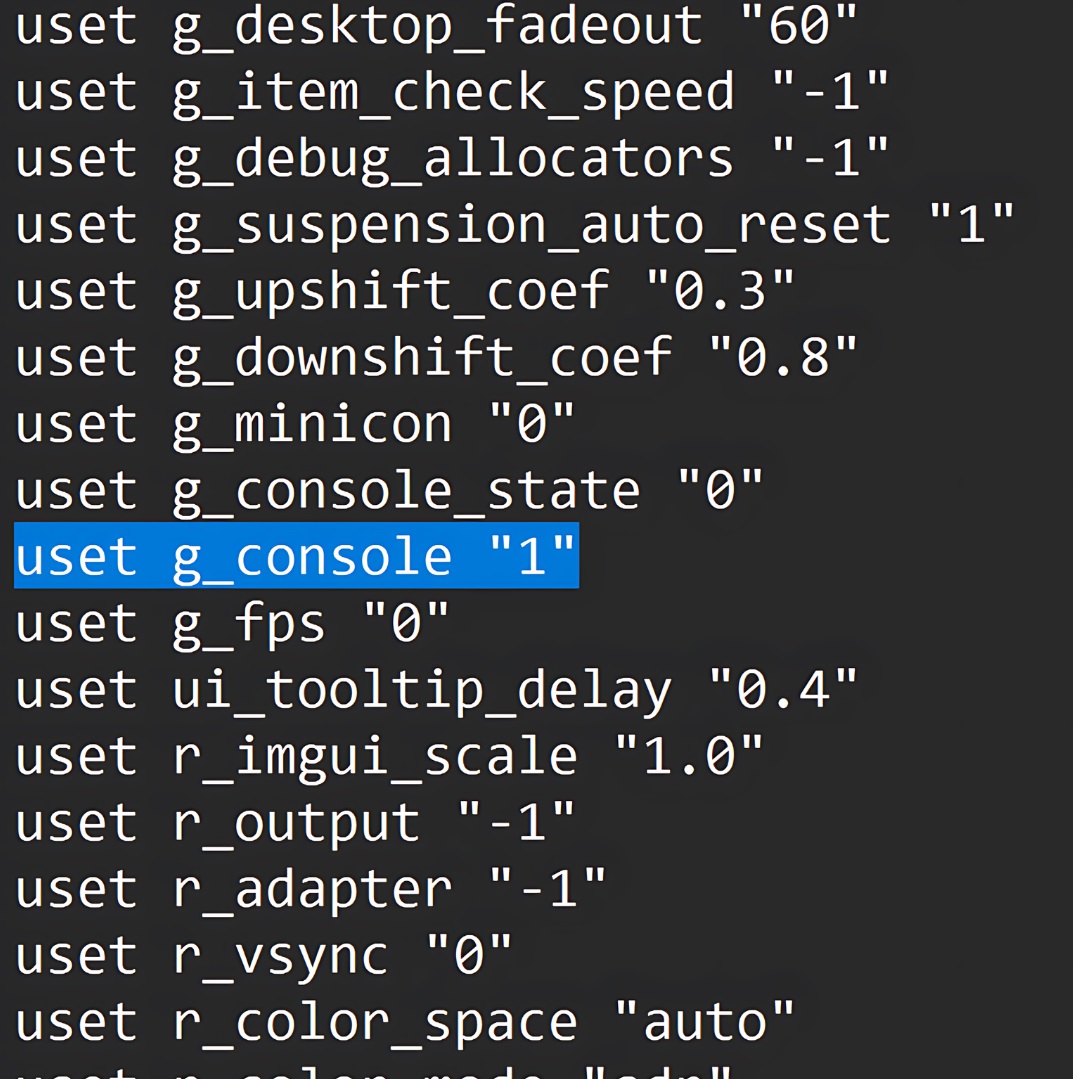
- Find Enable Developer Console (~).
- Set it to Yes.
- Press the tilde key to open the console.
Commands in Counter-Strike 2 may depend on the game mode, server permissions, and whether cheats are enabled. Many practice commands work only in a private match or a locally controlled server.
Use caution with commands copied from older Counter-Strike: Global Offensive guides. Some commands were removed, renamed, or changed when the game moved to the newer Source 2 engine.
Team Fortress 2
Team Fortress 2 includes a developer console that can be enabled through the game’s advanced keyboard settings. It is often used for binds, graphics commands, and local server settings.
A command that changes your own configuration may work on official servers. A command that changes game rules usually requires server access or a local game.
Left 4 Dead 2
Left 4 Dead 2 supports console commands and is often used for local testing or custom server management. Some commands require cheats to be enabled.
Commands that activate cheats can affect achievements or the status of the current session. Use a separate save or session when testing commands that alter the game.
Skyrim Special Edition
In the PC version of Skyrim Special Edition, press the tilde key to open the console. Enter a command, then press Enter.
Because many Skyrim commands alter quests, inventory, characters, or world data, save first. Commands can also create unexpected results if used during an active quest. Console commands are not available in the same way on every console platform, such as Xbox or PlayStation.
Other games
For an unfamiliar Steam game, search for:
- The game name plus “developer console”
- The game name plus “console commands”
- The game name plus “launch options”
- The game’s official PC support page
- The game’s documentation or modding guide
Check the version and platform. A command listed for an older release, a dedicated server, or a mod may not work in the standard Steam version.
Console Commands vs. Mods, Trainers, and Cheat Programs
Console commands are built into the game. Mods add or replace game content. Trainers and cheat programs usually run outside the game and may change its memory or behavior.
These tools are not equal in risk.
| Tool | Where it runs | Main limitation |
|---|---|---|
| Developer console | Inside the game | Only supports built-in commands |
| Launch option | Steam startup setting | Only works if the game recognizes it |
| Mod | Game files or a mod loader | May break after updates or conflict with other mods |
| Trainer or cheat program | Outside the game | May trigger security tools or violate rules |
| Server command | On a server | Usually requires administrator permission |
For single-player games, mods and trainers may be permitted by the developer, but you should still check the game’s rules and the tool’s source. For online games, third-party cheat software can lead to a ban and may create security risks.
Do not download an unknown “console enabler” that asks you to disable antivirus protection, replace Steam files, or enter your Steam password. A real in-game console normally does not require those steps.

What to Do If Console Commands Do Not Work
The most common cause is that the game does not support the command in the current mode or version. Check the following in order.
The console does not open
Try these checks:
- Confirm that the developer console is enabled.
- Press the correct key for your keyboard layout.
- Check the game’s key bindings.
- Try the backtick key as well as the tilde key.
- Disable a conflicting keyboard overlay.
- Restart the game after changing the setting.
- Verify that you are using the PC version.
Steam Input, laptop function keys, and non-US keyboard layouts can change how the key is detected.
The command returns an error
The command may:
- Be misspelled
- Belong to a different game
- Be from an older version
- Require administrator access
- Require a special game mode
- Require cheats to be enabled
- Be part of a mod rather than the base game
Copy the command carefully. Console commands may distinguish between letters, numbers, spaces, and punctuation.
The command works but nothing changes
Some commands affect only a new session, a local server, or a specific map. Others set a value that becomes visible only after restarting the game.
Read the command’s description and requirements. If a command changes a configuration value, check whether the game has saved it to a config file.
The game crashes or the save becomes unstable
Stop using the command and restore an earlier save. If the problem continues:
- Remove recent launch options.
- Disable related mods.
- Verify the game files in Steam.
- Restart the computer.
- Restore a clean configuration file if the game provides one.
- Reinstall only as a last resort.
Verifying files can replace altered files, but it may not undo changes stored in a save file.

Do Console Commands Disable Steam Achievements?
They can, depending on the game.
Some games disable achievements after cheats or console commands are used. Others allow achievements normally. Some disable them only for the current session, while others may mark a save in a way that lasts longer.
There is no universal Steam rule that answers this for every game. The game decides how commands affect achievements.
Before using a command in a game where achievements matter:
- Create a separate save.
- Check the game’s official documentation.
- Look for a warning in the console or command guide.
- Avoid cheat-enabled modes on your main playthrough.
Do not assume that a command is harmless because it only changes money, health, or inventory. Those changes may still count as cheats.
Can You Use Console Commands on Steam Deck?
Sometimes, but Steam Deck access depends on the game and its control setup.
Steam Deck runs SteamOS, which is based on Linux. A game may run through Proton, Valve’s compatibility layer, rather than a native Linux version. The console may still work, but the keyboard shortcut may be difficult to use without an external keyboard or a custom controller layout.
Try these options:
- Check whether the game supports console commands on PC.
- Connect a USB or Bluetooth keyboard.
- Enable the developer console in the game’s settings.
- Use the correct key for the game.
- Create a Steam Input layout if the console key is not convenient.
- Check whether the game’s anti-cheat system supports Steam Deck for online play.
A Windows guide may not cover Steam Deck-specific controls, Proton behavior, or anti-cheat support. Use the game’s current Steam Deck compatibility information as a separate check.

Common Mistakes to Avoid
The most common mistake is treating Steam as if it controls every game feature. Steam can start the game and pass launch options, but the game itself controls its console.
Avoid these errors:
- Typing a console command into Steam’s Launch Options box
- Using a command from a different game
- Copying an old guide without checking the game version
- Testing cheat commands in a public match
- Forgetting to create a backup save
- Downloading an unknown executable to unlock a console
- Assuming console commands work on Xbox or PlayStation
- Using server commands without administrator permission
- Removing a mod but leaving its launch options active
- Ignoring warnings about achievements or multiplayer bans
A short command can have a large effect. Treat it like editing a settings file: test one change at a time and keep a way back.
Frequently Asked Questions
Are console commands available in every Steam game?
No. Console support is optional. Some games have a developer console, some use launch options or debug menus, and others provide no built-in command system.
Do console commands require an internet connection?
Usually not for single-player use. You may need an internet connection to launch some Steam games, use online features, or join a multiplayer server. The command itself may work offline if the game supports it.
Can console commands get you banned on Steam?
They can create a risk in online games if they provide an unfair advantage or violate server rules. Use commands only in approved modes, and never use third-party cheat tools to bypass anti-cheat systems.
Can console commands damage a game?
They can change saves, settings, quests, or world data. A command normally does not physically damage your computer, but unknown external tools can create security risks. Save a backup before using commands that alter gameplay.
Where can you find the correct commands?
Start with the game’s official documentation, developer support page, or in-game help. Community guides can provide useful examples, but check the game version, platform, mode, and required permissions.
Conclusion
You can use console commands on some Steam games, but there is no universal Steam console. The game must support the feature, and the correct steps depend on its engine, version, platform, and game mode.
For the safest approach, enable the console through the game’s settings, use documented commands, save your progress first, and test commands in single-player or private sessions. Before using any command online, check the server rules and the game’s anti-cheat policy.
The next step is simple: open the game’s settings or official support page and confirm whether that specific title supports a developer console, launch options, or neither.

Everett Calloway is a consumer electronics writer and technology enthusiast at ElectroDoz. He enjoys exploring the latest gadgets, electronic devices, and innovative technologies that make everyday life easier. Everett focuses on creating helpful product reviews, detailed buying guides, practical how-to articles, and troubleshooting tips. His goal is to simplify complex technical information and help readers understand product features, compare their options, and make informed purchasing decisions. When he isn’t researching new electronics, he enjoys exploring emerging technology trends and discovering useful gadgets.