Can A Firestick Be Used On A Projector: Easy Setup Guide
Yes. A Fire TV Stick can be used with most projectors that have an HDMI input. Connect the Fire TV Stick to the projector’s HDMI port, supply power with its USB cable and power adapter, then select the correct HDMI source.
The main limits are simple: the projector must support the Fire TV Stick’s video signal, the device needs Wi-Fi, and you may need a separate sound solution. This setup works well in a U.S. home, classroom, backyard movie area, or office when the projector has HDMI and access to a U.S. power outlet.
Introduction
A Fire TV Stick turns a projector into a streaming display. It can play services such as Prime Video, Netflix, Hulu, Disney+, Max, and YouTube, provided the apps and subscriptions are available in your region.
The projector does not need to be a smart projector. The Fire TV Stick supplies the streaming features. The projector only needs to display the signal.
The simplest setup uses:
- A Fire TV Stick
- A projector with an HDMI port
- The Fire TV Stick’s USB power cable
- A power adapter and wall outlet
- A working Wi-Fi network
- Speakers or headphones if the projector has weak or no sound

How to Connect a Firestick to a Projector
Connecting a Fire TV Stick to a projector usually takes a few minutes. Follow these steps in order.
1. Check the projector for HDMI
Look for a port labeled HDMI, HDMI IN, or HDMI 1. HDMI carries both digital video and digital audio.
Most modern home theater, portable, classroom, and office projectors include at least one HDMI input. The port may be on the side, rear, or under a small cover.
If the projector has only VGA, composite, component, or another older input, the connection may need extra equipment. A basic cable cannot convert an HDMI signal to VGA.
2. Plug in the Fire TV Stick
Insert the Fire TV Stick into the projector’s HDMI port. If space is tight, use the short HDMI extender supplied with some Fire TV Stick packages.
The extender can help with:
- Recessed HDMI ports
- Crowded ports
- Poor wireless performance caused by the projector’s casing
- A Fire TV Stick that hangs at an awkward angle
3. Provide USB power
Connect the Fire TV Stick’s USB cable to the device. Connect the other end to its power adapter, then plug the adapter into a wall outlet.
A projector’s USB port may provide enough power, but this is not guaranteed. If the Fire TV Stick shows a low-power warning, restarts, or stays on a blank screen, use the wall adapter instead.
For the most reliable setup, use the power adapter designed for the Fire TV Stick or a compatible adapter with the required output.
4. Turn on the projector
Turn on the projector and wait for its menu or home screen to appear. Use the projector remote or control panel to choose the HDMI input connected to the Fire TV Stick.
For example, select:
- HDMI 1
- HDMI 2
- HDMI IN
The Fire TV Stick home screen should appear after a short delay.
5. Complete the Fire TV setup
use the Fire TV remote to:
- Choose a language.
- Connect to your Wi-Fi network.
- Sign in to your Amazon account.
- Install or open streaming apps.
- Test a video.
The Fire TV Stick needs a Wi-Fi connection even though the projector receives the picture through HDMI.
Signs the setup is working
The setup is working when:
- The Fire TV menu appears on the projected image.
- The Fire TV remote moves through the menus.
- A video starts without an error message.
- The projector displays a stable picture.
- Audio comes from the projector or an attached sound system.

What You Need for a Firestick and Projector Setup
The exact equipment depends on the projector, room, and sound system. The table below shows the usual requirements.
| Item | Is it required? | Why it matters |
|---|---|---|
| Projector with HDMI input | Yes for a direct setup | Receives the Fire TV Stick’s digital signal |
| Fire TV Stick | Yes | Provides streaming apps and menus |
| USB power cable | Yes | Powers the Fire TV Stick |
| Wall power adapter | Strongly recommended | Gives the device stable power |
| Wi-Fi | Yes for streaming | Connects the Fire TV Stick to online services |
| Projector speakers | Optional | Plays sound if they are built in |
| External speaker or soundbar | Optional | Improves sound or solves audio problems |
| HDMI extender | Sometimes | Helps with tight ports or wireless interference |
| HDMI-to-VGA converter | Only for old projectors | Converts the signal for VGA equipment |
HDMI is better than VGA
HDMI is the preferred connection because it carries digital video and audio in one cable. It also supports copy protection used by many streaming services.
VGA is an older video-only connection. If you try to connect a Fire TV Stick to a VGA projector, you need an active HDMI-to-VGA converter, not a passive cable. The converter may also need separate audio output and USB power.
Even with a converter, some streaming apps may not work correctly if the converter does not handle HDCP copy protection.
The projector’s resolution matters
A Fire TV Stick can send a high-definition signal to many projectors, but the final image depends on the projector’s own resolution.
Common projector resolutions include:
- 1280 × 720, often called 720p
- 1920 × 1080, often called 1080p
- 3840 × 2160, commonly called 4K
A 1080p projector cannot display true 4K detail. It may accept a higher-resolution signal and scale it down, but the image remains limited by the projector’s native resolution.
A 720p projector can still work well for casual movies, sports, and shows. It will simply show less detail than a 1080p projector.
Brightness affects the result
The Fire TV Stick does not control how bright the projected image looks. That depends on the projector, screen, room, and distance.
For a better picture:
- Darken the room.
- Use a suitable screen or smooth white wall.
- Keep the lens clean.
- Place the projector at the recommended distance.
- Avoid judging image quality from a bright store or phone screen.
A small portable projector may work well at night but look washed out in a bright room.

How to Get Sound From a Firestick Projector Setup
Sound can come from the projector, a soundbar, Bluetooth headphones, Bluetooth speakers, or an audio receiver. The best choice depends on the projector’s audio features.
Use the projector’s built-in speakers
This is the easiest option. After connecting the Fire TV Stick, the projector should receive audio through HDMI and play it through its internal speakers.
Built-in speakers are often enough for a small room. They may sound thin or quiet in a large room, however.
Check the projector’s volume controls if the picture works but there is no sound.
Connect external speakers to the projector
Many projectors include a 3.5-millimeter audio output. Some include optical audio, Bluetooth, or HDMI audio return features.
If the projector has an audio output, connect it to:
- Powered speakers
- A soundbar
- An AV receiver
- A compatible headphone system
This method lets the projector receive audio from the Fire TV Stick and pass it to the sound system.
Use Bluetooth audio
Some Fire TV Stick models support Bluetooth audio devices. To pair one, open the Fire TV settings and look for the controller and Bluetooth device menu.
Bluetooth audio can be useful with headphones. It may introduce a small delay between the picture and sound, especially with some older speakers or projectors.
Bluetooth performance can also vary with distance, walls, and nearby wireless devices.
Use a soundbar or receiver with HDMI
If your soundbar or AV receiver has HDMI inputs, you may be able to connect the Fire TV Stick to the sound system first and then connect the sound system to the projector.
The signal path would be:
Fire TV Stick → soundbar or receiver → projector
This can provide better audio control, but the equipment must support the video resolution and copy protection used by the Fire TV Stick.
A simpler path is:
Fire TV Stick → projector → external speakers
Use the second method when the projector can pass audio to your speaker system.

Can You Use a Firestick With Any Projector?
No. A Fire TV Stick works with most projectors that have a compatible HDMI input, but not every projector will provide a trouble-free experience.
Projectors that usually work
A Fire TV Stick will usually work with:
- Home theater projectors with HDMI
- Portable projectors with HDMI
- Classroom projectors with HDMI
- Office projectors with HDMI
- Many smart projectors with an unused HDMI input
The projector does not need its own streaming apps. The Fire TV Stick provides them.
Older projectors may need a converter
A projector with only VGA or composite inputs cannot accept the Fire TV Stick directly. You would need a powered converter that changes HDMI into the projector’s input format.
The result may have limits:
- Lower image quality
- No sound through the projector
- Compatibility problems with protected content
- Extra cables and power requirements
- Possible input lag or image instability
If possible, use a projector with a native HDMI input instead of relying on a converter.
Ultra-short-throw and ceiling-mounted projectors
These projectors can work well with a Fire TV Stick, but access to the HDMI port may be difficult. An HDMI extender or short HDMI cable can make installation easier.
For a ceiling-mounted projector, plan the power connection before installation. The Fire TV Stick needs stable power, and a hidden outlet or approved cable path may be needed.
Do not run power cables through unsafe locations or alter building wiring yourself. Use the manufacturer’s instructions and local electrical requirements.

Firestick Projector Troubleshooting
Most problems come from the input selection, power supply, Wi-Fi connection, or sound settings. Check these items in this order.
The projector shows “No Signal”
Try the following:
- Confirm that the Fire TV Stick is fully inserted into HDMI.
- Select the correct HDMI input on the projector.
- Unplug the Fire TV Stick from power for 30 seconds.
- Restart the projector.
- Connect the Fire TV Stick to its wall power adapter.
- Try another HDMI port if the projector has one.
- Test the Fire TV Stick on a television, if available.
If it works on a television but not the projector, the issue may involve the projector’s resolution, HDMI port, or HDCP support.
The screen is black but menus appear
A black screen during playback may result from an HDCP or resolution problem. HDCP is a form of digital copy protection used by many streaming devices and services.
Try these steps:
- Restart both devices.
- Disconnect HDMI splitters or switches.
- Connect the Fire TV Stick directly to the projector.
- Set the Fire TV display resolution to automatic.
- Test another streaming app.
- Update the Fire TV Stick and projector firmware if updates are available.
Cheap HDMI converters, splitters, and capture devices are common causes of protected-content errors.
The Firestick keeps restarting
Repeated restarts usually point to insufficient or unstable power.
Use this sequence:
- Disconnect the Fire TV Stick from the projector’s USB port.
- Connect it to the supplied wall adapter.
- Try a different wall outlet.
- Check the USB cable for damage.
- Remove unnecessary HDMI adapters or accessories.
If the device still restarts with a known-good power source, the Fire TV Stick or its cable may be faulty.
There is no sound
Check the projector volume first. Then confirm that the Fire TV Stick is not muted.
If the problem remains:
- Restart the Fire TV Stick.
- Test another video.
- Check the projector’s audio input setting.
- Disconnect Bluetooth headphones or speakers.
- Try the projector’s internal speaker.
- Review the Fire TV audio settings.
- Test another HDMI cable or port.
Some projectors accept video through HDMI but have limited audio support. An external speaker connected to the projector may solve the issue.
The Wi-Fi signal is weak
A projector in a far corner, basement, garage, or backyard may be far from the router. The Fire TV Stick needs a stable internet connection for streaming.
Try:
- Moving the router closer.
- Using a 5 GHz network when the signal is strong.
- Using a 2.4 GHz network for longer range.
- Removing the Fire TV Stick from a crowded metal area with an HDMI extender.
- Restarting the router.
- Using a mesh Wi-Fi system if the location has a persistent dead zone.
Do not assume a blank image is a Wi-Fi problem. Wi-Fi affects streaming and setup, while a “No Signal” message usually points to HDMI, input selection, or power.

Firestick on a Projector vs. a Smart Projector
A Fire TV Stick can be useful even when a projector already has smart features.
A smart projector may include built-in apps, but its app support can vary by operating system and model. A Fire TV Stick provides a familiar Fire TV interface and can be replaced separately if the projector remains in use.
A smart projector may be the better choice when:
- You want fewer cables.
- The built-in apps meet your needs.
- The projector has a reliable app store.
- You prefer one remote.
A Fire TV Stick may be better when:
- The projector has no smart platform.
- You already use Fire TV.
- You want access to Fire TV apps.
- You plan to replace the projector later.
- The projector’s built-in software is slow or limited.
Using both systems may create two menus and two remotes. Choose one main streaming platform when possible.
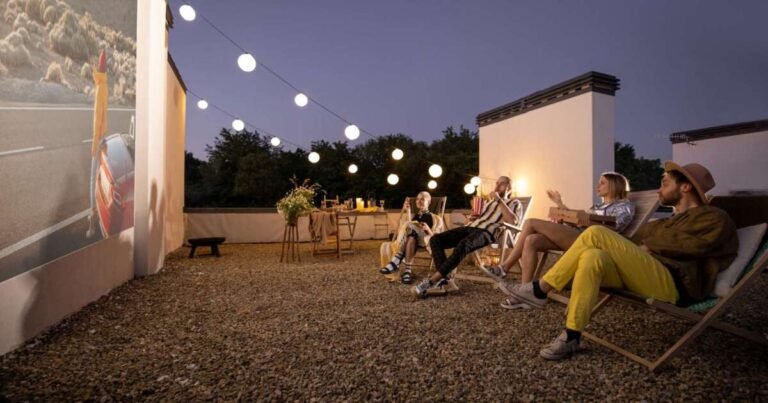
Can You Use a Firestick Outside With a Projector?
Yes, but outdoor use needs extra planning. The Fire TV Stick itself can provide the video source, while the projector displays the image.
You will need:
- A safe, dry location for the projector and Fire TV Stick
- Stable power
- Wi-Fi that reaches the outdoor area
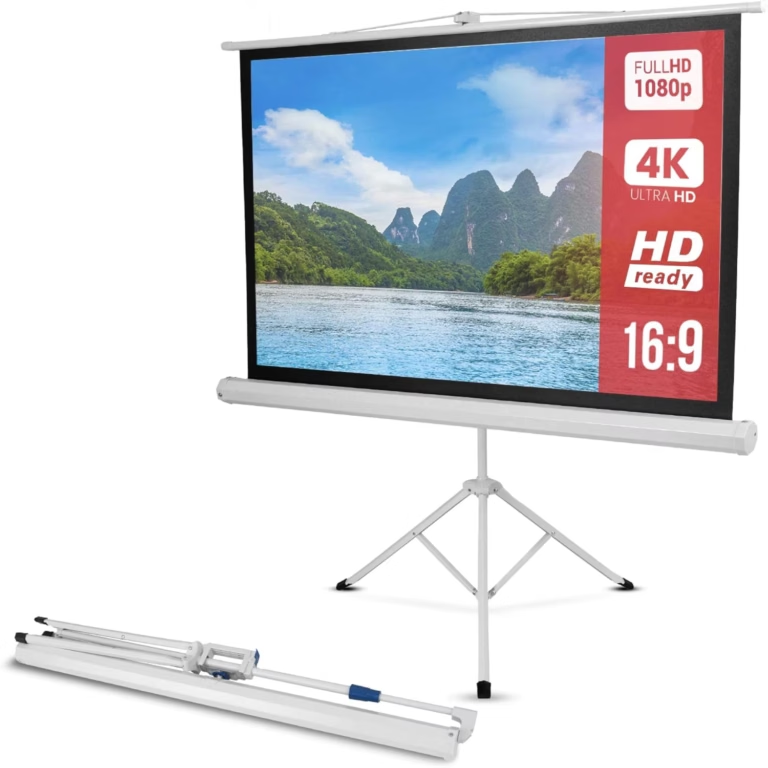
- A screen or suitable viewing surface
- External speakers for larger groups
- Protection from rain, dew, heat, and direct sunlight
Do not leave the Fire TV Stick, projector, power adapter, or speakers exposed to moisture. Most home electronics are not weatherproof.
Outdoor movie setups work best after sunset. Even a bright projector may look dim when competing with daylight or strong outdoor lighting.
Common Mistakes to Avoid
Avoid these common setup errors:
- Using a USB port that does not supply enough power: Use the wall adapter when the Fire TV Stick reports low power or restarts.
- Selecting the wrong projector input: HDMI 1 and HDMI 2 are separate sources.
- Assuming every HDMI-to-VGA cable works: Passive cables do not perform the needed signal conversion.
- Ignoring audio: A working picture does not guarantee that the projector has useful speakers.
- Using a low-quality converter for protected video: HDCP problems can block playback.
- Expecting 4K from a 720p projector: The projector’s native resolution sets the practical image detail.
- Forgetting Wi-Fi: HDMI carries the picture from the Fire TV Stick, but Wi-Fi supplies the stream.
- Placing the projector too close to a wall or object: Follow the projector’s ventilation instructions.
- Using damaged power cables: Replace damaged cables before operating the equipment.

Frequently Asked Questions
Can I use a Firestick with a projector without Wi-Fi?
You can open some locally stored features without internet, but normal streaming requires an internet connection. The Fire TV Stick needs Wi-Fi to sign in, load apps, and play most online videos.
Do I need a smart projector for a Fire TV Stick?
No. A projector with a compatible HDMI input is usually enough. The Fire TV Stick provides the smart functions and streaming apps.
Can a Firestick power itself from a projector?
Sometimes, but not always. Some projector USB ports provide adequate power, while others do not. The wall adapter is the more reliable choice.
Can I connect a Firestick to a projector with HDMI?
Yes. HDMI is the simplest and most reliable connection. Plug the Fire TV Stick into HDMI, power it separately, and select that HDMI input on the projector.
Why does my Firestick work on a TV but not on my projector?
The projector may use an unsupported resolution, have an HDMI or HDCP compatibility issue, or provide insufficient power through its USB port. Connect the Fire TV Stick directly to the projector, use wall power, restart both devices, and set the Fire TV display resolution to automatic.
Can I use headphones with a Firestick and projector?
Often, yes. Pair compatible Bluetooth headphones through the Fire TV settings. You can also connect headphones to the projector if the projector provides a headphone output.
Final Answer
A Fire TV Stick can be used on a projector when the projector has a compatible HDMI input. Connect the Fire TV Stick to HDMI, power it from a wall outlet, connect it to Wi-Fi, and select the correct projector input.
For the best experience, confirm three things before setup: the projector supports HDMI, the Fire TV Stick has stable power, and the projector or an external speaker can handle audio. If the projector has only VGA or composite inputs, a powered converter may work, but direct HDMI is safer and more reliable.
The best next step is to check the projector’s ports and manual. If you see HDMI, the basic setup should be straightforward.

Everett Calloway is a consumer electronics writer and technology enthusiast at ElectroDoz. He enjoys exploring the latest gadgets, electronic devices, and innovative technologies that make everyday life easier. Everett focuses on creating helpful product reviews, detailed buying guides, practical how-to articles, and troubleshooting tips. His goal is to simplify complex technical information and help readers understand product features, compare their options, and make informed purchasing decisions. When he isn’t researching new electronics, he enjoys exploring emerging technology trends and discovering useful gadgets.