Can You Use A Smartwatch With An Android Phone: Easy Guide
Yes. Most smartwatches work with Android phones, but compatibility depends on the watch brand, Android version, phone model, and features you want to use.
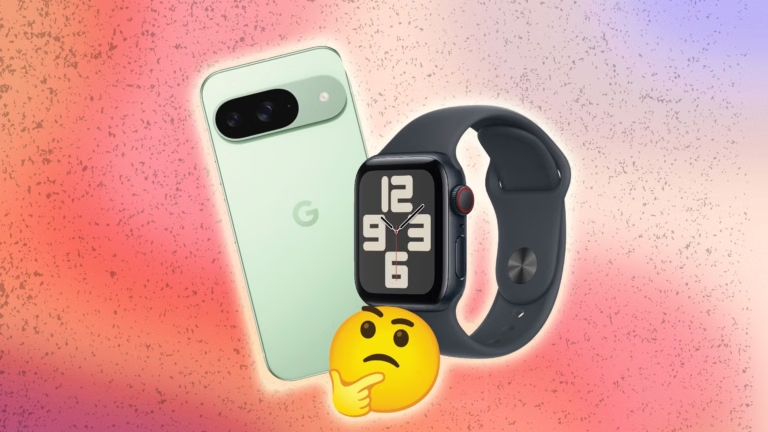
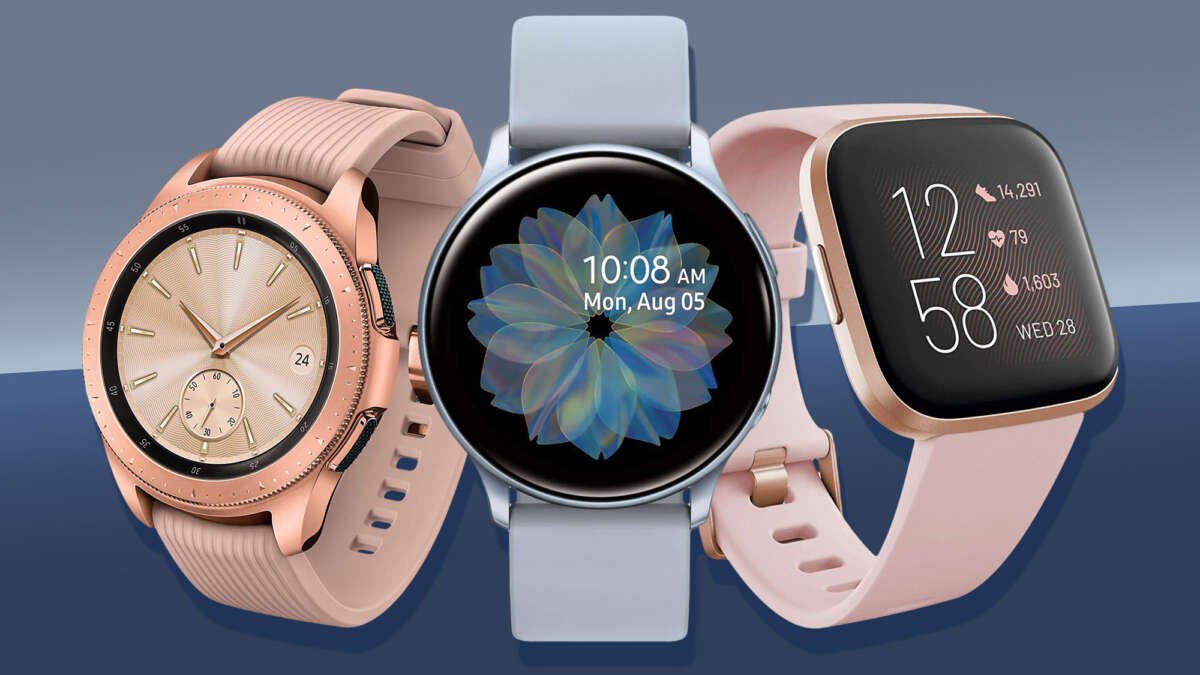
For people in the United States, the easiest matches are usually an Android phone with a Wear OS watch, such as a Google Pixel Watch or Samsung Galaxy Watch. Fitness watches from Garmin, Fitbit, and Amazfit may also work well. An Apple Watch is the major exception: it is designed for the iPhone and does not pair with Android phones.

Which Smartwatches Work With Android Phones?
Most major smartwatch brands support Android, but they do not all offer the same features. The watch may connect for notifications and fitness tracking while limiting calls, messages, payments, or health tools.
Here is a general guide:
| Smartwatch type | Works with Android? | Main limits |
|---|---|---|
| Google Pixel Watch | Yes | Designed for compatible Android phones; some features need a Google account |
| Samsung Galaxy Watch | Yes | Newer models may need a recent Android version; some health tools work best with Samsung phones |
| Other Wear OS watches | Usually | Requirements differ by model and Wear OS version |
| Garmin watches | Yes | Strong fitness support; fewer phone-style apps |
| Fitbit watches | Yes | Requires the Fitbit app; some features may need a subscription |
| Amazfit watches | Yes | Uses the Zepp app; app support varies |
| Apple Watch | No | Requires an iPhone for setup and regular use |
The key distinction is between basic compatibility and full compatibility. A watch may pair with your Android phone but still leave out certain features because they depend on the phone brand, a regional service, or a companion app.

What You Need Before Pairing a Smartwatch With Android
Before you buy or connect a watch, check four requirements: the phone, the watch, the app, and your account.
1. A compatible Android phone
The phone must meet the watch maker’s minimum requirements. These may include:
- A specific Android version
- Bluetooth support
- Access to the Google Play Store
- Enough free storage for the companion app
- A compatible processor or phone brand
- A Google, Samsung, Fitbit, Garmin, or other required account
Android compatibility can change between watch generations. A newer watch may need a newer Android version than an older model from the same brand.
2. The correct companion app
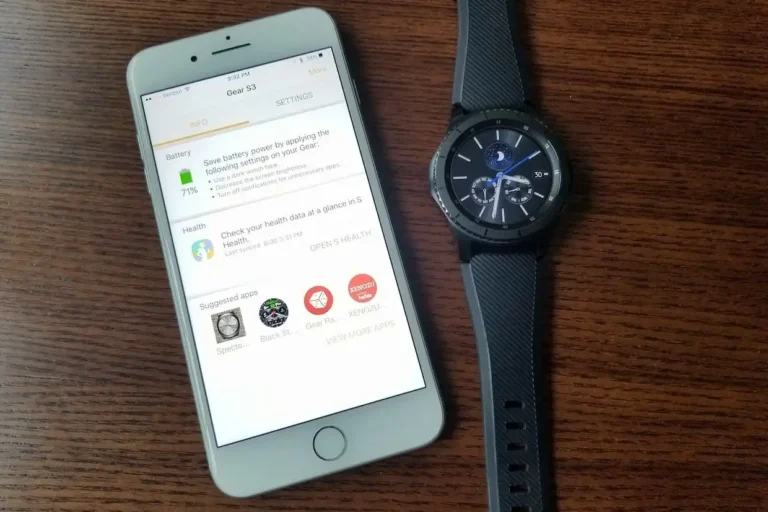
Smartwatches rarely pair through the phone’s Bluetooth menu alone. You normally need the maker’s official app, such as:
- Google Pixel Watch app for Pixel Watch models
- Galaxy Wearable for Samsung Galaxy Watch models
- Garmin Connect for Garmin watches
- Fitbit for Fitbit watches
- Zepp for many Amazfit watches
- A brand-specific app for other watches
Download the app from the Google Play Store. Avoid unofficial APK files unless the manufacturer specifically provides them.
3. A charged watch and phone
Charge both devices before setup. A low battery can interrupt pairing, updates, or the transfer of settings.
4. Permission to use phone features
The companion app may ask for access to:
- Notifications
- Contacts
- Phone calls
- Text messages
- Location
- Calendar events
- bluetooth
– Nearby devices - Fitness and health data
Allow only the permissions needed for the features you plan to use. For example, a watch needs notification access to show alerts, but a basic fitness watch may not need access to your contacts.
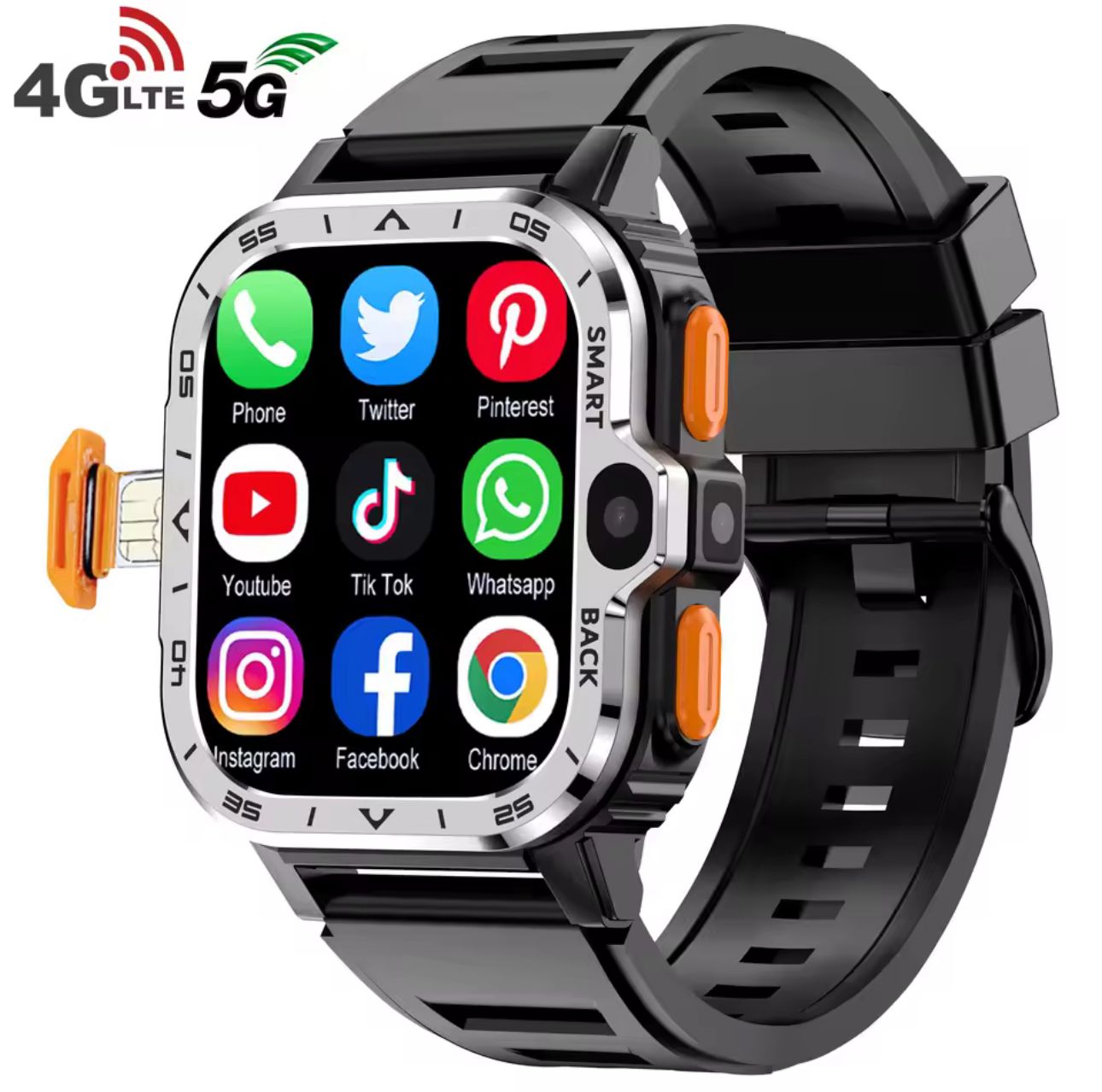
How to Connect a Smartwatch to an Android Phone
The exact buttons vary by brand, but the process is similar for most Android-compatible watches.
Step 1: Check compatibility
Visit the watch manufacturer’s official support page. Search for the exact model, not just the product family.
Check:
- Minimum Android version
- Required app
- Supported countries
- Phone restrictions
- Cellular model requirements
- Health feature limits
- Whether the watch supports Google services
This step can prevent a costly mistake. “Works with Android” does not always mean “works with every Android phone.”
Step 2: Charge and turn on the watch
Charge the watch to a safe level, then turn it on. If it is used or previously paired, reset it first if the setup screen does not appear.
A watch that is still linked to another phone may not pair correctly with your Android device.
Step 3: Install the official app
Open the Google Play Store on your Android phone. Install the app named in the watch’s manual or setup screen.
Do not install several similar apps unless the manufacturer requires them. For example, some watches use one app for pairing and another for health data, but the official instructions should explain this.
Step 4: Start setup in the app
Open the app and choose an option such as:
- Add device
- Pair new watch
- Set up a new device
- Connect wearable
Keep the watch near the phone. The app should find the watch and display a pairing code.
Step 5: Confirm the pairing code
Make sure the code on the phone matches the code on the watch. Confirm the connection on both devices.
This check helps prevent pairing with a nearby watch that belongs to someone else.
Step 6: Sign in and install updates
The app may ask you to sign in or create an account. It may also download a firmware update.
Keep the watch close to the phone during the update. Do not turn off Bluetooth or restart either device unless the app tells you to do so.
Step 7: Choose permissions and settings
Select the notifications, calls, health permissions, and location options you want. You can change most of these later in the companion app or Android settings.
You may also choose:
- Which apps can send alerts
- Whether calls use the watch
- Which contacts can appear
- Health and activity goals
- Automatic workout detection
- Battery-saving settings
- Watch faces and tiles
Step 8: Test the main functions
Send a test notification. Make a short call if the watch supports calls. Check whether steps, heart rate, or other selected data sync to the app.
The setup is complete when the watch remains connected, notifications arrive, and the app shows current device data.
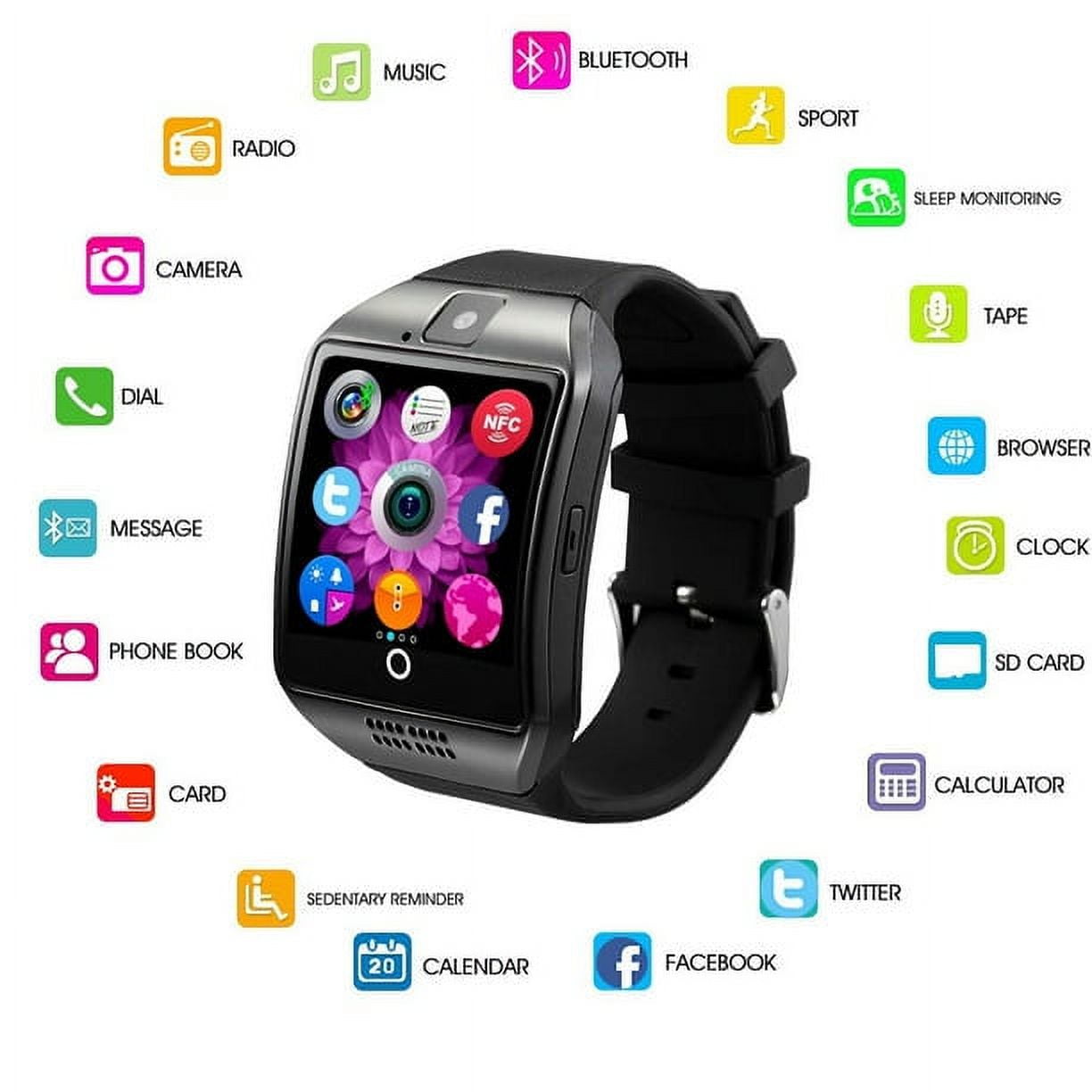
What Can an Android Phone Do With a Smartwatch?
An Android phone can support many smartwatch features, but the exact list depends on the watch and app.
Notifications
Most compatible watches can show alerts for:
- Phone calls
- Text messages
- Calendar reminders
- Social apps
- Delivery updates
- Weather
- Navigation
Some watches let you reply with a preset response, keyboard, voice input, or emoji. Others only display the alert.
Calls
A watch may support calls in one of three ways:
- Bluetooth calling: The phone stays nearby.
- Wi-Fi calling or data: The watch may work away from the phone when it has a suitable network connection.
- Cellular calling: A watch with its own mobile plan can connect more independently.
Cellular service usually requires a compatible carrier and an extra line or wearable plan in the United States. The watch and phone may also need to use the same carrier, although this depends on the carrier and watch.
Text messages
Many Android-compatible watches can display and answer text messages. The available reply methods may include voice dictation, a small keyboard, quick replies, or handwriting.
Message features can change if you use an app other than your phone’s default messaging service.
Fitness tracking
Most smartwatch apps can sync data such as:
- Steps
- Workouts
- Heart rate
- Sleep
- Calories
- Distance
- Elevation
- GPS routes
Health readings are not automatically medical measurements. A smartwatch can help you track patterns, but it should not replace a doctor’s evaluation or a medical device when one is needed.
Payments
Some watches support contactless payments through services such as Google Wallet or another payment platform. Requirements may include:
- A supported watch
- A compatible Android phone
- A supported bank or card
- A screen lock on the watch
- A supported country and region
A payment feature can stop working after a reset, account change, or security update until you set it up again.
Voice assistants
Wear OS watches may support a voice assistant, but the function can depend on the watch, language, account, internet connection, and phone settings.
A watch may also support alarms, timers, weather, music controls, maps, and smart-home controls without offering every feature available on the phone.
Android Phone and Smartwatch Compatibility by Brand
The brand pairing matters because each company builds its own app and services.
Google Pixel Watch with Android
Pixel Watch models are designed for Android phones and use Google’s watch and health services. You generally need the official Pixel Watch app and a compatible Android phone.
A Pixel Watch is a sensible fit if you already use Google services and want Wear OS apps, notifications, Google Maps, Google Wallet, and Google Assistant-related features. Always check the current model’s requirements because they can differ by generation.
Samsung Galaxy Watch with Android
Samsung Galaxy Watch models pair with Android phones through Samsung’s wearable software. Many functions work with non-Samsung Android phones, but some advanced health tools may require a compatible Samsung Galaxy phone or Samsung account.
This is a key buying issue. Do not assume that every Galaxy Watch feature works on every Android phone simply because the watch pairs successfully.
Garmin with Android
Garmin watches use the Garmin Connect app. They often focus on running, cycling, outdoor activities, training data, and battery life rather than a large selection of phone apps.
Garmin watches can work well with Android for notifications, activity syncing, workouts, and selected music or payment features. The available tools vary by model.
Fitbit with Android
Fitbit devices use the Fitbit app. They support Android phones for fitness, sleep, health trends, notifications, and account syncing.
Some Fitbit functions may depend on a paid Fitbit plan, a particular model, or the services available in your region. Review the current feature list before buying if a specific health or training tool matters to you.
Amazfit with Android
Many Amazfit watches pair through the Zepp app. They may offer fitness tracking, notifications, GPS, sleep features, and long battery life.
App quality and phone integration can differ from Wear OS. They may be a better fit if you value fitness and battery duration more than deep Android app support.
Apple Watch with Android
An Apple Watch cannot be fully set up or used with an Android phone. Apple requires an iPhone for setup and core management.
If you have an Android phone, choose a watch made for Android instead of trying to work around this restriction. An Apple Watch and Android phone are not a practical pairing.
Why Some Features Do Not Work on Every Android Phone
Pairing is only the first layer of compatibility. The phone brand, operating system, account, region, and watch model can each affect the result.
Phone-brand restrictions
Some health features use phone hardware, manufacturer software, or regulatory approvals. A Samsung health function, for example, may have different requirements from a basic notification feature.
Android version limits
Older phones may connect to an older watch but fail to support newer apps or firmware. A phone that no longer receives security updates may also create reliability and privacy risks.
Regional restrictions
Features such as ECG, blood pressure tracking, emergency tools, cellular service, and payments may vary by country or region. Availability in the United States does not guarantee availability elsewhere, and the reverse is also true.
Account requirements
A watch may need more than a Bluetooth connection. You may need a Google account, Samsung account, Fitbit account, Garmin account, or a separate cellular account.
Background battery limits
Android phones may restrict apps that run in the background. If the phone stops the companion app to save battery, the watch may stop receiving notifications or syncing data.
To reduce this problem, set the companion app to allow background use. The menu name differs by phone maker, but it is often found under Settings > Apps > [companion app] > Battery.

What to Do If Your Smartwatch Will Not Pair
Most pairing problems come from an old connection, missing permission, outdated software, or an incompatible phone.
Try these checks in order.
1. Keep the devices close
Place the watch beside the phone. Turn Bluetooth on, and make sure airplane mode is off unless the watch instructions say otherwise.
2. Use the companion app
Do not pair the watch only from the Android Bluetooth menu. If you already did, remove the connection from Bluetooth settings and start again in the official app.
3. Restart both devices
Restart the phone and watch. This simple step can clear a temporary Bluetooth or app error.
4. Update the software
Update:
- Android
- The companion app
- Google Play services, when applicable
- The watch firmware
A mismatch between the app and watch software can block setup.
5. Check app permissions
Open Android settings and confirm that the companion app can use Bluetooth, nearby devices, notifications, and any other permission required by the watch.
6. Remove an old pairing
If the watch was connected to another phone, open its settings and reset or disconnect it. A full reset may erase watch data, so sync the watch first if possible.
7. Check battery restrictions
Allow the companion app to run in the background. This is especially useful if the watch pairs but loses connection later.
8. Reset the watch as a last resort
A factory reset removes personal data and settings from the watch. Use it only after trying the less disruptive steps and confirming that important data has synced.
If the watch still fails to pair, check the manufacturer’s support page for the exact model and Android phone. Do not assume the watch is defective until you confirm that both devices meet the required specifications.

Common Mistakes to Avoid
A few buying and setup mistakes cause most Android smartwatch problems.
Buying by brand instead of model
Compatibility can differ between two watches from the same company. Check the exact model number.
Assuming every feature works after pairing
Pairing may enable notifications while leaving out health tools, payments, calls, or voice features. Read the feature requirements before you buy.
Ignoring the phone’s age
An older Android phone may have weak Bluetooth support, limited storage, outdated security software, or a battery that cannot handle constant background syncing.
Using unofficial apps
Unofficial apps can expose account data or fail after a watch update. Use the official app from the Google Play Store whenever possible.
Forgetting cellular costs
A cellular smartwatch may require an extra monthly fee. Confirm activation charges, taxes, carrier support, and whether the watch needs its own line.
Treating health data as a diagnosis
Smartwatch sensors can be useful for trends and alerts, but readings may be affected by movement, fit, skin contact, battery level, and the watch’s design. Seek medical advice for symptoms or concerning results.

How to Choose the Right Android-Compatible Smartwatch
Choose based on the feature that matters most, not just the watch’s appearance.
| Your main goal | What to prioritize |
|---|---|
| Android apps and Google services | Wear OS compatibility |
| Samsung phone integration | Galaxy Watch support and Samsung features |
| Running and outdoor training | GPS, workout tools, sensors, and battery life |
| Long battery life | Fitness-focused watches with fewer smart apps |
| Calls away from your phone | Cellular support and carrier compatibility |
| Sleep and health tracking | Sensor features, app quality, and data access |
| Low ongoing cost | No required subscription and affordable replacement bands |
| Contactless payments | Supported payment service, bank, and region |
Also check the less visible costs:
- Replacement bands
- Screen protectors
- Cellular service
- Premium app plans
- Charger availability
- Repair options
- Battery replacement policy
A watch that costs less at checkout may cost more if it requires a subscription or a cellular plan.

Frequently Asked Questions
Can I use a smartwatch with any Android phone?
No. Most current Android phones support at least some smartwatches, but the phone must meet the watch’s Android, app, and account requirements. Check the exact watch model before buying.
Can I use a smartwatch without an Android phone?
Some watches can operate on their own after setup, especially cellular models. However, most still need a compatible phone for initial setup, updates, detailed settings, and full data syncing.
Can I use a Samsung Galaxy Watch with a non-Samsung Android phone?
Many Galaxy Watch models can pair with non-Samsung Android phones. However, certain health or ecosystem features may require a compatible Samsung Galaxy phone. Confirm the limits for the exact model.
Can I answer calls from an Android smartwatch?
Often, yes. The watch may need a nearby phone, a Bluetooth calling connection, Wi-Fi, or a cellular plan. The watch model and carrier determine which method is available.
Will an Android smartwatch work with an iPhone?
Some older or cross-platform watches may offer limited iPhone support, but Wear OS compatibility is not universal. An Apple Watch requires an iPhone. Check both the watch maker’s and Apple’s current requirements before switching phones.
Can I switch my smartwatch from one Android phone to another?
Usually, yes, but you may need to disconnect the watch from the old phone or reset it before pairing with the new one. Sync your data first so you do not lose unsynchronized activity records.
Conclusion
You can use a smartwatch with an Android phone in most cases. The safest choice is to match the watch’s official requirements with your exact phone model, Android version, and desired features.
For broad Android integration, consider a compatible Wear OS watch. For fitness and battery life, Garmin, Fitbit, and Amazfit may be better fits. Avoid Apple Watch if you use Android, and always verify advanced features before purchase.
Your next step is simple: find the exact smartwatch model, open its official compatibility page, and compare its requirements with your Android phone.

Everett Calloway is a consumer electronics writer and technology enthusiast at ElectroDoz. He enjoys exploring the latest gadgets, electronic devices, and innovative technologies that make everyday life easier. Everett focuses on creating helpful product reviews, detailed buying guides, practical how-to articles, and troubleshooting tips. His goal is to simplify complex technical information and help readers understand product features, compare their options, and make informed purchasing decisions. When he isn’t researching new electronics, he enjoys exploring emerging technology trends and discovering useful gadgets.