How to Take a Picture With a Webcam: Step-by-Step Guide
Capturing a moment with your webcam can be as simple as clicking a button, but are you getting the most out of your shots? Imagine transforming your everyday webcam into a tool for creating stunning photos.
Whether you’re snapping selfies, documenting a project, or capturing a quick family moment, knowing how to use your webcam effectively can make a big difference. You’re about to discover tips and tricks that will help you take professional-quality pictures right from your computer.
Curious about how you can turn ordinary webcam images into extraordinary memories? Keep reading to unlock the secrets to mastering your webcam photography skills!
Credit: www.fineshare.com
Choosing The Right Webcam
Built-in webcams are part of your laptop. These are easy to use. No setup is needed. But they might have lower quality. External webcams connect to your computer. They often have better picture quality. You can adjust them as needed. External webcams can be moved around. This gives you more flexibility.
Resolution is important for clear pictures. Higher resolution means better images. Look for webcams with at least 720presolution. Some offer 1080por even more. Features like autofocus and zoom are useful. They help improve the picture. Built-in microphones can be helpful. They capture sound with your picture. Make sure to check these features before buying.
Setting Up Your Webcam
First, connect your webcam to the computer. Most webcams need special software. This software is called a driver. You might find this driver on a CD. If not, visit the webcam’s website. Download the driver from there. After download, open the file. Follow the easy steps to install. Your computer might restart. This helps to finish the setup.
Place the webcam on your monitor or desk. Make sure it is stable. Adjust the angle. The camera should point at your face. Light is important. Avoid strong lights behind you. This helps the picture look better. Check the image on your screen. Adjust the camera if needed. A good position makes a great picture.
Adjusting Webcam Settings
Adjusting brightnesshelps you see better in low light. Increase brightness if the room is dark. Lower it if the room is bright. Contrastmakes colors stand out. Too much contrast can blur details. Find a balance where colors look good. Test different settings until the picture looks clear. These settings make your picture look nice.
Focusensures your picture is sharp. Move the focus slider until the image is clear. Zoombrings things closer or further away. Use zoom to show more details. Avoid too much zoom, or the image can blur. Try different focus and zoom levels for the best picture. Good focus and zoom make your picture look professional.
Selecting A Suitable Background
Choosing the right background is important. A clean and simple background is best. Busy backgrounds can distract from your face. Make sure the background is free from clutter. The focus should be on you, not what’s behind you.
Good lighting makes a big difference. Soft, natural light is ideal. Avoid harsh lights or shadows. Position your webcam facing the light source. This helps in getting a clear picture. Adjust the light to remove shadows on your face.
Keep distractions away. Turn off noisy devices. Ensure your space is quiet. Background noise can ruin your picture. Stay focused and calm. Your picture should show a relaxed you.
Using Webcam Software
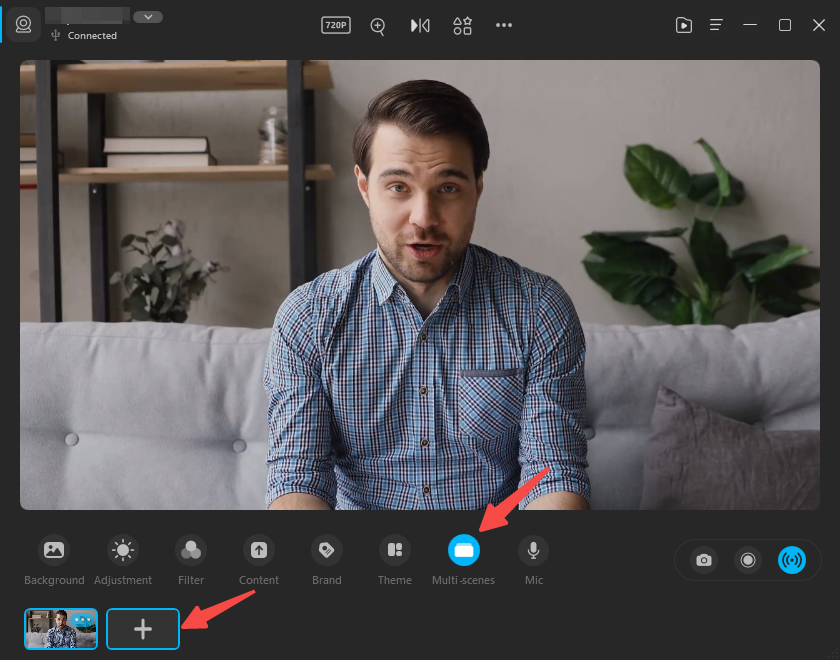
Capture moments effortlessly using webcam software. Open the software, adjust settings, and click the camera icon to snap a picture. Ensure good lighting for clear images.
Choosing The Right Software
Finding the best webcam softwareis important. Many options exist. Research is key. Some software works only on specific systems. Check compatibility before downloading. Read user reviews. They help in understanding software reliability. Free options are available. Paid software may offer extra features. Choose what fits your needs. Easy use is crucial.
Understanding Software Features
Webcam software offers many features. Basic options include capturing photos. Some have editing tools. Others allow live streaming. Look for software that is easy to navigate. It should have clear instructions. Some offer filtersfor fun effects. Test the features before buying. Free trials can help. Good software should also update often. Always check for the latest version.
Credit: www.vidmore.com
Capturing The Image
Find a good place for your picture. Make sure the light is right. Natural light works best. Sit facing the light. Check the background. Clear and tidy is best. Adjust the webcam angle. It should be level with your eyes. Use props if you want. Keep them simple. Smile or make a face. Be yourself!
Open the webcam app. Select the camera option. Look into the camera. Click the capture button. Wait for the click sound. Check the picture. Save if you like it. Edit if you need. Be happy with your picture!
Editing Your Picture
Use basic tools to improve your picture. Start with cropping to remove unwanted parts. Cropping helps focus on the main subject. Next, adjust the brightness. Make sure the picture is not too dark or too bright. You can also change the contrast. It helps make colors stand out. Try adding a filter for fun effects. Filters can change the mood of your picture.
Improving your image is easy. Use the sharpen tool. It makes details clear. Remove any red-eye in photos of people. Red-eye can look strange. Use the resize option if needed. Smaller images load faster online. Add a border for a nice frame. Borders can make your picture look neat. Remember to save your changes when done.

Credit: developer.mozilla.org
Saving And Sharing
Capture memories using your webcam with just a few clicks. Save your favorite photos instantly to your computer. Easily share them with friends and family through email or social media.
File Formats
Photos can be saved in different file formats. Common types are JPEGand PNG. JPEG files are smaller. They save space on your computer. PNG files are bigger. They keep more detail. Choose the format based on your needs.
Uploading To Platforms
After saving, you can share the photo. Social media platforms like Facebookand Instagramaccept many formats. Uploading is simple. Click the upload button. Select your photo. Follow the steps. Your friends will see your photo.
Frequently Asked Questions
How Do I Access My Webcam?
To access your webcam, ensure it’s properly connected. Open your computer’s camera application. This is often pre-installed on most operating systems. Alternatively, you can use third-party software. Ensure your webcam drivers are up to date for optimal performance.
What Software Can I Use With My Webcam?
You can use software like Windows Camera or Photo Booth on Mac. Third-party options include OBS Studio and ManyCam. Choose based on features you need, such as filters or recording. Ensure compatibility with your operating system.
How Do I Adjust Webcam Settings?
You can adjust settings through your webcam software. Look for options like brightness, contrast, and resolution. Third-party applications often offer more detailed settings. Regularly updating your software can provide better control and features.
Can I Take Photos With Any Webcam?
Most webcams allow you to take photos. Ensure your camera application supports photo capture. Check your webcam’s resolution for quality. Some older models might have limited capabilities. Always update your webcam drivers for best results.
Conclusion
Capturing photos with a webcam can be simple and fun. With practice, you can improve your skills. Adjust settings for better lighting and focus. Experiment with different angles and backgrounds. Feel free to try various software for editing. Share your photos with friends and family.
Learn from feedback and enhance your technique. Remember, patience is key. Enjoy the process and creativity. Keep exploring new possibilities with your webcam. Soon, you will capture memorable moments. Start your journey today and see your progress. Happy clicking!

Callen Ridgeway is a senior writer at ElectroDoz, where he shares his expertise on the latest in drones, webcams, cameras, and a wide range of cutting-edge electronic devices. With a passion for exploring emerging tech and breaking it down into practical insights, Callen helps readers make smarter choices when it comes to gadgets and gear. When he’s not testing the newest electronics, he’s busy keeping up with the innovations shaping the future of consumer technology.