Can You Stream a Webcam into Your Phone from Mac: Easy Guide
Imagine transforming your Mac into a powerful streaming device that lets you share your webcam feed straight to your phone. Sounds intriguing, right?
Whether you want to keep an eye on your home while you’re away or simply explore tech possibilities, streaming your webcam to your phone can open up a world of convenience. You might be wondering if this is possible and how you can do it effortlessly.
The truth is, with the right tools and steps, you can seamlessly connect your devices and enjoy real-time video streaming. Dive into this article, where you’ll discover the simple steps to make this tech magic happen and unlock a new level of connectivity between your Mac and your phone. Get ready to explore the possibilities and take control of your video streaming needs!
Setting Up Your Webcam
Picking the right webcam is important. Look for a webcam with good video quality. Make sure it has at least 720p resolution. Check if it has a built-in microphone. This helps with clear audio. Ensure the webcam is compatible with your Mac. Some webcams may not work with all systems. Read reviews online to find the best one. Consider the price. A more expensive webcam may have better features. But sometimes cheaper ones work just as well. Choose based on your needs.
Find the right software for your webcam. Some webcams come with their own software. Others need third-party apps. Check the webcam’s manual or website for guidance. Download the software to your Mac. Follow the installation steps carefully. Make sure your Mac has enough storage space for the software. After installation, test the webcam. Ensure it works smoothly with the software. You might need to adjust settings for better quality. Always keep the software updated for best performance.

Credit: riverside.com
Connecting Webcam To Mac
Use a USB cable to connect the webcam to the Mac. Make sure the webcam is compatible. Plug the USB cable into the Mac’s USB port. The Mac should detect the webcam. Check the settings to see if it works. Open the webcam app to test it. Adjust the video quality if needed. Keep the software updated for best performance.
Use Wi-Fi to connect the webcam wirelessly. Some webcams have built-in Wi-Fi. Download a webcam app on your Mac. Follow the app instructions for setup. Connect the webcam to the same Wi-Fi as the Mac. Check the connection in the app settings. Wireless may have slight delays. Test the video stream to ensure smooth play. Adjust settings if there are issues.
Streaming Software Options
Some apps help stream webcam to your phone. They make it easy to connect. OBS Studio is popular. It offers many features. CamTwist is another choice. It is simple and effective. These apps work well with Mac. They offer good quality streaming.
EpocCam is very popular. It connects easily. It works with both iOS and Android. ManyCam is another great app. It offers many tools. Both apps are user-friendly. They support different phones.
Make sure your Mac and phone are connected. Check the app compatibility. Some apps need Wi-Fi. Others might use Bluetooth. Ensure the app supports your phone model. Always keep your apps updated. This helps in smooth streaming.
Configuring Streaming Settings
Choose the right resolutionfor your stream. High resolution gives clear images. Low resolution saves data. Balance is key. Adjust quality settingsfor smooth streaming. High quality needs strong internet. Low quality works on slow connections. Test different settings to find what works.
Good audio is very important. Check your microphonesettings. Ensure sound is clear. Avoid background noise. Use headphones to test sound. Adjust volume levelsto avoid echo. Set levels to be consistent. Test and listen before streaming. Quality audio makes a big difference.
Streaming From Mac To Phone
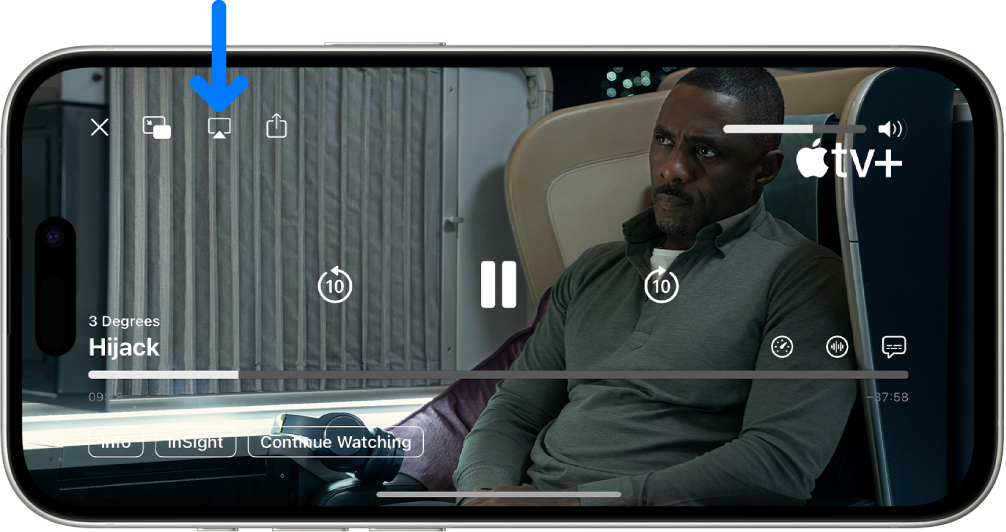
Apps can help stream your webcam to your phone. Many apps offer this feature. Install the app on both Mac and phone. Some apps need a wireless connection. Check if your app needs one. Follow the app instructions. They guide you step-by-step. Choose a reliable app. Look for good reviews and ratings. Free apps are available, but some paid apps have extra features. Explore different options to find the best one. Always keep your app updated. It ensures smooth streaming.
Remote access lets you use your Mac from your phone. Install remote access software. Log in to your account on both devices. Connect them using the same network. Set permissions for access. Access your Mac files and camera remotely. Some software is free. Others may require payment. Read user reviews before choosing one. Make sure it is secure. Update the software regularly. Keep your data safe.
Credit: support.apple.com
Troubleshooting Common Issues
Streaming a webcam from Mac to phone is possible. Ensure compatible apps are installed on both devices. Check network settings for seamless connection. Troubleshoot by restarting apps or devices if issues arise.
Connectivity Problems
Connecting your webcam to a phonefrom a Mac can be tricky. Check if your Wi-Fi is stable. Slow internet can cause issues. Ensure your devices are on the same network. This helps in maintaining a strong connection. Sometimes, restarting your routersolves the problem. Make sure your Mac’s firewallisn’t blocking the connection. Disable it temporarily if needed. Keep your software updated for better connectivity.
Software Glitches
Software glitches can disrupt streaming. Ensure your apps are updated. Older versions might not work well. Check for compatibility issues. Some apps don’t support all devices. Reinstall the app if it crashes often. This can fix minor bugs. Clear app cache to improve performance. Sometimes, a simple restart of your Mac solves many problems.
Enhancing Your Streaming Experience
Stream your webcam from a Mac to your phone with ease. Discover tools that make the process simple and efficient. Enhance your streaming experience by connecting devices seamlessly.
Using Additional Accessories
Simple add-ons improve your webcam stream. A tripod keeps your camera steady. It reduces shaky videos. Lighting enhances video clarity. Bright lights make your face clear. External microphones boost sound quality. They reduce background noise. USB hubs help connect all devices. They make streaming smooth.
Tips For Better Video Quality
Keep your camera lens clean. Dust can blur videos. Set up your webcam at eye level. This angle looks natural. Ensure your room is bright. Good lighting improves video quality. Use a high-speed internet connection. Slow internet causes lag. Close unused apps on your Mac. Free up memory for streaming. Adjust camera settings for better colors. Fine-tuning settings improves image quality.
Credit: riverside.com
Frequently Asked Questions
How Do I Stream A Webcam To My Phone?
To stream a webcam from Mac to your phone, use apps like EpocCam or iVCam. These apps connect your devices via Wi-Fi or USB. Ensure both devices are on the same network for a seamless connection. Simply install the app on both devices and follow the setup instructions.
Is It Possible To Stream Webcam Without Wi-fi?
Yes, you can stream without Wi-Fi using a USB connection. Apps like iVCam support USB connections, allowing you to bypass Wi-Fi. Simply connect your phone to your Mac using a USB cable and follow the app’s setup instructions for a stable streaming connection.
Which Apps Can I Use For Streaming Webcams?
Popular apps for streaming webcams include EpocCam, iVCam, and DroidCam. These apps offer easy setup and reliable connections. Choose based on your device compatibility and feature preferences. Each app provides step-by-step instructions for connecting your Mac webcam to your phone seamlessly.
Do I Need Any Special Equipment?
No special equipment is required beyond your Mac, phone, and compatible app. A stable internet connection or USB cable is needed. Ensure your devices are compatible with the app you choose. Follow the app’s instructions for a smooth streaming experience without additional hardware.
Conclusion
Streaming your webcam to your phone from a Mac is possible. With the right apps and tools, setup is simple. This process enhances your device’s versatility. You can stay connected more easily. Handy for remote work or video calls. Always check compatibility with your devices.
Choose reliable software for smooth streaming. Consider security to protect your privacy. Enjoy seamless access to your webcam anytime. This method offers convenience and flexibility. Explore different options to find what suits you best. Keep experimenting with technology. Make the most of your devices efficiently.

Callen Ridgeway is a senior writer at ElectroDoz, where he shares his expertise on the latest in drones, webcams, cameras, and a wide range of cutting-edge electronic devices. With a passion for exploring emerging tech and breaking it down into practical insights, Callen helps readers make smarter choices when it comes to gadgets and gear. When he’s not testing the newest electronics, he’s busy keeping up with the innovations shaping the future of consumer technology.