How to Monitor My Webcam from My Smartphone: Easy Guide
Ever wondered if you could keep an eye on your home or office from wherever you are? Imagine the peace of mind knowing that your space is just a tap away on your smartphone.
Monitoring your webcam from your smartphone is not only possible, it’s incredibly easy and convenient. You’ll no longer be tethered to a desktop to ensure everything is as it should be. This guide will walk you through the simple steps to transform your smartphone into a powerful surveillance tool.
Discover the freedom and security of having your webcam in your pocket, ready to provide you with instant updates at the swipe of a finger. Ready to take control and stay connected with your space like never before? Keep reading to unlock this seamless and smart solution.

Credit: www.amazon.com
Setting Up Your Webcam For Remote Access
Easily monitor your webcam from your smartphone by setting up remote access. Connect your webcam to a secure network. Install a compatible app on your phone for real-time viewing.
Choosing The Right Webcam
Picking the best webcam is important. Look for a webcam with high resolution. It helps in getting a clear picture. Ensure it has a built-in microphone. This will capture sound clearly. A webcam with night vision is useful. It allows you to see in the dark. Choose a webcam that is compatible with your phone. This makes setup easier. Some webcams come with extra features. Examples include motion detection and cloud storage. These features can be very helpful.
Configuring Webcam Settings
First, connect your webcam to your computer. Open the webcam software. Adjust the resolution settings for clear video. Set the audio settings to hear well. Test the microphone to ensure it works. Configure the network settings. This lets you access the webcam remotely. Enable motion detection if available. It alerts you to movement. Save all changes before exiting. Your webcam is now ready for remote monitoring.
Selecting Compatible Software
Many apps help you watch your webcam on your phone. AtHome Camera is a good choice. It’s simple and works on most phones. iCamViewer is another app that people like. It has many features for easy use.
Check if the app works with your phone. Look for apps that support both Android and iOS. This way, you can switch phones and still use the app. Read reviews to know how the app performs. Some apps might need the latest phone updates. Make sure your phone can run the app smoothly.
Connecting Webcam To Your Smartphone
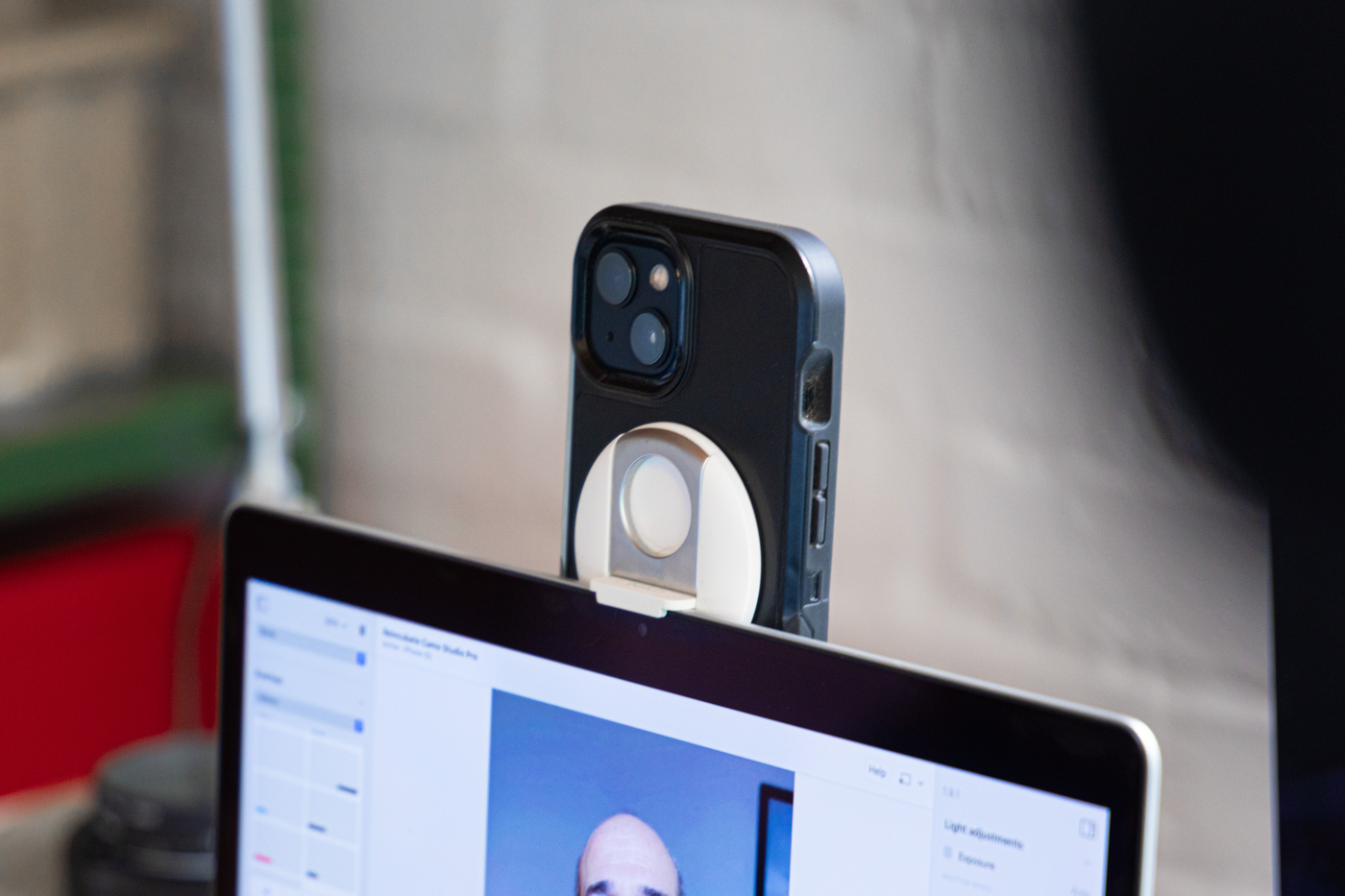
Establishing a secure connectionbetween your webcam and smartphone is crucial. First, ensure both devices are on the same network. Your webcam should support smartphone access. This makes the process easier. Use a webcam app to connect. Many apps offer step-by-step guides. Follow them carefully. This ensures a smooth setup.
Using Wi-Fi or mobile datais essential for this. Wi-Fi is usually faster. It allows better video quality. Mobile data can be used too. Be careful with data limits. Streaming video uses a lot of data. Choose the option that suits you best. This helps in monitoring effectively.
Credit: reincubate.com
Using Webcam Monitoring Apps
First, download the webcam app from the store. Make sure it’s safe. Check the reviews. Install the app by following the steps. Open it after installation. Create an account if needed. Some apps ask for permissions. Allow them for the app to work. Connect your webcam to the app. Use the app’s guide to do it right.
Explore the app’s features. Some apps offer live video. Others send alerts. You can adjust settings. Turn notifications on or off. Set the camera angle remotely. Some apps let you talk through the camera. Check if the app has a recording option. Save videos if you want. Always update the app. New updates add more features.
Enhancing Security Measures
Passwords keep your webcam safe. A strong password is like a strong lock. Use a mix of letters, numbers, and symbols. Avoid common words or names. Change your password every few months. Keep it secret. Share it with no one. Write it down if you must, but keep it hidden. Strong passwords protect your webcam from bad people.
Two-factor authentication adds extra safety. It needs two steps to log in. First, enter your password. Then, get a code on your phone. Enter this code too. This keeps bad people away. They cannot get the code. Only you can see it. Use this for your webcam. It makes hacking hard. Safe webcams are happy webcams.
Credit: reincubate.com
Troubleshooting Common Issues
Monitor your webcam from your smartphone by ensuring both devices are connected to the same network. Install a compatible app to access live video feeds. Troubleshoot common issues by checking app permissions and updating software for smooth operation.
Resolving Connectivity Problems
Sometimes webcams won’t connect to smartphones. First, check your Wi-Fi. Make sure it’s working. Then, see if your webcam is online. It should have a steady light. If the light is blinking, restart your webcam. Next, ensure your phone app is up-to-date. Apps need updates to fix bugs. Go to your phone’s app store. Look for any available updates. Lastly, try restarting your smartphone. A fresh start can solve many issues.
Dealing With Software Glitches
Webcam software might glitch. This can stop your webcam from working. Begin by closing the app. Then, reopen it. Sometimes, apps freeze and need restarting. If problems continue, reinstall the app. This can refresh and fix errors. Check if your app permissions are correct. Your app needs access to the camera. If denied, it can’t connect. Finally, read user reviews. They might have helpful tips.
Exploring Advanced Features
Discover how to easily monitor your webcam from your smartphone. Learn to set up user-friendly apps for seamless access. Stay connected and ensure security with real-time video streaming.
Motion Detection Alerts
Some webcams have motion detection. This means they can see movement. When something moves, they send an alertto your phone. This keeps you informed, even when you are not looking. You can feel safe, knowing your space is watched. Motion alerts help you know what is happening. You can also set the sensitivity. This way, you only get alerts when needed.
Cloud Storage Options
Webcams can save videos in the cloud. This means the videos are not on your phone. They are stored safely online. You can watch them later from anywhere. There are many cloud storageoptions. Some are free, and some cost money. You can choose what is best for you. Saving videos in the cloud helps free up space on your phone.
Frequently Asked Questions
How Can I Access My Webcam Remotely?
To access your webcam remotely, use specific apps designed for this purpose. These apps connect your smartphone to your webcam using the internet. Ensure both devices have a stable connection for seamless monitoring. Popular apps include AlfredCamera and ManyCam, which offer user-friendly interfaces and security features.
Is It Safe To Monitor Webcams Via Smartphone?
Monitoring webcams via smartphone is generally safe if you use trusted apps. Ensure the app has encryption features to protect your data. Always keep your app and smartphone’s software updated to prevent security breaches. Regularly review app permissions and settings for optimal security.
Which Apps Work Best For Webcam Monitoring?
Several apps are excellent for webcam monitoring, such as AlfredCamera and ManyCam. These apps provide seamless connectivity and robust security features. They are user-friendly and offer real-time video streaming and motion detection. Always choose apps with high ratings and positive reviews for the best experience.
Do I Need Internet To Monitor Webcams?
Yes, an internet connection is required to monitor webcams from your smartphone. It allows data transmission between the webcam and smartphone. Ensure a stable and secure connection for uninterrupted monitoring. Wi-Fi or mobile data can be used, but Wi-Fi is recommended for better stability.
Conclusion
Monitoring your webcam from a smartphone is simple. Use the right apps. Ensure your devices are secure. Check compatibility before installing. Set up alerts for movement detection. Adjust settings for better privacy. Regular updates keep your system safe. Always follow security guidelines.
Stay informed about new technologies. Connect easily and monitor anytime. You can now enjoy peace of mind. Technology helps you stay connected. Protect your space effortlessly. Feel secure with your webcam setup. This guide makes it easy. Your smartphone is now your monitoring tool.
Happy monitoring!

Callen Ridgeway is a senior writer at ElectroDoz, where he shares his expertise on the latest in drones, webcams, cameras, and a wide range of cutting-edge electronic devices. With a passion for exploring emerging tech and breaking it down into practical insights, Callen helps readers make smarter choices when it comes to gadgets and gear. When he’s not testing the newest electronics, he’s busy keeping up with the innovations shaping the future of consumer technology.