How to Use iPhone as Webcam for Mac: Easy Guide
Imagine transforming your iPhone into a high-quality webcam for your Mac. Sounds exciting, right?
You already have the perfect tool in your pocket, ready to elevate your video calls, livestreams, and virtual meetings. No more grainy video feeds or struggling with outdated webcam technology. By using your iPhone as a webcam, you unlock superior camera quality and seamless connectivity, all without breaking the bank.
Curious about how to make this happen? Keep reading, and you’ll discover step-by-step guidance to turn your iPhone into a powerful webcam for your Mac, enhancing your digital presence effortlessly.

Credit: support.apple.com
Benefits Of Using Iphone As Webcam
Using your iPhone as a webcam for your Mac can be smart. The camera on an iPhone is often better than many regular webcams. This means clearer, sharper video during calls. You might notice better colors and brightness too. Another benefit is portability. You can easily move your iPhone around to find the best angle. No need to sit in one spot! Plus, it’s simple to set up. You don’t need to buy extra equipment. Just use apps that help connect your iPhone to your Mac. It’s a cost-effective solution. This option is great for those who already own an iPhone.
Privacy is another advantage. You can control your camera better. Turn it off when you need privacy. This makes your video chats safer. Also, using an iPhone means fewer wires. No tangled cords to worry about. It’s a neat and tidy setup. These benefits make using an iPhone as a webcam a good choice. Try it and see the difference in your video calls.
Requirements And Compatibility
Only certain iPhones can be used as webcams. iPhone models from iPhone 6s onwards work well. This includes iPhone SE (1st generation) too. The iPhone must have iOS 14 or newer. Older iPhones may not support this feature. Check your phone’s model number. Ensure it is compatible.
The Mac must run on macOS Catalina or newer. This ensures compatibility with the feature. Older Mac versions might not work. The Mac must have a working camera app. This is needed to connect the iPhone. A stable Wi-Fi connection is important. This makes sure the video is clear. Bluetooth is also needed for some apps. Check your Mac’s settings to confirm.
Setting Up Your Iphone
Choose apps for your iPhone webcam. Find apps in the App Store. Many apps are free. Some apps offer extra features. Install the app on your iPhone. Download the same app on your Mac. Follow instructions to connect both devices. Your iPhone will now act as a webcam. Check app reviews before downloading. This helps find good apps.
Open your iPhone settings. Locate the app settings. Allow access to your camera and microphone. Enable notifications if needed. Ensure your iPhone is on the same Wi-Fi as your Mac. Adjust video quality settings for clear images. Keep your iPhone on a stand. This ensures a steady view. Turn off apps not in use. This saves battery life.
Connecting Iphone To Mac
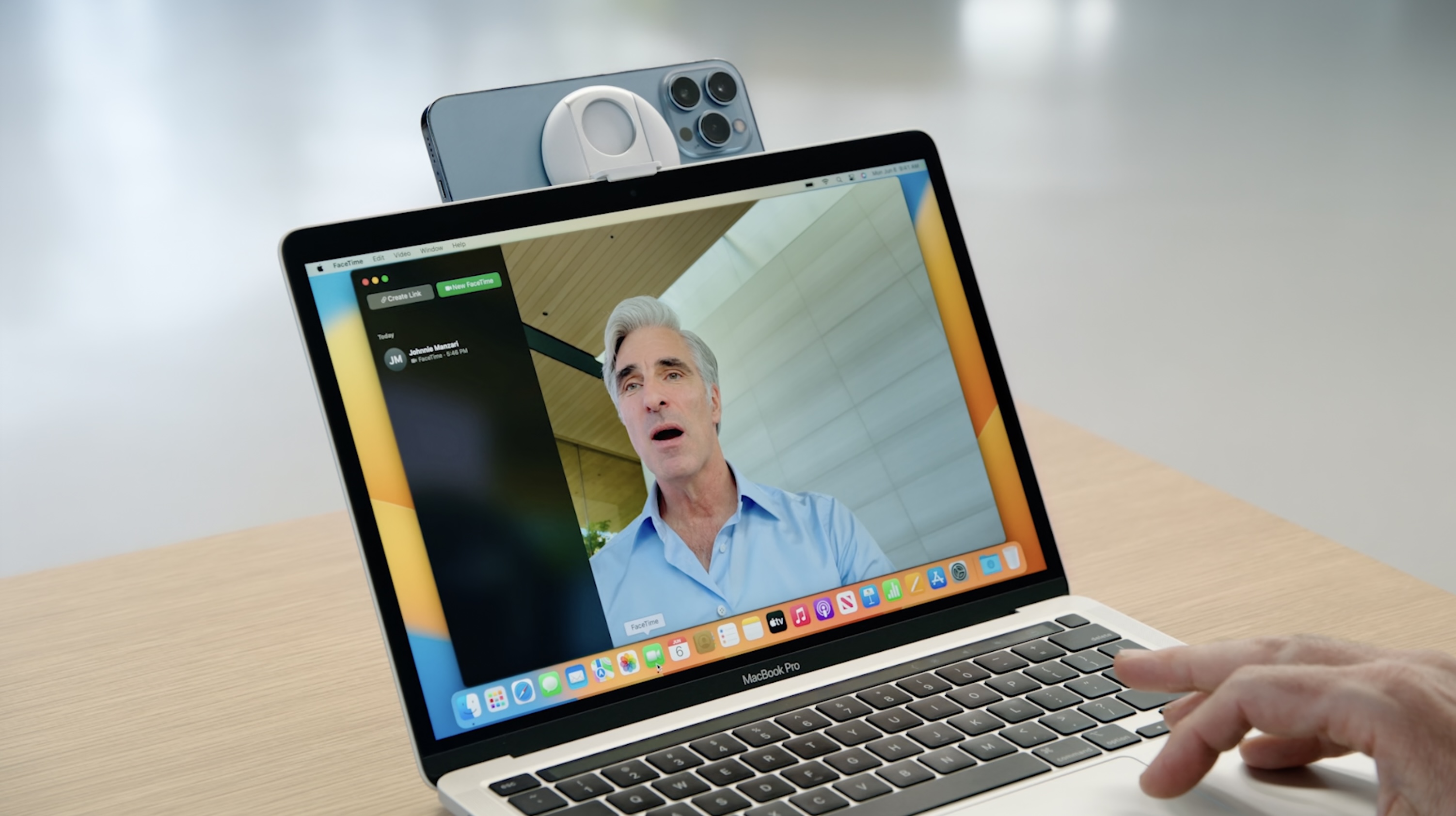
Plug your iPhone into the Mac using a USB cable. Make sure your cable is in good condition. Open a webcam app on your Mac. Choose your iPhone from the list of cameras. Your iPhone is now a webcam. Enjoy better video quality during calls. It’s quick and simple to set up.
Download a webcam app on your iPhone. Connect your iPhone and Mac to the same Wi-Fi. Open the app on both devices. Select your iPhone as the camera source. This lets you use your phone as a webcam without cables. Enjoy the freedom to move around. Wireless setup is easy and fast.
Optimizing Video Quality
Transform your iPhone into a webcam for your Mac to enhance video quality. Connect through apps like EpocCam or Camo for clear streaming. Enjoy improved image resolution and vibrant colors with a simple setup process.
Adjusting Lighting Conditions
Good lighting makes video look better. Bright rooms are best. Avoid dark places. Natural light is great. Use lamps if needed. Place lights behind your camera. This reduces shadows. Check light reflections on your face. Move lamps to fix it. Smart lighting choices help video quality.
Fine-tuning Video Settings
Changing video settings improves quality. Find settings in the app or software. Adjust brightness and contrast first. Make colors look natural. Use filters for better skin tone. Zoom options help focus. Keep video steady. Test settings before starting. Small changes make big differences.
Credit: techcrunch.com
Troubleshooting Common Issues
Connection issues can be frustrating. Check the cable first. Make sure it’s plugged in correctly. Restart both devices. This often solves the problem. Update your software. It helps fix bugs. Ensure Wi-Fi is strong and stable. Weak signals cause trouble. Disable VPN if you use one. VPNs can block connections. Restart your router if needed.
Video lag can ruin your experience. Close extra programs. They slow down your computer. Use a wired connection. It’s faster than Wi-Fi. Lower video quality settings if needed. High quality causes more lag. Keep your iPhone close to your Mac. Distance can affect signal. Check your internet speed. Slow speeds lead to lag. Turn off Bluetooth. It sometimes interferes with connections.
Exploring Alternative Apps
Many apps let you use an iPhone as a webcam for free. EpocCam is popular. It connects easily and works with many video apps. FineCam is another choice. It offers good quality. Both apps are easy to set up. They work with Wi-Fi or USB. You don’t need to spend money. Just download and start using. These apps make video calls better.
Some apps offer premium features for a fee. Camo is well-known for its high-quality video. It gives control over settings. Users can adjust brightness and focus. Reincubate lets you use multiple cameras. It allows custom settings. These apps often provide better support. Premium versions can enhance video clarity. They are suitable for professional use.

Credit: riverside.com
Frequently Asked Questions
How To Connect Iphone Webcam To Mac?
You can connect your iPhone as a webcam by using apps like EpocCam or Camo. Install the app on both devices, ensure they’re on the same Wi-Fi network, and follow the setup instructions. This transforms your iPhone into a high-quality webcam for your Mac.
Can I Use Iphone Webcam Wirelessly?
Yes, you can use your iPhone as a webcam wirelessly. Apps like EpocCam and Camo allow wireless connections. Ensure both devices are connected to the same Wi-Fi network. This provides flexibility and convenience for your video calls or streaming needs.
Which Apps Turn Iphone Into Webcam?
Popular apps that turn your iPhone into a webcam include EpocCam, Camo, and iVCam. These apps offer seamless integration with your Mac. They provide high-quality video output, enhancing your video conferencing or streaming experience significantly.
Is Iphone Webcam Better Than Mac Camera?
Yes, using an iPhone as a webcam often provides superior video quality compared to a Mac’s built-in camera. IPhones generally have better cameras and advanced features. This results in clearer, more vibrant video output for various applications.
Conclusion
Using your iPhone as a webcam for Mac is simple. It offers better video quality. No need for extra purchases. Connect your devices effortlessly. Follow the steps mentioned earlier. Enjoy clearer video calls and streams. This setup saves time and money.
Perfect for remote work or virtual meetings. Enhance your online presence. Be sure to check compatibility. Update your devices regularly. Experience improved communication today. Explore more features with this handy setup. It’s easy and efficient. Try it out and see the difference.
Your Mac and iPhone work seamlessly together.

Callen Ridgeway is a senior writer at ElectroDoz, where he shares his expertise on the latest in drones, webcams, cameras, and a wide range of cutting-edge electronic devices. With a passion for exploring emerging tech and breaking it down into practical insights, Callen helps readers make smarter choices when it comes to gadgets and gear. When he’s not testing the newest electronics, he’s busy keeping up with the innovations shaping the future of consumer technology.