How to Adjust Logitech Webcam Settings: Ultimate Guide
Imagine this: you’ve just set up your Logitech webcam, eager to dive into a video call or create content, but the image quality isn’t quite what you expected. Frustrating, right?
Don’t worry—you’re not alone, and you’re certainly in the right place. Adjusting your Logitech webcam settings can transform your video experience, allowing you to showcase your best self with crystal-clear clarity. You might be wondering how you can make those tweaks to ensure optimal performance without breaking a sweat.
What if we told you that with just a few simple adjustments, you could enhance your webcam’s performance dramatically? Wouldn’t you love to impress your colleagues or audience with high-quality visuals? We’re going to walk you through the process of fine-tuning your Logitech webcam settings. We’ll make it as easy and straightforward as possible, so you can get the most out of your device. Get ready to unlock the potential of your webcam and elevate your video quality to new heights. Let’s dive in!
Credit: idedge.zohodesk.com
Choosing The Right Logitech Webcam
Picking the best Logitech webcam can be tricky. You should think about price and features. Some webcams have HD resolution. Others might have built-in microphones. Compatibility with your computer is important too. Check if the webcam works with your system. Some webcams need special software. Ease of use matters. Choose a webcam that is simple to set up and adjust. Read reviews online. They help you understand more about the product.
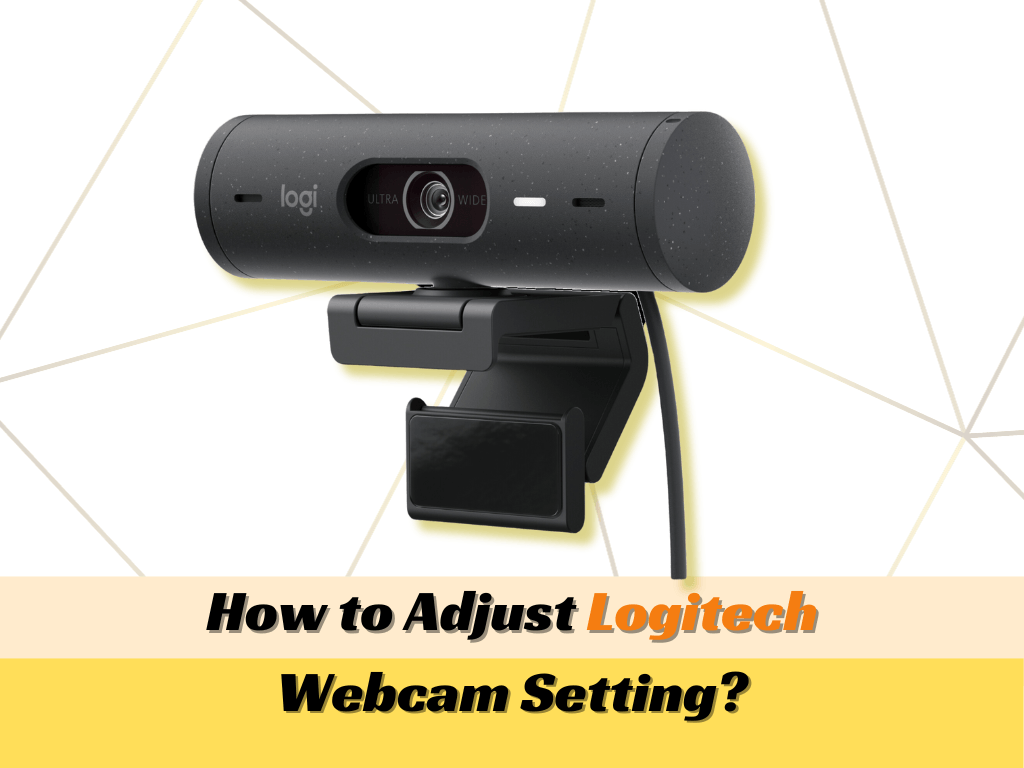
Logitech has many webcam models. The Logitech C920 is very popular. It offers high-quality video. The Logitech C270 is a good budget choice. It is great for video calls. The Logitech Brio is top of the line. It features 4K video resolution. For streaming, look at the Logitech StreamCam. It is designed for content creators. Each model has its unique features. Choose one that fits your needs.
Setting Up Your Logitech Webcam
Place your Logitech webcam on top of your computer screen. Make sure it is stable and won’t fall off. Adjust the angle so it faces you directly. This helps in getting a clear view. Plug the USB cable into your computer. Double-check the connection is secure. This step ensures your webcam is ready to use.
Visit the official Logitech website to download the software. Look for the Logitech Capture program. Install it by following the on-screen instructions. Open the software after installation. It helps in adjusting the webcam settings. Make sure to check for updates regularly. This keeps your software up-to-date and functioning well.
Accessing Webcam Settings
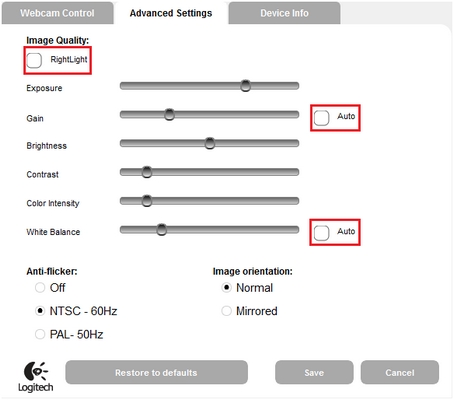
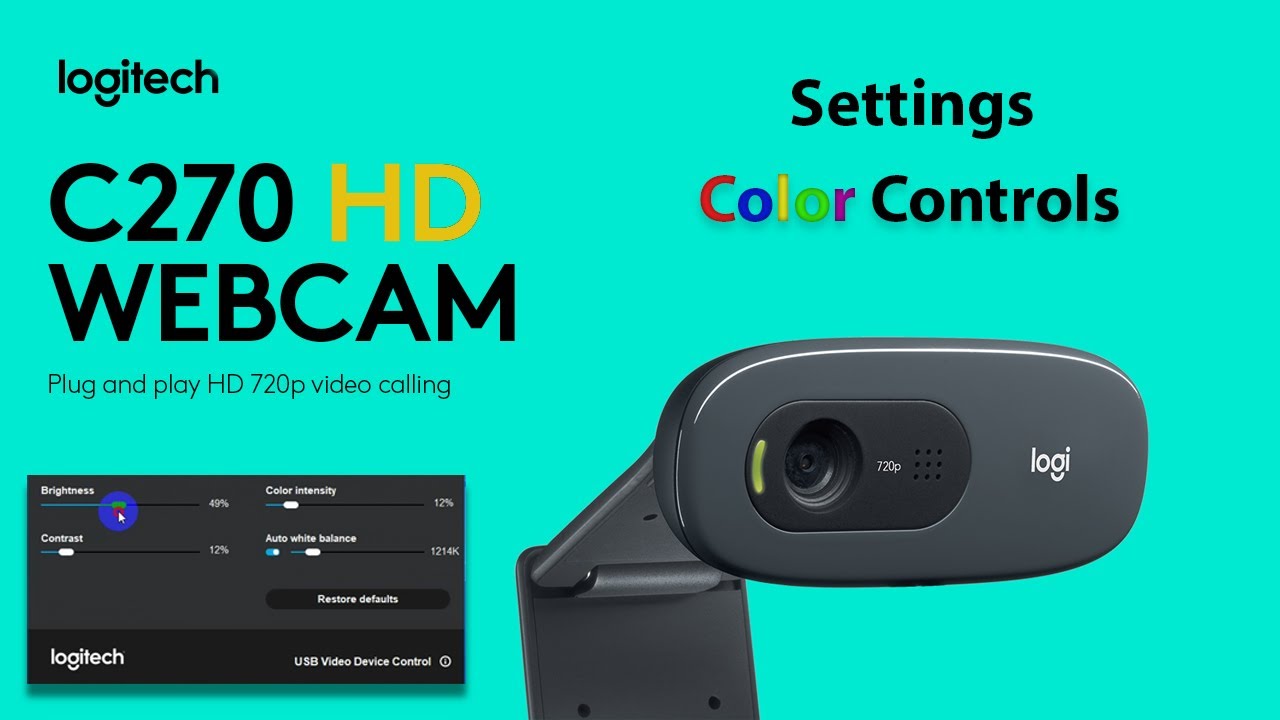
Logitech software helps control your webcam easily. Download the software from Logitech’s website. Install it on your computer. Once installed, open the software. Look for the settingsor optionstab. You can adjust brightness, contrast, and colorsettings. Move sliders to make changes. Test different settings to find what looks best. Save your adjustments. Your webcam is now ready to use.
Some applications let you change webcam settings. Open the app where you use the webcam. Look for video settings or preferences. Find the cameraoptions in the menu. Adjust settings like resolutionand frame rate. These settings help improve video quality. Each app may have different options. Check if you can save changes. Your webcam will perform better.
Adjusting Video Quality
To change the webcam resolution, open the Logitech software. Find the resolution settingsoption. Click on it. Choose a resolution that fits your needs. Higher resolutions show more detail. But they need more data. Lower resolutions use less data. They might look less sharp. Choose wisely.
Frame rate is how smooth your video looks. Open the settings menu. Look for frame rateoptions. Typical choices are 30 FPS and 60 FPS. More FPS gives smoother video. But it uses more data. Lower FPS saves data. It might not look as smooth. Pick what works best for you.
Enhancing Image Clarity
Adjusting brightnesscan make your webcam image clearer. Too much brightness can wash out the picture. Too little can make it too dark. Find a balance. Use the contrastsetting to bring out details. This makes the image sharper. Adjust both settings slowly. This helps you see changes better. A balance between brightness and contrast improves the image.
Colors can look strange on webcams. Color correctionhelps fix this. Change settings to match real-life colors. Reds should look red. Greens should look green. Adjust until colors look natural. This makes the webcam image pleasing. Always check the image after changes. See if colors look right. Make small changes for better results.
Managing Audio Settings
Set up your microphone for clear sound. Go to audio settings. Choose your Logitech microphone. Check if the volume is high enough. Test the sound. Make sure it is not too loud or too soft. Adjust the microphone gain if needed. Use headphones to hear your voice. This helps you make sure it sounds right.
Reduce noise for better sound quality. Use software to filter out background sounds. Turn on the noise reduction feature. This helps remove unwanted noise. Find a quiet place to record. This makes your voice clearer. Close windows and doors to block noise. Try using a pop filter. It helps reduce popping sounds. Keep your microphone away from noisy devices. This improves audio clarity.
Special Features And Effects
Background replacementlets you change what’s behind you. Choose a virtual scene or upload your own image. This helps keep your room private. It also makes video calls more fun. You can pretend to be somewhere else. It works best in good lighting. Remember, it might not be perfect every time.
Facial recognition optionsgive extra security. You can log in without typing passwords. The webcam scans your face. It checks if it’s really you. This makes access safer and quicker. Always ensure the webcam is set up right. Adjust the angle for better face scanning. It’s important to keep your webcam software updated. New updates fix bugs and improve features.
Troubleshooting Common Issues
Adjusting Logitech webcam settings can solve many common issues. Explore the Logitech software to tweak brightness, contrast, and focus. Correct settings improve video quality for clear and smooth communication.
Driver Problems
Logitech webcams need the right driversto work. Sometimes, the driver is old or missing. This can cause problems. Check the Logitech website for updates. Download and install them. If the driver isn’t installed, the webcam might not work. Always keep drivers up to date. This helps the webcam perform better.
Software Conflicts
Software conflicts can stop the webcam. Other programs might block it. Close unnecessary programs when using the webcam. Check if security softwareis blocking it. Some firewalls or antivirus programs might interfere. Adjust their settings if needed. Restart the computer to see if the problem is fixed. If conflicts continue, seek help from Logitech support.
Optimizing Webcam Performance
Regular updates keep your webcam working well. Download the latest software from the Logitech website. This fixes bugs and improves performance. New features might also be included. Set your system to update automatically. This ensures you always have the best version. Updating is quick and easy. It takes just a few minutes.
Keep your webcam clean for clear video. Use a soft, dry cloth. Gently wipe the lens. Do this often to remove dust. Don’t use water or cleaning sprays. These can damage the lens. Check the connection cables. Make sure they are not loose. Secure connections prevent disruptions. A tidy desk helps, too. Keep the area around your webcam clear. This avoids accidental knocks or falls.
Credit: www.hollyland.com
Credit: www.youtube.com
Frequently Asked Questions
How Can I Change Logitech Webcam Brightness?
To change brightness, open Logitech’s webcam software and navigate to the settings menu. Adjust the brightness slider until you achieve the desired effect. This adjustment helps improve video quality, especially in different lighting conditions. Ensure to save changes after adjusting to avoid reverting back.
How Do I Access Logitech Webcam Settings?
Access Logitech webcam settings via the Logitech Camera Settings app. Open the app and select your webcam model. You can then tweak various settings like brightness, contrast, and focus. This app is available for both Windows and Mac users, ensuring a smooth adjustment process.
Why Is My Logitech Webcam Blurry?
A blurry webcam might be due to autofocus issues. Open the settings app, disable autofocus, and manually adjust focus for clarity. Ensure your lens is clean and free from smudges. Regularly updating your webcam software can also prevent such issues and enhance overall performance.
Can I Adjust Webcam Contrast?
Yes, adjusting contrast is possible through the Logitech Camera Settings app. Open the app and locate the contrast slider. Adjust it to enhance image clarity and color depth. Proper contrast settings can significantly improve your video appearance during calls or recordings.
Conclusion
Adjusting your Logitech webcam settings is simple. Follow the steps closely. Explore settings for better video quality. Adjust brightness and contrast for clarity. Fine-tune focus for sharp images. Use advanced tools if needed. Check compatibility with your software. Regular updates improve performance.
Practice makes perfect. Try different settings to find your best fit. Webcam adjustments can enhance video calls. Now, you can enjoy clearer and more vibrant video experiences. Your webcam is now ready for your needs. Keep experimenting for the best results.

Callen Ridgeway is a senior writer at ElectroDoz, where he shares his expertise on the latest in drones, webcams, cameras, and a wide range of cutting-edge electronic devices. With a passion for exploring emerging tech and breaking it down into practical insights, Callen helps readers make smarter choices when it comes to gadgets and gear. When he’s not testing the newest electronics, he’s busy keeping up with the innovations shaping the future of consumer technology.