How to Zoom Out Logitech Webcam: Easy Guide
Have you ever opened your laptop for an online meeting and found your face zoomed in so close that even your eyebrows look huge on screen? It’s a common frustration, especially for Logitech webcam users. The good news? Learning how to zoom out Logitech webcam is much easier than you think.
Whether you’re using a Logitech Brio, C920, or another model, you can fix this problem in minutes. This guide will walk you through every method — using the Logitech Capture zoom setting, your computer’s system tools, and even third-party apps. You’ll also find helpful tips on how to adjust the webcam field of view for the best angle.
By the end, you’ll have a perfect, professional webcam setup that looks great in meetings, video calls, or streams.
Why Logitech Webcam Zoom Matters
Your webcam’s zoom controls affect how you appear to others. If the zoom is too close, your face fills the entire screen — it feels awkward and unnatural. If it’s too far, you appear tiny, and your background takes over the frame.
Finding the right zoom level helps you:
- Look more natural and confident on camera.
- Maintain proper proportions of your face and upper body.
- Reduce visual distractions from the background.
- Create a professional, comfortable impression during meetings.
I remember my first remote interview. My Logitech webcam zoom out setting wasn’t right — I looked like I was sitting inches from the screen. It only took one quick software adjustment to fix it. Ever since then, I’ve made sure to test my zoom settings before every call.
Now let’s dive into the step-by-step process to help you achieve the same results.

Credit: www.youtube.com
Step 1: Install or Open Logitech Camera Software
The easiest way to zoom Logitech camera software is through Logitech’s own apps. There are two main ones you can use:
- Logitech Capture (for many webcam models)
- Logitech Camera Settings App (for Logitech Brio and HD models)
These apps give you full control of zoom, brightness, focus, and field of view.
How to Install the Software
- Go to the official Logitech support website.
- Search for your webcam model (for example, Logitech C920 or Brio).
- Download the recommended software for your system.
- Run the installer and follow the simple steps on screen.
- Restart your computer when done.
Once installed, open the app and let’s get started.
Step 2: Open the Logitech Capture Zoom Setting
When you open the Logitech software, you’ll see your live webcam view. Now you can adjust the zoom easily.
To Zoom Out:
- Look for the Zoom or Camera Control section in the menu.
- You’ll see a slider or buttons marked “+” (zoom in) and “–” (zoom out).
- Click the – button or drag the slider left to zoom out slowly.
- Watch the preview window as you adjust — the frame should widen.
- Once you like the result, click Apply or Save Settings.
Your Logitech webcam widen view option should now show more of your background, giving you a balanced frame.
If your webcam still feels too close, keep reading — there are more methods to try.
Step 3: Adjust Webcam Field of View in Logitech Software
Higher-end models, like the Logitech Brio, have adjustable fields of view (FOV). This setting lets you decide how wide or narrow your camera’s view should be.
How to Adjust Webcam Field of View Logitech:
- In Logitech software, open Camera Settings.
- Find the Field of View (FOV) section.
- You’ll see choices like 65°, 78°, or 90°.
- Select 90° for the widest possible view.
- Save your changes.
This Logitech Brio zoom out guide trick works wonders for wide scenes, group calls, or when you want to show more of your workspace.
Tip: If you have a smaller room or want a focused portrait, try 78°. If you’re in a team setting, 90° gives everyone more space.
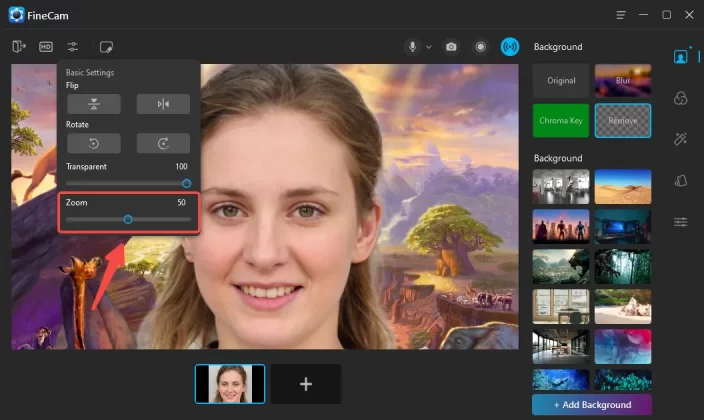
Step 4: Zoom Out Without Logitech Software
Sometimes, you may not have access to the Logitech apps — maybe you’re on a guest computer, or you don’t want to install anything new. No problem! You can still zoom out Logitech webcam using system settings or other programs.
On Windows 10 or 11:
- Open the Camera App from the Start Menu.
- Click the Settings (gear icon).
- Scroll down and look for Zoom or Preview Adjustments.
- Drag the slider to zoom out.
Alternatively, if you use video call apps like Zoom or Microsoft Teams:
- Open the app’s video settings.
- Choose your Logitech webcam.
- Look for a camera control or advanced section.
- Adjust the zoom slider or reset to default.
On Mac:
- Open FaceTime, Photo Booth, or your video conferencing app.
- Go to Preferences → Camera Settings (if available).
- Adjust the zoom to your liking.
Mac users can also use QuickTime Player:
- Go to File → New Movie Recording.
- Select your webcam.
- Use the on-screen controls to zoom out.
This method works for quick fixes, but Logitech’s own software always gives you more precision.
Credit: www.fineshare.com
Step 5: Use Third-Party Zoom Tools
If the official tools don’t meet your needs, several third-party applications can control your webcam’s zoom and field of view.
Popular Options:
- OBS Studio – Free, open-source, and perfect for streamers.
- Add your webcam as a video source.
- Right-click → Transform → Edit Transform.
- Adjust scale and crop to zoom in or out.
- ManyCam – Offers live video effects, zoom, and framing controls.
- Add your Logitech webcam.
- Adjust the zoom slider in real time.
- Webcam Settings (for Mac) – Gives precise control over zoom, focus, and exposure.
These tools are great if you want more creative control over your video feed. Many professionals use them for online teaching, streaming, and content creation.
Step 6: Make Physical Adjustments
Digital zoom isn’t your only option. Sometimes, a simple physical adjustment gives better results.
Here’s what you can do:
- Move your webcam farther back. Even 12 inches can make a big difference.
- Mount your webcam higher. A camera slightly above eye level looks more flattering.
- Use a tripod. It stabilizes your camera and lets you adjust angles freely.
- Avoid cluttered backgrounds. The more you zoom out, the more visible your surroundings become.
I’ve personally found that combining a slight physical move with a small digital zoom tweak gives the most natural result.
Step 7: Reset and Troubleshoot Zoom Problems
If your webcam refuses to zoom out or behaves oddly, here are simple fixes.
Reset Your Webcam Settings
- Open Logitech Capture or Logitech Camera Settings.
- Click on Restore Defaults or Reset Settings.
- Close and reopen the software.
This often clears up bugs that cause zoom errors.
Check for Software Updates
- Visit the Logitech support page.
- Download the latest driver or firmware for your webcam model.
- Install it, restart your PC, and recheck your zoom controls.
Clean the Lens
A dirty lens can make your video look blurry or distorted. Use a soft microfiber cloth and gently wipe the camera lens. Avoid alcohol or strong cleaners.
Test in Another App
If zoom settings don’t work in one app (like Zoom), test your webcam in another, such as OBS or Microsoft Teams. This helps identify whether the problem is app-specific.
Step 8: Optimize Lighting and Framing
When you zoom out, more of your room becomes visible. Good lighting and framing make all the difference.
Lighting Tips:
- Sit facing a light source — natural daylight works best.
- Avoid having light directly behind you. It causes dark shadows.
- Use a soft ring light or desk lamp if you work in low light.
Framing Tips:
- Keep your eyes about one-third from the top of the frame.
- Leave a little headroom above you.
- Keep your shoulders visible.
- Adjust your background to keep it neat and distraction-free.
This setup not only improves your webcam image but also boosts your confidence on screen.
Step 9: Advanced Tips for Logitech Brio Users
If you own a Logitech Brio, congratulations — it’s one of the best webcams around. It has a 4K sensor, adjustable FOV, HDR, and smooth zoom controls.
Here’s how to make the most of it:
Using Logitech Brio Zoom Out Guide:
- Open Logi Tune (or Camera Settings for Brio).
- Under “Field of View,” select 90° for the widest shot.
- Disable Auto Framing if you prefer a steady zoom level.
- Use the Zoom Out slider until the framing feels balanced.
- Save your preset — this ensures your settings stay the same for future calls.
Why the Brio Stands Out:
- It keeps image quality high even when zoomed out.
- It offers 5x digital zoom without heavy pixelation.
- It supports both Windows and macOS.
If you often switch between work and streaming, you can save different profiles — one for wide calls and another for tighter framing.
Step 10: Combine Adjustments for the Best Look
Here’s a secret most users overlook: perfect webcam framing isn’t about one setting. It’s about combining a few small tweaks that work together. Try this combo:
- Zoom out slightly using Logitech Capture zoom setting.
- Adjust the field of view (use 78° or 90°).
- Position your webcam just above your eyes.
- Add gentle lighting in front of you.
- Test your setup in your favorite meeting app.
You’ll immediately notice how much better your webcam looks. You’ll appear natural, confident, and professional — not awkwardly close or far away.
Troubleshooting Checklist
If your Logitech webcam still won’t zoom out, check this list:
✅ Is your webcam software up to date?
✅ Have you reset all camera settings?
✅ Is your app (Zoom, Teams, OBS) blocking camera control?
✅ Have you tried unplugging and reconnecting the webcam?
✅ Is the lens clean and clear?
If you’ve tried everything and it’s still stuck, reinstall Logitech Capture or Camera Settings software. This usually solves the problem.
Frequently Asked Questions
Q1. How do I zoom out my Logitech webcam quickly?
Open the Logitech Capture app, find the zoom control, and drag the slider to the left. You’ll instantly see a wider frame.
Q2. Can I zoom out my webcam without software?
Yes. Use your operating system’s built-in camera settings or video call app controls. You can also use OBS Studio for manual framing.
Q3. Why is my Logitech webcam zoomed in by default?
Your software may have saved a previous zoom level. Open the Logitech app, reset settings, and adjust the field of view.
Q4. How can I get the widest angle view?
Use the Logitech Brio zoom out guide method — set FOV to 90° for the widest angle.
Q5. Will zooming out reduce video quality?
Not if your webcam is high-resolution (1080p or 4K). Logitech webcams maintain great clarity even when zoomed out.
Final Thoughts
Learning how to zoom out Logitech webcam is simple once you know where to look. Whether you use the official Logitech software, your system tools, or a third-party app, the process only takes a few minutes.
By zooming out, you make your video frame look more natural. People can see your gestures, expressions, and background — all without distortion. You’ll appear more confident and professional in every call.
Here’s a quick recap:
- Install Logitech software for the best control.
- Use the Logitech Capture zoom setting or Logitech Brio zoom out guide for precise adjustments.
- Adjust your webcam field of view for wide or narrow framing.
- Optimize lighting and camera position for a clear, flattering shot.
- Save your setup so every video call starts perfectly.
Now that you know how to control your Logitech webcam zoom out settings like a pro, you’ll never have to worry about awkward close-ups again.
Next time you join a video call, your setup will look bright, balanced, and ready to impress.

Callen Ridgeway is a senior writer at ElectroDoz, where he shares his expertise on the latest in drones, webcams, cameras, and a wide range of cutting-edge electronic devices. With a passion for exploring emerging tech and breaking it down into practical insights, Callen helps readers make smarter choices when it comes to gadgets and gear. When he’s not testing the newest electronics, he’s busy keeping up with the innovations shaping the future of consumer technology.