
Can You Use A Roku TV As A Computer Monitor: Setup Guide
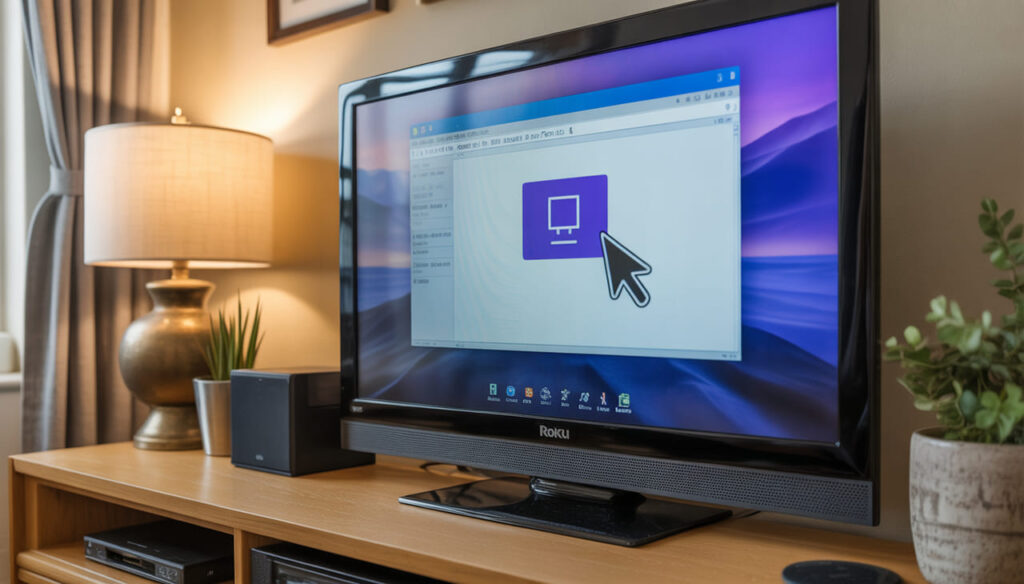
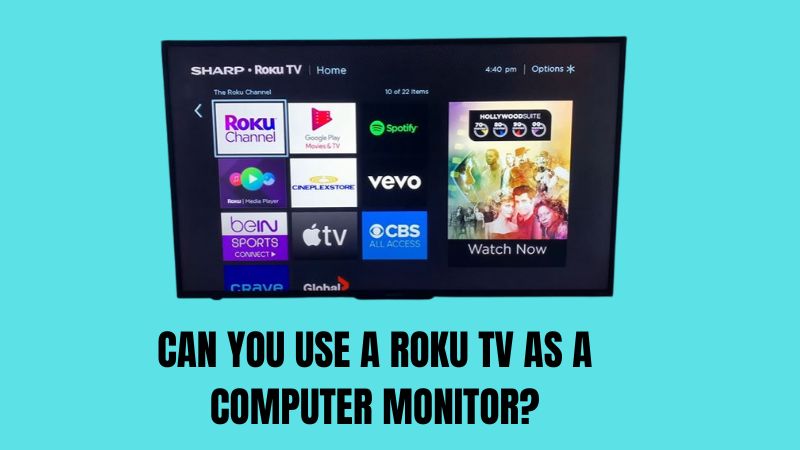
Yes. You can use a Roku TV as a computer monitor by connecting your Windows PC, Mac, Chromebook, or laptop to the TV with an HDMI cable. Most Roku TVs work well for web browsing, streaming, presentations, and casual gaming.
The main trade-offs are size, viewing distance, text sharpness, input lag, and refresh rate. A Roku TV can replace a monitor in many homes, but it may not match a dedicated computer monitor for close-up work, color accuracy, or high-refresh-rate gaming.
For the clearest result, connect the computer directly to an HDMI input, select the matching input on the Roku TV, and set the computer to the TV’s recommended resolution.
What You Need to Use a Roku TV as a Monitor
You need a Roku TV with an available video input and a computer with a compatible video output. In most cases, HDMI is the simplest option.
You may need:
- A computer with an HDMI port
- An HDMI cable
- A USB-C-to-HDMI adapter for some laptops
- A Mini DisplayPort-to-HDMI adapter for older Macs
- A USB-C dock if your laptop lacks HDMI
- A working HDMI input on the Roku TV
A Roku TV is a television that uses the Roku operating system. The Roku software provides streaming apps and menus, but the computer image comes from the TV’s HDMI input.
The TV does not need an internet connection to display a computer through HDMI. Internet access is only needed for Roku features, streaming apps, software updates, and some smart-TV functions.
Check your computer’s video port
Look at the sides or back of the computer. Common video outputs include:
| Computer port | What you may need |
|---|---|
| HDMI | Standard HDMI cable |
| USB-C with video output | USB-C-to-HDMI adapter or cable |
| Mini DisplayPort | Mini DisplayPort-to-HDMI adapter |
| DisplayPort | DisplayPort-to-HDMI cable or adapter |
| VGA | VGA-to-HDMI converter, often with separate audio |
USB-C does not always carry video. The port must support DisplayPort Alt Mode or another video-output feature. Check the computer’s manual or manufacturer specifications if you are unsure.
VGA is an older analog connection. It may work with an active converter, but the image quality is usually lower, and audio may require a separate cable.
How to Connect a Computer to a Roku TV
The basic setup takes only a few minutes.
1. Turn off or wake the computer
The computer can usually be on during setup, but turning it off first may help the TV detect the connection correctly.
2. Connect the HDMI cable
Plug one end of the HDMI cable into the computer. Plug the other end into an open HDMI port on the Roku TV.
Write down the port number. It may be labeled HDMI 1, HDMI 2, HDMI 3, or HDMI 4.
Do not plug the cable into an ARC or eARC port expecting a different picture. ARC and eARC are mainly designed to send audio from the TV to a soundbar or receiver. They still may include normal HDMI input functions, but the label does not improve computer display quality.
3. Select the correct input
Turn on the Roku TV and press the Home button on the Roku remote.
Then select the HDMI input connected to the computer. If the input does not appear on the Home screen, choose it from the input list or select Set up input when prompted.
4. Set the computer to use the TV
On Windows:
- Press Windows key + P.
- Choose Duplicate to show the same image on both screens.
- Choose Extend to use the TV as a second display.
- Choose Second screen only to use the Roku TV as the main display.
On macOS:
- Open System Settings.
- Select Displays.
- Choose whether to mirror the display or use the TV as an extended desktop.
- Select the resolution and refresh rate supported by the TV.
On a Chromebook:
- Open the clock area.
- Select Settings.
- Choose Device, then Displays.
- Select the Roku TV and choose mirror or extended display mode.
5. Choose the right resolution
Set the computer to the Roku TV’s native resolution when possible.
Common TV resolutions include:
- 1,920 × 1,080 for Full HD TVs
- 3,840 × 2,160 for 4K UHD TVs
A 4K Roku TV may accept a 4K signal, but the exact resolution and refresh rate depend on the TV model, HDMI port, cable, and computer.
6. Adjust the picture mode
Open the Roku TV’s picture settings while the HDMI input is active. Look for settings such as:
- Game mode
- Computer mode
- PC mode
- Picture size
- Overscan
- Sharpness
- HDR
The names differ by Roku TV brand. Roku licenses its operating system to several television makers, so a TCL Roku TV may have different picture menus from a Hisense, onn., or Sharp Roku TV.

How to Make a Roku TV Look Like a Good Monitor
The best settings depend on what you do with the computer. A setup for documents needs different settings from one used for games or movies.
Use the TV’s native resolution
Native resolution means the computer sends the same pixel grid that the TV panel uses. This usually produces sharper text and cleaner lines.
For example, a 4K TV generally looks best when the computer sends 3,840 × 2,160 pixels. Sending a lower resolution may make text look soft because the TV must scale the image.
If small text becomes hard to read at 4K, increase the computer’s display scaling instead of lowering the resolution. Windows and macOS can enlarge text and icons while keeping the sharper native signal.
Turn off overscan
Overscan cuts off the outer edges of the image. It was common with older broadcast content, but it is not useful for a computer desktop.
If the taskbar, menu bar, or window edges are missing, look for a picture-size setting such as:
- Direct
- Just Scan
- Screen Fit
- 1:1
- Full Pixel
- Dot by Dot
The exact label depends on the TV brand. Choose the option that displays the full computer desktop without cropping.
Enable Game mode for interactive use
Game mode reduces image processing. This can lower the delay between a mouse, keyboard, or controller action and the image shown on screen.
Use Game mode for:
- Computer games
- Video calls
- Fast scrolling
- Remote desktop work
- Interactive applications
Game mode may reduce or disable some picture-processing features. That is usually a fair trade for lower input lag.
Reduce artificial sharpness
High sharpness settings can add bright outlines around text. These outlines may make small letters look worse, not better.
Start with a low or neutral sharpness setting. Then adjust it while viewing black text on a white background.
Check HDR
HDR can improve supported video and games, but it can also make normal desktop content look too bright, dim, or washed out when the computer and TV handle it differently.
If the desktop looks wrong:
- Turn HDR off in Windows or macOS.
- Test the desktop again.
- Turn HDR on only when the computer, cable, software, and TV all support it properly.

Is a Roku TV Good for Working From Home?
A Roku TV can work well for basic office tasks when placed at a suitable distance. It is useful for email, spreadsheets, presentations, video calls, and viewing large documents.
The main issue is pixel density. A large 1080p TV may look less sharp than a smaller 1080p monitor. A 4K TV usually provides more desktop detail, especially when you sit close enough to see the extra pixels.
Consider these factors:
- Screen size: A 43-inch TV can be overwhelming at a normal desk distance.
- Viewing distance: A TV often works better several feet away than directly in front of your face.
- Text clarity: 4K usually helps with small text.
- Desk space: A TV needs more room and may require a wall mount.
- Eye comfort: Brightness, glare, and viewing distance matter more than brand.
- Ergonomics: The top of a large screen should not force you to tilt your head upward.
For close-up work, a smaller 4K Roku TV may be more practical than a large 1080p model. For a living-room workstation, a larger screen can make sense.
A Roku TV also lacks some monitor features, such as height adjustment, DisplayPort input, USB hub functions, and professional color controls.
Can You Use a Roku TV for Gaming?
Yes. A Roku TV can work as a gaming display for a PC, PlayStation, Xbox, or other HDMI device. The experience depends on the TV’s input lag, resolution, refresh rate, and support for features such as variable refresh rate.
For casual gaming, a standard 60 Hz Roku TV may be enough. Competitive PC gaming is more demanding. Many gaming monitors support refresh rates above 60 Hz, while Roku TV capabilities vary by model.
Before buying or using a Roku TV for gaming, check the exact model specifications for:
- Maximum HDMI resolution
- Maximum refresh rate
- HDMI 2.0 or HDMI 2.1 support
- Variable refresh rate
- Auto low-latency mode
- HDR support
- Input lag measurements, if independently tested
A TV advertised as 120 Hz may not accept a 120 Hz computer signal through every HDMI port. Some models use panel-processing terms that do not equal a native 120 Hz input.
Enable Game mode before judging responsiveness. Also check whether the computer is sending the intended refresh rate in Windows or macOS display settings.

Can You Use a Roku TV Wirelessly as a Monitor?
Sometimes. A Roku TV may support wireless screen mirroring or Apple AirPlay, depending on the model, software version, region, and device.
Wireless display methods can be convenient, but they usually have more delay than HDMI. The picture may also be compressed, and the connection can be affected by Wi-Fi traffic or distance from the router.
Wireless display is better suited to:
- Presentations
- Showing photos
- Browsing from across a room
- Watching videos
- Short-term use
HDMI is usually better for:
- Gaming
- Typing
- Video calls
- Detailed design work
- Long work sessions
- Low-latency control
Windows wireless display
Some Roku TVs can receive screen mirroring from compatible Windows devices. On Windows, press Windows key + K to view available wireless displays.
If the Roku TV does not appear, check whether wireless display or screen mirroring is enabled in the TV settings. Windows wireless display support also depends on the computer’s wireless hardware and drivers.
Mac wireless display
Compatible Roku TVs may support AirPlay. On a Mac, use the Control Center in the menu bar, select Screen Mirroring, and choose the Roku TV.
The Mac and Roku TV usually need to be on the same Wi-Fi network. AirPlay support is not present on every Roku TV, so check the exact model and Roku support information.

Roku TV as a Monitor: Advantages and Drawbacks
A Roku TV is most useful when its large screen and built-in streaming features matter more than monitor-specific features.
| Advantage | Practical benefit |
|---|---|
| Large screen | Useful for presentations, movies, games, and distant viewing |
| Built-in Roku platform | No separate streaming box is needed |
| HDMI input | Easy connection to most computers |
| Often affordable per inch | More screen area for the money |
| Remote control | Convenient for switching TV functions |
| Drawback | Practical effect |
|---|---|
| Lower pixel density on some models | Text may look soft at close range |
| Usually 60 Hz | Less smooth than high-refresh gaming monitors |
| Limited stand adjustment | More difficult to position ergonomically |
| Possible input lag | Mouse and game controls may feel delayed |
| Overscan or image processing | Desktop edges or text may look wrong |
| TV-focused color settings | Less control for professional image work |
The best choice depends on the task. A Roku TV is a sensible second display or living-room screen. A dedicated monitor is usually better for daily desk work, competitive gaming, programming, and color-sensitive design.

How to Fix Common Roku TV Computer Problems
Most connection problems come from the wrong input, an unsupported signal, a damaged cable, or an incorrect display setting.
The Roku TV says “No signal”
Try these checks in order:
- Confirm that the TV is on the correct HDMI input.
- Unplug and reconnect both ends of the HDMI cable.
- Try another HDMI port on the TV.
- Try another HDMI cable.
- Restart the computer.
- Restart the Roku TV.
- Test the computer with another display.
- Test the Roku TV with another HDMI device.
If another device works on the same HDMI port, the computer or cable is more likely to be the cause.
The image is blurry
Check that the computer is using the TV’s native resolution. Then disable overscan and reduce artificial sharpness.
On Windows, open Settings > System > Display and confirm the resolution. On macOS, open System Settings > Displays.
A blurry image can also result from using a low-quality adapter, an analog VGA converter, or a resolution that the TV must scale.
The desktop is cut off
Open the Roku TV’s picture-size controls and choose a setting that displays the full image. The setting may be called Direct, Just Scan, Screen Fit, or something similar.
Also check the computer’s display scaling and graphics-driver settings. Avoid changing several settings at once, since that makes the cause harder to identify.
There is no sound
Confirm that the computer is sending audio to the Roku TV.
On Windows, select the speaker icon and choose the TV or HDMI audio device. On macOS, open System Settings > Sound and choose the Roku TV or HDMI output.
If video works but audio does not, check the computer’s audio output before replacing the cable.
The screen flickers or goes black
Possible causes include:
- A loose HDMI connection
- A damaged cable
- An unsupported resolution
- An unsupported refresh rate
- An unreliable adapter
- A graphics-driver problem
- A cable that is too long for the signal
Lower the refresh rate or resolution temporarily. If the problem stops, the previous display setting may exceed what the TV, cable, or adapter can handle.
The mouse feels delayed
Turn on Game mode or PC mode. Disable unnecessary motion smoothing and other image-processing features.
Wireless screen mirroring can also cause delay. Use a direct HDMI connection for the lowest practical latency.

Common Mistakes to Avoid
Do not assume that every Roku TV has the same display features. Roku supplies the software platform, but the television manufacturer controls the panel, ports, speakers, processing, and many picture settings.
Avoid these mistakes:
- Using the wrong HDMI input
- Assuming USB-C always supports video
- Choosing a resolution the TV cannot accept
- Leaving overscan enabled
- Using wireless mirroring for competitive gaming
- Sitting too close to a very large screen
- Confusing a 120 Hz panel with 120 Hz computer input
- Using a VGA converter without checking audio
- Running HDR on a desktop that looks washed out
- Ignoring the exact TV model manual
Do not force an HDMI plug into a port. If the connectors do not fit normally, stop and check the cable or adapter. Use a properly rated power adapter for USB-C docks and active converters.
Should You Use a Roku TV or a Dedicated Monitor?
Use a Roku TV if you want a large, flexible display for streaming, casual gaming, presentations, or occasional computer use. It can also be a practical second screen in a living room or home office.
Choose a dedicated computer monitor if you need:
- Sharp text at close range
- High refresh rates
- Low and consistent input lag
- Height, tilt, and swivel adjustment
- DisplayPort connectivity
- USB hub features
- Accurate color controls
- A smaller screen for a normal desk
A useful rule is simple: a Roku TV is often better for distance and size, while a monitor is often better for close work and control.
Before using the TV as a permanent monitor, check its exact model manual for supported resolution, refresh rate, HDMI features, and computer compatibility.

Frequently Asked Questions
Can I use a Roku TV as a monitor without a cable?
Sometimes. Compatible Roku TVs may support wireless screen mirroring or AirPlay. Wireless use is convenient, but HDMI normally provides a steadier image and lower delay.
Can I connect a laptop to a Roku TV?
Yes. Connect the laptop to an HDMI input. If the laptop has only USB-C, use a USB-C-to-HDMI adapter or dock that supports video output.
Can I use a Roku TV as a second monitor?
Yes. Windows, macOS, and ChromeOS can mirror or extend the desktop to a connected Roku TV. Use the computer’s display settings to select the preferred mode.
Why does my Roku TV look blurry with my computer?
The computer may be using the wrong resolution, or the TV may be scaling or cropping the image. Select the TV’s native resolution, turn off overscan, and reduce sharpness if needed.
Does every Roku TV support 4K from a computer?
No. The TV must have a 4K panel, and the computer, cable, adapter, and HDMI port must support the desired 4K resolution and refresh rate. Check the exact model specifications.
Is a Roku TV good for gaming?
It can be good for casual gaming, especially with Game mode enabled. Competitive players may prefer a monitor or a TV with verified high-refresh-rate input, low input lag, and variable refresh rate.
Conclusion
You can use a Roku TV as a computer monitor through HDMI, and the setup is usually simple. Choose the correct input, set the computer to the TV’s native resolution, disable overscan, and use Game mode when responsiveness matters.
A Roku TV is a strong fit for large-screen viewing, streaming, presentations, and casual gaming. For daily desk work or competitive gaming, compare its resolution, refresh rate, input lag, and ergonomics with a dedicated monitor before making it your main display.

Everett Calloway is a consumer electronics writer and technology enthusiast at ElectroDoz. He enjoys exploring the latest gadgets, electronic devices, and innovative technologies that make everyday life easier. Everett focuses on creating helpful product reviews, detailed buying guides, practical how-to articles, and troubleshooting tips. His goal is to simplify complex technical information and help readers understand product features, compare their options, and make informed purchasing decisions. When he isn’t researching new electronics, he enjoys exploring emerging technology trends and discovering useful gadgets.