How to Use Webcam on Mac: A Step-by-Step Guide
Are you ready to unlock the full potential of your Mac? Imagine capturing precious moments, connecting with loved ones, or attending virtual meetings—all with just a click.
Your Mac’s webcam is a powerful tool, but using it effectively can sometimes be a bit tricky. Whether you’re a seasoned Apple user or new to the Mac world, mastering your webcam can elevate your tech experience. Dive into this guide and discover how simple it is to use your webcam on a Mac.
Enhance your skills, boost your confidence, and make the most out of your Mac’s capabilities. Let’s get started!
Setting Up Your Webcam
Check if your webcam works with your Mac. Look at the webcam box or manual. It should say compatible with Mac. If unsure, visit the webcam’s website. Check for drivers or software needed. Most new webcams work with Mac. Older ones might not.
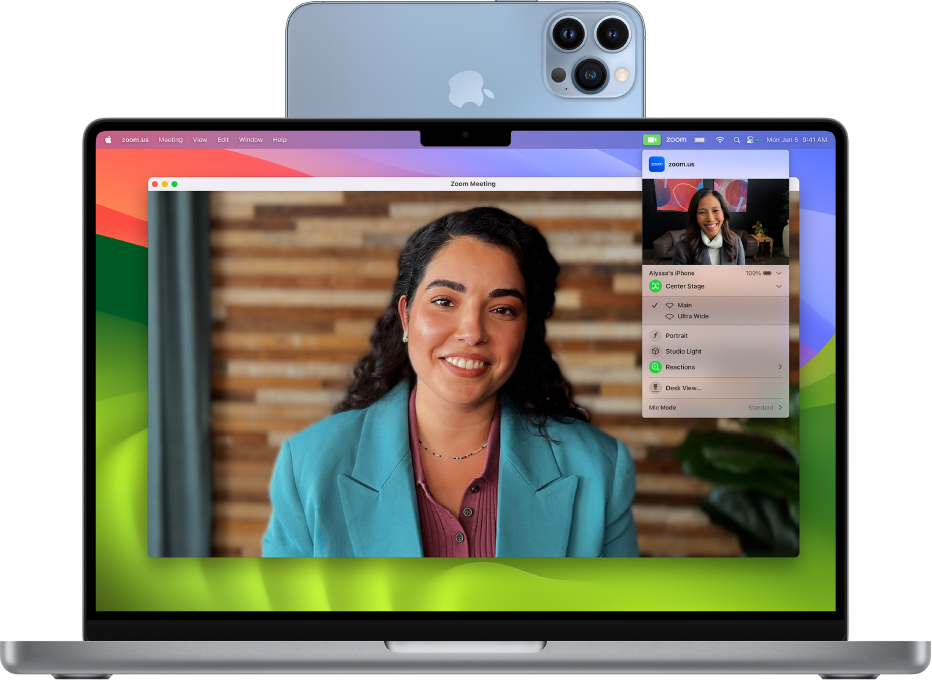
Some webcams need special software to work. Find the CD or visit the webcam’s website. Download the latest software. Follow the instructions to install. Connect the webcam to your Mac. Open an app like FaceTime to check if it works. If it doesn’t, check the settings. Make sure the webcam is selected as the camera.
Credit: gntos.org
Configuring Webcam Settings
Adjusting your Mac webcam settings enhances video quality. Access settings through your camera app for better control. Tweak brightness, contrast, and resolution for clearer images.
Adjusting Resolution
To make your webcam pictures clear, change the resolution. Go to your Mac’s settings. Find the camera options. Choose a resolution that fits your needs. Higher resolution means clearer images. But it might use more space. Lower resolution saves space. Pick what works best for you.
Managing Privacy Controls
Keeping your webcam safe is important. Go to the privacy settingson your Mac. You can choose which apps use your webcam. Only allow apps you trust. This keeps your camera safe from strangers. Always check the settings. Stay safe and enjoy using your webcam.
Using Webcam With Applications
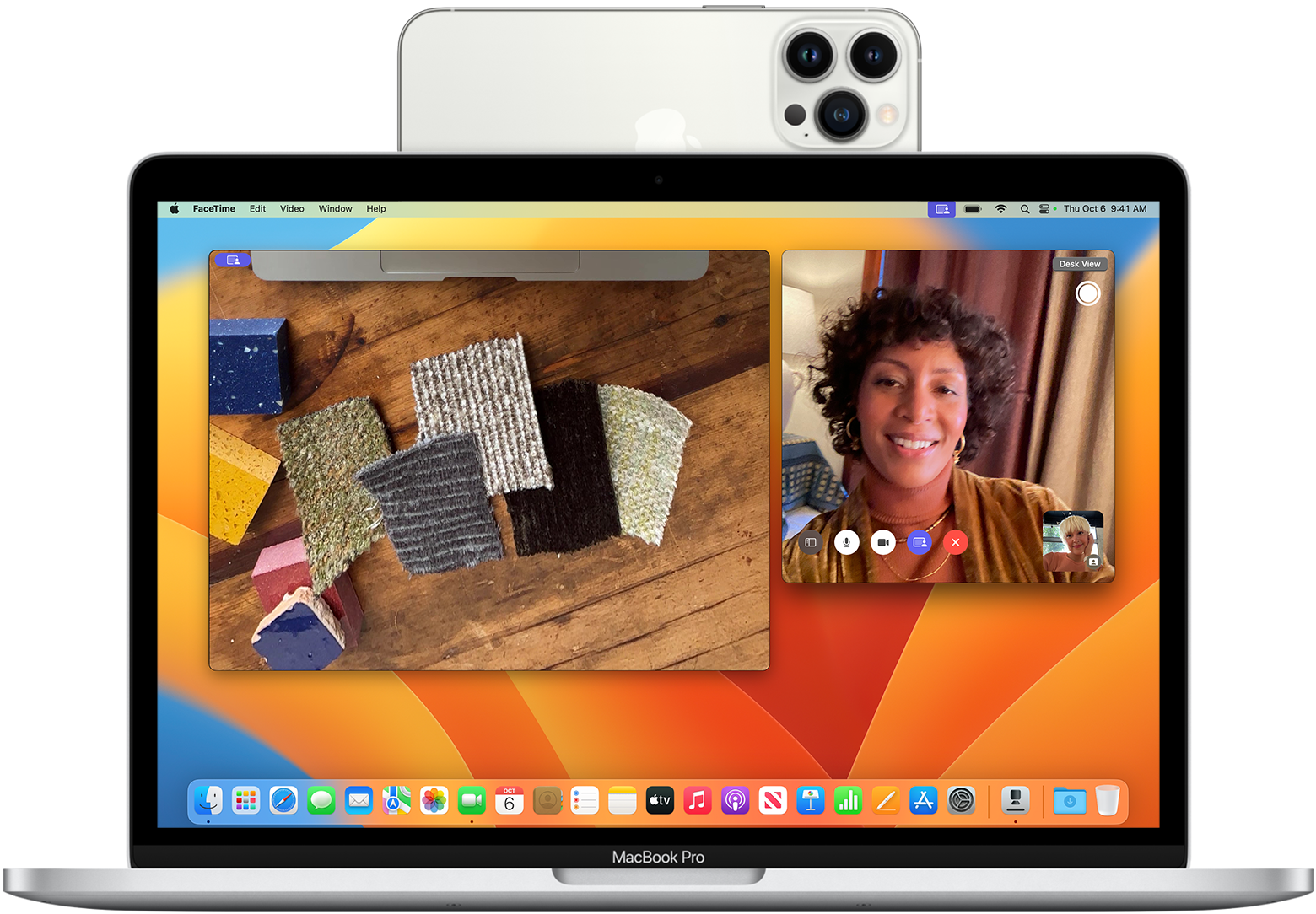
Many people use webcams for video calls. Video conferencing tools like Zoom and Skype help to connect. These tools work well on a Mac. Open the app and find the video settings. Make sure the webcam is on. Then, start your video call. It’s simple and easy. Friends and family will see you clearly.
Video Conferencing Tools
Webcams are great for video meetings. They help people see each other. Zoom is a popular tool. It is used by many. Skype is another good choice. Both work with Mac. You can download these apps from the internet. Open them and sign in. Check the camera settings. Make sure the webcam is working. Start your meeting and enjoy talking face to face.
Social Media Integration
Webcams can be used with social media. Platforms like Facebook and Instagram let you use webcams. Live streaming is fun and interactive. Start by opening the app. Find the live video option. Turn on the webcam and start streaming. Friends can see you live. It’s exciting to share moments in real time.
Credit: support.apple.com
Troubleshooting Common Issues
Many users face issues with webcam connection. First, check if your webcam is plugged in. Use a different USB port to test. Make sure no other apps are using the webcam. Restart your Mac if problems continue. This can solve many issues. Update your operating system too. Updates often include important fixes.
A clean webcam lens helps with better quality. Use a soft cloth to wipe it. Good lighting is also important. Try to sit near a window or use a lamp. Avoid direct sunlight. Shadows can make your video look dark. Adjust the settings in your video app. This can make your video look better. Try different options to find the best one.
Advanced Tips And Tricks
Good lightingmakes video look better. Try using a lamp. Place it in front of you. This helps your face look clear. Avoid bright lights behind you. They create shadows. Natural light is great. Sit near a window during the day. Adjust curtains to balance light. A ring light can help too. It gives soft, even light. Keep your webcam clean. Dust can block light.
External microphonesimprove sound quality. Built-in microphones can be weak. Plug in an external microphone for better sound. USB microphones are easy to connect. They work well with Mac. Position the microphone close to you. This helps pick up your voice clearly. Avoid placing it too close. This can cause loud sounds. Test sound levels before recording. Make sure your voice is clear.

Credit: riverside.com
Frequently Asked Questions
How Do I Access My Mac’s Webcam?
To access your Mac’s webcam, open an app like FaceTime or Photo Booth. These apps automatically activate the webcam. You can also check your webcam settings in System Preferences under Security & Privacy. Ensure that the apps have permission to use the camera.
Why Is My Mac Webcam Not Working?
If your Mac webcam isn’t working, check app permissions in System Preferences. Ensure the app has camera access. Restart your Mac and try again. If issues persist, update your macOS to the latest version. This can resolve software-related problems with the webcam.
How Can I Test My Mac Webcam?
To test your Mac webcam, use Photo Booth or FaceTime. Open either app to see if the camera activates. You should see a live image from the webcam. Alternatively, use online webcam testing tools by granting them temporary camera access.
How Do I Enable Webcam Permissions On Mac?
To enable webcam permissions, go to System Preferences and select Security & Privacy. Click the Privacy tab and choose Camera. Check the box next to the app you want to allow. Ensure the app is listed and has camera access enabled.
Conclusion
Using a webcam on a Mac is easy and straightforward. Follow the steps outlined above. You can capture videos, join online meetings, or chat with friends. Always check settings to ensure your camera works properly. Update software regularly for optimal performance.
Explore different apps for diverse experiences. Troubleshoot common issues with simple solutions. Enjoy clear video and sound quality. Remember, practice makes perfect. Keep experimenting with various settings. Soon, you’ll feel confident using your webcam. With practice, you’ll improve your skills.
Enjoy connecting with others through your Mac webcam. It’s a useful tool for everyday communication.

Callen Ridgeway is a senior writer at ElectroDoz, where he shares his expertise on the latest in drones, webcams, cameras, and a wide range of cutting-edge electronic devices. With a passion for exploring emerging tech and breaking it down into practical insights, Callen helps readers make smarter choices when it comes to gadgets and gear. When he’s not testing the newest electronics, he’s busy keeping up with the innovations shaping the future of consumer technology.