What Do I Need to Use Cannon Eos As Webcam?
Have you ever wondered how to elevate your video calls or live streaming sessions with a professional touch? If you own a Canon EOS camera, you’re in luck.
Transforming your Canon EOS into a high-quality webcam is easier than you might think. Imagine the impact of crystal-clear visuals and vibrant colors that only a DSLR can provide. Not only will your online presence look more professional, but it will also captivate your audience in ways a standard webcam can’t.
In this guide, we’ll walk you through everything you need to set up your Canon EOS as a webcam. By the end, you’ll be ready to impress with stunning video quality. Curious about how to get started? Keep reading to discover the simple steps and tools you need. Your upgraded video experience awaits!
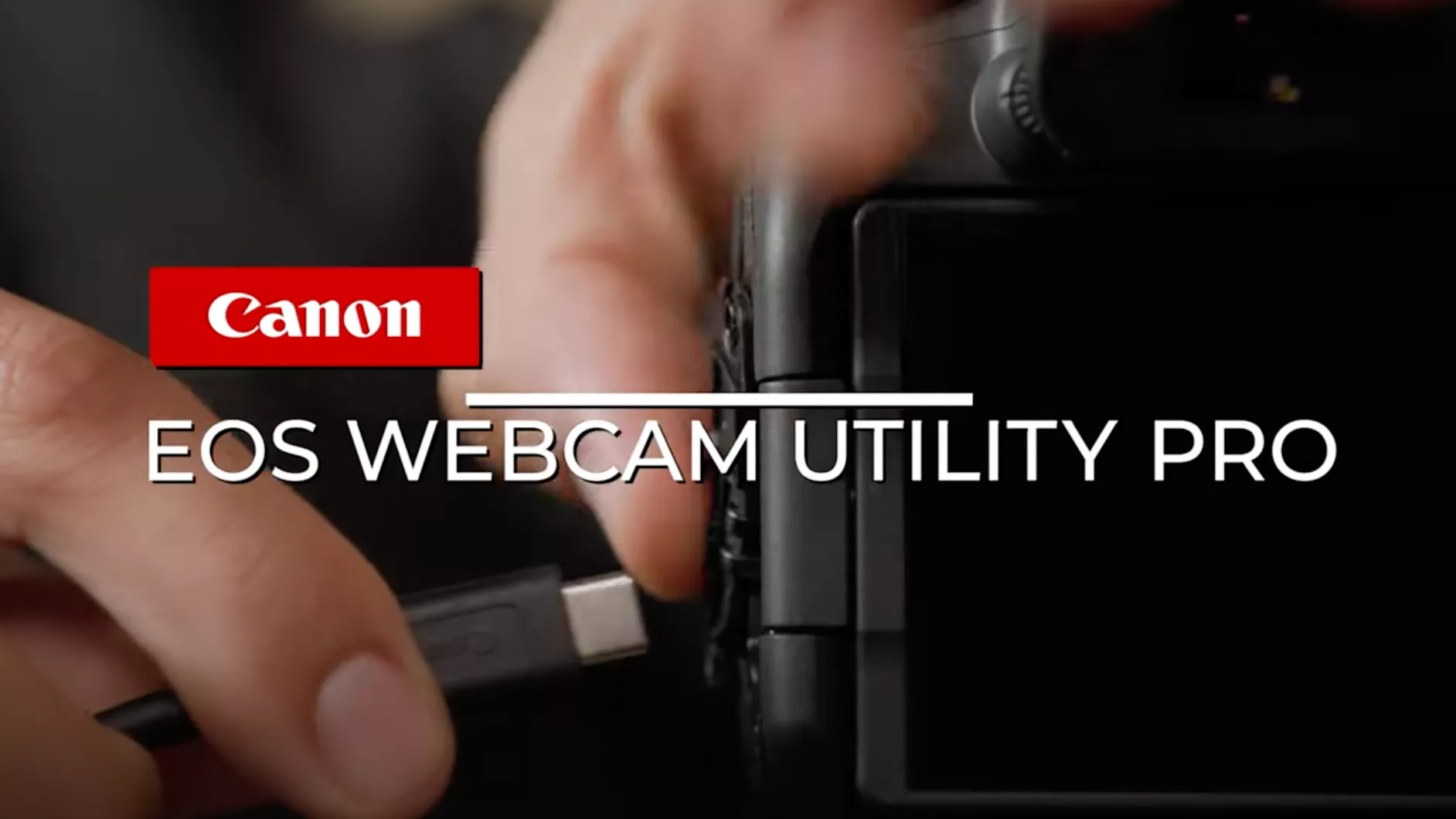
Credit: www.usa.canon.com
Setting Up Your Canon Eos
Choosing the right Canon EOS modelis very important. Not all models work as a webcam. Some cameras need special software. Others can use a simple USB cable. Check the camera box for details. Some popular models are Canon EOS R5 and EOS 90D. These models often work well.
Check the camera’s compatibilitywith your computer. Some older computers may not support all models. Make sure your computer’s operating system is up-to-date. This helps with smooth video calls. Try using a fast internet connection. This ensures clear video quality.
Required Software And Tools
To turn your Canon EOS into a webcam, you need the Canon Webcam Utility. This software is free and easy to install. It helps connect your camera to the computer. You can download it from Canon’s website. Make sure your camera model is compatible. Check the list on Canon’s site. Once downloaded, follow the instructions to install it.
There are other tools available too. SparkoCamis a popular option. It allows many features for Canon cameras. OBS Studiocan also be used. This is a free and open-source tool. These alternatives may offer different features. Each has its own strengths and weaknesses. Choose the one that fits your needs best.
Connecting Your Camera To Your Computer
To connect your Canon EOS camera, use a USB cable. This cable links your camera to the computer. Make sure the camera is powered on. Plug the USB cable into the camera. Connect the other end to the computer’s USB port. Your computer will start to detectthe camera. Follow any prompts on the screen. You may need to install driversfor some models. Check Canon’s website for the latest drivers. Once connected, your camera acts like a webcam. Ensure the camera is set to video mode for best results.
Some Canon EOS cameras offer wireless connectionoptions. This allows you to connect without cables. First, check if your camera has Wi-Fi capability. Enable the Wi-Fi feature on your camera. Look for your camera’s network on your computer. Connect to it like you would with any Wi-Fi network. You might need to enter a password. Once connected, open your video software. Set the camera as the video source. Wireless connections are convenientbut may be slower than wired.
Adjusting Camera Settings
Choose the right resolutionfor your camera. Higher resolution gives better image quality. For a clear picture, select 720p or 1080p. It helps your video look nice and sharp.
The frame rateis also important. A higher frame rate makes video smooth. Try using 30 frames per second (fps). This makes the movement in videos look natural.
Focusmakes sure your image is clear. Adjust it so that your face is not blurry. You can use automatic focus for ease.
Exposurecontrols the light in your video. If the video is too dark or bright, adjust the exposure. This helps to balance the light on your face. A well-lit video looks more professional.
Optimizing Audio And Video Quality
A good microphone is important. It makes your voice clear. USB microphones are easy to use. They plug into your computer. Lavalier microphones clip onto your shirt. They are small and handy. Condenser microphones capture clear sound. They are best for indoor use. Try to avoid using the built-in mic. It may not sound good.
Good lighting makes your video look nice. Natural light from a window is best. Ring lights are also helpful. They make your face bright. Softbox lights spread light evenly. Avoid bright overhead lights. They can make shadows. Use a desk lamp if needed. Point it at the wall for soft light.

Credit: www.youtube.com
Troubleshooting Common Issues
To use a Canon EOS as a webcam, install the EOS Webcam Utility software on your computer. Connect the camera via USB. Adjust settings in video conferencing applications to choose the Canon EOS as the video source, ensuring clear video quality.
Connection Problems
Connecting your Canon EOS as a webcam can be tricky. Check the USB cable. Make sure it’s working. Sometimes, the cable is broken or faulty. Try using another USB port. This might solve the problem. Restart the camera and computer. Often, this fixes connection issues. Ensure the camera is in Webcam mode. Not all modes work for webcam use. Update the camera firmware. This helps with connection problems too.
Software Glitches
Software glitches can stop the camera from working. Install the latest EOS Webcam Utility. Older versions might have bugs. Close other camera apps. They can cause conflicts. Check your computer’s software updates. Sometimes, outdated systems create issues. Reboot your computer and camera. This refreshes their software settings. Uninstall and reinstall the EOS Webcam Utility. This often removes software glitches.
Enhancing Your Webcam Experience
To make your Cannon EOS camera a great webcam, some accessories help. A tripodholds your camera steady. It stops shaking and makes your video clear. A USB cableconnects the camera to your computer. This cable lets the camera talk to the computer easily.
A microphonecan improve sound quality. It helps your voice sound clear and loud. Lighting is important too. A LED lightcan brighten up your face. This makes your video look better. These tools make your webcam setup look professional.
Simple editing makes your video look nice. Use software like OBS Studiofor editing. It can add effects to your video. You can crop your video to focus on your face. Adjust the brightnessand contrastfor clear images.
Try adding text overlaysto your video. This helps share important points. Use basic transitions between scenes. It makes your video smooth. Editing tools are easy to use. They help make your webcam video look great.

Credit: en.canon-cna.com
Frequently Asked Questions
How To Set Up Canon Eos As A Webcam?
To use Canon EOS as a webcam, install the EOS Webcam Utility. Connect your camera to the computer via USB. Select the EOS camera as the video source in your conferencing app. Ensure your camera’s battery is charged or use a dummy battery for continuous power during extended use.
Do I Need Special Software For Canon Eos?
Yes, you need the EOS Webcam Utility software. Download it from Canon’s official website. This software enables your Canon EOS camera to function as a webcam. Ensure your camera model is compatible with the utility. Follow Canon’s guidelines for installation and setup for optimal performance.
Which Canon Eos Models Are Compatible?
Many Canon EOS models are compatible with the EOS Webcam Utility. Check Canon’s official compatibility list for specific models. Popular models include EOS Rebel series and EOS M series. Compatibility varies, so verify your model before attempting setup. Update your camera firmware for best results.
Can I Use Canon Eos For Streaming?
Yes, Canon EOS cameras can be used for streaming. Utilize the EOS Webcam Utility to connect your camera. Select your camera as the video source in streaming software. Ensure stable power and internet connection for uninterrupted streaming. Adjust camera settings for optimal video quality during live sessions.
Conclusion
Using your Canon EOS as a webcam can be simple. Gather the right cables and software. Check your camera’s compatibility with webcam apps. Install software like EOS Webcam Utility. Connect the camera to your computer. Adjust settings for clear video.
Make sure the camera has power. Test the setup with video calls. Enjoy better video quality with your Canon EOS. A small setup effort brings great rewards. Now, your video calls will look fantastic. Impress friends and colleagues with crisp visuals.
Explore new possibilities with your Canon EOS.

Callen Ridgeway is a senior writer at ElectroDoz, where he shares his expertise on the latest in drones, webcams, cameras, and a wide range of cutting-edge electronic devices. With a passion for exploring emerging tech and breaking it down into practical insights, Callen helps readers make smarter choices when it comes to gadgets and gear. When he’s not testing the newest electronics, he’s busy keeping up with the innovations shaping the future of consumer technology.