Can A Whiteboard Be Used As A Projector Screen: Guide
Introduction
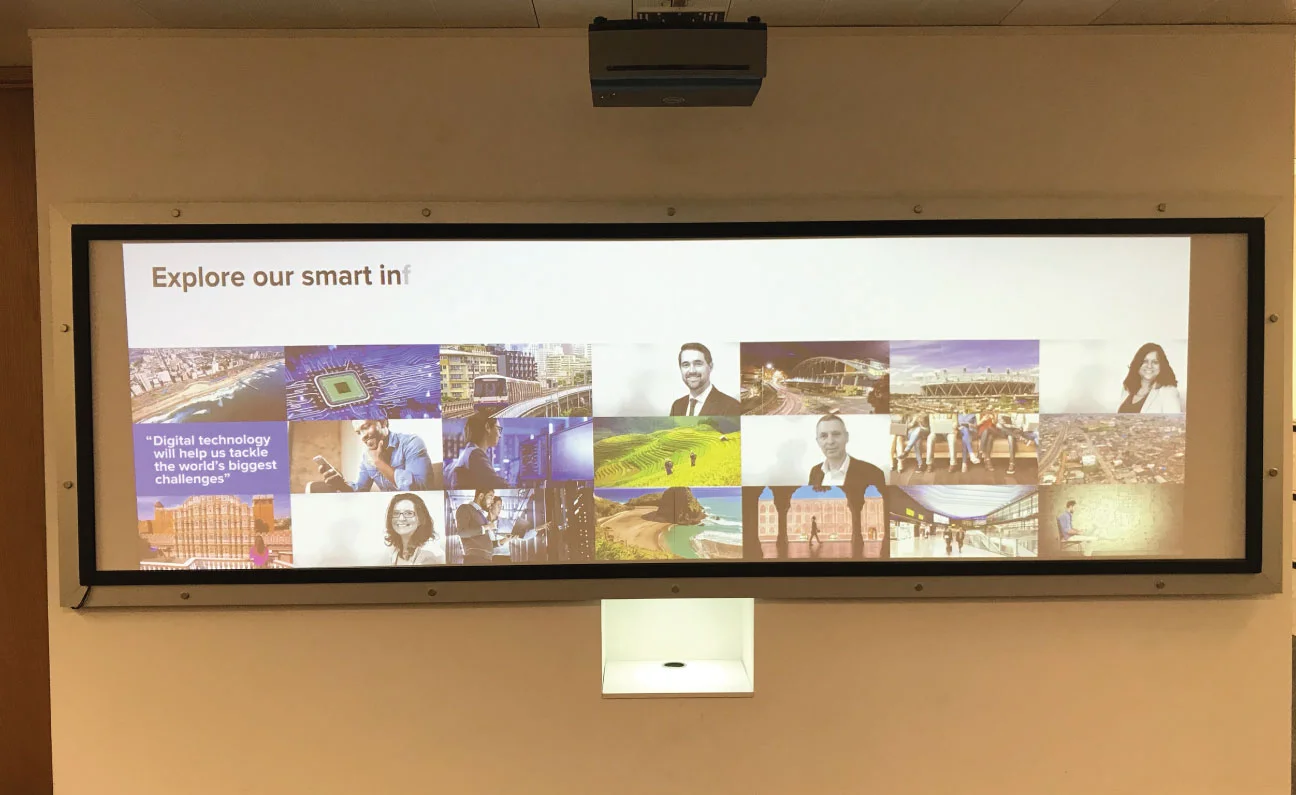
Yes, a whiteboard can be used as a projector screen in a U.S. classroom, office, home theater, or meeting room. However, a normal dry-erase board is not built to show video as clearly as a true projection screen.
A whiteboard may work well for slides, charts, and short lessons when the room is dim and the projector is bright enough. For movies, detailed spreadsheets, or large meetings, glare, hot spots, low contrast, and marker stains can make the picture hard to see.
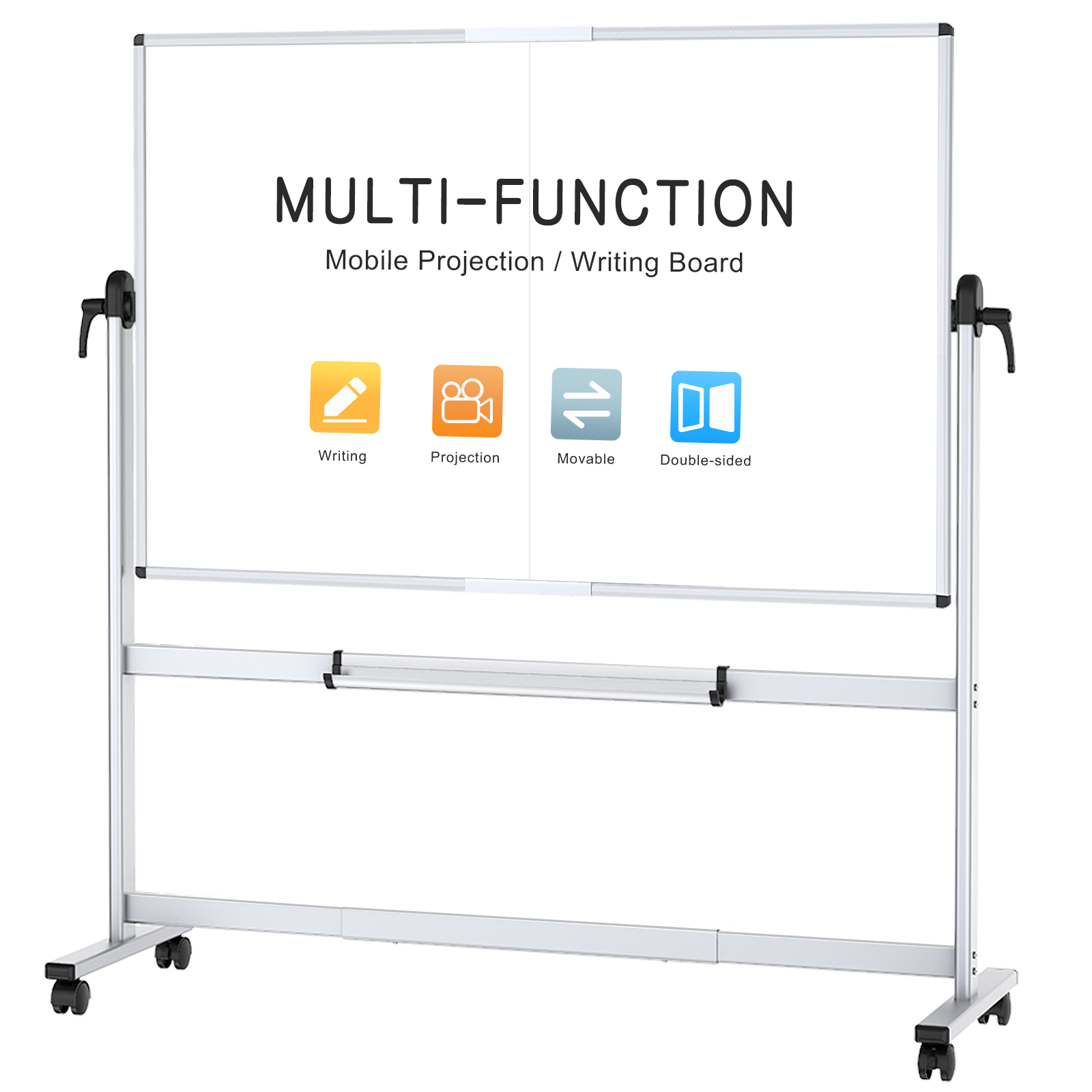
The best option is a projection whiteboard or a dual-purpose projector screen and whiteboard. These products use a special surface made for both projected images and dry-erase writing.
The Short Answer: Yes, But the Surface Matters
A projector can display an image on almost any light-colored, fairly smooth surface. That includes a painted wall, a sheet of paper, a whiteboard, or a projection screen.
The quality of that image depends on how the surface handles light. A projection screen is designed to reflect light toward viewers in a controlled way. A standard whiteboard is designed to let dry-erase markers glide over a smooth, easy-to-clean surface.
That difference affects the picture in four key ways:
- Brightness: The image may look bright in the center but darker at the edges.
- Glare: Room lights or windows may reflect into the viewer’s eyes.
- Hot spots: One part of the board may look much brighter than the rest.
- Contrast: Dark areas may look gray instead of black.
A whiteboard can be a practical short-term screen. It is usually not the best choice for a permanent home theater or high-detail presentation system.
Why Whiteboards Can Display a Projected Image
A whiteboard reflects projected light because its surface is light in color and relatively smooth. The projector sends light to the board, and the board reflects some of that light back toward the room.
The problem is that most whiteboards reflect light in a way that is not optimized for viewing from many angles. Some boards reflect light strongly in one direction. This creates glare and uneven brightness.
Many whiteboards also have a glossy finish. Gloss helps markers erase cleanly, but it can act like a mirror when a projector shines on it. The result may be a bright patch, reflected ceiling lights, or a washed-out image.
A matte projection surface spreads light more evenly. This is one reason a dedicated projector screen often looks better than a regular whiteboard, even when both are white.
Whiteboard types and expected results
| Surface type | Projector image | Marker use | Main limitation |
|---|---|---|---|
| Glossy melamine whiteboard | Fair to poor | Good | Strong glare and hot spots |
| Porcelain enamel whiteboard | Fair to good | Good | Results vary by finish |
| Matte whiteboard | Good | Good | Less common and may cost more |
| Projection whiteboard | Good to very good | Good | Higher purchase price |
| Glass whiteboard | Fair | Good | Reflections can be severe |
| Matte projection screen | Very good | No | Cannot normally replace a whiteboard |
These are general expectations, not a guarantee for every board. The projector, room lighting, viewing angle, and board condition also matter.
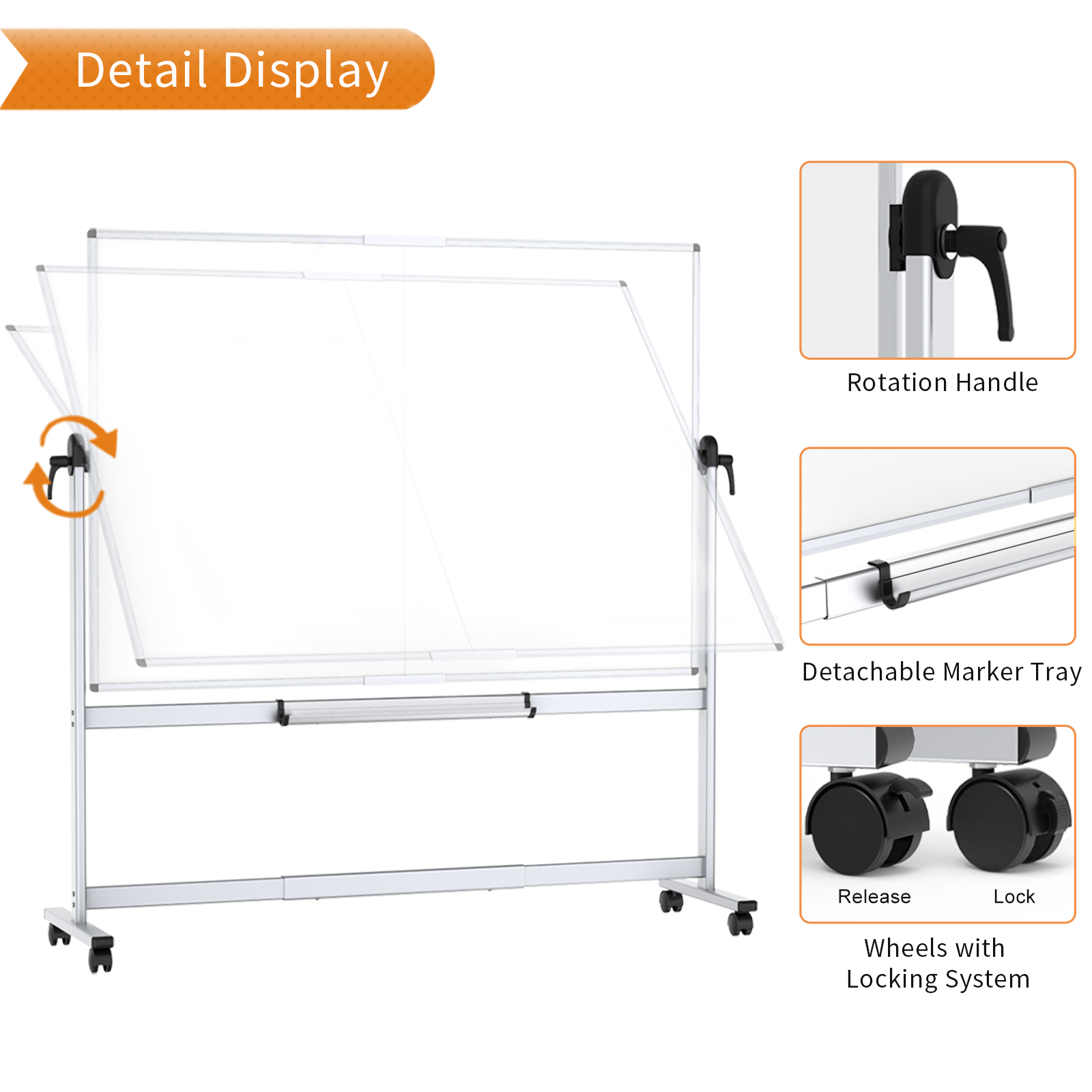
What Happens When You Project on a Regular Whiteboard?
A regular whiteboard can produce a usable picture, but several problems are common.
Glare and reflections
Glossy whiteboards reflect nearby light sources. Windows, overhead LED fixtures, and ceiling lights may appear as bright patches on the board.
This can make part of a slide unreadable. Moving the projector does not always solve the issue because the board itself may still reflect room light toward the audience.
Hot spots
A hot spot is a bright area near the center of the projected image. It occurs when the surface reflects more light toward the viewers in one area than another.
Hot spots are most noticeable with:
- White backgrounds
- Video scenes with large bright areas
- High-brightness projectors
- Short-throw projectors placed close to the board
- Glossy boards viewed from a narrow angle
Reduced black levels
Projectors do not create black light. They create black by sending little or no light to a part of the image. If room light reflects off the whiteboard, dark areas become lighter.
This makes text and images look less rich. The effect is worse in rooms with daylight or uncovered windows.
Marker residue
Old marker ink, cleaning spray, fingerprints, and small scratches can remain on the board. A projected image shows these marks clearly, especially when the image has a white background.
Before using a whiteboard as a screen, clean it with the board maker’s approved cleaner. Avoid abrasive pads and harsh chemicals unless the manufacturer allows them.
Uneven focus
A board that is not flat can cause parts of the image to look soft. This matters when displaying small text, code, spreadsheets, or engineering drawings.
How to Use a Whiteboard as a Projector Screen
You can improve the result with a careful setup. The goal is to reduce outside light, avoid direct reflections, and make the image fit the usable board area.
1. Check the board surface
Look at the whiteboard from the audience’s normal seating area. Check for:
- Glossy reflections
- Scratches
- Dents
- Marker stains
- Uneven panels
- Frames or trays that block the image
A clean, flat, light-colored board gives the best starting point.
2. Control room lighting
Turn off lights that shine directly on the board. Close blinds or curtains if daylight reaches the surface.
You do not need a completely dark room for a presentation. You do need to stop bright light from washing over the projected image.
A darker wall behind the audience does not solve the problem if a ceiling fixture reflects directly off the board. Check the board from the viewers’ seats before the presentation begins.
3. Position the projector
Place the projector so the image lands squarely on the board. If the projector points sharply across the surface, the image may be distorted or uneven.
Use physical placement before digital correction when possible. Digital keystone correction can make the image fit the board, but it may reduce usable resolution.
For a short-throw or ultra-short-throw projector, follow the projector maker’s distance and alignment instructions. These models can reduce shadows, but their steep projection angle may make surface glare more visible.
4. Set the image size
Keep the image inside the board’s usable writing area. Do not project over a thick frame or marker tray.
A smaller image may look brighter and sharper than a large image that fills the entire board. Test the smallest text in your slides from the farthest seat.
5. Adjust the projector
Use the projector’s picture controls to match the room. Useful settings may include:
- Brightness
- Contrast
- Color temperature
- Eco or normal lamp mode
- Focus
- Aspect ratio
Avoid raising brightness until white areas lose detail. A very bright setting cannot fix glare or daylight.
6. Test from the audience’s seats
Stand in several places in the room. Check whether text remains readable from the sides and back.
If the image looks good only from one chair, the board may have a narrow viewing angle. A dedicated screen with a suitable viewing pattern may perform better.

How Bright Should the Projector Be?
The required projector brightness depends on room light, image size, and audience distance. Brightness is usually listed in ANSI lumens, a standardized projector brightness measurement.
There is no single lumen number that makes every whiteboard work well. A bright projector can help overcome some ambient light, but it cannot remove glare. More brightness may even make a glossy hot spot more distracting.
As a rough planning guide:
| Room condition | Typical use | General approach |
|---|---|---|
| Dark room | Movies or detailed slides | Moderate brightness may work |
| Dim classroom | Lessons and presentations | Moderate to higher brightness |
| Bright office | Slides and charts | Higher brightness plus light control |
| Sunlit room | Large presentations | Use a proper screen and control daylight |
Treat these as setup guidance, not a product specification. Projector brightness ratings differ by model, and perceived brightness also changes with image size and screen surface.
For a more technical estimate, screen brightness is often discussed in foot-lamberts. The basic relationship is:
Screen brightness ≈ projector lumens × screen gain ÷ image area
This is only a planning formula. It does not fully account for color mode, lens loss, room light, or the way a whiteboard reflects light.
Whiteboard vs. Projector Screen
A whiteboard is better when writing is central to the activity. A projector screen is better when image quality and viewing comfort matter most.
| Feature | Standard whiteboard | Projection screen |
|---|---|---|
| Projected image | Usable but inconsistent | Usually more even |
| Dry-erase writing | Yes | Usually no |
| Glare control | Often limited | Designed for the viewing task |
| Video quality | Acceptable in good conditions | Usually better |
| Cleaning | Must remove marker residue | Usually needs less frequent cleaning |
| Installation | Often already present | May require new mounting |
| Best use | Teaching, notes, quick slides | Movies, presentations, detailed images |
A projection whiteboard sits between these two choices. It has a surface designed for projected images and dry-erase markers. It may be the best fit for a training room, classroom, conference room, or home office where users need both functions.
Do not assume every board described as “projector-friendly” performs like a cinema screen. Read the surface specifications, viewing-angle information, cleaning instructions, and projector compatibility notes.

Is a Whiteboard Good for an Interactive Projector?
A whiteboard may work with an interactive projector, but surface compatibility is more demanding.
Interactive projectors use a pen, finger, camera, infrared sensor, or another tracking method. The system must detect the writing position accurately. A glossy surface can create reflections that interfere with some tracking systems.
Before buying or installing an interactive projector, check:
- The projector’s required screen or board type
- Maximum image size
- Throw distance
- Calibration requirements
- Touch or pen tracking method
- Whether the frame must be perfectly flat
- Whether the manufacturer approves whiteboard use
A normal whiteboard may display the image but still fail as an interactive surface. The cursor may drift, touch points may be missed, or calibration may change when the board moves.
For an interactive classroom or meeting room, use the board or screen listed in the projector’s installation guide. That is safer than assuming any smooth white surface will work.
Common Problems and Fixes
The image is too shiny
Likely cause: Glossy board finish or direct room light.
Try this:
- Turn off lights aimed at the board.
- Close nearby blinds.
- Change the viewing angle.
- Reduce the image size.
- Test a matte or projection-grade board.
If the shiny patch remains after light control, the board surface is the main limitation.
The image looks gray or washed out
Likely cause: Daylight, ceiling lights, or low contrast.
Try this:
- Darken the room.
- Use a darker picture mode.
- Clean the board.
- Reduce the projection size.
- Move the projector farther from direct light.
- Use a screen designed for the room.
A brighter projector may help, but it is not a complete fix.
Text is blurry
Likely causes: Poor focus, uneven board, image distortion, or very small text.
Try this:
- Focus the projector at the center.
- Check the corners.
- Reduce keystone correction.
- Align the projector more squarely.
- Use larger fonts and stronger contrast.
For presentations, use simple fonts and avoid light gray text on white backgrounds.
The image does not fit the board
Likely cause: Incorrect aspect ratio or projector placement.
Try this:
- Select the correct aspect ratio.
- Move the projector rather than relying only on zoom.
- Use the projector’s image shift feature if available.
- Keep the image within the flat white surface.
Do not project over a frame simply to gain a few extra inches. The frame may create a visible border or block part of the picture.
Writing is hard to see over the projection
Likely cause: Low contrast between the marker and the projected image.
Try this:
- Use dark blue or black dry-erase markers.
- Write in open areas of the slide.
- Pause the projector image before writing.
- Use a split board or dual-purpose projection whiteboard.
- Avoid placing dense text and handwritten notes in the same space.
When Should You Buy a Projection Screen Instead?
Choose a dedicated projection screen when the image must remain clear across a large audience or when you plan to watch movies often.
A projection screen is usually the better choice for:
- Home theater use
- Large conference rooms
- Detailed charts and spreadsheets
- Video editing or design work
- Long viewing sessions
- Rooms with many side seats
- High-resolution projectors
A whiteboard remains useful when users need to switch between writing and projecting during the same session. If both tasks matter, compare the cost of a projection whiteboard with the cost of installing two separate surfaces.
The deciding trade-off is simple: a whiteboard gives you writing space, while a projection screen gives you more predictable image quality.
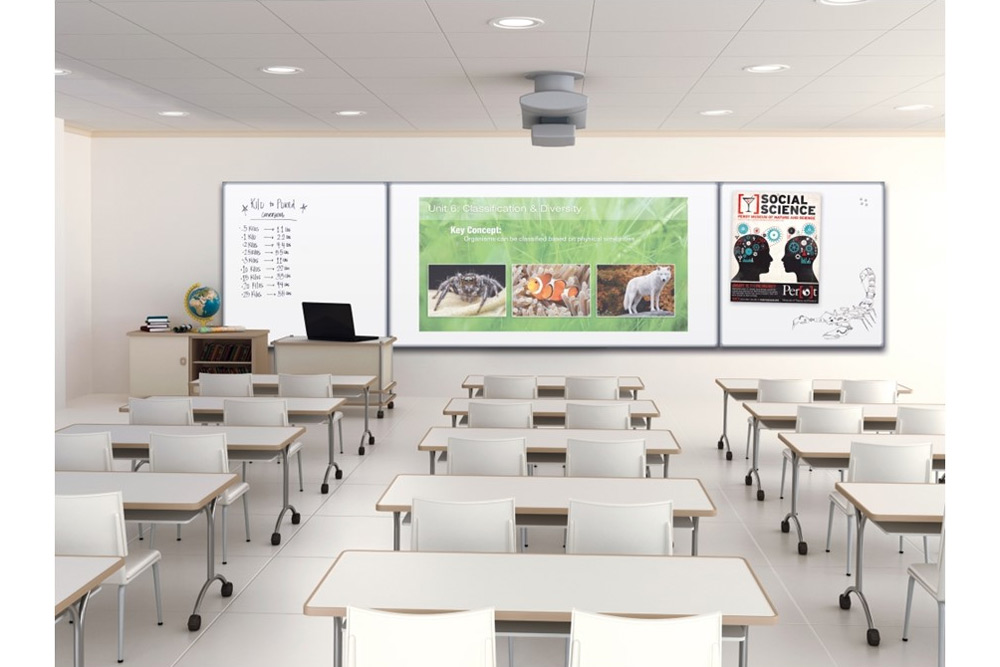
How to Choose a Projection-Friendly Whiteboard
Look for a product that clearly states it supports projection. Useful specifications include:
- Matte or low-glare surface
- Wide viewing angle
- Even light reflection
- Dry-erase compatibility
- Approved cleaning method
- Flat, rigid construction
- Suitable image size
- Compatibility with short-throw projectors
- Warranty coverage for the surface
Ask the manufacturer whether the board is intended for front projection. A board made for rear projection has a different construction and may not work as a normal wall-mounted surface.
Also check the board’s usable area. A frame, tray, or border may reduce the space available for the projected image. If you need a large image, measure the clear surface rather than using the board’s advertised outside dimensions.
Frequently Asked Questions
Can you use a whiteboard as a projector screen for movies?
Yes, but the result depends on the board and room. A glossy whiteboard may show glare, hot spots, and weak blacks. For regular movie viewing, a matte projection screen will usually provide a more even and comfortable picture.
Can you project on a glass whiteboard?
You can, but reflections are a common problem. Glass whiteboards may reflect the projector, ceiling fixtures, windows, or viewers. Test the exact board and projector combination before installing it permanently.
Will a projector damage a whiteboard?
Normal front projection should not damage a whiteboard. However, heat, poor ventilation, harsh cleaners, and abrasive tools can damage the board. Follow the care instructions for both the projector and the board.
Can you write on a projector screen?
Most standard projector screens are not made for dry-erase markers. Writing may stain or permanently damage the surface. Use a dual-purpose projection whiteboard if you need both projection and writing.
Is a matte whiteboard better for projection?
Usually, yes. A matte surface tends to reduce glare and hot spots. It may not be as common as a glossy board, so confirm that it still supports clean dry-erase writing before buying.
Conclusion
A whiteboard can be used as a projector screen, especially for short presentations, lessons, and meetings. The best results come from a clean, flat, low-glare surface in a room with controlled lighting.
A standard glossy whiteboard is a compromise. It may show glare, hot spots, and uneven brightness. If you need both projection and writing, choose a projection whiteboard. If image quality is the priority, use a dedicated projector screen.
Before committing to the setup, project a test image and check it from the front, side, and back of the room. If small text is clear and reflections are limited, the whiteboard may meet your needs. If not, changing the surface will usually help more than buying a brighter projector.

Everett Calloway is a consumer electronics writer and technology enthusiast at ElectroDoz. He enjoys exploring the latest gadgets, electronic devices, and innovative technologies that make everyday life easier. Everett focuses on creating helpful product reviews, detailed buying guides, practical how-to articles, and troubleshooting tips. His goal is to simplify complex technical information and help readers understand product features, compare their options, and make informed purchasing decisions. When he isn’t researching new electronics, he enjoys exploring emerging technology trends and discovering useful gadgets.