Can Two Computers Use The Same Monitor: Easy Setup Guide
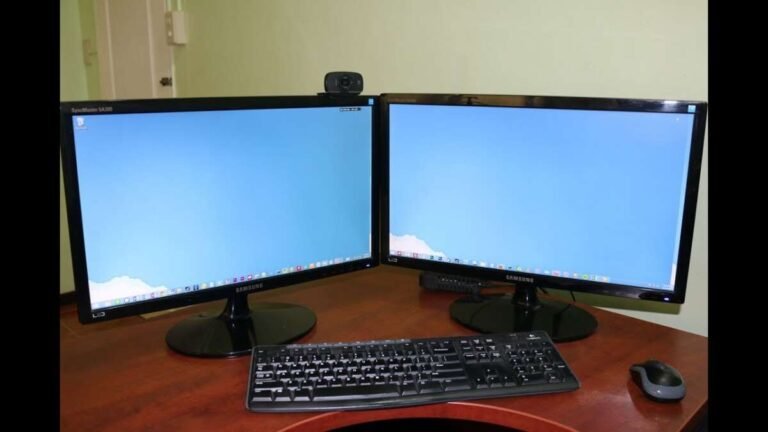
Yes. Two computers can use the same monitor, but most monitors show only one computer at a time. To switch between them, connect each computer to a different video input on the monitor, then select the input you want to use.
For example, a desktop PC could connect through DisplayPort while a laptop connects through HDMI. You can then switch between the two sources with the monitor’s buttons or remote control. If you want to use one keyboard and mouse with both computers, add a KVM switch or use a monitor with a built-in KVM feature.
This setup works well in U.S. homes, offices, classrooms, and gaming spaces where one screen needs to serve both a work computer and a personal computer.

Ways to Connect Two Computers to One Monitor
You have three main options:
- Use two video inputs on the monitor.
- Use an HDMI, DisplayPort, or USB-C switch.
- Use a KVM switch when you also want to share a keyboard and mouse.
The best method depends on your monitor ports, computer ports, resolution, refresh rate, and whether you need shared USB devices.
Option 1: Use the monitor’s built-in inputs
Many monitors have two or more video inputs. Common ports include:
- HDMI
- DisplayPort
- USB-C with DisplayPort Alt Mode
- DVI
- VGA on older equipment
Connect the first computer to one input and the second computer to another. Then use the monitor’s Input, Source, or Menu button to change computers.
For example:
| Computer | Monitor connection | Result |
|---|---|---|
| Desktop PC | DisplayPort | Uses the DisplayPort source |
| Laptop | HDMI | Uses the HDMI source |
| Work laptop | USB-C | May provide video and charging, if supported |
This is the simplest setup because it does not need an extra switch. However, you must change the monitor input by hand. The monitor also does not automatically share your keyboard and mouse.
Option 2: Use a video switch
A video switch lets you connect two computers to one monitor through a small control box. The switch sends one selected computer’s video signal to the display.
You may see switches labeled as:
- HDMI switch
- DisplayPort switch
- USB-C video switch
- Dual-computer monitor switch
A switch is useful when your monitor has only one suitable input. It can also make source selection easier if the switch includes a button or remote.
Check the switch’s supported specifications before buying. A switch may support 4K video but only at 60 Hz. It may support high refresh rates at 1080p but not at 4K. The computer, cable, switch, and monitor must all support the video mode you want.
Option 3: Use a KVM switch
“KVM” means keyboard, video, and mouse. A KVM switch shares one monitor, keyboard, and mouse between two or more computers.
A basic KVM setup usually works like this:
- The monitor connects to the KVM switch.
- Each computer connects to the KVM switch for video.
- Each computer also connects to the KVM switch through USB.
- The keyboard and mouse plug into the KVM switch.
- A button or keyboard shortcut changes the active computer.
A KVM switch is often the best choice for a desk with a work computer and a personal computer. It reduces cable swapping and keeps the desk more organized.
KVM switches vary widely. Some support HDMI, some support DisplayPort, and others use USB-C. Some also share webcams, storage drives, microphones, and printers. Those extra features can require more setup and may have speed or compatibility limits.

How to Connect Two Computers to One Monitor
Before you start, check the ports on all three devices:
- Computer 1
- Computer 2
- Monitor
You also need the correct video cables. Turn off the computers before connecting cables if the equipment manual recommends it. Most modern video connections support plugging in while powered on, but turning devices off can reduce the chance of selecting the wrong input or creating a handshake problem.
Method 1: Connect directly to two monitor inputs
Follow these steps:
- Connect the first computer to the monitor’s HDMI, DisplayPort, or USB-C input.
- Connect the second computer to a different compatible input.
- Turn on the monitor.
- Turn on both computers.
- Press the monitor’s Input or Source button.
- Select the input connected to the computer you want to use.
If the screen stays blank, wait several seconds. The computer and monitor may need time to detect and negotiate the video signal.
Method 2: Connect through a switch
Use these steps for an HDMI or DisplayPort switch:
- Connect the switch’s output to the monitor.
- Connect the first computer to input 1 on the switch.
- Connect the second computer to input 2.
- Connect power to the switch if it requires external power.
- Turn on the monitor and both computers.
- Press the switch button to choose the computer.
Use cables that match the switch. For example, a DisplayPort switch needs DisplayPort cables on the relevant connections. A passive adapter may not work in every direction.
Method 3: Connect through a KVM switch
For a KVM switch:
- Connect the monitor to the KVM’s video output.
- Connect the first computer to the KVM’s computer 1 ports.
- Connect the second computer to the KVM’s computer 2 ports.
- Connect the keyboard and mouse to the KVM’s USB ports.
- Connect the KVM’s USB cables to both computers.
- Connect the KVM’s power adapter if included.
- Use the KVM button or shortcut to switch computers.
Some KVM switches require a separate USB cable for each computer even when video already works. Without those USB connections, the keyboard and mouse may not switch.

Can Both Computers Display on the Monitor at the Same Time?
Usually, no. A standard monitor displays one video source at a time. Connecting two computers does not combine their screens into one image.
A few monitors can show two sources at once using:
- Picture-by-picture, or PBP
- Picture-in-picture, or PIP
- Split-screen display modes
With PBP, the monitor divides the screen into sections. Each section shows a different computer. With PIP, one computer appears in a smaller window over the main source.
The monitor must support these features. A normal HDMI monitor cannot create a two-computer split view simply because two cables are connected.
PBP may also reduce the available screen space. A 27-inch monitor split between two computers gives each computer only part of the display. Text can look smaller, and some monitors limit the refresh rate or resolution while using PBP.
If you need two full screens, use two monitors instead. If you need to control two computers from one screen, use a KVM switch or a monitor with PBP.

What Is the Best Setup for Your Needs?
The best setup depends on how often you switch and what devices you want to share.
| Your situation | Recommended setup |
|---|---|
| You switch occasionally | Connect both computers to separate monitor inputs |
| Your monitor has one input | Use an HDMI or DisplayPort switch |
| You want one keyboard and mouse | Use a KVM switch |
| You use a USB-C laptop | Use a monitor with USB-C video or a compatible USB-C KVM |
| You need both computers visible | Use PBP or two monitors |
| You need high refresh-rate gaming | Use direct connections or a switch rated for that refresh rate |
| You need a webcam, drive, and keyboard shared | Use a USB KVM with enough bandwidth |
Direct connections are usually the least complex. A KVM switch is more convenient, but it adds another device and another possible point of failure.
For gaming, check the full video path. The computer’s graphics card, cable, KVM or switch, and monitor must all support the desired resolution, refresh rate, HDR mode, and adaptive sync feature. If one part has a lower limit, the whole connection may fall back to that limit.

How to Share a Keyboard and Mouse
A monitor input switch changes video only. It does not normally move the keyboard and mouse between computers.
You have several ways to share input devices:
Use a KVM switch
A KVM switch is the most direct option. Press its button or use a keyboard shortcut to change the active computer.
Use a multi-device keyboard and mouse
Some wireless keyboards and mice can pair with more than one computer. You switch between devices with a button on the keyboard or mouse.
This approach does not switch the monitor. You still need to change the monitor input or use a video switch.
Use software-based sharing
Some software tools let one keyboard and mouse control computers on the same network. This can be convenient, but it depends on the operating systems, network connection, security settings, and software support.
Software sharing also does not replace a monitor switch. You still need a way to display each computer.
Can a Laptop and Desktop Use the Same Monitor?
Yes. A laptop and desktop can share one monitor if their video outputs match the monitor’s inputs or can be adapted correctly.
A common U.S. home-office setup uses:
- Desktop PC connected by DisplayPort
- Laptop connected by HDMI or USB-C
- Keyboard and mouse connected to a KVM or USB hub
- Monitor input changed manually or through a monitor control
USB-C requires special care. A USB-C port does not always support video. The laptop’s USB-C port must support DisplayPort Alt Mode, Thunderbolt, or another video-capable standard. A USB-C port used only for data and charging will not send a picture to the monitor.
A USB-C monitor may also provide power to a laptop. The amount of power depends on the monitor and laptop. If the laptop needs more power than the monitor can provide, the battery may still drain during heavy use.
Why Does the Monitor Say “No Signal”?
A “No Signal” message usually means the monitor is set to the wrong input, a cable is not connected correctly, or the computer is not sending video through that port.
Try these checks in order:
- Confirm that the computer is turned on.
- Select the correct monitor input.
- Unplug and reconnect both ends of the video cable.
- Try another cable.
- Test the computer with a different monitor or TV.
- Test the monitor with a different computer.
- Remove the switch or adapter and connect the computer directly.
- Restart the computer while the monitor is set to the correct input.
- Update the computer’s graphics driver if the problem affects only one computer.
Adapters can cause confusion. An HDMI-to-DisplayPort connection may need an active adapter, depending on the direction and the devices involved. A simple cable does not always convert one signal type into another.
If video works directly but fails through a switch, check the switch’s supported resolution, refresh rate, HDCP support, and power requirements.
Why Does the Screen Flicker or Show the Wrong Resolution?
Flicker often points to a cable, switch, adapter, refresh-rate, or signal-quality problem.
Start with the easiest checks:
- Use a shorter or better-quality cable.
- Lower the refresh rate temporarily.
- Turn off HDR to test the connection.
- Try a different monitor input.
- Remove adapters and switches for a direct test.
- Make sure the switch has its required power.
- Install current graphics drivers from the computer maker or graphics card maker.
A long cable run can weaken a high-bandwidth signal. This is more likely at high resolutions and high refresh rates. A connection may work at 1080p but fail at 4K, or work at 60 Hz but flicker at 144 Hz.
If the monitor works with one computer but not the other, compare the computer’s output settings. The second computer may be sending a resolution or refresh rate that the monitor or switch does not support.
Common Mistakes to Avoid
Assuming every USB-C port carries video
USB-C describes the connector shape, not every function it supports. Check the computer’s specifications for video output support.
Buying a switch based only on resolution
A switch advertised for 4K may support 4K only at a specific refresh rate. Look for the complete specification, such as 4K at 60 Hz or 1080p at 144 Hz.
Forgetting USB connections on a KVM
Video may work while the keyboard and mouse remain connected to the wrong computer. Connect the required USB cables from the KVM to both computers.
Expecting one cable to do everything
A USB-C cable may carry video, data, and power, but not all USB-C cables support the same features. Use a cable rated for the function you need.
Using the wrong monitor input
Some monitors have separate menus for input selection. Automatic input detection may not switch reliably when both computers remain on.
Ignoring audio routing
If the monitor has speakers or a headphone output, audio may follow the selected video source. If sound comes from the wrong device, check the computer’s sound-output settings.
Frequently Asked Questions
Can two computers share one monitor without a switch?
Yes. If the monitor has two compatible inputs, connect each computer directly and change the input from the monitor menu.
Can I use one keyboard and mouse for two computers?
Yes. Use a KVM switch, a multi-device keyboard and mouse, or software that shares input over a network. A regular monitor input button does not switch USB devices.
Do both computers need to be on?
Not always. You can turn off one computer and use the other. However, some monitors detect inputs more reliably when both computers are already on.
Can two computers share one ultrawide monitor?
Yes, if the ultrawide monitor supports two inputs or has PBP. Without PBP, it will normally show only one computer at a time.
Will a monitor charge both computers?
Usually, no. A monitor with USB-C power delivery may charge one connected laptop, but its power output is limited. It normally does not charge a second computer through another video input.
Is a KVM switch safe for a work and personal computer?
A basic KVM can switch connected devices, but workplaces may restrict KVM use for security reasons. If one computer handles private company data, ask your organization’s IT department before connecting it to shared peripherals.
Conclusion
Two computers can use the same monitor through separate monitor inputs, a video switch, or a KVM switch. Direct input switching is the simplest and least expensive method. A KVM switch is better when you want one keyboard and mouse to control both computers.
Before buying extra hardware, check the monitor’s ports and the required resolution, refresh rate, HDR, USB, and USB-C features. For most users, connect one computer by DisplayPort and the other by HDMI, then select the active source from the monitor menu.

Everett Calloway is a consumer electronics writer and technology enthusiast at ElectroDoz. He enjoys exploring the latest gadgets, electronic devices, and innovative technologies that make everyday life easier. Everett focuses on creating helpful product reviews, detailed buying guides, practical how-to articles, and troubleshooting tips. His goal is to simplify complex technical information and help readers understand product features, compare their options, and make informed purchasing decisions. When he isn’t researching new electronics, he enjoys exploring emerging technology trends and discovering useful gadgets.